1. Ifihan
The TOTU HDMI Switch (Model TT-HS001B) is designed to connect up to four HDMI source devices to a single display, such as a TV or monitor. This device allows for seamless switching between multiple HDMI inputs, supporting high-resolution video and audio formats. It is ideal for users with multiple HDMI-enabled devices and limited HDMI ports on their display.
2. Package Awọn akoonu
Jọwọ rii daju pe gbogbo awọn nkan ti a ṣe akojọ rẹ si isalẹ wa ninu package rẹ:
- 1 x TOTU HDMI Switch (Model TT-HS001B)
- 1 x IR Latọna jijin Adarí
- Ohun ti nmu badọgba Agbara 1 x 5V
- 1 x Itọsọna olumulo (iwe yii)

Image: The TOTU HDMI Switch package contents, showing the main switch unit, the remote control, the power adapter, and the user manual.
3. Ọja Ipariview
The TOTU HDMI Switch features a compact design with clearly labeled ports and controls for ease of use.

Image: The TOTU HDMI Switch unit, remote control, and power adapter. The switch unit displays its front panel with input indicators and control buttons, and its rear panel with HDMI input/output ports.
Awọn ẹya ara Panel Iwaju:
- Bọtini Yipada: Used to manually cycle through the HDMI input sources.
- Input Indicators (1, 2, 3, 4): LED lights indicating the currently active HDMI input.
- IR Remote Receiver: Receives signals from the included infrared remote control.
- Bọtini agbara: Tan ẹrọ naa si tan tabi pa.
- Atọka Agbara: LED light indicating the power status of the device.
Awọn ẹya ara Panel Panel:
- Ibudo Agbara DC 5V: Connects to the provided 5V power adapter.
- Ibudo Ifihan HDMI: Connects to your display (TV, monitor, projector).
- HDMI Input Ports (1, 2, 3, 4): Connects to your HDMI source devices (e.g., gaming consoles, Blu-ray players, streaming devices).
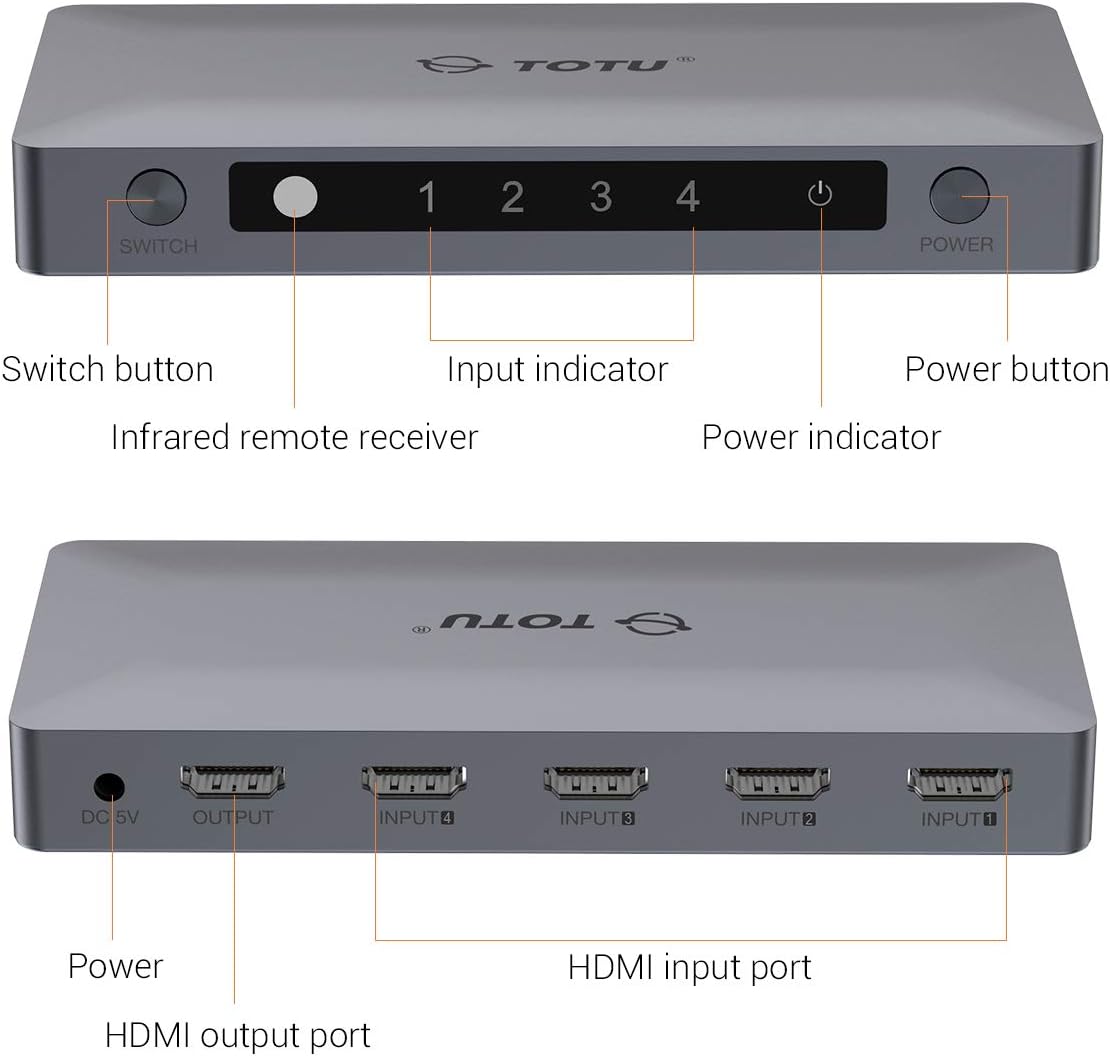
Image: A detailed diagram illustrating the front and rear panels of the TOTU HDMI Switch, with each button and port clearly labeled for identification.
4. Awọn ilana iṣeto
Follow these steps to set up your TOTU HDMI Switch:
- Connect HDMI Source Devices: Connect up to four HDMI source devices (e.g., PS4, Xbox, Blu-ray player, Apple TV) to the HDMI Input ports (INPUT 1-4) on the rear panel of the TOTU HDMI Switch using HDMI cables.
- Sopọ si Ifihan: Connect one end of an HDMI cable to the HDMI Output port on the rear panel of the TOTU HDMI Switch and the other end to an HDMI input port on your display (TV, monitor).
- So agbara: Plug the provided 5V power adapter into the DC 5V Power Port on the rear panel of the TOTU HDMI Switch, then plug the adapter into a power outlet. The power indicator LED on the front panel should illuminate.
- Agbara Lori Awọn ẹrọ: Power on your display and all connected HDMI source devices.

Image: A visual guide demonstrating how to connect various HDMI source devices (Laptop/PC, Apple TV Box, PS4/PS3, DVD Player) to the input ports of the TOTU HDMI Switch, which then connects to a single display via its output port.

Image: A comparison illustrating the convenience of using the HDMI switch to manage multiple devices connected to a single TV, eliminating the need for frequent manual cable changes.
5. Awọn ilana Iṣiṣẹ
The TOTU HDMI Switch offers multiple methods for switching between input sources:
Yipada afọwọṣe:
Tẹ awọn Bọtini Yipada on the front panel of the device to cycle through the connected HDMI input sources (Input 1, Input 2, Input 3, Input 4). The corresponding input indicator LED will light up to show the active source.
Yipada Iṣakoso Latọna jijin:
Use the included IR remote control to select your desired input source directly. Press the numbered buttons (1, 2, 3, 4) on the remote to switch to the corresponding HDMI input. The remote also includes 'V' and '^' buttons for cycling through inputs.

Image: A diagram illustrating the use of the IR remote control to switch between different displays or input sources connected to the HDMI switch, providing convenient control from a distance.
Yipada Aifọwọyi:
The switch supports automatic switching to the current active port when only one input device is active. If multiple devices are active, you will need to switch manually using the button on the device or the remote control.
6. Laasigbotitusita
If you encounter issues with your TOTU HDMI Switch, please refer to the following common solutions:
- Kò sí Àwòrán/Àmì:
- Rii daju pe gbogbo awọn kebulu HDMI ti sopọ ni aabo si awọn ẹrọ orisun mejeeji, iyipada, ati ifihan.
- Verify that the power adapter is correctly connected and the power indicator LED on the switch is on.
- Try connecting the HDMI source device directly to the display to confirm the source device and cable are functioning correctly.
- Cycle through the input sources on the switch manually or with the remote to ensure the correct input is selected.
- Tun gbogbo awọn ẹrọ ti a ti sopọ (orisun, yipada, ifihan).
- Poor Picture Quality/Flickering:
- Ensure you are using high-quality HDMI 2.0 cables, especially for 4K 60Hz content.
- Check if the resolution and refresh rate settings on your source device are compatible with your display and the HDMI switch.
- Gbiyanju okun HDMI ti o yatọ.
- Iṣakoso latọna jijin Ko Ṣiṣẹ:
- Ensure there are no obstructions between the remote control and the IR remote receiver on the switch.
- Ṣàyẹ̀wò kí o sì fi batiri náà rọ́pò rẹ̀ nínú ìṣàkóso latọna jijin tí ó bá pọndandan.
- Rii daju pe o wa laarin iwọn to munadoko ti iṣakoso latọna jijin.
7. Awọn pato
| Ẹya ara ẹrọ | Sipesifikesonu |
|---|---|
| Awoṣe ọja | TT-HS001B |
| HDMI Ẹya | HDMI 2.0 (backward compatible with V1.4, V1.3, V1.2, V1.0) |
| Ipinnu Max | 4K@60Hz (3840 x 2160) |
| Ijinle Awọ | Up to 36-bit Jin Awọ |
| Atilẹyin HDCP | HDCP 2.2 Pass-Through |
| Atilẹyin 3D | Bẹẹni |
| HDMI Channel Bandwidth | Titi di 18 Gbps |
| Awọn ibudo igbewọle | 4 x HDMI |
| Awọn ibudo ti njade | 1 x HDMI |
| Ọna Iṣakoso | Manual Button, IR Remote Control, Auto-Switching |
| Ibi ti ina elekitiriki ti nwa | DC 5V |
| Ọja Mefa | 5.91 x 2.76 x 0.79 inches |
| Iwọn Nkan | 4.6 iwon |
| Àwọ̀ | Fadaka |

Image: A television screen displaying high-resolution 4K 60Hz content, connected to a laptop through the TOTU HDMI Switch, demonstrating its capability to support advanced video formats.

Image: A television screen showing 3D content, indicating the HDMI switch's compatibility with 3D viewing experiences. Note: All connected units must support 3D for this feature to function.
8. Itọju
To ensure optimal performance and longevity of your TOTU HDMI Switch, follow these maintenance guidelines:
- Keep the device in a cool, dry place away from direct sunlight, heat sources, and moisture.
- Yago fun gbigbe awọn nkan ti o wuwo si oke ti yipada.
- Nu ẹrọ naa pẹlu asọ ti o gbẹ. Maṣe lo awọn olutọpa olomi tabi awọn aerosols.
- Rii daju pe fentilesonu to dara ni ayika ẹrọ lati ṣe idiwọ igbona.
9. Atilẹyin ọja ati Support
TOTU provides efficient customer service. If you have any questions or require assistance with your product, please contact us. We aim to provide the fastest and most efficient service within 24 hours.
For support, please refer to the contact information provided with your product or visit the official TOTU webojula.


