Ọrọ Iṣaaju
The Logitech K400 Plus Wireless Touch Keyboard is designed for comfortable control of your entertainment from a distance. Featuring a full-size keyboard layout and a large, integrated touchpad, it offers seamless navigation for your PC-connected TV, media center, or other compatible devices. This manual provides essential information for setting up, operating, and maintaining your keyboard.
Ṣeto
1. Fifi sori batiri
The Logitech K400 Plus requires two AAA batteries (included). To install them:
- Wa ideri kompaktimenti batiri ni apa isalẹ ti keyboard.
- Gbe ideri naa ṣii.
- Fi awọn batiri AAA meji sii, ni idaniloju polarity ti o pe (+/-).
- Pa ideri batiri naa ni aabo.
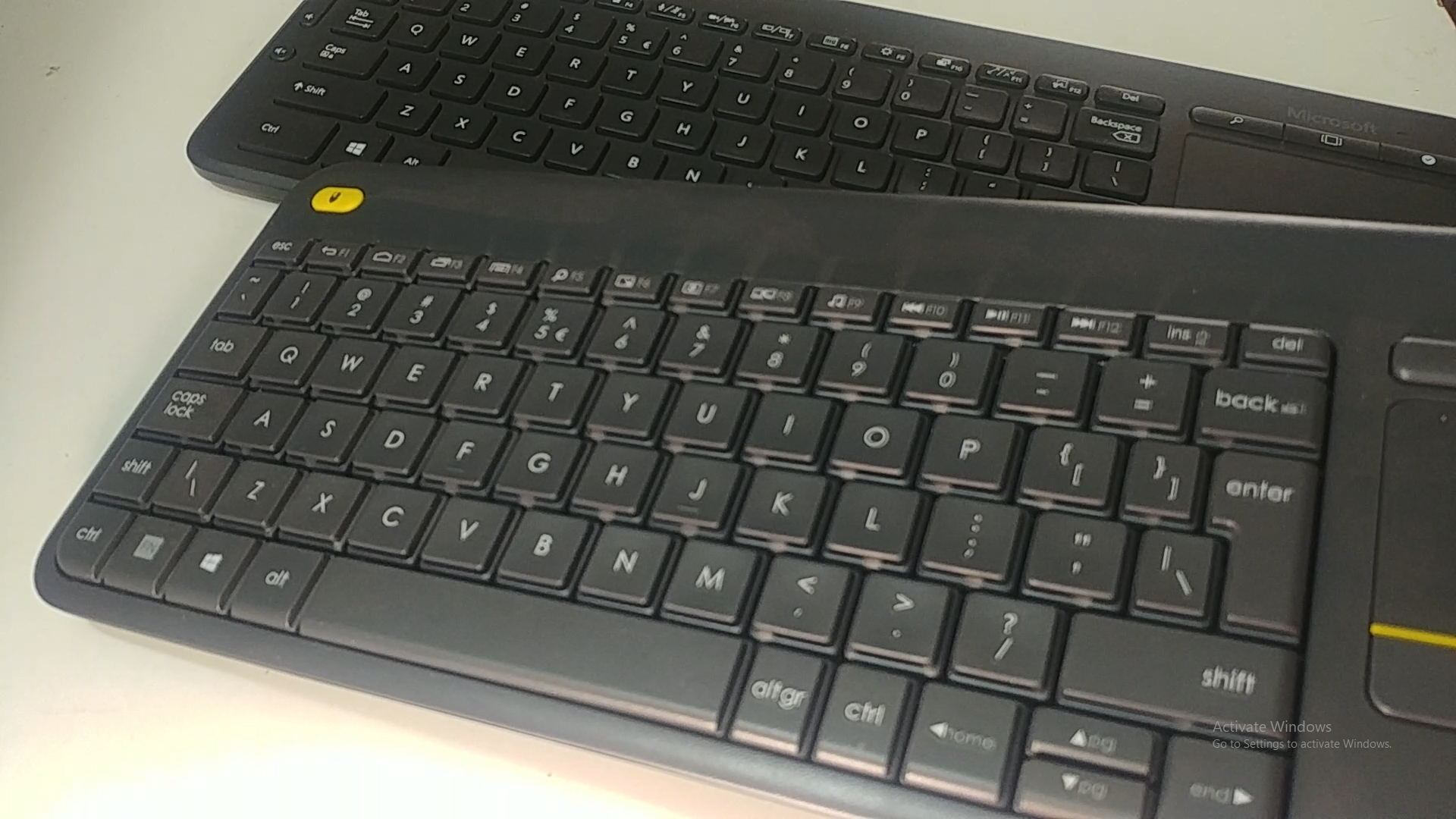
Image: Underside of the Logitech K400 Plus keyboard with the battery compartment open, showing two AAA batteries.
2. Connecting the Keyboard (USB Unifying Receiver)
The K400 Plus connects wirelessly via a small USB Unifying receiver. This receiver is typically stored inside the battery compartment for safekeeping.
- Open the battery compartment cover and remove the USB Unifying receiver.
- Plug the USB Unifying receiver into an available USB port on your PC, smart TV, or other compatible device.
- Turn on the keyboard using the On/Off switch located on the top right edge of the keyboard. A green indicator light will appear.
- Your keyboard should automatically connect. If not, refer to the troubleshooting section or visit the Logitech support website for the Unifying software.

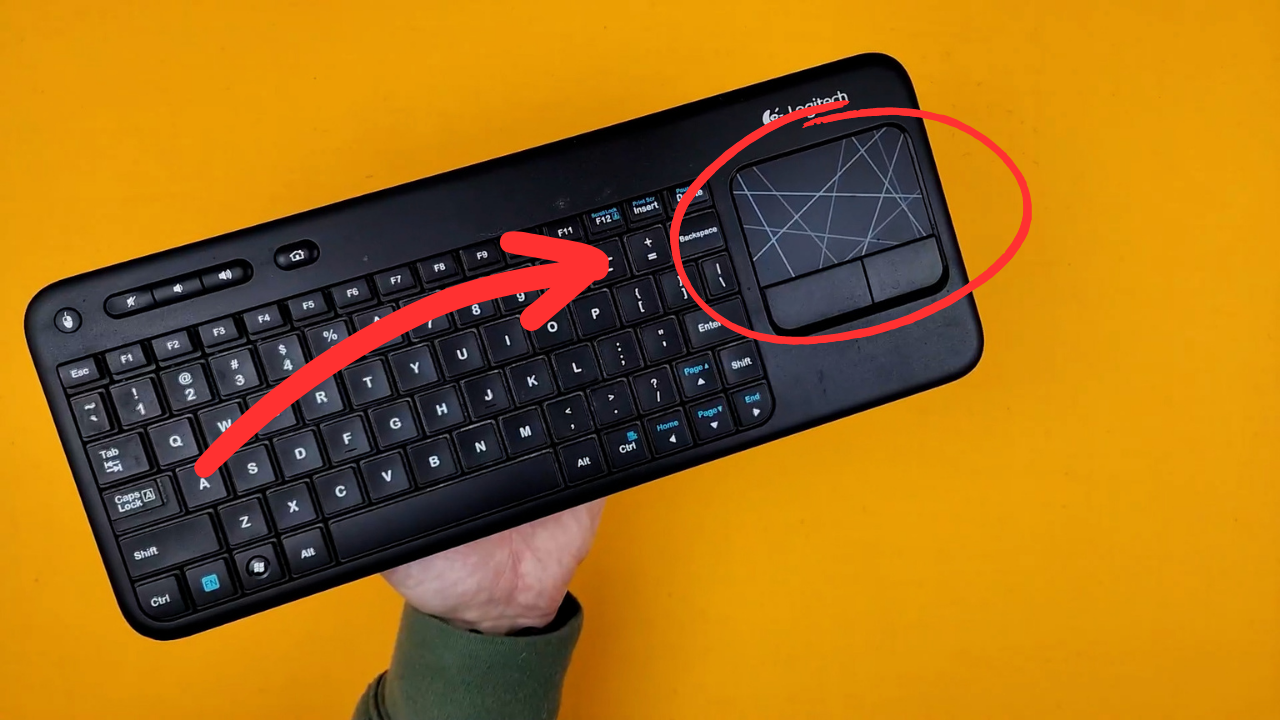
Image: The Logitech K400 Plus Wireless Touch Keyboard, showing its compact design with integrated touchpad.
Awọn ilana Iṣiṣẹ
Ifilelẹ bọtini itẹwe
The K400 Plus features a standard QWERTY layout with additional function keys and an integrated touchpad.
Aworan: A alaye view of the Logitech K400 Plus keyboard keys, highlighting the QWERTY layout.
Touchpad Lilo
The large 3.5-inch touchpad allows for intuitive navigation. It supports multi-touch gestures for enhanced control.
- Fọwọba ika ẹyọkan: Titẹ-osi.
- Tẹ ika meji: Tẹ-ọtun.
- Yi lọ Ika Meji: Scroll vertically or horizontally.
- Fun pọ lati Sun: Zoom in or out (if supported by the application).
- Dedicated left and right-click buttons are located below the touchpad for traditional mouse button functionality.
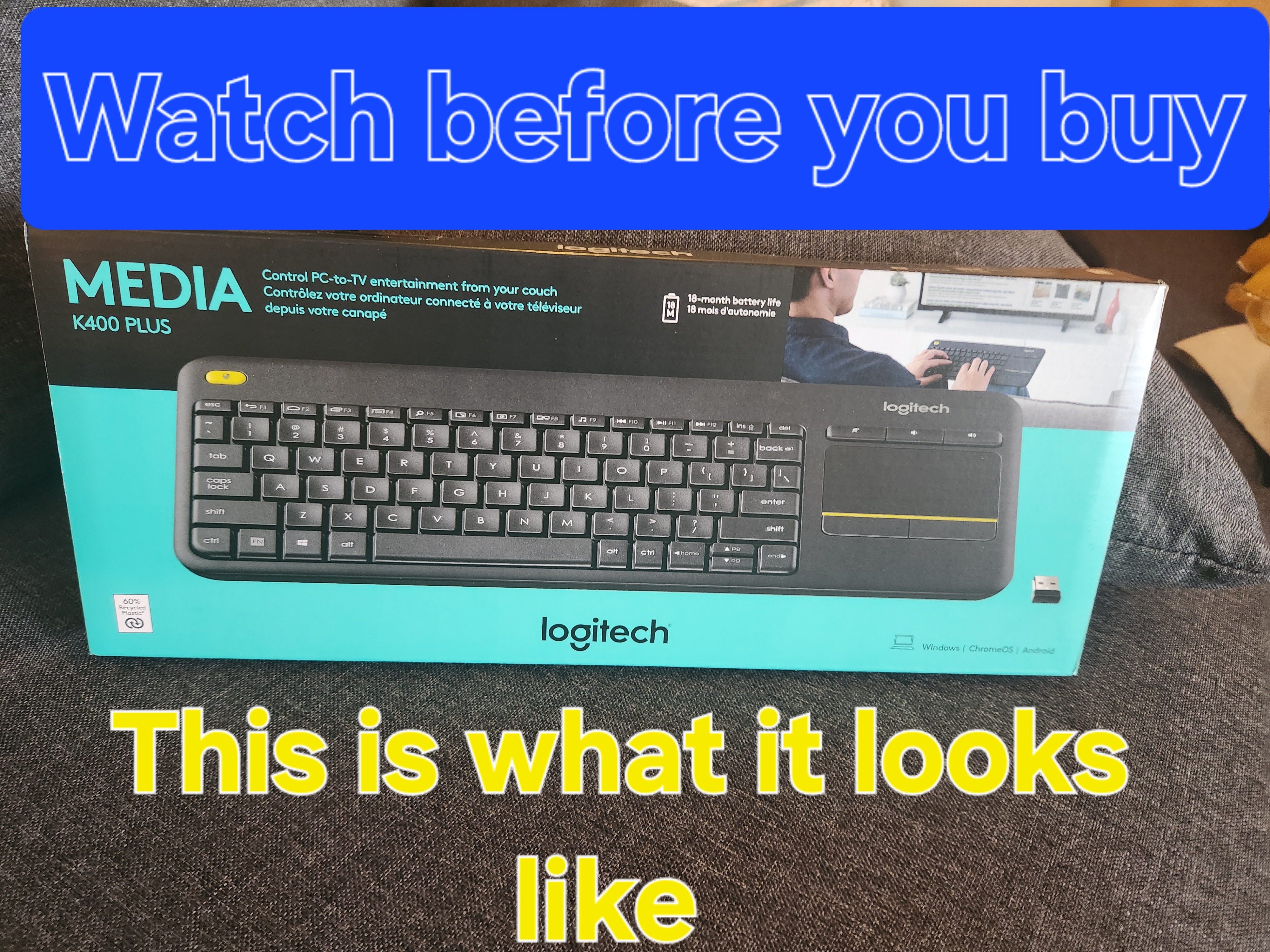
Image: A hand demonstrating the use of the integrated touchpad on the Logitech K400 Plus.
Multimedia ati Awọn bọtini iṣẹ
The top row of keys includes dedicated multimedia controls and function keys (F1-F12) with secondary actions. To activate the secondary actions (indicated by blue icons), press and hold the Fn key (located near the left Ctrl key) while pressing the desired function key.
- Awọn iṣakoso iwọn didun: Dedicated buttons for mute, volume down, and volume up are located above the touchpad.
- Bọtini Ile: Access your device's home screen or browser home page.
- Page Up/Down, End: Lilọ kiri awọn iwe aṣẹ ati web awọn oju-iwe.
- Left Mouse Button (top left): An additional left-click button is located on the top left corner of the keyboard for convenient two-hand operation.
Itoju
Ninu
Lati nu keyboard rẹ:
- Pa a bọtini itẹwe nipa lilo Tan/Pa a yipada.
- Lo asọ asọ, ti ko ni lint die-die dampened pẹlu omi tabi kan ìwọnba ninu ojutu.
- Avoid excessive moisture and do not immerse the keyboard in liquid.
- For stubborn dirt between keys, use compressed air.
Batiri Rirọpo
When the battery indicator light (usually located near the On/Off switch) turns red or the keyboard becomes unresponsive, it's time to replace the batteries. Follow the "Battery Installation" steps in the Setup section to replace the two AAA batteries.
Laasigbotitusita
Keyboard Ko Dahun
- Ṣayẹwo Agbara: Ensure the keyboard is turned on and the battery indicator light is green. Replace batteries if necessary.
- Ṣayẹwo olugba: Make sure the USB Unifying receiver is securely plugged into a working USB port on your device. Try a different USB port.
- Ijinna: Ensure the keyboard is within the operating range (up to 10 meters or 33 feet) of the USB receiver.
- Ìjánu: Gbe bọtini itẹwe ati olugba kuro lati awọn ẹrọ alailowaya miiran tabi awọn ohun elo irin nla ti o le fa kikọlu.
- Tun-meji: If issues persist, you may need to re-pair the keyboard with the Unifying receiver using the Logitech Unifying software, available for download from the official Logitech support webojula.
Touchpad Not Working Correctly
- Ilẹ mimọ: Rí i dájú pé ojú ìfọwọ́kàn náà mọ́ tónítóní, kò sì ní ìdọ̀tí kankan.
- Imudojuiwọn Awakọ: Check your device's operating system for updated drivers for the Logitech Unifying receiver or touchpad.
- Eto: Verify touchpad settings in your device's control panel or system preferences.
Awọn pato
| Brand | Logitech |
| Nọmba awoṣe | 920-009280 |
| Asopọmọra Technology | Wireless (2.4 GHz via USB Unifying Receiver) |
| Alailowaya Ibiti | Titi de awọn mita 10 (33 ẹsẹ) |
| Awọn batiri | 2 x AAA batiri (pẹlu) |
| Igbesi aye batiri | Titi di oṣu 18 (le yatọ da lori lilo) |
| Ese Touchpad | Páádì ìfọwọ́kan oní-púpọ̀ 3.5-inch |
| Awọn ẹrọ ibaramu | PC (Windows 7, 8, 10 or later), Android TV, Chrome OS |
| Awọn iwọn (L x W x H) | Isunmọ 13.9 x 5.5 x 0.9 inches (354 x 139.9 x 23.5 mm) |
| Iwọn | Approximately 13.76 oz (390 g) with batteries |
Atilẹyin ọja ati Support
Logitech provides a limited hardware warranty for this product. For detailed warranty information, technical support, and driver downloads, please visit the official Logitech support webojula:
You can also find FAQs and community forums for additional assistance.


