1. Ifihan ati Loriview
This manual provides comprehensive instructions for the Diswoe Wireless Controller, model SW-01. This controller is designed to enhance your gaming experience across multiple platforms.
Awọn ẹya pataki pẹlu:
- Universal compatibility with Switch, Switch Lite, Switch OLED, Switch 2, Windows PC, and Android phones.
- Upgraded Hall Effect joysticks for precise, drift-free control.
- Dual vibration motors for immersive feedback.
- 6-axis gyro sensor for motion-sensing games.
- High-performance 550mAh rechargeable battery providing up to 8 hours of playtime.
- Ergonomic design with non-slip grips for comfortable extended play.
- Stable wireless Bluetooth connection with strong anti-interference technology.
Akiyesi pataki: This controller supports USB CABLE CONNECTION with PC but DOES NOT SUPPORT WIRELESS BLUETOOTH CONNECTION TO PC. It is NOT compatible with Apple TV, Fire Stick TV, Tesla, Xbox, or Playstation consoles. It also DOES NOT SUPPORT WAKE-UP SWITCH 2 and AUDIO FUNCTIONS, and lacks NFC functionality.
2. Eto ati Asopọ
2.1 Gbigba agbara Adarí
Before first use, ensure the controller is fully charged. Connect the included USB-C cable to the controller's charging port and the other end to a standard USB-A wall charger or a compatible USB port on your device. The controller has a charging prompt and low voltage warning. A full charge typically takes approximately 2 hours and provides 8-10 hours of playtime.
2.2 Pairing Methods for Nintendo Switch
The controller provides a stable and reliable signal without delay or drop-off within eight meters.

Aworan: Iwaju ati oke view of the Diswoe Wireless Controller with button labels and pairing instructions.
- Asopọmọra akoko akọkọ:
- On your Switch console, navigate to the "Controllers" menu.
- Yan "Yi Gbigbe/Ṣatunkọ".
- Tẹ mọlẹ ILE button on the Diswoe controller for 5 seconds.
- The four LED indicators on the controller will blink fast, indicating it is in pairing mode.
- Once successfully paired, the corresponding player LED(s) will light up solid.
- Awọn isopọ atẹle:
- From any page on your Switch console, simply press the ILE bọtini lori oludari.
- The four LED indicators will blink fast and then light up solid upon successful connection.
2.3 Connecting to PC (Wired Only)
The Diswoe Wireless Controller supports connection to Windows PC ONLY via the included USB-C cable. Wireless Bluetooth connection to PC is not supported.
- Connect the USB-C end of the cable to the controller and the USB-A end to an available USB port on your PC.
- PC yẹ ki o ṣawari ati fi awọn awakọ ti o yẹ sori ẹrọ laifọwọyi.
- The controller will be recognized as a standard gamepad.
2.4 Nsopọ si Foonu Android
The controller is compatible with Android phones via Bluetooth. Refer to your phone's Bluetooth pairing instructions to connect the controller.
3. Awọn ilana Iṣiṣẹ
3.1 Ìṣètò Bọ́tìnì àti Àwọn Iṣẹ́ Rẹ̀
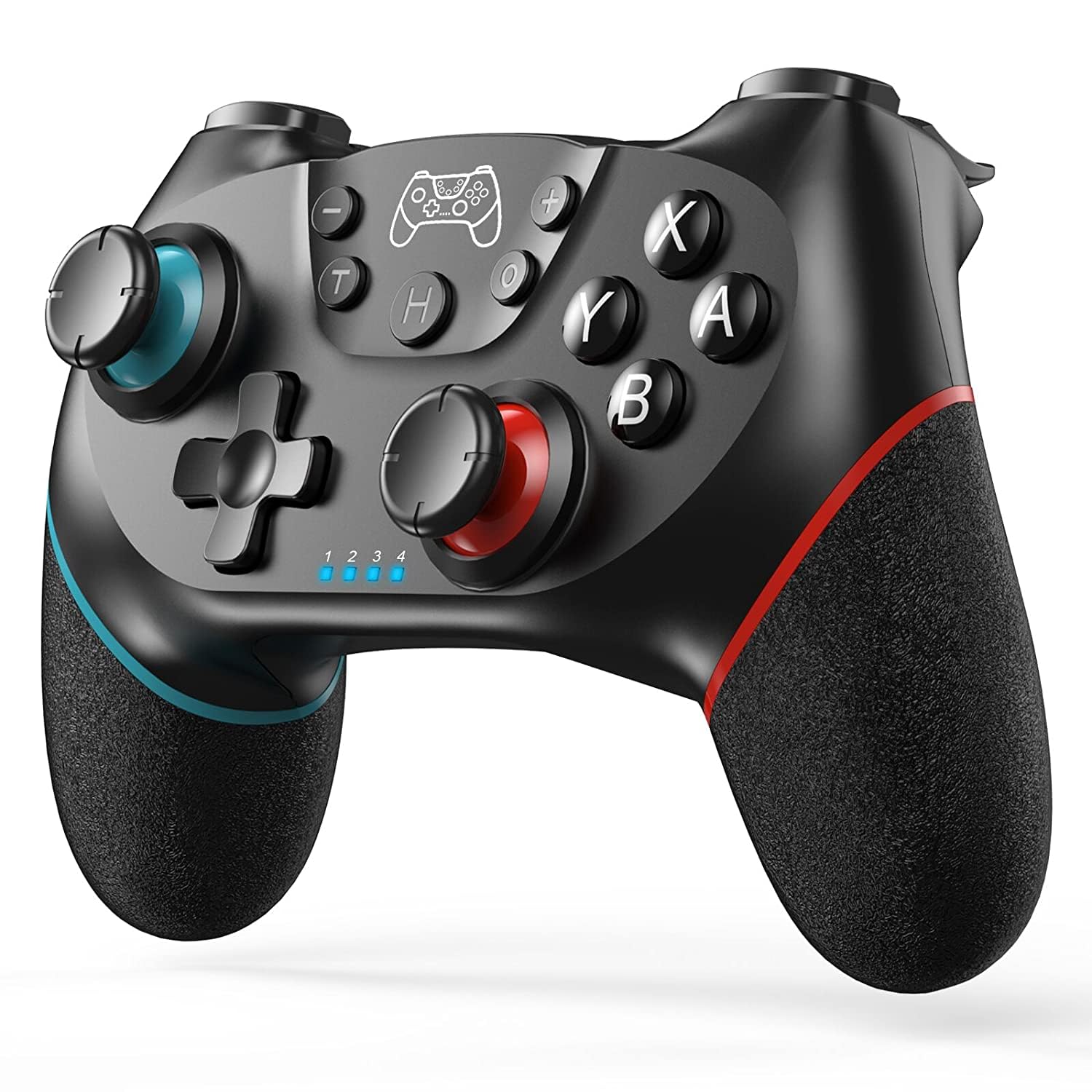
Aworan: Iwaju view of the Diswoe Wireless Controller, highlighting its ergonomic design and button placement.
| Bọtini | Išẹ |
|---|---|
| Bọtini ile | Powers on the controller, returns to the home screen, and initiates pairing. |
| L/R Sticks | Analog joysticks for movement and camera control. Feature Hall Effect technology for precision and durability. |
| Awọn bọtini A/B/X/Y | Awọn bọtini iṣe deede. |
| D-paadi | Directional pad for precise directional input. |
| L/R/ZL/ZR Buttons | Ejika ati awọn bọtini okunfa. |
| Bọtini Sikirinifoto | Ó máa ń ya àwọn àwòrán nígbà tí a bá ń ṣeré. |
| Bọtini Turbo | Ó ń mú iṣẹ́ turbo ṣiṣẹ́ fún títẹ bọ́tìnì kíákíá. |
| +/- Awọn bọtini | Menu selection buttons. |
3.2 Pataki Awọn ẹya ara ẹrọ
- Gbigbọn Meji: The controller features dual vibration motors that provide excellent haptic feedback, enhancing game immersion.
- Sensọ Gyro Apá 6: The built-in 6-axis gyro sensor detects the inclination of the controller, allowing for quick responses in motion-sensing games.
- Iṣẹ Turbo: The Turbo button allows for rapid, continuous pressing of assigned buttons. Consult the full user manual for specific button assignment instructions.
- Išẹ Sikirinifoto: Press the dedicated screenshot button to capture in-game moments.

Image: Illustration of the controller highlighting the dual motor vibration feature.

Image: Diagram showing key features like wear-resistant anti-slip joysticks, engraved ABXY buttons, excellent non-slip grip, and high precision D-pad.

Image: Summary of controller features including Bluetooth connectivity, long playtime, vibration, screenshot, precise joysticks, adjustable triggers, and compatibility with Switch/Lite/OLED/Windows, and wake-up function (note: wake-up Switch 2 is not supported).
4. Itọju
Proper maintenance ensures the longevity and optimal performance of your Diswoe Wireless Controller.
- Ninu: Lo asọ, asọ ti o gbẹ lati nu si isalẹ oludari. Fun idoti alagidi, die-die dampen the cloth with water. Avoid using harsh chemicals, solvents, or abrasive cleaners, as these can damage the surface and internal components.
- Ibi ipamọ: Tọju olutọju naa ni itura, aye gbigbẹ kuro lati orun taara ati awọn iwọn otutu to gaju.
- Itọju Batiri: To preserve battery life, avoid fully discharging the controller frequently. If storing for an extended period, charge the battery to approximately 50% before storage and recharge every few months.
- Mimu: Avoid dropping the controller or subjecting it to strong impacts, which can damage internal circuitry and external components.
5. Laasigbotitusita
If you encounter issues with your Diswoe Wireless Controller, please refer to the following common solutions:
| Isoro | Owun to le Solusan |
|---|---|
| Olùdarí kò so/sopọ̀ mọ́ ara wọn. |
|
| Joystick drift or inaccurate input. |
|
| Gbigbọn kò ṣiṣẹ́. |
|
| Controller does not wake up Switch 2. | This controller does not support the "Wake-up Switch 2" function. You must manually wake up the console. |
| No audio through controller. | This controller does not support audio functions. |
If problems persist, please contact Diswoe customer support for further assistance.
6. Awọn pato
| Ẹya ara ẹrọ | Ẹ̀kúnrẹ́rẹ́ |
|---|---|
| Nọmba awoṣe | SW-01 |
| Brand | Ìyọnu |
| Ibamu | Switch, Switch Lite, Switch OLED, Switch 2, Windows PC (wired), Android Phone (Bluetooth) |
| Asopọmọra | Wireless Bluetooth (Switch, Android), Wired USB-C (PC) |
| Batiri Iru | Litiumu polima |
| Agbara Batiri | 550mAh |
| Playtime (approx.) | Wákàtí 8-10 (lẹ́yìn tí a gba agbára rẹ̀ ní kíkún) |
| Akoko gbigba agbara (isunmọ.) | wakati meji 2 |
| Alailowaya Ibiti | Titi de awọn mita 8 (26 ẹsẹ) |
| Pataki Awọn ẹya ara ẹrọ | Hall Effect Joysticks, Dual Vibration, 6-Axis Gyro, Turbo Function, Screenshot Function |
| Iwọn | 9.9 iwon |
| Olupese | Ìyọnu |
| Ilu isenbale | China |
7. Atilẹyin ọja ati Support
For warranty information and customer support, please refer to the documentation included with your product or visit the official Diswoe webojula. Tọju iwe-ẹri rira rẹ bi ẹri rira fun eyikeyi awọn ibeere atilẹyin ọja.
Olupese: Ìyọnu
Webojula: Diswoe Store on Amazon
8. Awọn fidio ọja
The following videos provide additional information and demonstrations of the Diswoe Wireless Controller:
Video: "Wireless Controller for Switch" - An official product video from Diswoe Direct demonstrating the controller's features and usage.


