Ọrọ Iṣaaju
Welcome to the user manual for your Picun Elite P80S Wireless Headset. This guide provides detailed instructions for setup, operation, maintenance, and troubleshooting to ensure you get the most out of your device. Please read this manual thoroughly before using the headset.
Package Awọn akoonu
- Picun Elite P80S Headset
- Detachable AUX Microphone
- Okun Ngba agbara USB
- AUX Cable for Wired Transmission

Image: Picun Elite P80S Wireless Headset with detachable microphone, showcasing its design and included microphone.
Ọja Pariview
Àwọn Ẹ̀yà àti Àwọn Ìṣàkóso Agbekọrí
The Picun Elite P80S headset features an ergonomic design with easy-to-access media buttons for various functions. These include controls for music playback, call management, vibration mode, LED light display, and volume adjustments.

Image: The Picun Elite P80S Wireless Headset shown in its folded configuration, highlighting its portable design.

Image: The Picun Elite P80S Wireless Headset displayed on a stand, providing a clear view of its over-ear design, earcups, and adjustable headband.
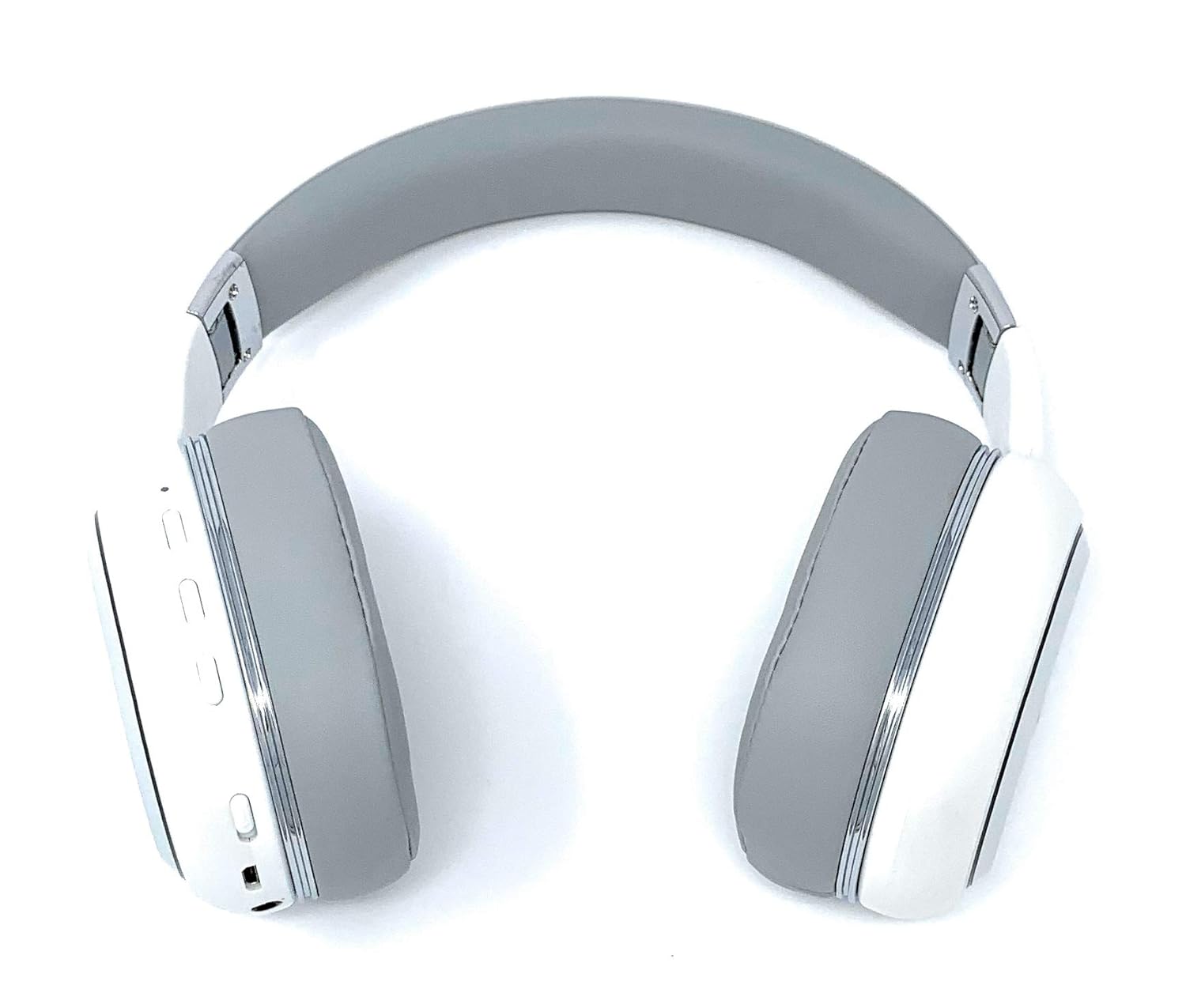
Image: A rear perspective of the Picun Elite P80S Wireless Headset, illustrating the placement of control buttons on the earcup.

Image: A detailed close-up of the right earcup hinge and the 'R' indicator on the Picun Elite P80S Wireless Headset, showing construction details.
Ṣeto
Ngba agbara si Agbekọri
Before initial use, fully charge the headset. Use the provided USB charging cable with any compatible USB adapter or device.
- So okun gbigba agbara USB pọ si ibudo gbigba agbara agbekari.
- So opin keji okun USB pọ si orisun agbara.
- A full charge provides approximately 40 hours of game time or 60 hours of music/media playback in wireless mode.
Asopọ Bluetooth
To connect your headset wirelessly:
- Rii daju pe agbekari ti ni agbara ni pipa.
- Tẹ mọlẹ bọtini agbara titi ti Atọka LED yoo fi han, n tọka ipo sisopọ.
- Lori ẹrọ rẹ (foonuiyara, tabulẹti, kọmputa), mu Bluetooth ṣiṣẹ ki o wa awọn ẹrọ to wa.
- Select "Picun P80S" from the list of found devices.
- Once connected, the LED indicator will show a steady light or flash slowly.
Asopọ ti Ha
For a wired connection, use the provided AUX cable:
- Connect one end of the AUX cable to the headset's AUX port.
- So opin miiran pọ si Jack ohun afetigbọ 3.5mm ẹrọ ohun rẹ.
- The headset can be used indefinitely in wired mode, regardless of battery charge.
So Gbohungbo naa pọ
The headset includes a detachable microphone for clear communication:
- Locate the microphone port on the headset.
- Gently insert the detachable microphone into the port until it clicks into place.
- The microphone is designed to reduce ambient noise for high-definition vocals.
Awọn ilana Iṣiṣẹ
Titan / Paa
- Agbara Tan: Tẹ mọlẹ bọtini agbara fun iṣẹju diẹ titi ti Atọka LED yoo tan.
- Agbara Pa: Tẹ bọtini agbara naa ki o si di mu fun iṣẹju-aaya diẹ titi ti ifihan LED yoo fi pa.
Sisisẹsẹhin Orin
- Ṣiṣẹ/Daduro: Tẹ bọtini Play/Sinmi ni ẹẹkan.
- Orin t’okan: Tẹ bọtini 'Iwọn didun soke' ki o si mu.
- Tẹlẹ Orin: Tẹ bọtini 'Iwọn didun isalẹ' ki o si mu.
Isakoso Ipe
- Idahun/Ipe Ipari: Tẹ bọtini Olona-iṣẹ lẹẹkan.
- Kọ Ipe: Tẹ mọlẹ bọtini iṣẹ-ọpọlọpọ fun iṣẹju-aaya 2.
Dual Shock/Vibration Mode
This mode enhances audio with deep bass and vibrations, ideal for music, movies, and gaming.
- Mu ṣiṣẹ/muṣiṣẹ: Use the dedicated 'Vibration/Dual Shock Mode On-Off toggle switch' on the headset.
LED Light Ifihan
The headset features an LED light display.
- Tan/Pa: Use the dedicated 'LED Light Display On-Off button' on the headset.
Iṣakoso iwọn didun
- Mu iwọn didun pọ si: Tẹ bọtini 'Iwọn didun soke'.
- Din iwọn didun silẹ: Tẹ bọtini 'Iwọn didun isalẹ'.
Itoju
Ninu
- Mu agbekari kuro pẹlu asọ asọ ti o gbẹ.
- Ma ṣe lo abrasive ose tabi epo.
- Keep the charging port and audio jacks free of dust and debris.
Ibi ipamọ
- Tọju agbekari naa ni itura, aye gbigbẹ kuro lati orun taara ati awọn iwọn otutu to gaju.
- When not in use for extended periods, ensure the headset is fully charged before storing.
Laasigbotitusita
Ko si Agbara
- Rii daju pe agbekari ti gba agbara ni kikun.
- Verify the charging cable and power source are functioning correctly.
Ko si Ohun
- Ṣayẹwo awọn ipele iwọn didun lori mejeeji agbekari ati ẹrọ ti o sopọ.
- If using Bluetooth, ensure the headset is properly paired and connected.
- If using a wired connection, ensure the AUX cable is securely plugged into both the headset and the audio source.
- Ṣe idanwo pẹlu orisun ohun afetigbọ miiran tabi ẹrọ.
Awọn ọrọ sisọpọ Bluetooth
- Rii daju pe agbekari wa ni ipo sisọpọ (imọlẹ LED).
- Paa ati tan Bluetooth lori ẹrọ rẹ.
- Ko awọn asopọ Bluetooth ti tẹlẹ kuro lori ẹrọ rẹ ki o gbiyanju sisopọ lẹẹkansi.
- Ensure the headset is within the effective range of your Bluetooth device.
Awọn pato
| Ẹya ara ẹrọ | Apejuwe |
|---|---|
| Orukọ awoṣe | Elite P80S |
| Asopọmọra Technology | Bluetooth |
| Imọ-ẹrọ Ibaraẹnisọrọ Alailowaya | Bluetooth |
| Awọn irinše to wa | Headset, Detachable AUX Microphone, USB Charging Cable, AUX Cable for Wired Transmission |
| Ibiti ọjọ ori (Apejuwe) | Agbalagba |
| Ohun elo | Faux awọ |
| Iṣakoso Iru | Iṣakoso iwọn didun, Latọna jijin |
| Cable Ẹya | Iyasọtọ |
| Iwọn Nkan | 820 g (0.82 kilo) |
| Nọmba ti Awọn nkan | 1 |
| Pataki Ẹya | Ifagile Ariwo |
| Olupese | Picun |
| Hardware Platform | Console ere |
| gbohungbohun kika | Built-In, Detachable AUX Microphone |
| Awọn batiri ti a beere | Rárá (Batiri ti a le gba agbara inu) |
| Fọọmù ifosiwewe | Lori Eti |
| Àwọ̀ | Funfun |
| Ariwo Iṣakoso | Ti nṣiṣe lọwọ Noise Ifagile |
| Awọn agbekọri Jack | 3.5 mm Jack |
Alaye atilẹyin ọja
The Picun Elite P80S Wireless Headset is covered by a manufacturer's warranty. For specific details regarding warranty terms, duration, and claims process, please refer to the warranty policy provided at the time of purchase or contact Picun customer support.
Onibara Support
If you encounter any issues not covered in this manual or require further assistance, please contact Picun customer support through their official website or the contact information provided with your product packaging. Please have your product model (P80S) and purchase details ready when contacting support.


