1. Ifihan
The LaCie Rugged Mini is a portable external hard drive designed for robust data storage and transport. It features a durable, rubberized casing that provides resistance against shock, drops, rain, and pressure, making it suitable for various environments. This compact device offers 5TB of storage capacity and utilizes USB 3.0 connectivity for fast data transfers, compatible with both PC and Mac operating systems.
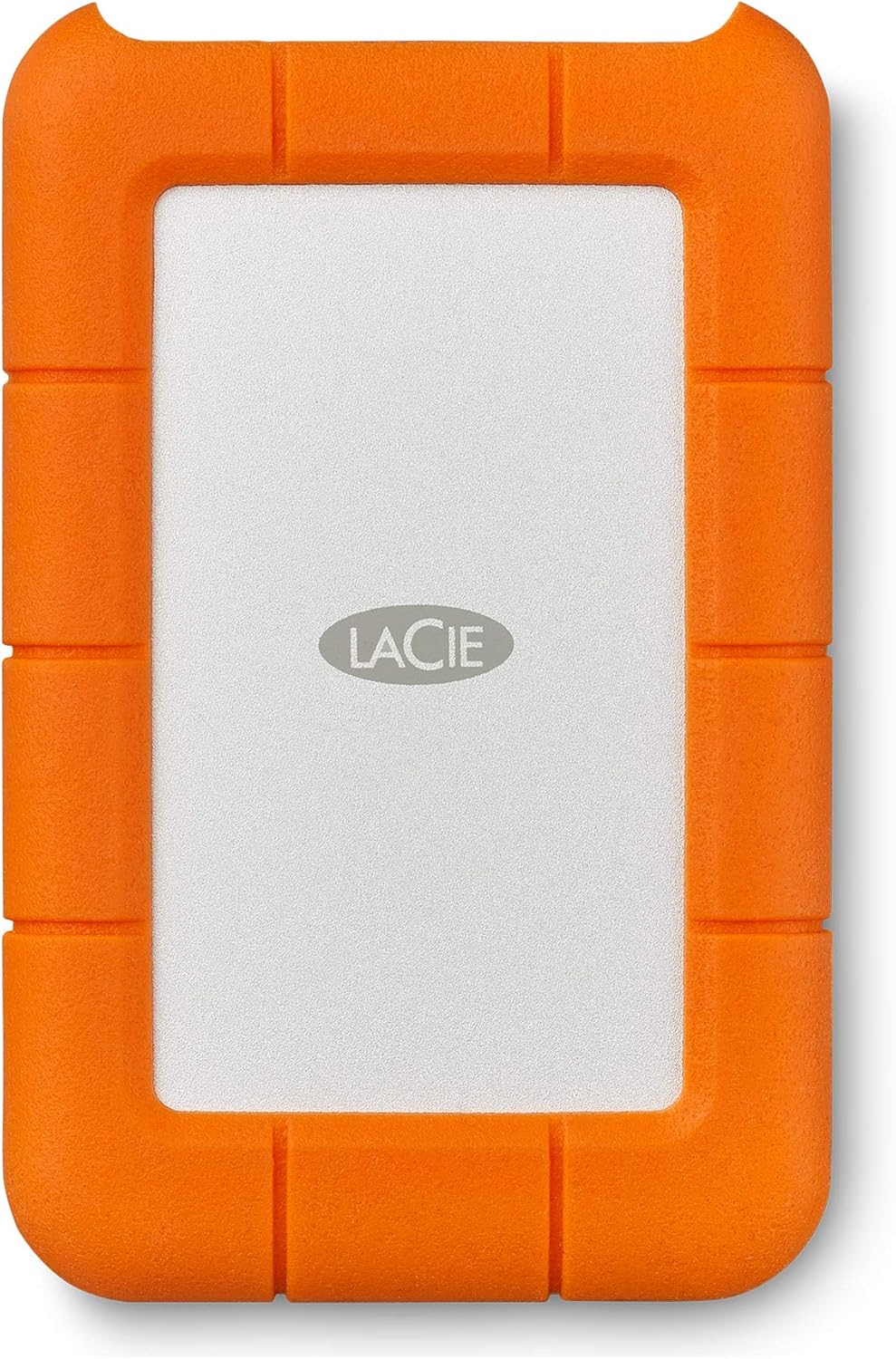
Aworan 1.1: Iwaju view of the LaCie Rugged Mini external hard drive, showcasing its orange and grey design.
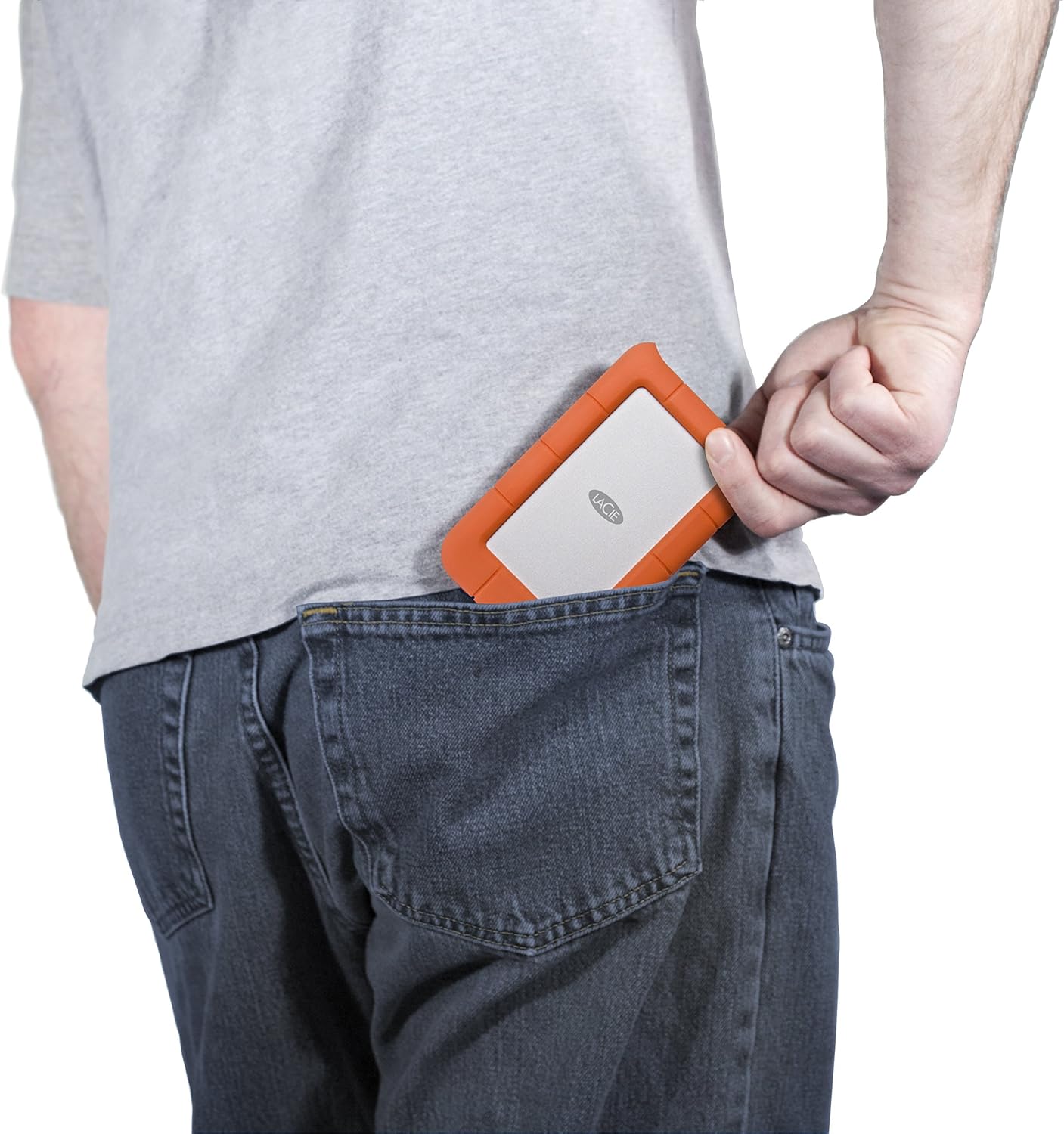
Image 1.2: The LaCie Rugged Mini being placed into a back pocket, illustrating its compact size and portability.
Awọn ẹya pataki:
- Iduroṣinṣin: Shock, drop, rain, and pressure resistant rubberized casing.
- Agbara: 5TB of storage for large files ati awọn afẹyinti.
- Asopọmọra: USB 3.0 interface for high-speed data transfer.
- Ibamu: Works with both Windows PC and Mac systems.
- Gbigbe: Compact 2.5-inch form factor for easy transport.
2. Package Awọn akoonu
Daju pe gbogbo awọn ohun kan wa ninu apoti ọja rẹ:
- LaCie Rugged Mini 5TB External Hard Drive
- Okun USB 3.0 USB
- Itọsọna Ibẹrẹ kiakia (ko si ninu iwe afọwọkọ yii)
3. Eto
3.1 Nsopọ Drive
- Locate the USB 3.0 port on your LaCie Rugged Mini.
- Connect one end of the provided USB 3.0 cable to the drive's port.
- Connect the other end of the USB 3.0 cable to an available USB 3.0 port on your computer (PC or Mac).
- The drive will power on automatically via the USB connection.

Aworan 3.1: Isunmọ view of the LaCie Rugged Mini, highlighting the USB 3.0 port for connection.

Image 3.2: The LaCie Rugged Mini connected to a laptop via its USB cable, demonstrating a typical setup.
3.2 Initial Software and Formatting
Upon initial connection, your computer may prompt you to install LaCie software. This software can assist with drive management, security features (such as encryption), and cross-platform compatibility. It is recommended to follow the on-screen instructions for installation.
The drive comes pre-formatted for general use. If you need to reformat the drive for specific operating system requirements or partitioning, use your computer's disk utility (Disk Management for Windows, Disk Utility for Mac). Be aware that reformatting will erase all data on the drive.
4. Ṣiṣẹ ẹrọ naa
4.1 Gbigbe Files
Lati gbe files, simply drag and drop them to and from the LaCie Rugged Mini icon that appears on your desktop or in your file explorer/finder window. The USB 3.0 interface ensures efficient transfer speeds for large files.
4.2 Ìyọkúrò Ààbò
Always safely eject the LaCie Rugged Mini before disconnecting it from your computer to prevent data corruption.
- Windows: Right-click the drive icon in 'This PC' or the system tray and select 'Eject'.
- Mac: Drag the drive icon to the Trash, or click the Eject button next to the drive in a Finder window.
4.3 Data Idaabobo
The LaCie Rugged Mini's robust design provides physical protection. For enhanced data security, consider utilizing the encryption features available through LaCie's bundled software, if installed.
5. Itọju
5.1 Ìtọ́jú àti Ìtọ́jú
While the LaCie Rugged Mini is designed for durability, proper care extends its lifespan:
- Avoid exposing the drive to extreme temperatures or direct sunlight for prolonged periods.
- Rí i dájú pé ibudo USB kò ní eruku àti ìdọ̀tí kí o tó so okùn náà pọ̀.
- Do not attempt to open the drive casing, nítorí èyí yóò sọ àtìlẹ́yìn náà di òfo ó sì lè ba ẹ̀rọ náà jẹ́.
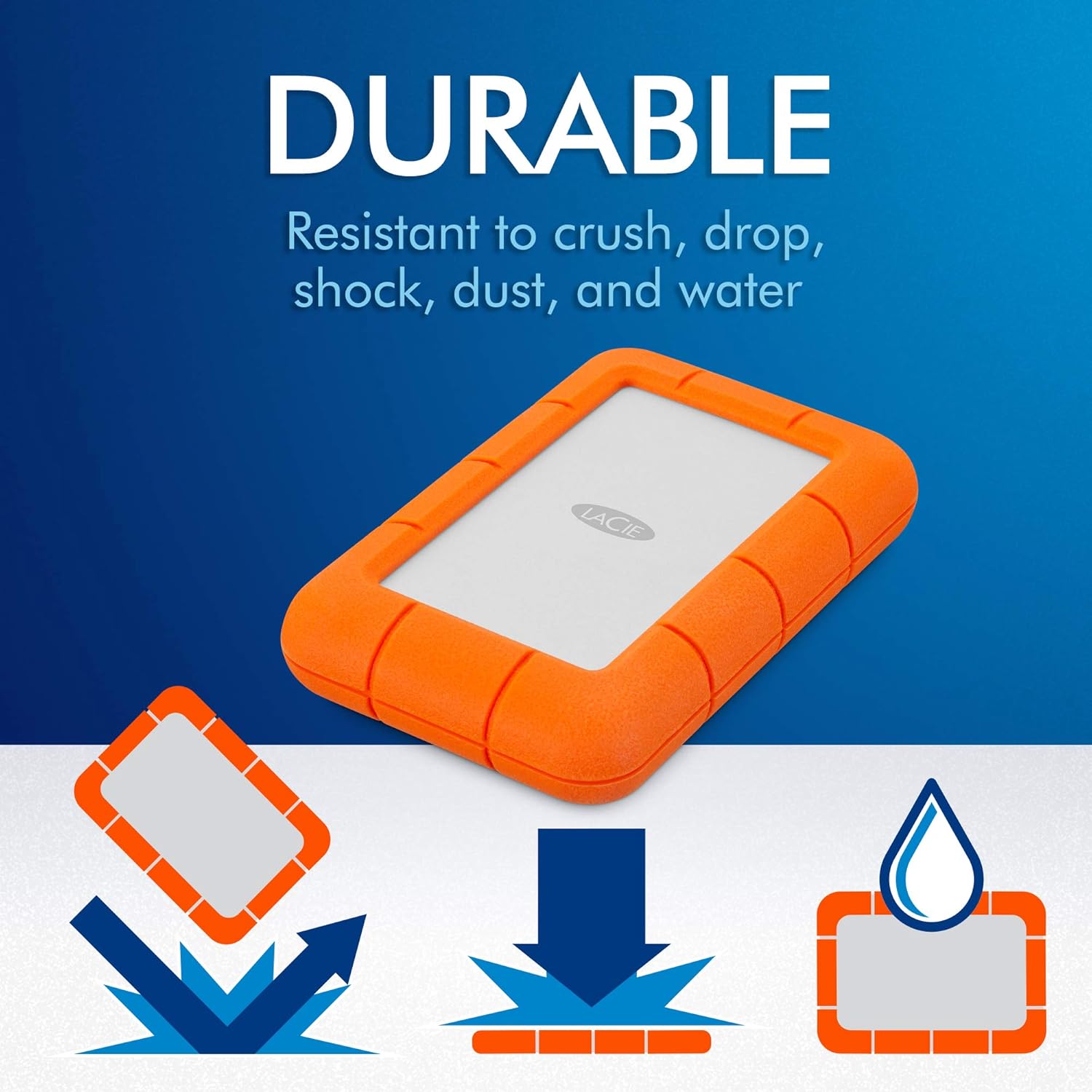
Image 5.1: Icons depicting the LaCie Rugged Mini's resistance to drops, crushing, shock, dust, and water.
5.2 Ninu
To clean the exterior of the drive, use a soft, dry, lint-free cloth. Do not use harsh chemicals or abrasive materials.
6. Laasigbotitusita
If you encounter issues with your LaCie Rugged Mini, consider the following:
- A ko mọ Awakọ:
- Rii daju pe okun USB ti sopọ ni aabo si kọnputa ati kọnputa.
- Gbiyanju lati sopọ si ibudo USB ti o yatọ lori kọnputa rẹ.
- Ṣe idanwo awakọ pẹlu okun USB ti o yatọ ti o ba wa.
- Tun kọmputa rẹ bẹrẹ.
- Check your computer's Disk Management (Windows) or Disk Utility (Mac) to see if the drive is detected but unformatted or has a drive letter conflict.
- Awọn iyara Gbigbe lọra:
- Rí i dájú pé o so mọ́ ibudo USB 3.0 lórí kọ̀ǹpútà rẹ. Àwọn ibudo USB 2.0 yóò mú kí iyàrá díẹ̀díẹ̀.
- Ti eyikeyi awọn ohun elo ti ko wulo ti n ṣiṣẹ ni abẹlẹ.
- Verify your computer's drivers are up to date.
- Wakọ Ge asopọ Laileto:
- Rii daju pe okun USB ko ni alaimuṣinṣin.
- Disable USB selective suspend settings in Windows Power Options if applicable.
- Ensure your computer's power supply is adequate.
If issues persist, refer to the LaCie support webaaye fun iranlọwọ siwaju sii.
7. Awọn pato
| Ẹya ara ẹrọ | Sipesifikesonu |
|---|---|
| Nọmba awoṣe | STJJ5000400 |
| Digital Ibi Agbara | 5 TB |
| Lile Disk Interface | USB 3.0 |
| Asopọmọra Technology | USB |
| Lile Disk Fọọmù ifosiwewe | 2.5 inches |
| Awọn ẹrọ ibaramu | PC, Mac |
| Iwọn Nkan | 11.6 iwon (nipa 329 giramu) |
| Lile Drive Yiyi Iyara | 5400 RPM |
| Àwọ̀ | Orange/Grey |
8. Atilẹyin ọja ati Support
8.1 LaCie Rescue Data Recovery Services
The LaCie Rugged Mini includes Rescue Data Recovery Services, providing an additional layer of protection for your data against unexpected loss due to technical faults, viruses, or natural disasters. This service aims to restore valuable personal images, videos, and documents.

Image 8.1: Information graphic about LaCie Rescue Data Recovery Services, explaining how data can be recovered.
For more details on how to utilize these services, please refer to the documentation included with your product or visit the official LaCie support webojula.
8.2 Imọ Support
For further technical assistance, product registration, or warranty information, please visit the official LaCie support website. You can typically find FAQs, driver downloads, and contact options for customer service there.


