Ọrọ Iṣaaju
This user manual provides comprehensive instructions for the installation, operation, and maintenance of your ZUMIMALL Wireless Doorbell Camera. Designed for enhanced home security, this device offers 2K video resolution, two-way audio, AI detection, and flexible storage options. Please read this manual thoroughly before using the product to ensure proper functionality and safety.
Ohun ti o wa ninu Apoti
Rii daju pe gbogbo awọn paati wa ṣaaju ki o to bẹrẹ fifi sori ẹrọ.
- ZUMIMALL Wireless Doorbell Camera
- Chime Alailowaya
- Oke Atẹgun
- Iṣagbesori skru ati odi ìdákọró
- Okun Ngba agbara USB
- Hex Key (for anti-theft screw)
- Itọsọna olumulo
- Awọn Batiri AA (ti a ti fi sii tẹlẹ tabi ti o wa pẹlu)

Ọja Pariview
Familiarize yourself with the various parts of your ZUMIMALL Doorbell Camera and Chime.

- FHD Optical Lens: Ó gba fídíò tó ní ìpele 2K.
- Sensọ išipopada PIR: Detects human movement for alerts.
- Agbọrọsọ: Fun ibaraẹnisọrọ ohun afetigbọ ọna meji.
- Gbohungbohun: Fun ibaraẹnisọrọ ohun afetigbọ ọna meji.
- Bọtini atunto: Ti a lo lati tun ẹrọ naa pada.
- Ibudo gbigba agbara: USB port for battery charging.
- Atọka LED: Ṣe afihan ipo ẹrọ.
- Bọtini ilekun: Activates the doorbell and initiates calls.
- Iho kaadi iranti: Supports local storage up to 128GB (MicroSD card not included).
- Chime: Wireless indoor receiver for doorbell alerts.
Ṣeto
1. Charging the Doorbell
Before initial use, fully charge the doorbell camera using the provided USB cable. The LED indicator will show charging status and turn off when fully charged.
2. App Installation and Setup
Download the ZUMIMALL app from your smartphone's app store (iOS or Android). Follow the in-app instructions to register an account and add your doorbell camera.
- Register an account in the ZUMIMALL app.
- Scan the QR code on the doorbell or its packaging to add the device.
- So agogo ilẹkun pọ mọ nẹtiwọọki Wi-Fi 2.4GHz rẹ.
- Once connected, the doorbell will be ready for use.

3. Mounting the Doorbell
The doorbell can be mounted using screws or adhesive tape.
- Screw-in Installation: Use the provided mounting bracket, screws, and wall anchors to securely attach the doorbell to your desired location.
- Fifi Teẹpu Alamora: For non-permanent or less invasive mounting, use strong adhesive tape (not always included, but shown as an option) to affix the doorbell. Ensure the surface is clean and dry for optimal adhesion.

The doorbell features an anti-theft alarm. Once mounted, secure it with the anti-theft screw using the provided hex key. If the doorbell is forcibly removed from its bracket, an alarm will sound, and you will receive a notification.

4. Pairing the Chime
Plug the wireless chime into a power outlet. Follow the instructions in the ZUMIMALL app to pair the chime with your doorbell camera. You can select various chime melodies and adjust the volume.
Operating Your Doorbell Camera
Gbe View ati Meji-Ona Audio
Access the live video feed from your doorbell camera at any time through the ZUMIMALL app. Use the two-way audio feature to communicate with visitors at your door. The doorbell also supports voice changer options (Original, Clown, Uncle) for added privacy or fun.

Video Quality and Night Vision
The doorbell camera provides 2K 3MP high-resolution video, ensuring clear images day and night. Its superior night vision capabilities allow for sharp monitoring even in low-light conditions.

AI Detection and Notifications
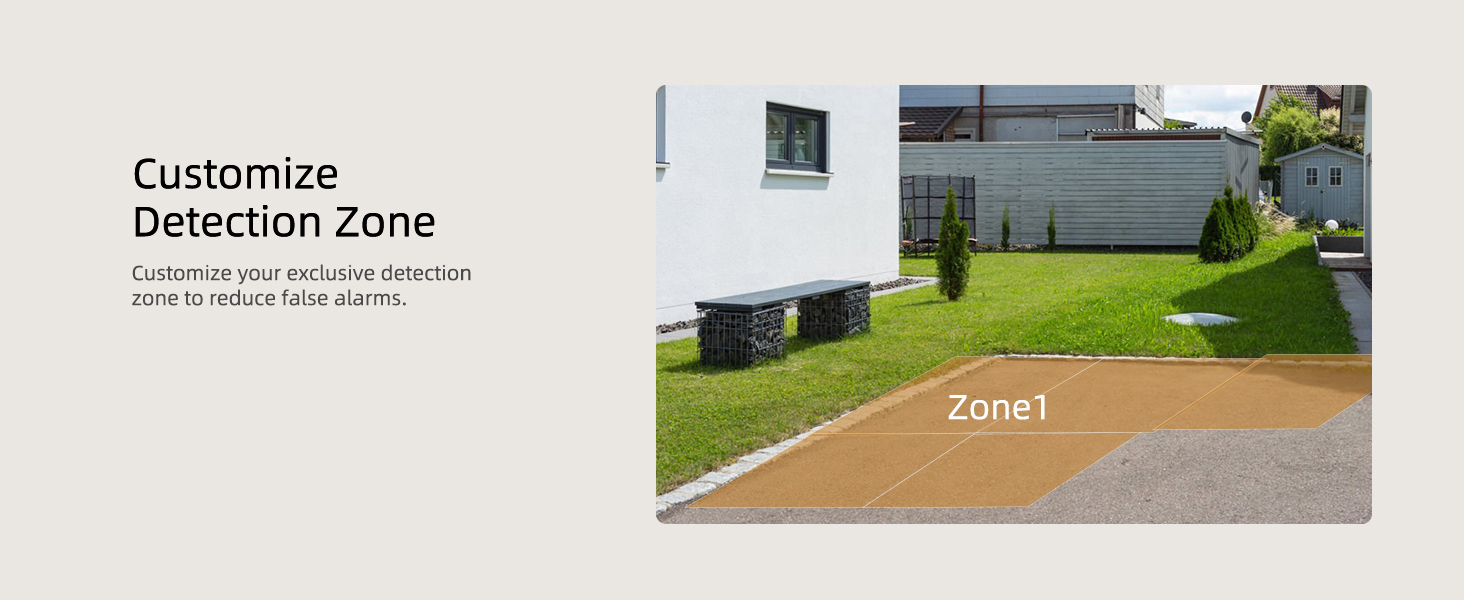
The integrated AI detection identifies human movements, sending instant alerts to your smartphone. You can customize detection zones and sensitivity levels to reduce false alarms.


Awọn aṣayan ipamọ
The ZUMIMALL doorbell camera offers flexible storage solutions:
- Ibi ipamọ agbegbe: Supports up to 128GB MicroSD card (sold separately) for continuous recording.
- Ibi ipamọ awọsanma: Offers 6-second cloud storage options, with a 7-day loop recording (non-subscription) available.

Voice Message Function
Leave pre-recorded voice messages up to 30 seconds via the ZUMIMALL app for visitors when you are unavailable to answer live.
Olona-User Pínpín
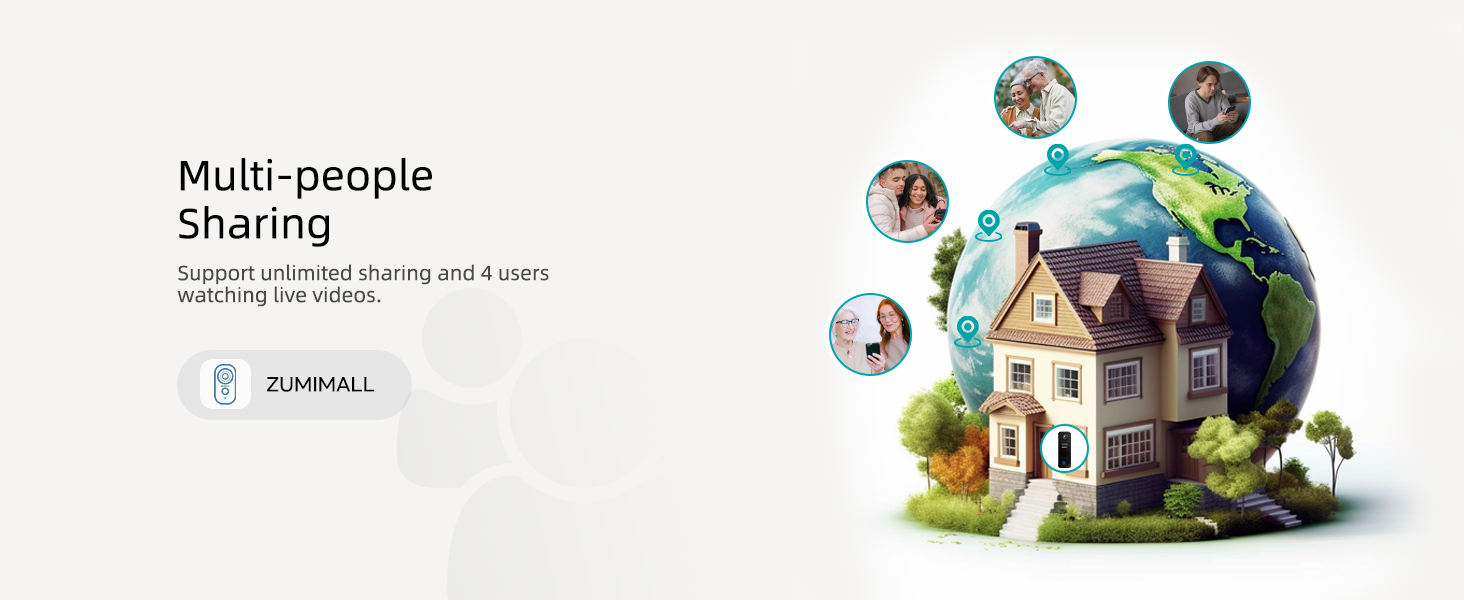
Share access to your doorbell camera with family members or trusted individuals, allowing multiple users to view live feeds and receive notifications.
Itoju
- Ninu: Fi ọwọ́ rọra nu lẹnsi kamẹra ati agogo ilẹkun pẹlu asọ rirọ, damp asọ. Yago fun lilo awọn kẹmika lile tabi awọn ohun elo abrasive.
- Igbesi aye batiri: The doorbell is battery-powered. Monitor the battery level via the app and recharge as needed using the USB cable. Battery life varies based on usage and environmental factors.
- Awọn imudojuiwọn famuwia: Regularly check the ZUMIMALL app for firmware updates to ensure optimal performance and access to new features.
- Idaabobo oju ojo: The doorbell is IP66-rated for weather resistance, protecting it against dust and water splashes. However, avoid submerging the device in water.

Laasigbotitusita
| Isoro | Owun to le Fa | Ojutu |
|---|---|---|
| Doorbell offline in app | Weak Wi-Fi signal, low battery, or network issue. | Check Wi-Fi signal strength, recharge battery, restart router, or re-pair the doorbell. |
| Ko si awọn itaniji wiwa išipopada | PIR sensitivity too low, detection zone not set correctly, or battery low. | Increase PIR sensitivity in app, adjust detection zone, ensure sufficient battery charge. |
| Kilo ko n lu | Chime not paired, out of range, or unplugged. | Re-pair chime with doorbell, move chime closer to doorbell, ensure chime is plugged in. |
| Didara fidio ti ko dara | Dirty lens, weak Wi-Fi, or insufficient lighting. | Clean the lens, improve Wi-Fi signal, ensure adequate lighting for night vision. |
| Batiri n ṣan ni kiakia | Frequent motion detection, live view usage, or extreme temperatures. | Adjust PIR sensitivity, reduce live view time, ensure optimal operating temperature. |
Awọn pato
- Nọmba awoṣe: P8
- Awọn iwọn ọja: 2.4 x 1.61 x 5.31 inches
- Ìwọ̀n Nkan: 1.08 iwon
- Imọ-ẹrọ Asopọmọra: Alailowaya (Wi-Fi 2.4GHz)
- Ipinnu fidio: 2K (3MP)
- Ibi ipamọ: Supports up to 128GB MicroSD card (not included), Cloud Storage
- Orisun Agbara: Agbara Batiri (Batiri AA 2 to wa)
- Atako oju ojo: IP66 won won
- Olupese: ZUMIMALL
- Ọjọ akọkọ ti o wa: Oṣu Kẹjọ Ọjọ 29, Ọdun 2019
Atilẹyin ọja ati Support
ZUMIMALL products come with a manufacturer's warranty. For detailed warranty information, technical support, or customer service inquiries, please refer to the contact information provided in your product packaging or visit the official ZUMIMALL website. You can also find additional support resources and FAQs on their webojula.
For further assistance, you may also refer to the official user manual PDF available at: ZUMIMALL Doorbell User Manual PDF


