Ọrọ Iṣaaju
Welcome to the world of CaDA PiccasBot C83006W! This innovative building kit allows you to construct your own programmable robot that can draw, code, and play. Designed to inspire creativity and introduce basic programming concepts, the PiccasBot offers an engaging experience for builders aged 8 and above.
To ensure a safe and enjoyable experience, please read this instruction manual thoroughly before assembly and operation. Keep this manual for future reference.

Image: The CaDA PiccasBot C83006W product box, illustrating the robot's design and key functionalities like building, drawing, coding, and playing.
Alaye Aabo
IKILO: Ewu gige - Awọn ẹya kekere. Ko fun awọn ọmọde labẹ ọdun 3.
- Recommended age for assembly and use is 8 years and older. Adult supervision is recommended for younger users.
- Pa gbogbo awọn ohun elo iṣakojọpọ kuro lọdọ awọn ọmọde lati ṣe idiwọ imunmi.
- Má ṣe fi àwọn ẹ̀yà ara sí ẹnu rẹ.
- Ma ṣe yipada ọja tabi awọn paati rẹ.
- Ensure the product is used on a stable, flat surface during operation.
- Refer to the safety instructions printed on the product packaging for additional details.
Kini To wa
Your CaDA PiccasBot C83006W package contains the following items:
- CaDA Building Block Set (461 pieces)
- Easy-to-understand, illustrated building instructions
- 1x Batiri gbigba agbara
- 1x LED Light Module
- 1x USB Ngba agbara USB
- 2x Eco-friendly Color Pens
No glue or additional tools are required for assembly. This is a snap-together building kit.
Ṣeto
1. Apejọ
Follow the detailed, illustrated building instructions provided in the box to assemble your PiccasBot. Take your time and ensure all connections are secure.
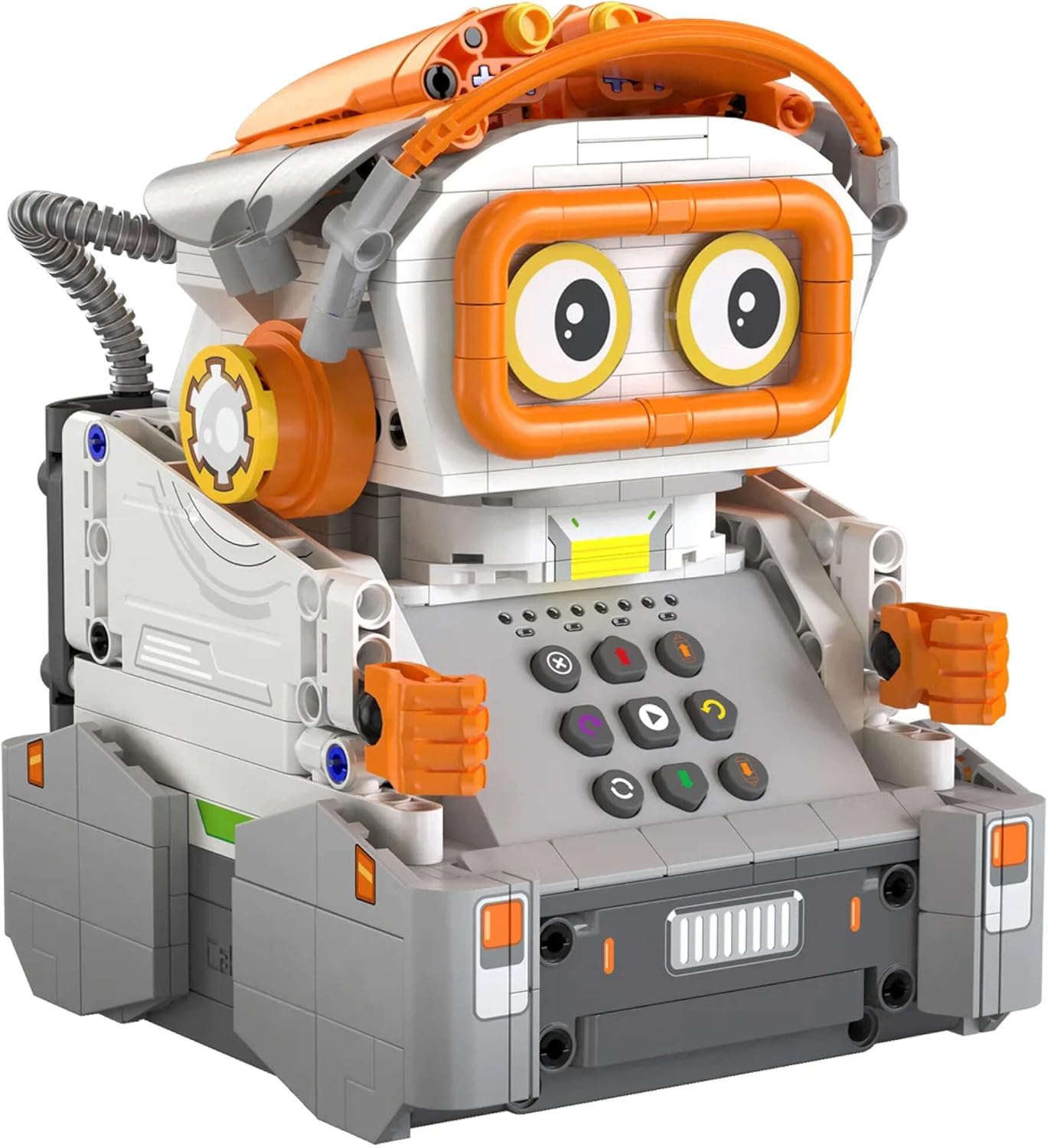
Aworan: A iwaju view of the fully assembled CaDA PiccasBot C83006W, showcasing its design and control panel.
2. Gbigba agbara Batiri akọkọ
- Locate the rechargeable battery and the USB charging cable.
- Connect the battery to the PiccasBot's charging port (refer to the building instructions for exact location).
- Plug the USB charging cable into a standard USB power adapter (not included) or a computer USB port.
- Allow the battery to charge fully before first use. The charging indicator (if present) will change color or turn off when charging is complete.
3. App sori
The CaDA PiccasBot C83006W is controlled via a dedicated mobile application. Follow these steps to install the app:
- Scan the QR code on the product packaging or visit the official webaaye (fun apẹẹrẹ, www.double-eagle-group.com) to download the app.
- Ensure your smart device meets the minimum operating system requirements: iOS 10.0 or above, or Android 5.0 or above.
- Fi ohun elo sori foonuiyara rẹ tabi tabulẹti.
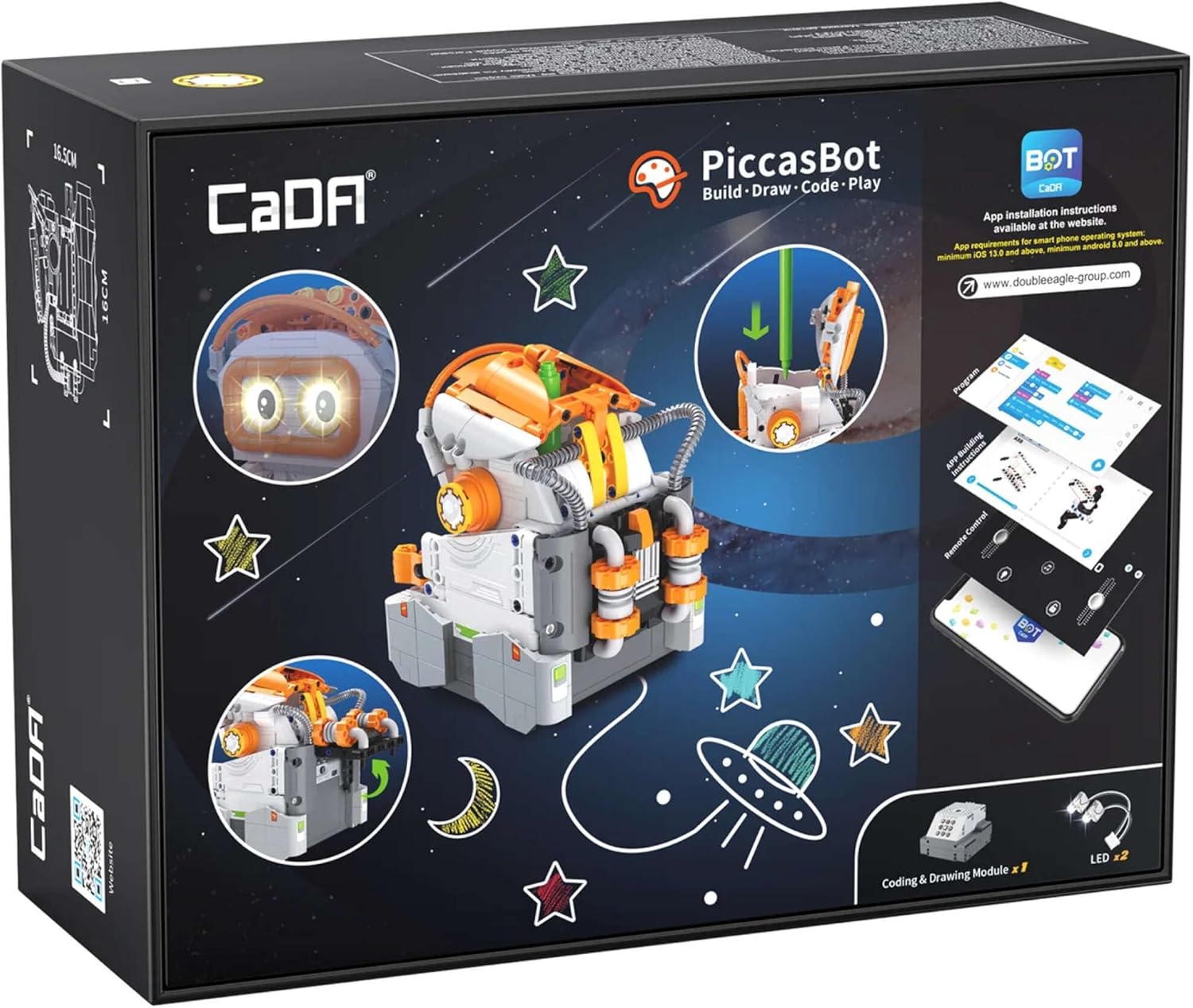
Image: The back of the CaDA PiccasBot C83006W product box, detailing app installation instructions, system requirements, and the coding & drawing module.
Operating Your PiccasBot
1. Agbara Tan / Paa
Locate the power button on your PiccasBot (refer to the building instructions). Press and hold to turn the robot on or off.
2. Nsopọ si App
- Ensure your PiccasBot is powered on and its battery is charged.
- Jeki Bluetooth lori ẹrọ ọlọgbọn rẹ.
- Open the CaDA PiccasBot app. The app will guide you through the pairing process. Select your PiccasBot from the list of available devices.
3. Drawing Function
- Insert one of the provided color pens into the designated holder on the PiccasBot. Ensure it is securely fastened and positioned correctly for drawing.
- In the app, navigate to the drawing interface. You can select pre-programmed designs or create your own.
- Place the PiccasBot on a flat, clean sheet of paper.
- Initiate the drawing process through the app. The robot will move and draw according to the selected pattern.
4. Coding Function
The app features a block-based coding interface. Drag and drop command blocks to create sequences of movements, actions, and drawing patterns for your PiccasBot. Experiment with different commands to understand how they control the robot's behavior.
5. Isakoṣo latọna jijin
Use the app's remote control interface to manually steer your PiccasBot, control its movements, and activate its LED light.
Itoju
Ninu
To clean your PiccasBot, gently wipe its surfaces with a dry, soft cloth. Do not use water, solvents, or abrasive cleaners, as these can damage the electronic components and plastic parts.
Ibi ipamọ
When not in use, store your PiccasBot in a cool, dry place, away from direct sunlight and extreme temperatures. Ensure the robot is powered off before storing.
Itọju Batiri
To prolong battery life, avoid completely draining the battery frequently. Recharge the battery when the robot indicates low power or performance decreases. If storing for an extended period, charge the battery to approximately 50% every few months.
Laasigbotitusita
- PiccasBot does not turn on:
- Rí i dájú pé batiri náà ti gba agbára tán pátápátá. Rí i dájú pé a tẹ bọ́tìnì agbára náà dáadáa.
- Cannot connect to the app:
- Verify that Bluetooth is enabled on your smart device and the PiccasBot is powered on. Close and reopen the app. Restart your smart device and the PiccasBot. Ensure the app is updated to the latest version.
- Drawing is inconsistent or not working:
- Check that the color pen is correctly inserted and has sufficient ink. Ensure the paper surface is flat and smooth. Clean any debris from the robot's wheels or drawing mechanism.
- Robot moves erratically:
- Check for any loose connections in the assembled parts. Ensure the wheels are free from obstructions. Recharge the battery.
Awọn pato ọja
| Nọmba awoṣe | C83006W |
| Brand | CADA |
| Nọmba ti Awọn ẹya | 461 |
| Awọn iwọn ti a kojọpọ (L x W x H) | 13.6 x 11.7 x 16.5 cm |
| Ohun elo | Ṣiṣu |
| Niyanju Ọjọ ori | 8+ ọdun |
| Orisun agbara | Rechargeable Battery (USB charged) |
| Asopọmọra | Bluetooth (fun iṣakoso ohun elo) |
| Idiwon Iwọn (L x W x H) | 31 x 24 x 12 cm |
| Package iwuwo | 2 kilo |
Atilẹyin ọja ati Support
For warranty information, please refer to the documentation included with your purchase or contact your retailer. If you encounter any issues or have questions regarding your CaDA PiccasBot C83006W that are not covered in this manual, please visit the official CaDA webaaye tabi kan si atilẹyin alabara wọn fun iranlọwọ.


