Ọrọ Iṣaaju
This manual provides detailed instructions for the installation, operation, and maintenance of your TRENDnet 12-Port Gigabit PoE+ Smart Surveillance Switch (TPE-3012LS). This switch is designed to simplify the management of surveillance networks, offering advanced features optimized for IP cameras and NVRs.
Ṣeto
Package Awọn akoonu
- TRENDnet TPE-3012LS Switch
- Awọn ọna fifi sori Itọsọna
- Okun agbara (1.5m / 5 ft.)
- Rackmount ohun elo
Fifi sori ti ara
The TPE-3012LS is designed for either desktop placement or 1U 19-inch rackmount installation. Ensure adequate ventilation around the unit.

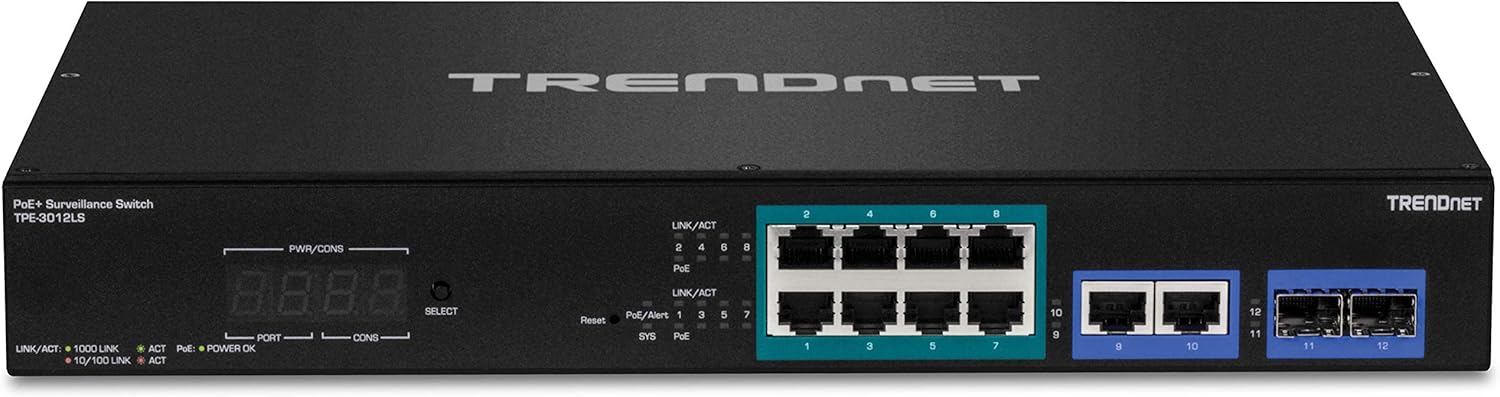
olusin 1: Iwaju view of the TRENDnet TPE-3012LS switch, showing 8 PoE+ ports, 2 Gigabit ports, and 2 SFP slots.
olusin 2: Pada view of the TRENDnet TPE-3012LS switch, showing the AC power input (100-240 VAC, 50/60 Hz).
Nsopọ Yipada
- Asopọ agbara: Connect the provided power cord to the AC LINE input on the rear panel of the switch and to a standard electrical outlet.
- Asopọ Ẹrọ Nẹ́tíwọ́ọ̀kì:
- For PoE-powered devices (e.g., IP cameras, access points), connect an Ethernet cable from the device to any of the 8 Gigabit PoE+ ports (ports 1-8). These ports deliver up to 30W of power and data over a single cable.
- For non-PoE network devices (e.g., NVRs, computers), connect an Ethernet cable from the device to the 2 Gigabit ports (ports 9-10).
- SFP Module Installation: Insert compatible SFP modules into the 2 SFP slots (ports 11-12) for fiber optic connections, extending network reach over long distances.
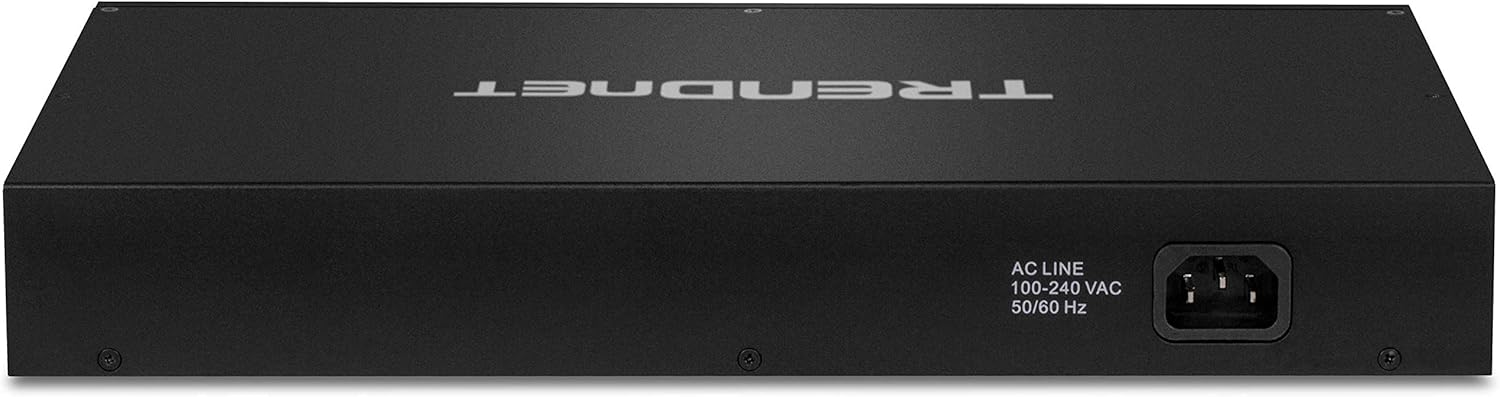
Figure 3: The TPE-3012LS switch integrated into a network rack setup.
Ṣiṣẹ
Iṣeto ni ibẹrẹ
The TPE-3012LS is a managed switch. For initial setup and advanced configuration, access the web-based management interface (GUI). Refer to the Quick Installation Guide for the default IP address and login credentials.
Web-Smart Interface
The graphical dashboard interface provides detailed information about the switch and each connected PoE device. Key features include:
- Ipo Iboju: Optimized for the surveillance industry, allowing management of ONVIF compliant IP cameras and NVRs. This includes changing device IP settings and viewing individual IP camera video directly within the switch GUI.
- PoE Port Controls: Enable/disable PoE, perform PD alive checks, and schedule power.
- Ifihan LED oni-nọmba marun-un: The front panel features a 4-digit LED display showing total PoE power budget, available power, and power consumption per port.
To ti ni ilọsiwaju Awọn ẹya ara ẹrọ
The switch supports various advanced managed features for flexible network integration and traffic management:
- VLANs: Segment and isolate virtual LAN groups (802.1Q VLAN, Voice VLAN, Surveillance VLAN).
- QoS (Didara Iṣẹ): Prioritize traffic, including VoIP traffic, to ensure optimal performance.
- LACP (Ìlànà Ìṣàkóso Ìṣọ̀kan Ìsopọ̀pọ̀): Group ports together to increase bandwidth between switches.
- SNMP Monitoring: Monitor network status and performance.
- Port Bandwidth Controls: Manage bandwidth allocation per port.
- Ipa ọna IP: Supports IP static routing.
- Ayewo ARP Yiyi: Enhances network security.
- Awọn atokọ Iṣakoso Wiwọle (ACLs): Define network access policies.
- RMON and Syslog: For comprehensive network monitoring and logging.
Long Range PoE+
The TPE-3012LS supports long distance PoE+ networking, extending the PoE+ signal up to 656 ft. (200m) away at speeds up to 10mbps, reducing the need for additional power outlets and infrastructure costs.
Itoju
Famuwia Awọn imudojuiwọn
Regularly check the TRENDnet support website for the latest firmware updates to ensure optimal performance and access to new features. Follow the instructions provided with the firmware download for the update process.
PoE Device Auto-Recovery (PD Alive Check)
This feature automatically attempts to recover unresponsive PoE devices connected to the switch. If a PoE device (e.g., a PoE camera) becomes unresponsive to network pings, the switch will automatically reboot the corresponding PoE port in an attempt to restore the device's functionality. This minimizes downtime and manual intervention.
Laasigbotitusita
Awọn ọrọ to wọpọ
- Ko si Agbara: Ensure the power cord is securely connected to both the switch and a working power outlet. Check the power LED indicator on the front panel.
- Ko si Ọna asopọ/Iṣe: Verify that Ethernet cables are properly connected to both the switch port and the connected device. Check the Link/ACT LEDs for activity. Ensure the connected device is powered on and functioning correctly.
- PoE Device Not Responding: If a PoE device is unresponsive, check the PoE LED for the corresponding port. The PD Alive Check feature should attempt to recover the device. If not, manually power cycle the port via the GUI or physically disconnect/reconnect the device.
- Ko le Wiwọle Web GUI: Ensure your computer's IP address is in the same subnet as the switch's default IP address. Verify physical connection. Try resetting the switch to factory defaults (refer to the Quick Installation Guide for the reset procedure).
For more detailed troubleshooting steps and advanced diagnostics, please refer to the complete user manual available on the TRENDnet support webojula.
Awọn pato
| Ẹya ara ẹrọ | Ẹ̀kúnrẹ́rẹ́ |
|---|---|
| Ẹrọ Interface | 8 x Gigabit PoE+ Ports, 2 x Gigabit Ports, 2 x 100/1000Mbps SFP Slots |
| PoE Isuna | 110W (up to 30W per port) |
| Poe Standards | IEEE 802.3af / ni |
| Long Range PoE+ | Up to 656 ft. (200m) at 10mbps |
| Iru isakoso | Web Smart (Managed) |
| Awọn iwọn (LxWxH) | 12.9 x 9.1 x 1.75 inches |
| Iwọn Nkan | 4.4 iwon (2 kilo) |
| Ohun elo ọran | Irin |
| Awọn iwọn otutu ti nṣiṣẹ | 32°F si 104°F (0°C si 40°C) |
| Data Gbigbe Oṣuwọn | 24 Gigabits fun keji |
| Awọn irinše to wa | TPE-3012LS, Quick Installation Guide, Power cord, Rackmount kit |
Atilẹyin ọja ati Support
TRENDnet products are backed by a manufacturer's warranty. For specific warranty details, technical support, and additional resources, please visit the official TRENDnet support webojula.


