Ọrọ Iṣaaju
This manual provides comprehensive instructions for the setup, operation, and maintenance of your waveshare 7-inch Capacitive Touch LCD Display Kit for Raspberry Pi 4 Model B. Please read this manual thoroughly before use to ensure proper functionality and to maximize your product experience.
Package Awọn akoonu
Daju pe gbogbo awọn nkan ti a ṣe akojọ rẹ si isalẹ wa ninu package rẹ:
- 7-inch Capacitive Touch LCD Display
- Raspberry Pi 4 Model B (4GB RAM version)
- MicroSD Card (pre-loaded with system, typically 16GB)
- Ohun ti nmu badọgba Agbara USB
- USB-A to USB-C Cable (for power)
- HDMI Cable (Micro HDMI to Standard HDMI)
- USB-A to Micro USB Cable (for touch functionality)
- Acrylic Case components (top, bottom, side panels, stand)
- Ohun elo iṣagbesori (awọn skru, awọn iduro)
- MicroSD Kaadi Reader

Image: All components included in the waveshare 7-inch Display Kit, including the LCD, Raspberry Pi 4, cables, power adapter, acrylic case parts, and a microSD card with reader.
Awọn ilana iṣeto
Follow these steps to assemble and set up your display kit:
- Mura Raspberry Pi: Insert the provided MicroSD card into the Raspberry Pi 4 Model B.
- So Raspberry Pi sori ẹrọ: Secure the Raspberry Pi 4 to the back of the 7-inch LCD display using the provided standoffs and screws. Ensure proper alignment with the display's connectors.
- So awọn okun ifihan pọ:
- Connect one end of the Micro HDMI cable to the Raspberry Pi's Micro HDMI port and the other end to the display's HDMI input.
- Connect the USB-A to Micro USB cable from a USB 2.0 port on the Raspberry Pi to the Micro USB port on the display. This provides power for the display's backlight and enables touch functionality.
- Assemble the Acrylic Case: Carefully attach the acrylic case components around the assembled display and Raspberry Pi. Refer to the case assembly diagram for correct orientation.
- So agbara: Plug the USB power adapter into a wall outlet and connect the USB-A to USB-C cable to the Raspberry Pi's USB-C power input.
- Bata Ibẹrẹ: The system should power on automatically. The display will show the boot sequence.

Image: The fully assembled waveshare 7-inch Display Kit, showing the Raspberry Pi 4 mounted behind the screen, connected with cables, and powered by an adapter.
Isẹ
Once the display kit is powered on, the pre-installed operating system (typically Raspbian) will boot. You can interact with the system using the capacitive touch screen.
- Iṣiṣẹ Fọwọkan: The 7-inch display supports up to five-point capacitive touch when running Raspbian. For other supported operating systems like Ubuntu, Kali, or WIN10 IoT, it typically supports single-point touch.
- Awọn Agbeegbe Nsopọ: Use the USB ports on the Raspberry Pi to connect a keyboard, mouse, or other USB devices as needed.
- Asopọmọra nẹtiwọki: The Raspberry Pi 4 supports Gigabit Ethernet and 2.4/5GHz Wi-Fi for internet access.
- Ijade ohun: Audio can be output via the 3.5mm audio jack or HDMI.
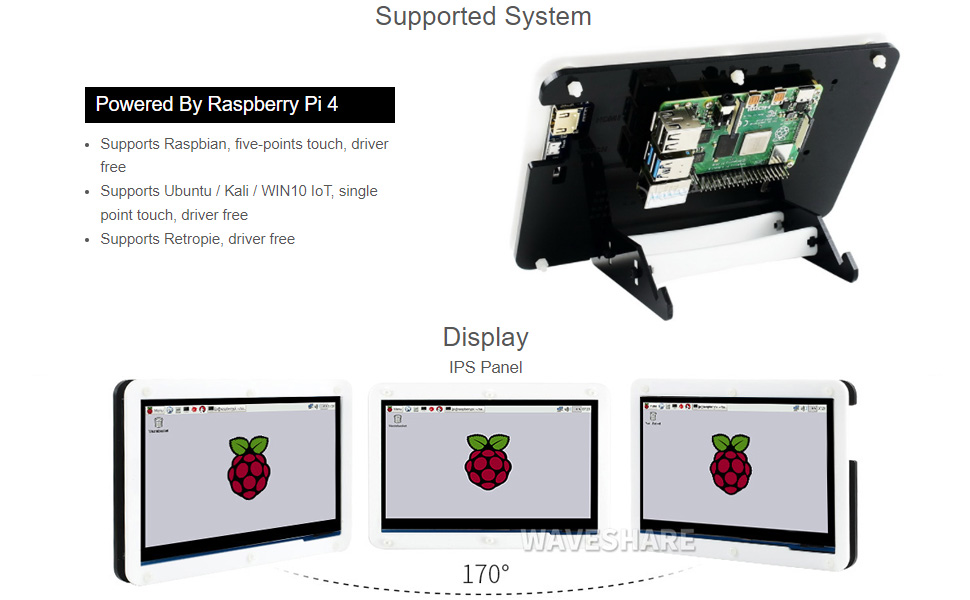
Image: A hand interacting with the capacitive touch screen, demonstrating its functionality with a graphical user interface.
Awọn ọna ṣiṣe atilẹyin
The waveshare 7-inch Display Kit is compatible with various operating systems for the Raspberry Pi 4 Model B:
- Raspbian: Ṣe atilẹyin ifọwọkan aaye marun-un, laisi awakọ.
- Ubuntu / Kali / WIN10 IoT: Ṣe atilẹyin ifọwọkan aaye kan, laisi awakọ.
- Àtúnṣe: Driver-free support.

Image: Visual representation of the display showing different viewing angles and indicating support for various operating systems like Raspbian, Ubuntu, Kali, and Windows 10 IoT.
Key Awọn ẹya ara ẹrọ
- 7-inch IPS Ifihan: Gbooro viewing angle with 1024x600 resolution.
- Fọwọkan Capacitive: Supports 5-point touch (with Raspbian) for intuitive interaction.
- Integrated Raspberry Pi 4: Powered by Broadcom BCM2711B0 Quad-core 64-bit SoC.
- Iranti: 4GB LPDDR4 Ramu.
- Asopọmọra: Dual-band 2.4/5GHz Wi-Fi, Bluetooth 5.0, Gigabit Ethernet.
- Awọn ibudo: 2x USB 3.0, 2x USB 2.0, 2x Micro HDMI (up to 4Kp60), 4-pole stereo audio, 2-lane MIPI DSI display port, 2-lane MIPI CSI camera port, 40-pin GPIO header.
- Iṣagbewọle agbara: USB-C 5V/3A.
- Ibi ipamọ: Micro SD kaadi Iho.

Image: Detailed diagram of the Raspberry Pi 4 Model B board, highlighting its processor, RAM, various ports (USB, HDMI, Ethernet, GPIO), and wireless capabilities.
Itoju
- Ninu: Use a soft, dry cloth to clean the display and case. For stubborn smudges on the screen, a slightly damp, Aṣọ ti ko ni lint le ṣee lo. Yago fun abrasive ose tabi epo.
- Awọn imudojuiwọn sọfitiwia: Regularly update the operating system and installed software on your Raspberry Pi to ensure optimal performance and security.
- Awọn ipo Ayika: Operate the device in a clean, dry environment. Avoid extreme temperatures, direct sunlight, and high humidity.
- Isakoso Agbara: Always shut down the Raspberry Pi gracefully through the operating system before disconnecting power to prevent data corruption.
Laasigbotitusita
- Ko si ifihan ti o wu jade:
- Ensure the Micro HDMI cable is securely connected to both the Raspberry Pi and the display.
- Verify the Raspberry Pi is receiving power (check the power LED on the Pi).
- Confirm the MicroSD card is properly inserted and contains a valid operating system image.
- Touch screen not responding:
- Check that the USB-A to Micro USB cable is connected from the Raspberry Pi to the display.
- Ensure the operating system supports touch functionality and that necessary drivers (if any, though typically driver-free for supported OS) are loaded.
- Restart the Raspberry Pi.
- System not booting:
- Confirm the power supply is adequate (5V/3A recommended for Raspberry Pi 4).
- Re-flash the operating system image onto the MicroSD card.
- Ṣayẹwo fun eyikeyi alaimuṣinṣin awọn isopọ tabi bajẹ irinše.
Imọ ni pato
| Iwọn Ifihan | 7 inches |
| Ipinnu | 1024 x 600 |
| Panel Iru | IPS |
| Fọwọkan Iru | Capacitive (5-point with Raspbian, 1-point with others) |
| isise | Broadcom BCM2711B0, Quad-core 64-bit SoC |
| Àgbo | 4 GB LPDDR4 |
| Ibi ipamọ | 16 GB MicroSD Card (included) |
| Alailowaya Asopọmọra | 2.4/5GHz Wi-Fi, Bluetooth 5.0 |
| Ti firanṣẹ Asopọmọra | Gigabit àjọlò |
| Ijade fidio | 2x Micro HDMI (up to 4Kp60) |
| Ijade ohun | 4-pole stereo audio jack |
| Awọn ibudo USB | 2x USB 3.0, 2x USB 2.0 |
| Agbara Input | USB-C 5V/3A |
| Awọn iwọn (Apapọ) | 9.06 x 6.69 x 2.76 inches |
| Iwọn Nkan | 1.43 iwon |

Image: Technical drawing showing the dimensions of the 7-inch display in millimeters and illustrating the two available stand angles (45° and 60°) for the acrylic case.
Atilẹyin ọja ati Support
For warranty information and technical support, please refer to the official waveshare webojula tabi kan si wọn onibara iṣẹ taara. Tọju iwe-ẹri rira rẹ bi ẹri rira fun eyikeyi awọn ibeere atilẹyin ọja.
Awọn orisun Ayelujara: For additional documentation, tutorials, and community support, visit the waveshare official webojula.


