Microsoft Surface Pro Keyboard User Manual
Model: QJW-00001
Ọrọ Iṣaaju
This manual provides essential information for the setup, operation, maintenance, and troubleshooting of your Microsoft Surface Pro Keyboard. Designed for seamless integration with Surface Pro X and Surface Pro 8 devices, this keyboard offers a full mechanical keyset, backlit keys, and a large trackpad for an optimal typing experience.
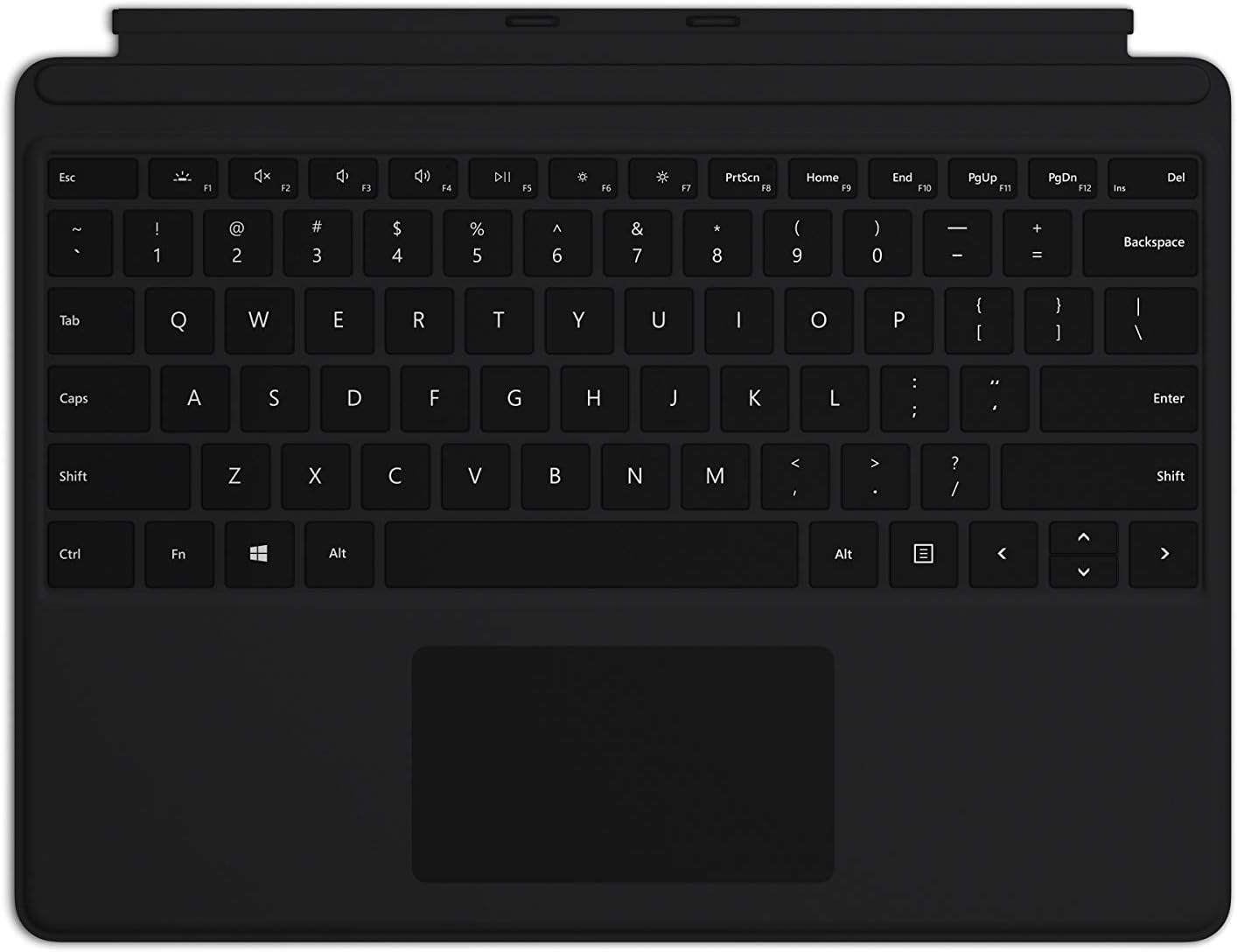
Image: The Microsoft Surface Pro Keyboard in black, showcasing its full QWERTY layout and integrated trackpad.
Ṣeto
Package Awọn akoonu
- Dada Pro Keyboard
Nsopọ Keyboard
The Microsoft Surface Pro Keyboard connects instantly to your compatible Surface device via magnetic stability. Ensure your Surface Pro X or Surface Pro 8 device is powered on.
- Align the magnetic connector edge of the keyboard with the corresponding port at the bottom edge of your Surface Pro X or Surface Pro 8 device.
- Gently push the keyboard towards the device until it clicks securely into place. The magnetic connection will guide it.
- Once connected, the keyboard will be recognized automatically by your Surface device.
The keyboard is designed to adjust to almost any angle, providing a stable typing experience. It also serves as a protective cover for your screen when closed, helping to conserve battery life.

Aworan: A oke-isalẹ view of the Microsoft Surface Pro Keyboard, illustrating its compact design and how it integrates with a Surface device.
Ṣiṣẹ Keyboard
Typing and Navigation
The keyboard features a full mechanical keyset with optimal key spacing for fast and fluid typing. The large trackpad provides precise navigation and control, supporting multi-touch gestures as configured in your Surface device's settings.
Awọn bọtini Afẹyinti
The keys are backlit, allowing for comfortable use in low-light conditions. The backlight intensity can typically be adjusted through your Surface device's display settings or via dedicated function keys (if present on your specific model).
Protective and Power Saving Features
When not in use, fold the keyboard over the screen of your Surface device. This action protects the screen from scratches and helps conserve battery power by putting the device into a low-power state. To use your Surface as a tablet, fold the keyboard completely back behind the device.
Itoju
Ninu
To maintain the appearance and functionality of your keyboard, clean it regularly:
- Lo asọ asọ, ti ko ni lint die-die dampened with water or a mild cleaning solution (e.g., isopropyl alcohol diluted with water) to wipe the surface of the keys and trackpad.
- Yago fun sisọ awọn olomi taara sori keyboard.
- Fun eruku ati idoti laarin awọn bọtini, lo afẹfẹ fisinuirindigbindigbin.
- Ensure the keyboard is completely dry before reattaching it to your Surface device.
Ibi ipamọ
When storing the keyboard separately from your Surface device, keep it in a clean, dry environment away from extreme temperatures and direct sunlight.
Laasigbotitusita
Keyboard Ko Dahun
- Ṣayẹwo Asopọmọra: Ensure the keyboard is securely attached to your Surface device. Detach and reattach it firmly.
- Tun ẹrọ bẹrẹ: Restart your Surface Pro X or Surface Pro 8. This can often resolve minor software glitches.
- Ṣayẹwo fun awọn imudojuiwọn: Ensure your Surface device's operating system and drivers are up to date. Go to Windows Update settings.
- Idanwo lori Ẹrọ miiran: If possible, test the keyboard with another compatible Surface device to determine if the issue is with the keyboard or the device.
Backlight Ko Ṣiṣẹ
- Ṣatunṣe Imọlẹ: Try adjusting the backlight brightness using the function keys or through Windows display settings.
- Ipo Fifipamọ Agbara: Ensure your device is not in a power-saving mode that might disable the backlight.
Trackpad Issues
- Páádì Ìtọ́pasẹ̀ Mímọ́: Rí i dájú pé ojú trackpad náà mọ́ tónítóní, kò sì ní ìdọ̀tí kankan.
- Ṣayẹwo Eto: Verify trackpad settings in Windows (Settings > Devices > Touchpad).
- Àtúnṣe Ìwakọ̀: In Device Manager, try uninstalling and reinstalling the trackpad driver.
Awọn pato
| Ẹya ara ẹrọ | Ẹ̀kúnrẹ́rẹ́ |
|---|---|
| Brand | Microsoft |
| Nọmba awoṣe | QJW-00001 |
| Awọn ẹrọ ibaramu | Surface Pro X, Surface Pro 8 |
| Asopọmọra Technology | Magnetic (Physical Connection) |
| Apejuwe Keyboard | Full mechanical keyset, backlit keys, large trackpad |
| Àwọ̀ | Dudu |
| Iwọn Nkan | 11.8 iwon (nipa 334.5 giramu) |
| Awọn iwọn Ọja (LxWxH) | 11.38 x 8.71 x 0.2 inches (iwọn 28.9 x 22.1 x 0.5 cm) |
| Nọmba ti Awọn bọtini | 79 |
| Keyboard Backlighting | Nikan Awọ LED |
Atilẹyin ọja ati Support
For warranty information and technical support, please refer to the documentation included with your Surface Pro X or Surface Pro 8 device, or visit the official Microsoft Support webojula. O le wa awọn orisun atilẹyin ni igbagbogbo, Awọn ibeere FAQ, ati awọn aṣayan olubasọrọ ni atilẹyin.microsoft.com.
Jọwọ ṣe idaduro ẹri rira rẹ fun awọn iṣeduro atilẹyin ọja.


