1. Ifihan
The TOTU USB-C Triple Display Docking Station is designed to expand the connectivity of your USB-C enabled laptop, transforming it into a powerful desktop workstation. This docking station allows for multiple external monitor connections, provides various USB ports for peripherals, and includes Ethernet, audio, and card reader functionalities, all while delivering power to your host device.
This manual provides essential information for setting up, operating, and troubleshooting your docking station to ensure optimal performance.

Image 1.1: The TOTU USB-C Triple Display Docking Station, a compact grey unit with various ports visible on its sides.
2. Awọn ẹya Ọja
The TOTU Docking Station offers a comprehensive set of features to enhance your productivity:
- Ifihan Mẹ́ta: Connect up to three external monitors simultaneously via dual HDMI and one DisplayPort. Supports resolutions up to 4K@30Hz for single monitor setups and 1080P@60Hz for triple monitor configurations.
- Asopọmọra gbooro: Includes an RJ-45 Gigabit Ethernet port, three USB 3.0 ports, two USB 2.0 ports, a USB-C 3.0 port for peripheral connectivity and charging, SD and Micro TF card slots, and 3.5mm audio/microphone jacks.
- Ifijiṣẹ Agbara: Provides up to 60W power delivery to your host laptop through the connected USB-C cable, eliminating the need for a separate laptop charger.
- Plug-and-Play: Designed for easy setup without requiring additional driver installations for most operating systems.
- Apẹrẹ ti o tọ: Awọn ẹya ara ẹrọ irin to lagbara casing for efficient heat dissipation and long-term reliability.

Image 2.1: A detailed diagram illustrating the various ports on the TOTU Docking Station, including USB 3.0, USB 2.0, USB-C 3.0, HDMI, DisplayPort, Ethernet, 3.5mm Audio, Mic, SD Card Reader, and Micro TF Card Reader.
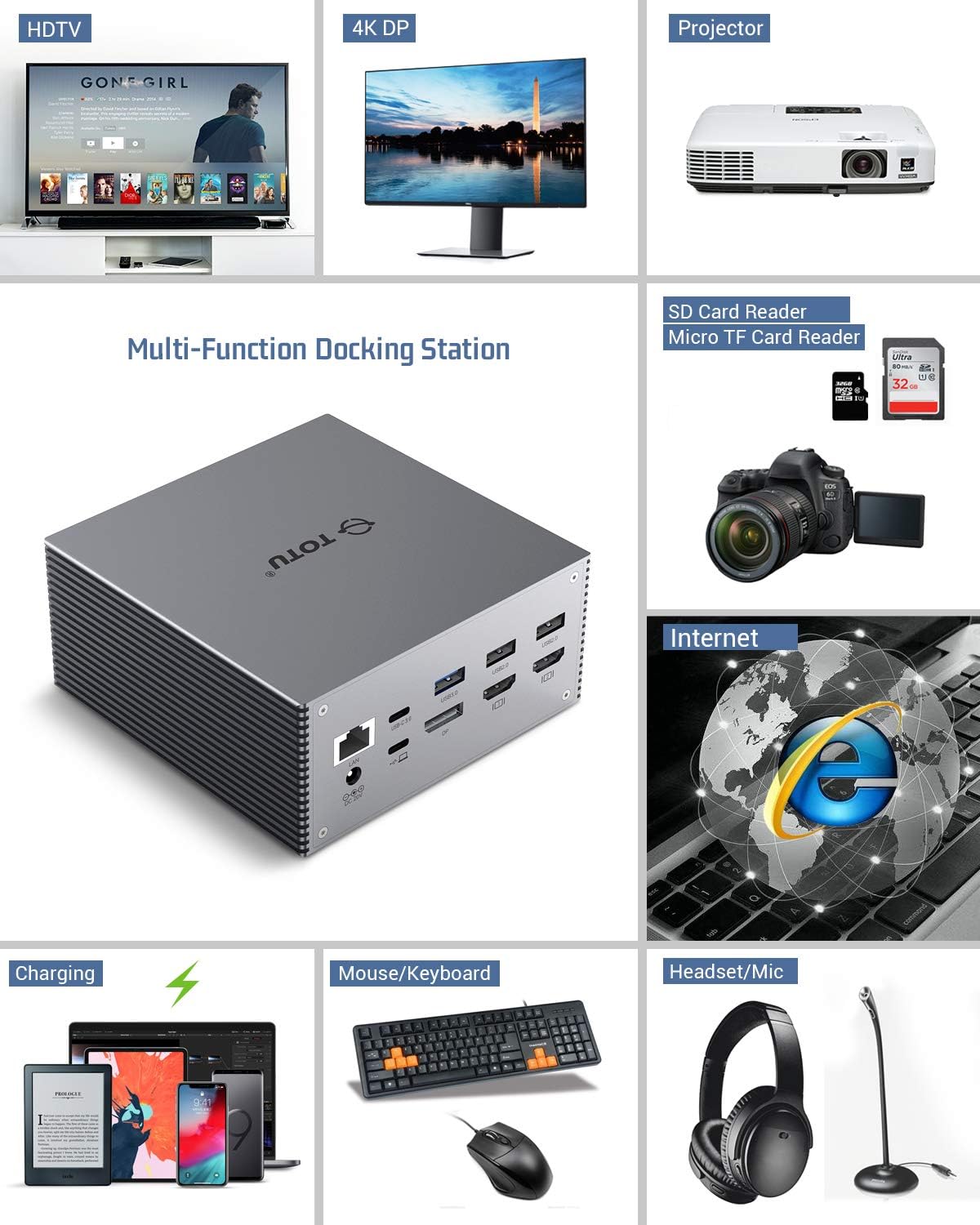
Image 2.2: Visual representation of the docking station's multi-functionality, showing connections to HDTVs, 4K DP monitors, projectors, and various peripherals like keyboards, mice, headsets, and charging devices.
3. Ibamu
To ensure proper functionality, your host device's USB-C port must support DisplayPort Alt Ipo ati Ifijiṣẹ Agbara. The TOTU Docking Station is compatible with the latest laptops featuring a USB-C 3.1 Gen 2 port.
Awọn ọna ṣiṣe atilẹyin:
- Windows
- macOS (Note: macOS only supports Mirror Mode for multiple external displays)
- ChromeOS
Awọn akọsilẹ pataki:
- Incompatible with USB-A to USB-C adapters.
- Ensure the docking station is connected directly to a compatible USB-C port on your host device.
4. Eto Itọsọna
Follow these steps to set up your TOTU USB-C Triple Display Docking Station:
- So agbara: Plug the included 60W (20V, 3A) DC power adapter into the docking station's DC 20V input port and then into a wall outlet.
- Sopọ mọ Olugbalejo: Use the provided USB-C to USB-C cable to connect the docking station's 'Connect to Host' USB-C port to a compatible USB-C port on your laptop.
- Sopọ Awọn ifihan: Connect your external monitors to the docking station using HDMI and/or DisplayPort cables. For optimal video performance, use HDMI 2.0/DP 1.4 or higher cables.
- Awọn Agbeegbe Sopọ: Plug in your USB devices (keyboard, mouse, external hard drives, etc.) into the available USB 3.0 or USB 2.0 ports. Insert SD or Micro TF cards if needed.
- Connect Audio/Ethernet: If desired, connect your headphones/speakers to the 3.5mm audio output and an Ethernet cable to the RJ-45 port for wired network access.
The docking station is designed for plug-and-play functionality. Your operating system should automatically detect and configure the connected devices.
5. Ṣíṣeto Àfihàn
The TOTU Docking Station supports various display configurations depending on your operating system.
5.1. Windows Display Modes
Windows systems support Multi-Stream Transport (MST), allowing for extended desktop across multiple external monitors. Due to chip bandwidth limitations, there will be a maximum of 3 screen outputs, including the host display.
- Ipo digi: Each display can achieve a maximum resolution of 3840x2160@30Hz. Lower resolutions (e.g., 2560x1600, 1920x1080) will display at 60Hz.
- Fa Ipo: Each external display will be limited to a maximum resolution of 1080P. One of the displays may not be able to display full screen.

Aworan 5.1: Examples of triple display configurations for Windows, showing various combinations of HDMI and DisplayPort connections and their supported resolutions.
Video 5.1: An official video from TOTU demonstrating the 4K@60Hz triple display setup for Windows systems with Thunderbolt compatibility.
5.2. macOS Display Modes
macOS currently supports only Mirror Display across all external monitors. All external displays will mirror the primary display instead of extending it.
- Ipo digi: Maximum resolution is 3840x2160@30Hz. 2560x1600, 1920x1080 (1080P) and lower resolutions will display at 60Hz.
Akiyesi: When using three video outputs simultaneously, connecting or disconnecting any one video output will temporarily disconnect the remaining two video connections for approximately 5 seconds before reconnecting.

Image 5.2: Illustrations of display modes for macOS, highlighting that only mirror mode is supported for multiple external displays.

Image 5.3: A comparative diagram showing how Windows laptops can support triple extended displays (with the laptop screen off), while macOS only supports mirrored displays across external monitors.
5.3. Audio/Mic Reminder
When connecting the docking station, the default audio output device may change to the docking station. To use your laptop's built-in speakers, you may need to manually change the audio output device back to your laptop speakers in your operating system's sound settings.
6. Laasigbotitusita
If you encounter issues with your TOTU Docking Station, please refer to the following common solutions:
- DisplayPort/HDMI Not Working: Try using a different cable. Ensure your host USB-C port supports DisplayPort Alt Mode.
- USB Accessories Disabled: If USB peripherals are not recognized or stop working, try unplugging and re-plugging the docking station's main USB-C cable from your host device. For macOS users, resetting the SMC (System Management Controller) of your device may also resolve the issue.
- Awọn ọrọ Ijade Olohun: If your laptop speakers stop working after connecting the dock, check your operating system's sound settings and ensure the correct audio output device is selected.
- Triple Monitor Setup: If you intend to use three external monitors simultaneously, it is recommended to turn off your laptop's built-in screen for optimal performance.
- USB-C Port for Data Only: Note that the USB-C port on the docking station is for data transfer and peripheral charging only; it does not support video output.
7. Awọn pato
| Ẹya ara ẹrọ | Ẹ̀kúnrẹ́rẹ́ |
|---|---|
| Nọmba awoṣe | TT-DC001A |
| Ọja Mefa | 4.7 x 4.7 x 2.2 inches |
| Iwọn Nkan | 1.3 iwon |
| Àwọ̀ | Aaye Grey |
| Ni wiwo Hardware | USB, Ethernet, HDMI, 3.5mm Audio, DisplayPort |
| Lapapọ Awọn ibudo USB | 5 (USB 3.0, 2x USB 2.0) |
| Lapapọ HDMI Ports | 2 |
| DisplayPort | 1 |
| Agbara Input | 60W (20V, 3A) DC Power Adapter |
| Oluka kaadi | SD and Micro TF |
8. Package Awọn akoonu
Nigbati o ba ṣii package, o yẹ ki o wa awọn nkan wọnyi:
- TOTU Triple Display Docking Station
- 60W (20V 3A) DC Power Adapter
- USB-C to USB-C Cable (3.3ft long)
- Itọsọna olumulo
- Kaadi atilẹyin ọja

Image 8.1: A visual representation of all items included in the TOTU Triple Display Docking Station package, laid out neatly.
9. Atilẹyin ọja & Atilẹyin
TOTU products are designed for reliability and performance. For any questions or assistance with your docking station, please contact us through Amazon. Our support team is committed to responding to inquiries within 24 hours.
Please refer to the included warranty card for specific warranty terms and conditions.


