Ọrọ Iṣaaju
Thank you for choosing the Tracer Roadster 4 in 1 Steering Wheel. This manual provides detailed instructions for setting up, operating, maintaining, and troubleshooting your new racing wheel. Please read this manual thoroughly before use to ensure optimal performance and longevity of your device.
The Tracer Roadster 4 in 1 Steering Wheel is designed for an immersive gaming experience, compatible with various platforms including PlayStation 4 and Windows PC. It features a responsive steering wheel, integrated shifter, and a pedal set for realistic control.
Package Awọn akoonu
- Tracer Roadster 4 in 1 Steering Wheel
- Efatelese Ṣeto
- Afowoyi Olumulo (iwe-ipamọ yii)
Eto Itọsọna
Connecting to PlayStation 4 (PS4)
- Connect the steering wheel's USB cable to an available USB port on your PS4 console.
- Power on your PS4 console. The red LED on the steering wheel will illuminate, indicating power.
- Connect the steering wheel to your PS4 controller using a microUSB cable (not included). This step is crucial for authentication.
- Tẹ awọn ILE button on the steering wheel. The green LED will illuminate, indicating successful connection and readiness for use.
Connecting to PC (Windows)
- Connect the steering wheel's USB cable to an available USB port on your Windows PC.
- The system should automatically detect and install the necessary drivers. If not, please refer to the manufacturer's webojula fun awakọ gbigba lati ayelujara.
- Once drivers are installed, the steering wheel will be ready for use with compatible PC racing games.

Figure 1: The Tracer Roadster 4 in 1 Steering Wheel, including the main wheel unit, integrated shifter, and separate pedal set. This image shows the complete setup ready for connection.
Awọn ilana Iṣiṣẹ
Idari Wili idari
The steering wheel features a full range of motion for precise control in racing games. It includes various buttons and a D-pad for in-game navigation and actions, mimicking a standard game controller layout.
- Paadi itọsọna (D-paadi): Fun lilọ kiri akojọ aṣayan ati awọn iṣakoso inu-ere kan pato.
- Action Buttons (X, Circle, Square, Triangle / A, B, X, Y): Awọn bọtini iṣe ere deede.
- L1/R1, L2/R2 Buttons: Shoulder buttons, often used for shifting gears or other actions.
- Bọtini ILE: PS4 system menu access.
- Bọtini PROG: For programming specific functions (refer to game-specific instructions).
- Paadi ọwọ: Integrated touchpad for additional control options, especially on PS4.
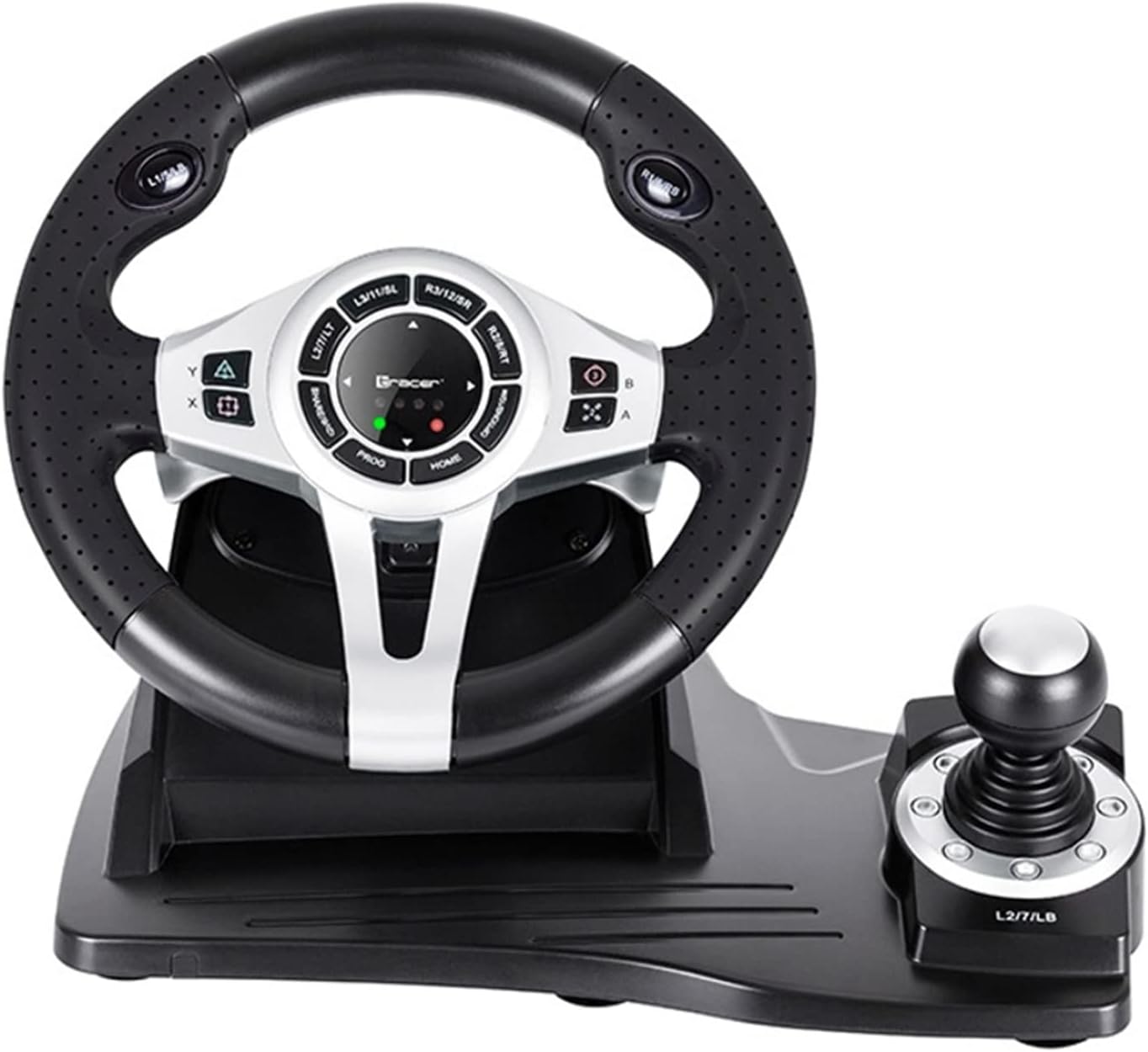
olusin 2: A alaye view of the central control panel on the steering wheel, showing the various buttons, D-pad, and indicator lights. The integrated shifter is visible to the right.
Efatelese Ṣeto
The separate pedal set includes an accelerator and brake pedal for realistic driving simulation. Ensure the pedal set is placed on a stable surface to prevent slipping during intense gameplay.

Figure 3: The standalone pedal unit, featuring both accelerator and brake pedals. The textured base provides grip to prevent movement during use.
Itọju ati Itọju
- Ninu: Use a soft, dry cloth to clean the surface of the steering wheel and pedals. For stubborn dirt, a slightly damp Aṣọ le ṣee lo, ṣugbọn rii daju pe ko si ọrinrin ti o wọ inu awọn paati inu.
- Ibi ipamọ: Nigbati o ko ba wa ni lilo, tọju ẹrọ naa ni itura, aye gbigbẹ kuro lati orun taara ati awọn iwọn otutu to gaju.
- Yago fun Olomi: Ma ṣe fi ẹrọ naa han si omi tabi awọn olomi miiran.
- Mu pẹlu Itọju: Yago fun sisọ silẹ tabi tẹriba ẹrọ si awọn ipa to lagbara.
Laasigbotitusita
| Isoro | Owun to le Fa | Ojutu |
|---|---|---|
| Steering wheel not recognized by PS4. | Incorrect connection or authentication issue. | Ensure the steering wheel's USB cable is securely connected to the PS4. Verify the microUSB cable connection between the steering wheel and the PS4 controller. Press the ILE bọtini lori idari oko kẹkẹ. |
| No response from steering wheel on PC. | Drivers not installed or USB port issue. | Try a different USB port. Check Device Manager for driver status. Reinstall drivers if necessary from the manufacturer's webojula. |
| Awọn ifihan LED ko tan ina. | No power or connection issue. | Ensure the USB cable is firmly connected to the console/PC. Check if the console/PC is powered on. |
| Àwọn pedal kò dáhùn. | Loose connection to the steering wheel. | Verify that the pedal unit's cable is securely plugged into the steering wheel base. |
Awọn pato
| Ẹya ara ẹrọ | Ẹ̀kúnrẹ́rẹ́ |
|---|---|
| Brand | Olutọpa |
| Orukọ awoṣe | Roadster 4 in 1 |
| Nọmba awoṣe | TRAJOY46524 |
| Asopọmọra Technology | USB |
| Awọn ẹrọ ibaramu | PlayStation 4, Windows PC |
| Adarí Iru | Wheel Wheel |
| Àwọ̀ | Dudu |
| Pataki Ẹya | Bọtini ifọwọkan |
| Nọmba ti Awọn bọtini | 8 (excluding D-pad and shifter controls) |
| Iwọn Nkan | 2 kilo |
| Awọn iwọn Ọja (L x W x H) | 2.8 x 24.6 x 16.5 cm |
Atilẹyin ọja ati Support
For warranty information and technical support, please refer to the official Tracer webojula tabi kan si alagbata rẹ. Jeki ẹri rira rẹ fun eyikeyi awọn ibeere atilẹyin ọja.
Fun iranlọwọ siwaju sii, o le ṣabẹwo si ọja iwe lori Amazon.com.be.


