Midiplus ED 9 Pro MKII

Midiplus ED-9 Pro MKII Electronic Drum Kit

Afowoyi Itọsọna olumulo

1. Ifihan

Thank you for choosing the Midiplus ED-9 Pro MKII Electronic Drum Kit. This advanced electronic drum set is designed to provide a realistic and versatile drumming experience for musicians of all levels. Featuring a new Z12K drum sound module, the ED-9 Pro MKII includes 20 group preset drum kits and allows for 10 user-editable groups, utilizing true multi-sampled drum lossless studio recordings. It also incorporates a built-in metronome, 10 demo songs, and an easy-to-use fast recording function. The kit is expandable with an additional second Crash cymbal (Crash2) and a fourth Tom drum (Tom4). This manual provides essential information for setup, operation, maintenance, and troubleshooting to ensure you get the most out of your ED-9 Pro MKII.

2. Awọn iṣọra aabo

Please read and understand all safety instructions before operating the Midiplus ED-9 Pro MKII. Retain this manual for future reference.

3. Package Awọn akoonu

Carefully unpack all items and ensure all components are present before beginning assembly.

Midiplus ED-9 Pro MKII Electronic Drum Kit components laid out

Image: All components of the Midiplus ED-9 Pro MKII Electronic Drum Kit, including the drum module, mesh head pads, rubber cymbals, pedals, and the drum rack frame.

4. Eto Itọsọna

Follow these steps to assemble your Midiplus ED-9 Pro MKII electronic drum kit. It is recommended to have ample aaye fun ijọ.

  1. Kó Ìdìpọ̀ Ìlù jọ:

    Unfold the main rack frame components. Connect the horizontal and vertical bars using the provided clamps and tighten them securely. Ensure the frame is stable and level. Adjust the height and angle of the legs as needed.

  2. Attach Tom Holders and Cymbal Arms:

    Insert the tom holders into the designated clamps on the rack. Position them according to your preferred setup. Similarly, attach the cymbal arms to the rack, ensuring they are securely fastened and can support the weight of the cymbals.

  3. Mount the Drum Pads:

    Attach the 10" Snare pad to its dedicated holder. Mount the four 8" Tom pads onto their respective holders. Adjust the angle and height of each pad for comfortable playing. Ensure all pads are securely tightened to prevent movement during play.

  4. Mount the Cymbal Pads:

    Place the 12" Hi-Hat, two 12" Crash, and one 12" Ride cymbal pads onto their respective cymbal arms. Secure them with the provided wing nuts or clamps. Adjust the angle and height of each cymbal for optimal playability.

  5. Set Up Pedals:

    Position the Kick Pad in front of the rack. Attach the Kick Pedal to the Kick Pad. Place the Hi-Hat Control Pedal on the floor in a comfortable position relative to the Hi-Hat cymbal.

  6. So Module ilu naa pọ:

    Mount the Z12K Drum Sound Module to the designated module holder on the rack. Ensure it is firmly attached.

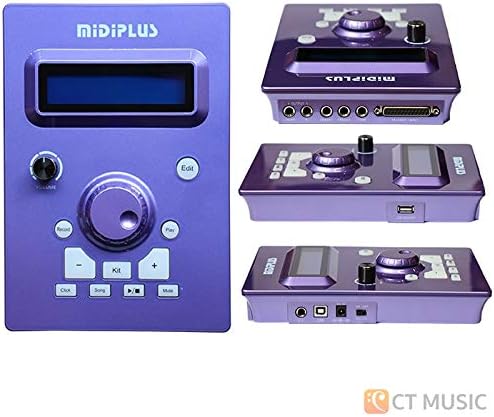
    Midiplus Z12K Drum Sound Module

    Image: The Midiplus Z12K Drum Sound Module, showing its front panel controls and various input/output ports.

  7. Awọn okun Sopọ:

    Use the multi-cable snake to connect each drum pad and cymbal pad to the corresponding input on the Z12K Drum Sound Module. The inputs are typically labeled (e.g., SN for Snare, T1 for Tom1, HH for Hi-Hat, CR1 for Crash1, RD for Ride, etc.). Connect the Hi-Hat Control Pedal and Kick Pad to their respective inputs. Ensure all connections are secure.

  8. Asopọ agbara:

    Connect the power adapter to the DC IN port on the drum module, then plug the adapter into a suitable power outlet. Do not power on the module until all other connections are made.

  9. Ijade ohun:

    Connect the AUDIO OUT (L/MONO, R) jacks of the drum module to your amplifier, headphones, or audio interface using appropriate cables (not included).

5. Paati Paview

5.1 Z12K Drum Sound Module

The heart of your ED-9 Pro MKII, the Z12K module provides all the drum sounds, effects, and control functions.

  • Iboju ifihan: Shows current kit, song, tempo, and menu options.
  • Bọtini Iwọn didun: Satunṣe awọn ìwò o wu iwọn didun.
  • Awọn bọtini lilọ kiri: Used to scroll through menus and adjust parameters (e.g., Up/Down, Left/Right).
  • Bọtini Apo: Selects drum kits.
  • Bọtini Orin: Selects demo songs.
  • Bọtini Metronome: Activates/deactivates the metronome.
  • Bọtini Gbigbasilẹ: Initiates and stops recording.
  • Bọtini Ṣatunkọ: Enters kit editing mode.
  • Ibudo USB: For connecting to a computer for MIDI data transfer.
  • Awọn igbewọle okunfa: Connects to drum and cymbal pads.
  • Awọn abajade Audio: Connects to headphones, amplifier, tabi ohun ni wiwo.

5.2 Àwọn Páàdì Ìlù àti Síḿbálì

  • Mesh Head Pads (Snare, Toms): These provide a realistic rebound and feel, similar to acoustic drums. The snare and tom pads are dual-trigger, meaning they can produce different sounds from the head and rim.
  • Rubber Cymbals (Hi-Hat, Crash, Ride): Durable rubber construction for quiet practice and consistent triggering.
    • Hi-Hat: Dual-trigger with choke function. Works in conjunction with the Hi-Hat control pedal for open, closed, and foot splash sounds.
    • jamba: Dual-trigger with choke function. Allows for a natural cymbal swell and quick muting.
    • Gigun: 3-trigger (bow, bell, edge) with choke function, offering versatile sound options.

6. Ipilẹ isẹ

6.1 Titan ati Paa

  • Agbara Tan: Ensure all connections are secure. Press the POWER button on the module. The display will light up.
  • Agbara Pa: Press and hold the POWER button until the display turns off.

6.2 Selecting Drum Kits

The ED-9 Pro MKII comes with 20 preset drum kits and allows for 10 user-editable kits.

  1. Tẹ awọn KIT bọtini.
  2. Use the navigation buttons (e.g., Up/Down arrows) to scroll through the available drum kits.
  3. The selected kit will be active immediately.

6.3 Lilo Metronome

The built-in metronome is essential for practicing with accurate timing.

  • Tẹ awọn METRONOME bọtini lati tan/pa a.
  • While the metronome is active, use the navigation buttons to adjust the tempo (BPM).

6.4 Ti ndun Ririnkiri Songs

The module includes 10 demo songs for practice and enjoyment.

  1. Tẹ awọn ORIN bọtini.
  2. Use the navigation buttons to select a demo song.
  3. Tẹ awọn ERE button to start the song. Press again to stop.

6.5 Gbigbasilẹ rẹ Performance

The ED-9 Pro MKII allows for easy recording of your drumming.

  1. Tẹ awọn Igbasilẹ button once to arm recording (the record indicator will flash).
  2. Start playing. Recording will begin automatically when you hit a pad.
  3. Tẹ awọn Igbasilẹ bọtini lẹẹkansi lati da gbigbasilẹ duro.
  4. To play back your recording, press the ERE bọtini.

6.6 Editing Drum Kits

You can customize and save your own drum kits. Refer to the full Midiplus ED-9 Pro MKII advanced manual for detailed editing instructions.

  1. Select a user kit (1-10) or a preset kit you wish to modify.
  2. Tẹ awọn Ṣatunkọ bọtini.
  3. Use the navigation buttons to select the parameter you wish to edit (e.g., instrument sound, volume, pitch, reverb for a specific pad).
  4. Adjust the value using the appropriate buttons.
  5. To save your changes, follow the on-screen prompts or refer to the module's specific save procedure (usually involves pressing and holding a button or navigating to a save option).

7. Itọju ati Itọju

Proper care will extend the life and performance of your electronic drum kit.

8. Laasigbotitusita

If you encounter issues with your ED-9 Pro MKII, refer to the following common problems and solutions.

IsoroOwun to le FaOjutu
No sound from module.
  • Agbara ko sopọ tabi titan.
  • Iwọn didun ju.
  • Àwọn okùn ìjáde tí a ti gé kúrò tàbí tí a ti gé wọn kúrò.
  • Headphones/amplifier not connected or faulty.
  • Ensure power adapter is connected and module is powered on.
  • Increase the module's master volume.
  • Check all audio output cables and connections.
  • Verify headphones/amplifier n ṣiṣẹ ni deede.
Specific pad/cymbal not triggering sound.
  • Pad cable loose or disconnected.
  • Cable ti ko tọ.
  • Pad sensitivity too low.
  • Incorrect pad connected to input.
  • Check the cable connection from the pad to the module.
  • Try swapping the cable with a known working one.
  • Adjust the pad's sensitivity setting in the module's edit menu.
  • Ensure the correct pad is plugged into the correct input jack on the module.
Hi-Hat pedal not working correctly.
  • Pedal cable loose or disconnected.
  • Ìṣòro ìṣàtúnṣe pedal.
  • Check the cable connection from the pedal to the module.
  • Refer to the module's manual for Hi-Hat pedal calibration instructions.
Unwanted sounds or double triggering.
  • Pad sensitivity too high.
  • Crosstalk between pads.
  • Decrease the sensitivity of the affected pad in the module's settings.
  • Adjust crosstalk settings in the module (if available) or reposition pads slightly.

9. Imọ ni pato

Ẹya ara ẹrọApejuwe
Orukọ awoṣeED 9 Pro MKII
Ilu Ohun ModuleZ12K
Paadi idẹkùn10" Dual-trigger Mesh Head
Tom Pads8" Dual-trigger Mesh Head (x4)
Hi-Hat Cymbal12" Rubber Dual-trigger with Choke
Crash Cymbals12" Rubber Dual-trigger with Choke (x2)
Gigun Cymbal12" Rubber 3-trigger with Choke
Preset Drum Kits20 Awọn ẹgbẹ
User Drum Kits10 Groups (editable)
MetronomeTi a ṣe sinu
Awọn orin Demo10 Awọn orin
Iṣẹ igbasilẹEasy listening learning fast recording
AsopọmọraUSB (for MIDI), Audio Out (L/MONO, R), Headphone Out, Aux In
ExpandabilityScalable for second Crash cymbal (Crash2) and fourth Tom drum (Tom4)
Iwọn Nkan71.8 poun (isunmọ 32.5 kg)
Package Mefa37 x 28 x 15 inches (iwọn 94 x 71 x 38 cm)
Ohun elo IruRubber (for cymbals and some pad components)
Àwọ̀Black, White, Silver (frame and module accents)

10. Atilẹyin ọja ati Support

Midiplus products are manufactured to high quality standards. For specific warranty information, please refer to the warranty card included with your product or visit the official Midiplus webojula.

If you require technical assistance or have questions not covered in this manual, please contact Midiplus customer support through their official channels. Keep your purchase receipt as proof of purchase for warranty claims.

Awọn orisun Ayelujara: For the latest drivers, firmware updates, and additional support documentation, please visit the Midiplus official webojula.
Awọn iwe aṣẹ ti o jọmọ - ED 9 Pro MKII

Ṣaajuview MIDIPLUS Routist RS: Awọn ọna Ibẹrẹ Itọsọna fun USB Audio Interface
Bẹrẹ ni kiakia pẹlu MIDIPLUS Routist RS, wiwo ohun afetigbọ USB 2-in/2-jade. Kọ ẹkọ nipa awọn ẹya rẹ, ohun elo hardware, awọn asopọ, ati awọn pato.
Ṣaajuview Ìwé Ìtọ́sọ́nà Olùlò Keytar Oníṣẹ́-pupọ BAND | midiplus
Ìwé ìtọ́ni tó péye fún keyboard midiplus BAND multi-functional, tó bo ìṣètò, àwọn ẹ̀yà ara rẹ̀, iṣẹ́ rẹ̀, àpèjúwe panel, àti ìsopọ̀ Bluetooth MIDI. Kọ́ bí a ṣe ń lo keyboard 25-key, chord touch bar, strumming pad, àti drum pad.
Ṣaajuview Ìwé Ìtọ́sọ́nà Olùlò Tí A Fi Píánò Médípọ́sì 49 Series
Ìwé ìtọ́ni fún ẹ̀rọ Midiplus Folding Piano 49 àti 49 Air, tó ṣàlàyé àwọn ẹ̀yà ara rẹ̀, ètò rẹ̀, bí a ṣe ń ṣiṣẹ́ rẹ̀, àti àwọn ìlànà rẹ̀.
Ṣaajuview Ìwé Ìtọ́sọ́nà Olùlò Piano MIDIPLUS 49
Ìwé ìtọ́ni tó péye fún MIDIPLUS Folding Piano 49 àti 49 Air, àlàyé nípa ètò, iṣẹ́, àwọn ẹ̀yà ara rẹ̀, àti ìwífún nípa àtìlẹ́yìn.
Ṣaajuview MIDIPLUS BK492 MIDI Adarí ká Afowoyi
Iwe afọwọkọ oniwun to fun MIDIPLUS BK492 MIDI Adarí, ṣe alaye awọn ẹya rẹ, iṣeto, iṣẹ ṣiṣe, ati awọn pato fun awọn akọrin ati awọn olupilẹṣẹ.
Ṣaajuview MIDIPLUS AMP· 73 Itọsọna Ibẹrẹ Kiakia ati Awọn alaye imọ-ẹrọ
Itọsọna ibẹrẹ iyara ati awọn alaye imọ-ẹrọ fun MIDIPLUS AMP· 73 Ọjọgbọn Gbohungbohun Preamp, àwọn ẹ̀ya ara ẹrọ tí a ṣe àlàyé rẹ̀, ohun èlò, àwọn ìsopọ̀, àti ìṣòro.