1. Ifihan
Thank you for choosing the Homcloud AS-CM1 Wi-Fi Smart Shutter Module. This module is designed to integrate your traditional roller shutters, blinds, or curtains into your smart home system, allowing for convenient control via a smartphone application or voice commands. Please read this manual carefully before installation and use to ensure proper operation and safety.
2. Ọja Ipariview
The Homcloud AS-CM1 is a compact Wi-Fi module that can be recessed into a standard electrical box (e.g., 503 type) behind your existing shutter switch. It enables smart control of motorized shutters while retaining the functionality of your traditional wall switch. Key features include remote control, timer scheduling, and compatibility with popular voice assistants like Amazon Alexa and Google Home.

Aworan 2.1: Homcloud Wi-Fi Curtain Module AS-CM1 product label. This image displays the product label of the Homcloud Wi-Fi Curtain Module, model AS-CM1. It shows the Homcloud logo, product name 'Wi-Fi Curtain Module', Homcloud code AS-CM1, model QS-WIFI-C01, operating voltage 220-240V~50Hz, maximum current 3A, Wi-Fi specification 2.4Ghz 802.11 b/g/n, and the website www.homcloud.com. Below these details are the terminal markings N, L, and symbols for motor connections.
3. Alaye Aabo
- Ewu Itanna: Onímọ̀ ẹ̀rọ iná mànàmáná tó mọ̀ nípa rẹ̀ tàbí ẹni tó ní òye tó jinlẹ̀ nípa àwọn ẹ̀rọ iná mànàmáná nìkan ló yẹ kó fi sori ẹ̀rọ náà.
- Ge asopọ agbara: Máa yọ agbára kúrò ní ibi tí ẹ̀rọ ìfọ́mọ́ra àkọ́kọ́ ti ń bàjẹ́ kí o tó ṣe iṣẹ́ iná mànàmáná.
- Voltage ati lọwọlọwọ: Ensure the module's specifications (220-240V~50Hz, Max. 3A) are compatible with your electrical system and motor.
- Lilo inu ile Nikan: This device is intended for indoor use in dry environments.
- Aabo Awọn ọmọde: Jeki ẹrọ naa kuro ni arọwọto awọn ọmọde.
4. Awọn pato
| Ẹya ara ẹrọ | Sipesifikesonu |
|---|---|
| Olupese | Homcloud |
| Koodu Nkan | AS-CM1 |
| Ọja Mefa | 4.6 x 4.6 x 1.8 cm |
| Nọmba Awoṣe Nkan | AS-CM1 |
| Wattage | 650 watt |
| Ipo Iṣiṣẹ | Tan-an-on-on |
| Ti won won Lọwọlọwọ | 3 Ampere |
| Awọn ọna Voltage | 230 folti |
| Olubasọrọ Iru | Ni deede pipade |
| Yipada Iru | Smart, 1 way |
| Ebute | Solder |
| Ohun elo | Ṣiṣu |
| Pataki Awọn ẹya ara ẹrọ | APP control, Works in parallel with traditional switches |
| Iwọn Nkan | 40 g |
| Awọn batiri To wa? | Rara |
| Ti beere awọn batiri? | Rara |
5. fifi sori
Pataki: Ensure power is disconnected at the main circuit breaker before starting installation.
- Mura Apoti Itanna: Open the electrical box (e.g., 503 type) where your traditional shutter switch is located.
- Asopọmọra: Connect the Homcloud AS-CM1 module according to the wiring diagram. The module has terminals for Line (L), Neutral (N), and motor control (Up/Down). Ensure correct connections to avoid damage to the module or motor.

Aworan 5.1: Homcloud Wi-Fi Smart Shutter Module 2-gang/2-way wiring diagram. This image provides a detailed wiring diagram for the Homcloud Wi-Fi Smart Shutter Module in a 2-gang/2-way configuration. It shows connections for Line (L), Neutral (N), and motor control (up/down arrows), along with the physical switches and the module itself, illustrating how to integrate it into an existing electrical system.
- Ibi Modulu: Carefully place the module inside the electrical box behind the existing shutter switch. Its compact size is designed to fit into standard recessed boxes.
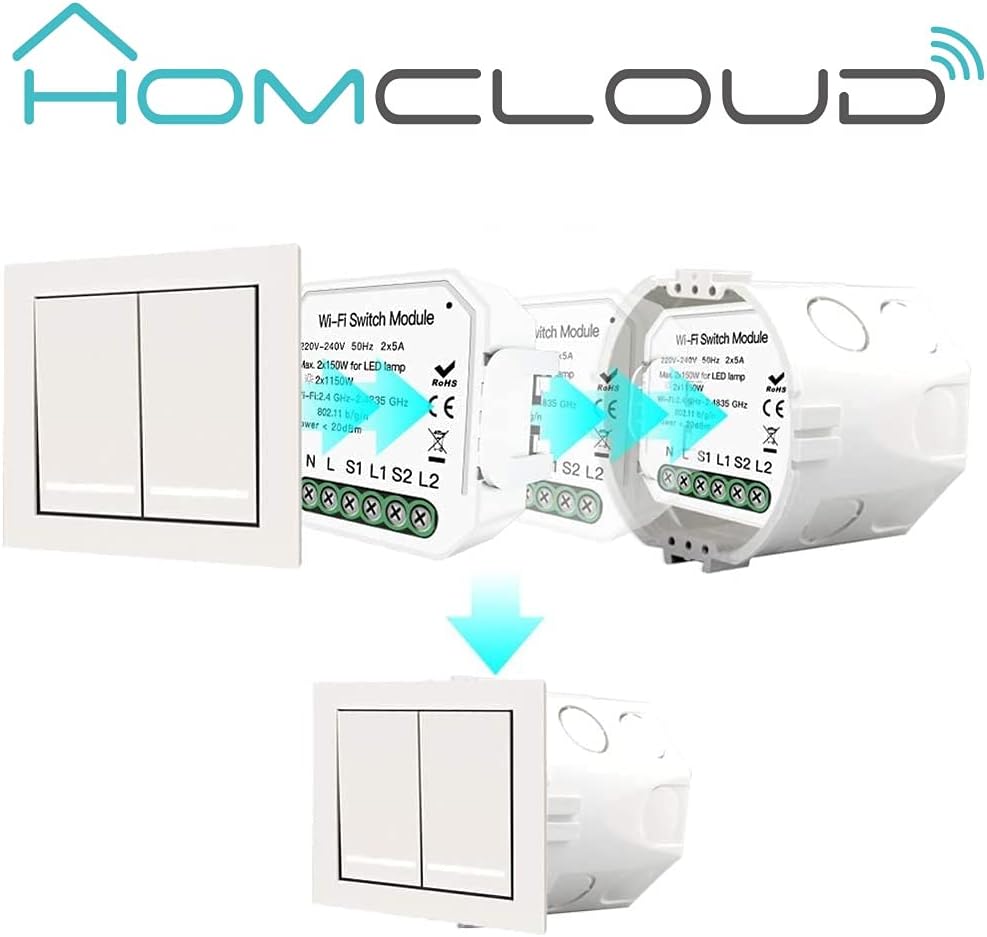
Aworan 5.2: Homcloud Wi-Fi Smart Shutter Module installation diagram. This diagram illustrates the installation process of the Homcloud Wi-Fi Smart Shutter Module. It shows a standard wall switch, the smart module, and how the module is placed behind the switch within the electrical box, indicating a seamless integration.

Aworan 5.3: Homcloud Wi-Fi Smart Shutter Module recessed installation. A close-up view showing the Homcloud Wi-Fi Smart Shutter Module neatly installed inside a standard electrical wall box, positioned behind the wall switch. This demonstrates its compact design suitable for recessed installation.
- Secure and Restore Power: Close the electrical box and secure the switch plate. Restore power at the main circuit breaker.
6. Eto
6.1. App Download ati Iforukọ
- Gba awọn Homcloud App or Ohun elo Smart Life from the App Store (iOS) or Google Play Store (Android).
- Forukọsilẹ akọọlẹ tuntun kan tabi wọle pẹlu ọkan ti o wa tẹlẹ.

Aworan 6.1: Homcloud Smart Home Solutions app download. This image shows multiple smartphones displaying the Homcloud app interface, along with QR codes and buttons for downloading the app from the App Store and Google Play. It highlights the 'Homcloud Smart Home Solutions' branding and the app's availability for both iOS and Android devices. You can also find the app at smartapp.tuya.com/homcloudsmart.
6.2. Sisopọ Ẹrọ
- Rii daju pe foonuiyara rẹ ti sopọ si nẹtiwọki Wi-Fi 2.4GHz kan.
- After restoring power to the module, it should enter pairing mode (often indicated by a blinking light or sound). If not, locate the reset button on the module (refer to Image 6.2) and press it for 5-10 seconds until it enters pairing mode.

Aworan 6.2: Homcloud Wi-Fi Smart Shutter Module with reset button. This diagram illustrates the Homcloud Wi-Fi Smart Shutter Module, highlighting its reset button ('Ripristino/reset') and the mounting clip ('Clip montaggio'). This shows key physical features for installation and initial setup.
- In the Homcloud/Smart Life App, tap '+' or 'Add Device'.
- Select 'Curtain Switch' or 'Shutter Module' from the device list.
- Follow the on-screen instructions to connect the module to your Wi-Fi network. This typically involves confirming the indicator light status and entering your Wi-Fi password.
- Once connected, you can rename the device for easier control (e.g., "Living Room Shutter").
6.3. Iṣatunṣe
For accurate partial opening/closing, you need to calibrate the module by setting the maximum operation time:
- In the app, navigate to the device settings for your shutter module.
- Find the calibration or 'Motor Travel Time' setting.
- Measure the time it takes for your shutter to fully open or fully close (e.g., 30 seconds).
- Enter this duration in seconds into the app. This allows the module to estimate the shutter's position for percentage-based control.
7. Awọn ilana Iṣiṣẹ
7.1. App Iṣakoso
The Homcloud/Smart Life App provides comprehensive control over your smart shutter module:
- Ṣii/Pade: Tap the respective buttons to fully open or close the shutters.
- Partial Control: Use the slider or percentage input to set the shutter to a specific open position (e.g., 50% open).
- Aago/Ìṣètò: Set schedules for automatic opening and closing at specific times (e.g., open at 7 AM, close at 8 PM).
- Iṣẹda Iworan: Integrate the shutter module into smart scenes with other devices (e.g., 'Good Morning' scene opens shutters and turns on lights).
- Pipin ẹrọ: Share control of the module with family members through the app.

Aworan 7.1: Remote control via smartphone app. This image depicts a hand holding a smartphone displaying the Homcloud app interface, with a large power button icon, indicating remote control functionality for the smart shutter module. The background shows a modern living room, suggesting smart home integration.
7.2. Iṣakoso ohun
The module is compatible with Amazon Alexa and Google Home. Link your Homcloud/Smart Life account to your voice assistant app.
- Awọn aṣẹ ipilẹ:
- "Alexa, open [Device Name]"
- "Hey Google, close [Device Name]"
- Partial Control Commands:
- "Alexa, set [Device Name] to 50%"
- "Hey Google, open [Device Name] by 20%"
7.3. Iṣakoso Afowoyi
The Homcloud AS-CM1 module works in parallel with your traditional wall switch. You can still use the physical switch to open, close, or stop the shutters. The app will reflect the current status even after manual operation.
8. Itọju
- Ninu: Ensure the module is clean and free from dust. Disconnect power before cleaning. Use a dry, soft cloth.
- Ko si Awọn apakan Iṣẹ Olumulo: Do not attempt to open or repair the module yourself. This will void the warranty and may pose a safety risk.
- Awọn imudojuiwọn famuwia: Periodically check the Homcloud/Smart Life App for available firmware updates to ensure optimal performance and security.
9. Laasigbotitusita
- Modulu Ko Dahun:
- Check if the module has power.
- Verify your Wi-Fi network is active and the module is within range.
- Try restarting the module by cycling its power at the circuit breaker.
- If issues persist, attempt to re-pair the device with the app.
- Awọn ọran Asopọmọra App:
- Ensure your phone is connected to the internet.
- Confirm your Wi-Fi router is functioning correctly and providing a 2.4GHz signal.
- Tun olulana Wi-Fi rẹ bẹrẹ.
- Inaccurate Shutter Position (Calibration):
- Recalibrate the motor travel time in the app settings (refer to Section 6.3).
- Ensure the shutter moves freely without obstruction.
- Iṣakoso ohun Ko Ṣiṣẹ:
- Verify that your Homcloud/Smart Life account is correctly linked to Alexa or Google Home.
- Check the device name in the voice assistant app and ensure it matches your commands.
- Ensure your voice assistant device is online and functioning.
10. Atilẹyin ọja ati Support
Homcloud provides support for its products. If you encounter any issues not covered in this manual or require further assistance, please contact Homcloud customer support. Refer to the product packaging or the Homcloud webojula fun alaye olubasọrọ.


