1. Ifihan
The Cosmic Byte CB-GK-14 Sirius is a versatile mechanical keyboard designed for both wired and wireless use. Featuring Outemu Blue switches, per-key RGB backlighting, and multi-device Bluetooth connectivity, it offers a responsive and customizable typing and gaming experience. This manual provides detailed instructions for setup, operation, customization, and maintenance to ensure optimal performance.
2. Key Awọn ẹya ara ẹrọ
- Asopọmọra Meji: Supports both wired (USB) and Bluetooth modes for flexible usage across various devices.
- Anti-Ghosting: Full N-key rollover in wired mode and 6-key anti-ghosting in Bluetooth mode ensure accurate input during intense sessions.
- Outemu Blue Switches: Provides a tactile and audible click feedback, ideal for typing and gaming.
- Per Key RGB Backlighting: Offers 18 pre-set backlight effects and 15 levels of brightness adjustment. Customize and store individual key backlighting.
- Long Key Life: Each key is rated for over 60 million operations, ensuring durability.
- Multi-Device Bluetooth: Connects to up to three different Bluetooth devices simultaneously, allowing for easy switching.
- Ibamu gbooro: Compatible with Windows, Android, Linux, and iOS operating systems.
- Batiri Ajọpọ: 1000mAh rechargeable lithium-ion battery for wireless operation with a range of up to 10 meters.
3. Awọn ilana iṣeto
3.1 Asopọ Onirin
- Locate the USB cable provided with your keyboard.
- So opin okun USB kan pọ mọ ibudo USB ti keyboard naa.
- So opin okun USB pọ si ibudo USB ti o wa lori kọnputa rẹ.
- A ó rí kiibọọdù náà láìfọwọ́sí, yóò sì ti ṣetán fún lílò.
3.2 Bluetooth Asopọ
The keyboard supports up to three Bluetooth devices. Ensure the keyboard is charged before attempting Bluetooth pairing.
- Turn on the keyboard using the power switch, usually located on the back or side.
- Tẹ mọlẹ FN + Q, FN + W, tabi FN + E keys for 3-5 seconds to enter Bluetooth pairing mode for the respective channel (Q, W, or E). The indicator light for the selected channel will flash rapidly.
- On your device (PC, mobile, tablet), enable Bluetooth and search for available devices.
- Select "CB-GK-14 Sirius" from the list of found devices.
- Follow any on-screen prompts to complete the pairing process. The indicator light will stop flashing once successfully paired.
- Repeat these steps for other devices using FN + W ati FN + E for the other two Bluetooth channels.

Aworan: Oke view of the Cosmic Byte CB-GK-14 Sirius Mechanical Keyboard with RGB lighting active.
4. Awọn ilana Iṣiṣẹ
4.1 Yíyípadà Láàárín Àwọn Ìgbésẹ̀
- Ipo Firanṣẹ: Connect the USB cable. The keyboard will automatically switch to wired mode.
- Ipo Bluetooth: Disconnect the USB cable. The keyboard will operate wirelessly. To switch between paired Bluetooth devices, press FN + Q, FN + W, tabi FN + E briefly to select the desired channel.
4.2 Àwọn bọtini Multimedia àti Iṣẹ́
The keyboard features dedicated multimedia keys and function key shortcuts. Refer to the keycaps for specific icons. Typically, these are accessed by pressing the FN key in combination with the F1-F12 keys or other designated keys.
- Iṣakoso iwọn didun: Use the dedicated rotary dial on the right side of the keyboard to adjust volume. Press the dial to mute/unmute.
- Ikunra ina Back: Use the dedicated rotary dial on the left side of the keyboard to adjust backlight brightness. Press the dial to cycle through backlight patterns.

Aworan: Angled view of the keyboard highlighting the RGB lighting and the control dials.
5. Ṣíṣe àtúnṣe RGB
The CB-GK-14 Sirius offers extensive RGB backlighting options:
- Pre-set Effects: Cycle through 18 different backlight effects using the dedicated backlight intensity dial (press to change patterns) or specific FN key combinations (refer to keyboard markings).
- Atunse Imọlẹ: Adjust the brightness of the backlighting using the dedicated backlight intensity dial (rotate). There are 15 levels of brightness.
- Custom Backlight Mode: The keyboard features an inbuilt flash memory to store your custom LED configurations. To customize individual key backlighting, refer to the specific instructions provided in the full product manual or Cosmic Byte's support resources.
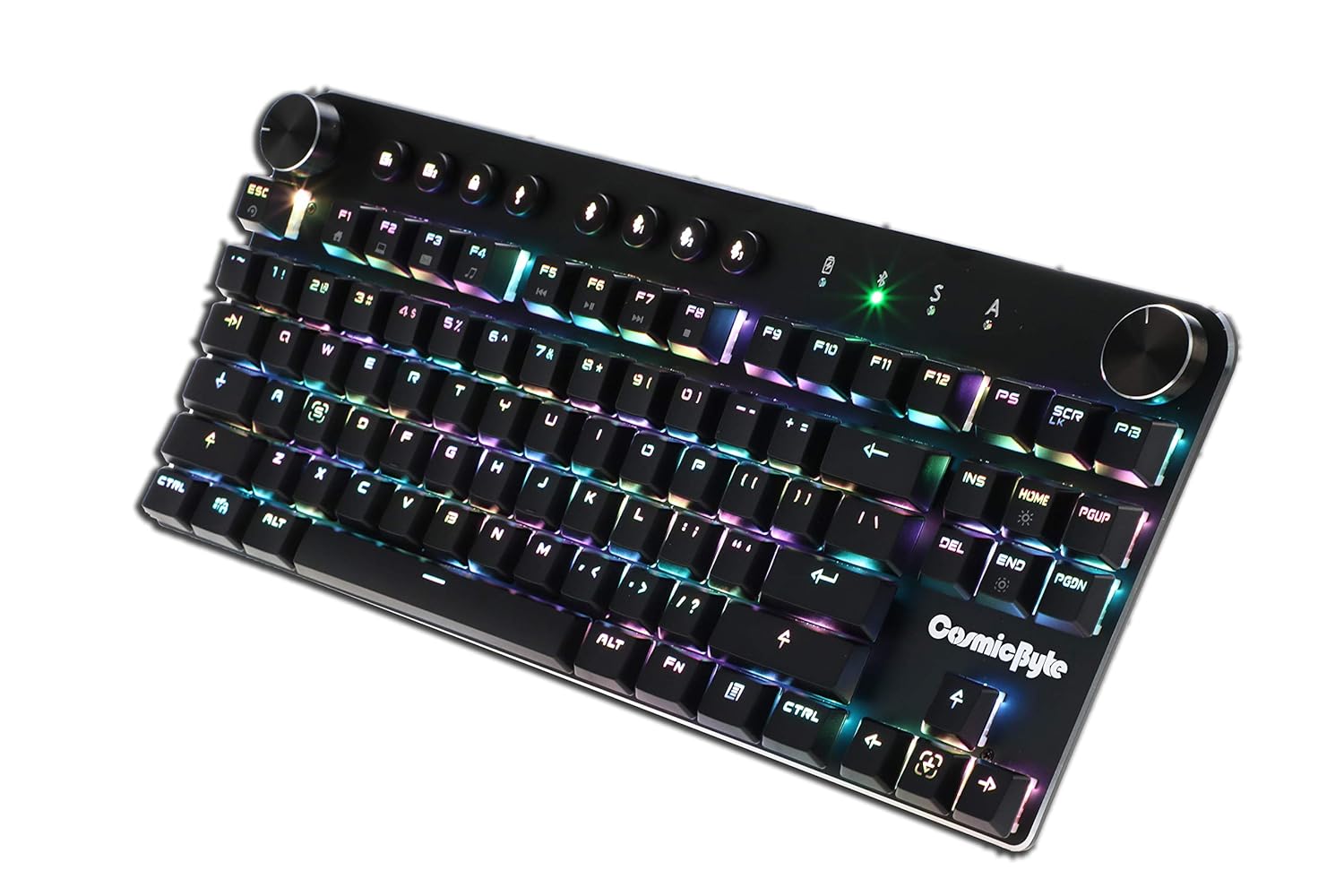
Image: Close-up angled view ti ifihan keyboardasing the vibrant RGB lighting on the keys.
6. Itọju
Láti rí i dájú pé keyboard rẹ pẹ́ títí àti pé ó ń ṣiṣẹ́ dáadáa:
- Ninu: Use a soft, dry cloth to wipe down the keyboard. For deeper cleaning, use compressed air to remove dust and debris from between the keycaps. Avoid using harsh chemicals or abrasive materials.
- Itọju Batiri: For wireless use, charge the keyboard regularly. Avoid completely draining the battery frequently to prolong its lifespan.
- Ibi ipamọ: Tọju keyboard ni itura, aye gbigbẹ kuro lati orun taara ati awọn iwọn otutu to gaju.
7. Laasigbotitusita
- Kííbọọ̀dù Kò Dáhùn (Onífóònù):
- Rii daju pe okun USB ti sopọ ni aabo si keyboard mejeeji ati kọnputa naa.
- Gbiyanju lati sopọ si ibudo USB ti o yatọ lori kọnputa rẹ.
- Ṣe idanwo keyboard lori kọnputa miiran lati ṣe akoso awọn ọran kan pato eto.
- Awọn oran Asopọ Bluetooth:
- Ensure the keyboard is in Bluetooth pairing mode (indicator light flashing).
- Rí i dájú pé Bluetooth ti ṣiṣẹ́ lórí ẹ̀rọ rẹ àti pé ó ṣeé ṣe kí a rí i.
- Remove any previous pairings of the keyboard from your device's Bluetooth settings and attempt to re-pair.
- Rii daju pe batiri keyboard ti gba agbara to.
- Keep the keyboard within the 10-meter Bluetooth range of your device.
- Backlight Not Working/Customization Issues:
- Check the brightness level using the dedicated dial.
- Ensure the keyboard is not in a mode where backlighting is disabled.
- For custom backlight issues, ensure the settings were saved correctly.
- Awọn bọtini Ko Iforukọsilẹ:
- Clean the affected keys to remove any debris.
- If using Bluetooth, ensure anti-ghosting limits (6-key) are not being exceeded for simultaneous presses.
8. Awọn pato
| Ẹya ara ẹrọ | Ẹ̀kúnrẹ́rẹ́ |
|---|---|
| Brand | Baiti agba aye |
| Orukọ awoṣe | Sirius Blue Switch |
| Asopọmọra Technology | Ailokun (Bluetooth), Ti firanṣẹ (USB) |
| Apejuwe Keyboard | Ere Mechanical Keyboard |
| Yipada Iru | Outemu Blue Switches |
| Imọlẹ ẹhin | Per Key RGB with 18 effects, 15 brightness levels |
| Anti-Ghosting | All key (wired), 6-key (Bluetooth) |
| Batiri | 1000mAh Lithium Ion gbigba agbara |
| Bluetooth Ibiti | 10 mita |
| Awọn ẹrọ ibaramu | Laptop, PC, Mobiles, Tablets |
| Eto isesise | Windows, Android, Linux, iOS |
| Iwọn Nkan | 800 g |
| Ọja Mefa | 34 x 14 x 50 cm |
9. Atilẹyin ọja & Atilẹyin
9.1 atilẹyin ọja Alaye
The Cosmic Byte CB-GK-14 Sirius Mechanical Keyboard comes with a 1-odun atilẹyin ọja against manufacturing defects. Please note that physical damage, water damage, and tampered products are not covered under this warranty.
9.2 Onibara Support
For any warranty claims or technical assistance, please contact Cosmic Byte customer support. You can raise a ticket through their customer support portal or directly email them.
Video: This video illustrates the Cosmic Byte warranty claim process, detailing steps for submitting a claim and product replacement procedures. (Note: Actual video URL not provided in JSON, placeholder used.)
When contacting support, be prepared to provide your purchase invoice, product images from all angles, and a short video demonstrating the issue, if applicable. This will help expedite the support process.


