1. Ifihan
This manual provides detailed instructions for replacing the home button on compatible iPhone models. This replacement part restores all home button functions, excluding Touch ID functionality. Touch ID is uniquely paired to the original logic board and cannot be restored with a replacement home button.
For optimal results, it is recommended to have prior experience with small electronics repair or to seek professional assistance.
2. Alaye Aabo
Please read and understand all safety precautions before beginning the repair process.
- Ohun elo Agbara: Always ensure your iPhone is completely powered off before starting any repair.
- Ge batiri kuro: Disconnect the battery as early as possible in the repair process to prevent accidental short circuits.
- Yiyọ Aimi: Use an anti-static wrist strap or work on an anti-static mat to prevent electrostatic discharge (ESD), which can damage sensitive electronic components.
- Mu pẹlu Itọju: Electronic components are fragile. Handle them gently and avoid excessive force.
- Awọn Ẹya Kekere: Keep track of all screws and small parts. Using a magnetic mat or labeled containers is highly recommended.
- Idaabobo Oju: Consider wearing eye protection to guard against small flying debris.
3. Ọja Ipariview
The iFixit Home Button replacement part is designed to restore the physical click and home button functionality of your compatible iPhone.
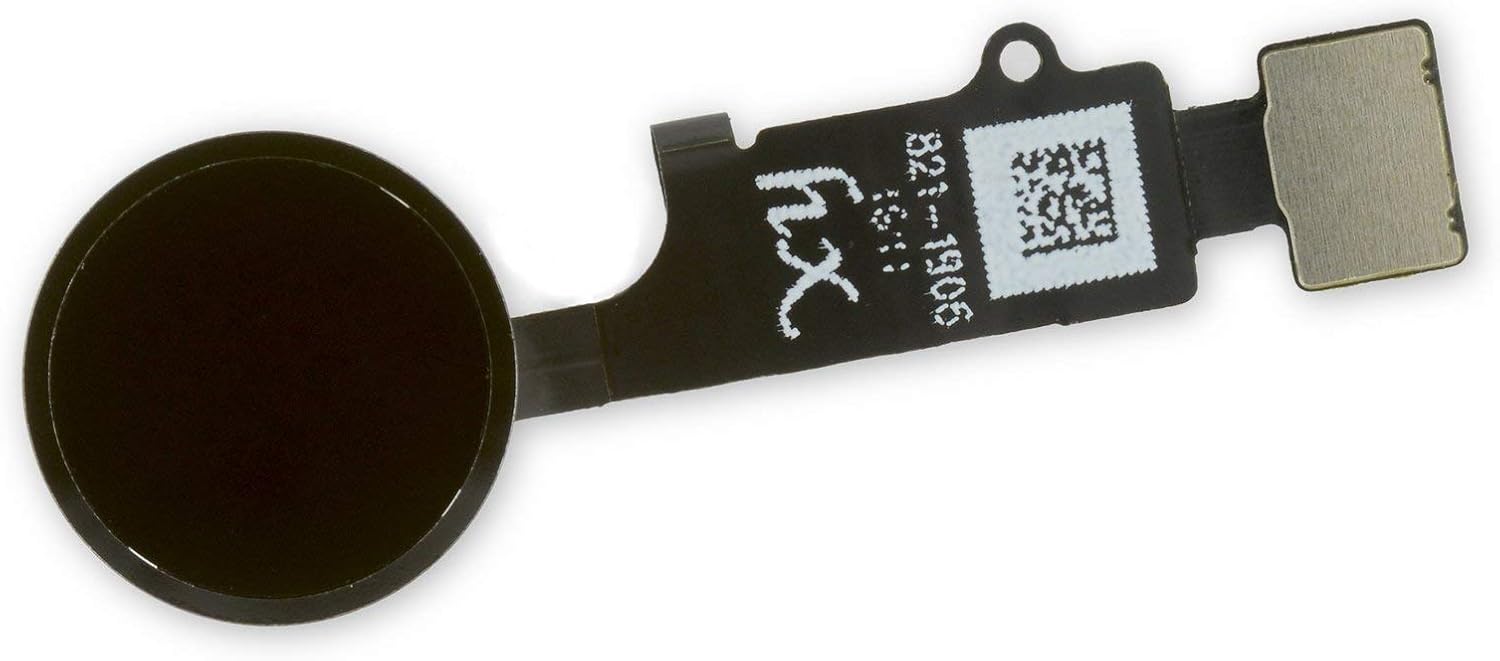
Nọmba 3.1: Iwaju view of the iFixit replacement home button, showing the black circular button and the flexible circuit board.

Nọmba 3.2: Pada view of the iFixit replacement home button, revealing the internal circuitry and connector.
Awọn ẹya pataki:
- Restores home button click functionality.
- Compatible with iPhone 7, 7 Plus, 8, 8 Plus, and SE 2020.
- Does NOT restore Touch ID functionality.
4. Itọsọna fifi sori ẹrọ
This section outlines the general steps for replacing the home button. Specific disassembly steps may vary slightly between iPhone models. Refer to detailed repair guides for your specific iPhone model on the iFixit webAaye (www.ifixit.com) for comprehensive, step-by-step visual instructions.
Awọn irinṣẹ ti a beere (Ko si):
- Pentalobe screwdriver
- Phillips dabaru
- Tri-point screwdriver
- Spudger
- Opening picks
- ife afamora
- Tweezers
- Heat gun or hairdryer (optional, for adhesive softening)
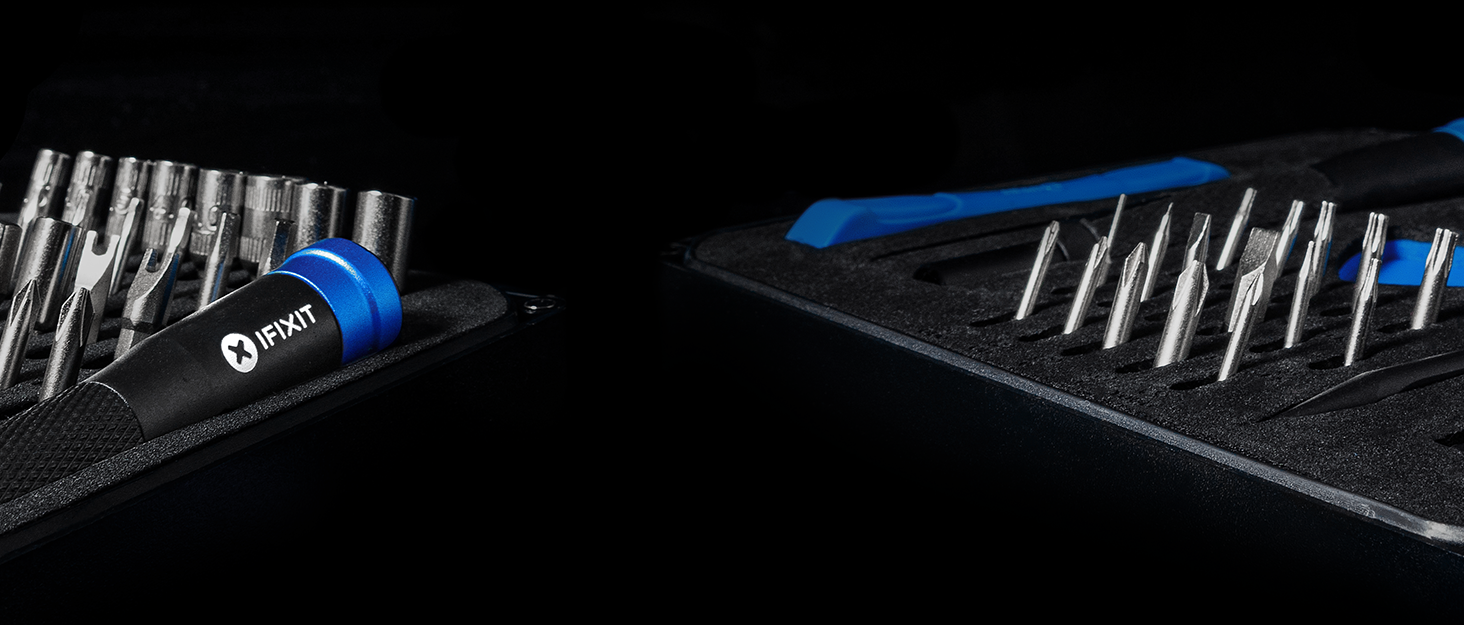
Nọmba 4.1: Example of an iFixit repair kit containing various tools necessary for electronics repair.
Awọn igbesẹ fifi sori ẹrọ gbogbogbo:
- Mura aaye iṣẹ: Ensure a clean, well-lit, and static-free environment.
- Power Off iPhone: Completely shut down your iPhone.
- Yọ awọn skru Pentalobe kuro: Remove the two pentalobe screws located at the bottom edge of the iPhone, next to the charging port.
- Open Display Assembly: Carefully open the display assembly. This usually involves using a suction cup and opening picks to separate the display from the frame. Be aware of adhesive and delicate cables.
- Ge batiri kuro: Locate and disconnect the battery connector to prevent power flow during the repair.
- Disconnect Display Cables: Disconnect all display and digitizer cables from the logic board.
- Remove Display Assembly: Carefully remove the entire display assembly from the iPhone body.
- Access Home Button: On the back of the display assembly, locate the home button bracket and screws. Remove them.
- Disconnect Home Button Cable: Carefully disconnect the home button flex cable from the display assembly.
- Remove Old Home Button: Gently remove the old home button. It may be lightly adhered.
- Install New Home Button: Position the new iFixit home button into place. Ensure it sits correctly and the flex cable aligns.
- Connect New Home Button Cable: Carefully connect the new home button flex cable.
- Ṣe atunto: Follow the disassembly steps in reverse order. Reconnect display cables, then the battery. Reattach the display assembly to the iPhone body and secure the pentalobe screws.
- Iṣe idanwo: Power on the iPhone and test the home button functionality (single press, double press). Remember, Touch ID will not work.
5. Operating the Replacement Home Button
Once installed, the iFixit replacement home button operates identically to the original in terms of physical presses and gestures, with the exception of Touch ID.
- Tẹ Nikan: Returns to the Home screen from any application.
- Double Tẹ: Activates the App Switcher, allowing you to view ati yipada laarin awọn ohun elo ṣiṣi.
- Tẹ Mẹta: Activates Accessibility Shortcuts (if configured in Settings > Accessibility > Accessibility Shortcut).
- Tẹ mọlẹ: Activates Siri (if enabled).
Important Note: Touch ID functionality will be permanently lost with the installation of any non-original home button. This is a security feature implemented by Apple.
6. Itọju
The iFixit home button replacement part requires minimal maintenance once installed. However, following these general guidelines can help ensure its longevity:
- Jeki mimọ: Regularly wipe the home button and surrounding area with a soft, dry, lint-free cloth to prevent dust and debris buildup.
- Yago fun Olomi: Do not expose the home button or your device to liquids, as this can cause damage to internal components.
- Lilo pẹlẹbẹ: Avoid excessive force when pressing the home button.
7. Laasigbotitusita
If you encounter issues after installing the replacement home button, consider the following troubleshooting steps:
| Isoro | Owun to le Fa | Ojutu |
|---|---|---|
| Home button does not click or respond. |
|
|
| Home button feels loose or wobbly. |
|
|
| Touch ID is not working. |
|
|
8. Awọn pato
| Orukọ apakan | Home Button Replacement |
| Brand | iFixit |
| Ibamu | iPhone 7, iPhone 7 Plus, iPhone 8, iPhone 8 Plus, iPhone SE 2020 |
| Àwọ̀ | Dudu |
| Iṣẹ ṣiṣe | Restores home button click and navigation. Does NOT restore Touch ID. |
| Iwọn Nkan | 0.16 iwon |
| ASIN | B086V6XCS7 |
| Ilu isenbale | China |
| Ọjọ Akọkọ Wa | Oṣu Keje 17, Ọdun 2020 |
9. Atilẹyin ọja ati Support
iFixit stands behind its products. For specific warranty information and support, please refer to the official iFixit webojula.
iFixit offers a "Backed for Life" warranty on their tools and parts. This means if a tool breaks or a part is defective, they will replace it for as long as you own it.
Nọmba 9.1: iFixit's "Backed for Life" commitment, emphasizing quality and long-term support.
For further assistance, visit the iFixit support page or community forums:


