1. Ifihan
The eufy Security Indoor Cam E220 2-Cam Kit provides advanced indoor surveillance with 2K clarity, pan and tilt capabilities, and intelligent AI features. This manual outlines the steps for setting up, operating, maintaining, and troubleshooting your cameras to ensure optimal performance and security for your home.
2. Kini To wa
- 2x eufy Security Indoor Cam Pan & Tilt
- 2x USB Adapter
- 2x okun USB
- 2x Iṣagbesori akọmọ
- 2x dabaru Pack
- 1x Awọn ọna Itọsọna

The kit includes two eufy Security Indoor Cam Pan & Tilt cameras, along with all necessary accessories for power and mounting. A quick guide is also provided for initial setup.
3. Eto
3.1 Asopọ agbara
Connect each camera to a power source using the provided USB adapter and USB cable. Ensure the adapter is plugged into a standard wall outlet.
3.2 App Download and Configuration
Download the eufy Security app from your device's app store. Follow the in-app instructions to add your Indoor Cam E220 devices. This process typically involves scanning a QR code on the camera and connecting it to your 2.4GHz Wi-Fi network.
3.3 iṣagbesori Aw
The cameras can be placed on a flat surface or mounted to a wall or ceiling using the included mounting bracket and screw pack. For wall mounting, secure the bracket to the desired location and then attach the camera. The camera's base allows for flexible positioning.
3.4 Fifi sori kaadi MicroSD (Aṣayan)
For local storage, insert a Class 10 or higher MicroSD card (up to 128 GB, not included) into the designated slot on the camera. The slot is typically located under the camera lens, which can be tilted upwards to reveal it. This allows for continuous recording or event-based recording without a subscription.

The camera supports local storage via a MicroSD card, providing a secure way to store recordings directly on the device.
4. Ṣiṣẹ kamẹra
4.1 Live View and Pan & Tilt Control
Access the live feed from your camera through the eufy Security app. Use the on-screen controls to pan the lens 360° horizontally and tilt it 96° vertically, allowing you to view gbogbo yara.

The camera automatically tracks and follows moving objects once motion is detected, ensuring continuous coverage of activity.
4.2 2K Clarity and Night Vision
The camera provides video in up to 2K clarity (1080P when using HomeKit), allowing for detailed viewing of events. Advanced night vision ensures clear monitoring even in low-light conditions.
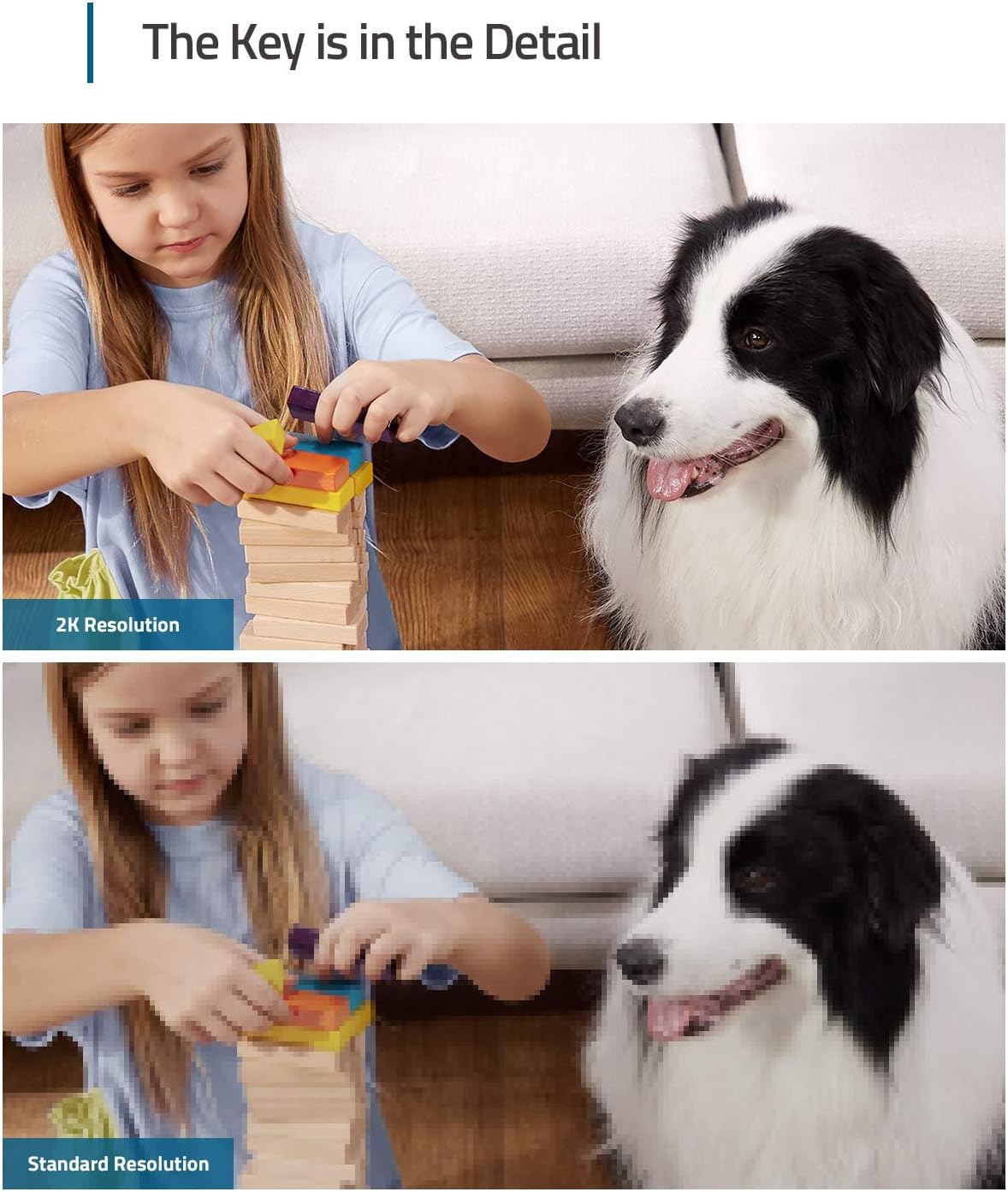
Experience superior image quality with 2K resolution, capturing fine details for better monitoring.

The camera's night vision feature allows for clear monitoring of your space during nighttime hours.
4.3 Intelligent AI Detection
The on-device AI can differentiate between humans and pets, ensuring that you receive relevant notifications and recordings only when an event of interest occurs. It also includes excessive noise detection, such as a baby crying.

The camera's AI can detect and focus on pets, providing alerts for their activities.

Receive smart alerts when human presence is detected, reducing false alarms.

The camera's built-in AI can detect crying sounds and send immediate notifications.
4.4 Meji-Ona Audio
Utilize the camera's built-in two-way audio feature to communicate in real-time with anyone near the camera.

Engage in real-time conversations using the camera's two-way audio function.
4.5 Voice Iranlọwọ ibamu
Integrate your Indoor Cam with Apple HomeKit, Google Assistant, or Amazon Alexa for convenient voice control over your surveillance. (Note: HomeKit requires device activation in the eufy Security app first.)

Ṣakoso kamẹra rẹ ati view feeds using voice commands through compatible smart home platforms.
4.6 Activity Zones
Customize activity zones within the camera's field of view to receive alerts only for detection in specific areas, tailoring surveillance to your home's needs.

Focus alerts on critical areas by setting up custom activity zones.
5. Itọju
5.1 Ninu
To maintain optimal performance, regularly clean the camera lens with a soft, dry cloth. Avoid using harsh chemicals or abrasive materials that could damage the lens or casing.
5.2 famuwia imudojuiwọn
Ensure your camera's firmware is up to date by checking the eufy Security app regularly. Firmware updates often include performance improvements, new features, and security enhancements.
6. Laasigbotitusita
For common issues, refer to the FAQ section within the eufy Security app or the detailed troubleshooting guides available on the eufy support website. Key points to check include:
- Asopọ Wi-Fi: Ensure the camera is connected to a 2.4GHz Wi-Fi network. It does not support 5GHz Wi-Fi.
- Kaadi MicroSD: Use at least a Class 10 MicroSD card with a maximum capacity of 128 GB.
- HomeKit Activation: When using HomeKit, add the device in the eufy Security app first, then complete the activation process.
- Titari Awọn iwifunni: Push notifications with thumbnail previews require thumbnail preview images to be temporarily stored in the cloud.
7. Awọn pato
| Ẹya ara ẹrọ | Sipesifikesonu |
|---|---|
| Nọmba awoṣe | T8413 |
| Ipinnu Yaworan fidio | 2K (1080p with HomeKit) |
| Ilana Asopọmọra | Wi-Fi (2.4GHz nikan) |
| Pan & Pulọọgi Ibiti | 360° Petele, 96° inaro |
| Orisun agbara | Okun Itanna |
| Ibi ipamọ | MicroSD card (up to 128GB, Class 10+) |
| Awọn ẹrọ ibaramu | HomeBase 3, Apple HomeKit, Google Assistant, Amazon Alexa |
| inu ile / ita gbangba Lilo | Ninu ile |
| Awọn iwọn (L x W x H) | 2.97 x 2.97 x 4.21 inches |
| Iwọn Nkan | 15.5 iwon |
8. Atilẹyin ọja ati Support
eufy is committed to providing products and services that keep your data private and secure. For detailed warranty information and customer support, please visit the official eufy support website or contact their customer service. Your personal moments are yours and yours alone, and eufy is dedicated to protecting your privacy.
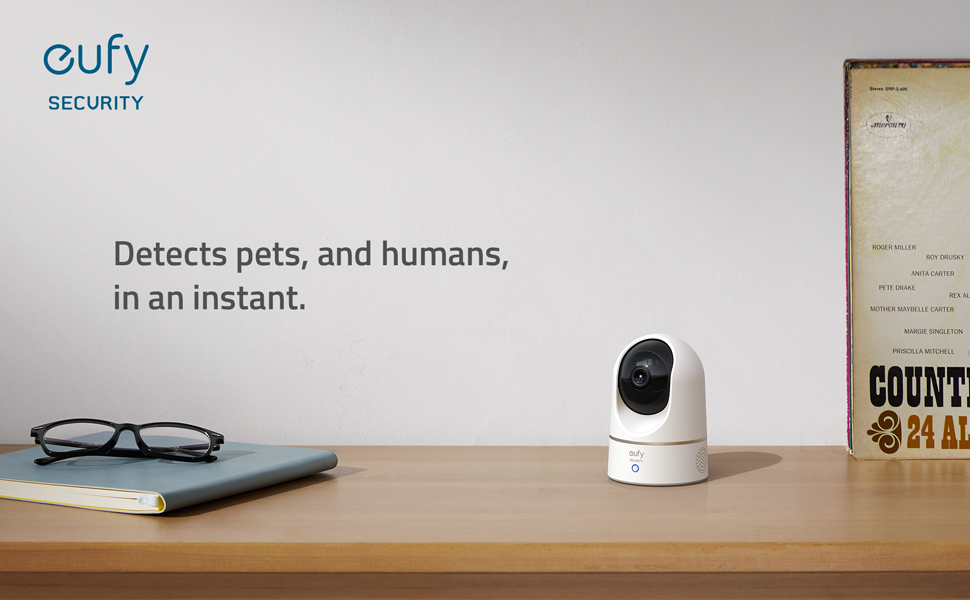
eufy prioritizes your privacy, ensuring your data remains secure.


