Ọrọ Iṣaaju
Thank you for choosing the Ridgeway Bluetooth Gamepad. This versatile controller is designed to enhance your gaming experience across multiple platforms, including PC and Android devices. This manual provides detailed instructions on how to set up, operate, and maintain your gamepad to ensure optimal performance.
Ọja Pariview
The Ridgeway Bluetooth Gamepad features an ergonomic design for comfortable extended play, precise controls, and a built-in phone holder for mobile gaming. Familiarize yourself with the various components of your new gamepad.

Nọmba 1: Iwaju view of the Ridgeway Bluetooth Gamepad with a smartphone securely mounted in the integrated holder, ready for gaming. This image highlights the controller's overall design and its primary use case with mobile devices.
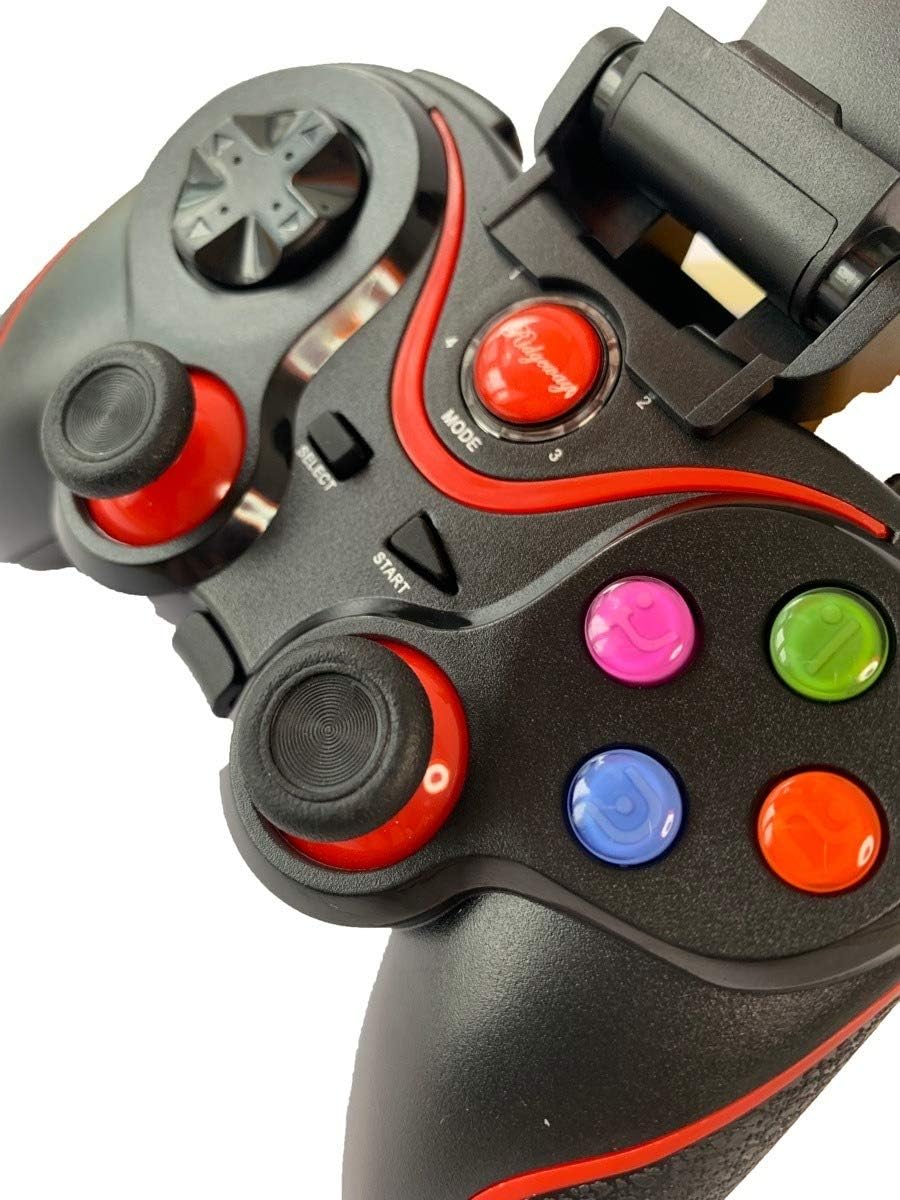
Nọmba 2: A detailed close-up of the central control area of the gamepad, showing the Mode, Select, and Start buttons, along with the vibrant A, B, X, Y action buttons. This view emphasizes the button layout and the Ridgeway branding.
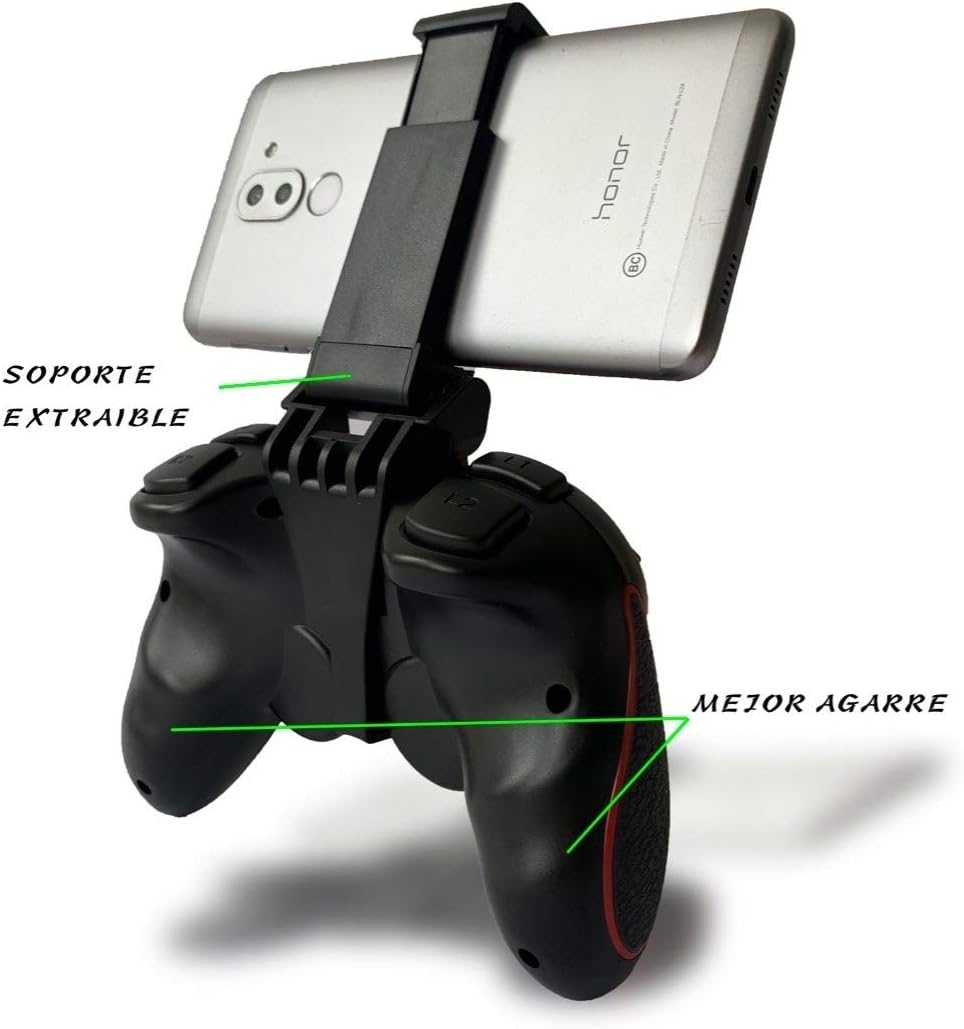
Nọmba 3: Ẹyìn view of the gamepad illustrating the removable phone support mechanism and the textured, ergonomic grip designed for enhanced comfort and stability during gameplay.
Controller Components:
- Awọn igi Analog: Two high-precision analog sticks for 360-degree movement.
- D-Pad: Directional pad for precise directional input.
- Awọn bọtini iṣe: A, B, X, Y buttons (color-coded).
- Shoulder Buttons/Triggers: L1/R1 and L2/R2 buttons for additional in-game actions.
- Bọtini Ipo: Used for switching operating modes and pairing.
- Yan/Bẹ̀rẹ̀ Àwọn bọ́tìnì: Awọn bọtini iṣakoso ere boṣewa.
- Dimu foonu: Integrated, adjustable holder for smartphones.
- Ibudo gbigba agbara: Micro-USB port for charging the internal battery.
Eto ati Sisopọ
Before using your Ridgeway Bluetooth Gamepad, ensure it is fully charged. The gamepad supports multiple connection modes for different devices.
Charging the Gamepad:
- Connect the provided USB cable to the gamepad's charging port.
- So opin okun USB pọ si orisun agbara USB (fun apẹẹrẹ, ibudo USB kọnputa, ohun ti nmu badọgba ogiri USB).
- Ina atọka naa yoo fi ipo gbigba agbara han (wo apakan atọka LED fun awọn alaye).
- Nígbà tí a bá ti gba agbára tán pátápátá, iná àmì náà yóò yípadà tàbí kí ó pa.
Pairing with Android Devices:
- Ensure the gamepad is turned off.
- Tẹ mọlẹ Ipo bọtini ati awọn A button simultaneously until the indicator light starts flashing rapidly. This puts the gamepad into Android pairing mode.
- Lori ẹrọ Android rẹ, lọ si Eto > Bluetooth.
- Tan Bluetooth kí o sì ṣe àyẹ̀wò àwọn ẹ̀rọ tó wà.
- Select "Ridgeway Gamepad" (or similar name) from the list of found devices.
- Nígbà tí a bá so wọ́n pọ̀, ìmọ́lẹ̀ àmì tí ó wà lórí eré náà yóò di líle.
Pairing with PC (Windows):
- Ensure the gamepad is turned off.
- Tẹ mọlẹ Ipo bọtini ati awọn X button simultaneously until the indicator light starts flashing rapidly. This puts the gamepad into PC pairing mode.
- Lórí kọ̀ǹpútà Windows rẹ, lọ sí Eto > Awọn ẹrọ > Bluetooth & awọn ẹrọ miiran.
- Tẹ "Fi Bluetooth tabi ẹrọ miiran kun" ki o si yan "Bluetooth".
- Select "Ridgeway Gamepad" (or similar name) from the list.
- Follow any on-screen prompts to complete the pairing. The indicator light on the gamepad will become solid upon successful connection.
- Akiyesi: Some games may require controller configuration within their settings.

Nọmba 4: This diagram illustrates the multi-platform compatibility of the Ridgeway Bluetooth Gamepad, showing its ability to connect wirelessly to various devices such as Smart TVs, desktop computers, Android phones/tablets, and laptops. It highlights the controller's versatility and ease of connection.
Awọn ilana Iṣiṣẹ
Once paired, your Ridgeway Bluetooth Gamepad is ready for use. The functionality may vary slightly depending on the game and platform.
Isẹ gbogbogbo:
- Agbara Tan: Tẹ mọlẹ Ipo bọtini fun 3 aaya.
- Agbara Pa: Tẹ mọlẹ Ipo button for 5 seconds until the indicator light turns off. The gamepad will also automatically power off after a period of inactivity to save battery.
- Atunsopo: After initial pairing, the gamepad should automatically reconnect to the last paired device when powered on and Bluetooth is active on the device. If not, briefly press the Mode button or re-initiate pairing.
Iriri Ere:

Nọmba 5: The Ridgeway Bluetooth Gamepad being used in conjunction with a larger display, showcasing a racing game. This image demonstrates the immersive gaming experience possible with the controller on a bigger screen, such as a monitor or TV.
- Awọn igi Analog: Use for character movement, camera control, or precise aiming.
- D-Pad: Ideal for menu navigation, quick item selection, or specific directional inputs in retro games.
- Àwọn bọ́tìnì ìgbésẹ̀ (A, B, X, Y): Perform in-game actions such as jumping, attacking, interacting, or confirming selections.
- Shoulder Buttons/Triggers: Commonly used for firing weapons, accelerating, braking, or special abilities.
- Dimu foonu: Extend the integrated holder to securely mount your smartphone for portable gaming. Ensure your phone is properly seated to prevent accidental drops.
Itoju
Proper care and maintenance will extend the life of your Ridgeway Bluetooth Gamepad.
- Ninu: Use a soft, dry cloth to wipe down the gamepad. For stubborn dirt, slightly dampen the cloth with water. Do not use harsh chemicals, abrasive cleaners, or excessive moisture.
- Ibi ipamọ: Tọju paadi ere naa ni itura, aye gbigbẹ kuro lati orun taara ati awọn iwọn otutu to gaju.
- Itọju Batiri: Avoid fully discharging the battery frequently. If storing for a long period, charge the battery to about 50% every few months to maintain battery health.
- Yago fun awọn isọ silẹ: Dáàbò bo gamepad kúrò lọ́wọ́ àwọn ìṣàn àti àwọn ìkọlù, èyí tí ó lè ba àwọn ẹ̀yà ara inú jẹ́.
Laasigbotitusita
Tí o bá ní ìṣòro pẹ̀lú eré ìdárayá rẹ, wo àwọn ìṣòro àti ojútùú tó wọ́pọ̀ wọ̀nyí.
| Isoro | Owun to le Fa | Ojutu |
|---|---|---|
| Gamepad ko tan. | Batiri kekere. | Charge the gamepad for at least 2 hours. |
| Ko le so pọ pẹlu ẹrọ. | Incorrect pairing mode; Bluetooth off on device; device already paired with another gamepad. | Ensure correct pairing mode (Android/PC); turn on Bluetooth on your device; unpair from other devices or forget the gamepad and try pairing again. |
| Gamepad máa ń gé asopọ̀ nígbàkúgbà. | Low battery; too far from device; interference. | Recharge the gamepad; move closer to the device; reduce interference from other wireless devices. |
| Awọn bọtini tabi awọn ọpá ko ni idahun. | Aṣiṣe sọfitiwia; ti ara bibajẹ. | Restart the gamepad and the connected device. If the issue persists, contact customer support. |
Awọn pato
- Asopọmọra: Alailowaya Bluetooth
- Ibamu: Android (Phones, Tablets, Smart TVs), PC (Windows)
- Batiri: Rechargeable Lithium-ion (Capacity not specified, but implied by "long battery life" in image)
- Ibudo gbigba agbara: Micro-USB
- Awọn iwọn: (Approximate, based on typical gamepad size) 150mm x 100mm x 50mm
- Ìwúwo: (Approximate) 200-300g
Atilẹyin ọja ati Support
Ridgeway products are designed for durability and performance. For warranty information and technical support, please refer to the contact details provided with your purchase or visit the official Ridgeway webojula. Jeki ẹri rira rẹ fun awọn iṣeduro atilẹyin ọja.
For further assistance, please contact Ridgeway Customer Support:
- Webojula: www.ridgeway.com (Akiyesi: Eyi jẹ aaye ibi URL gẹ́gẹ́ bí kò ṣe aláṣẹ website was provided.)
- Imeeli: support@ridgeway.com (Àkíyèsí: Èyí jẹ́ ìmeeli tí ó ní ibi ìpamọ́.)


