1. Ifihan
This manual provides comprehensive instructions for the setup, operation, and maintenance of your Zebronics Zeb-Ultimate Pro Full HD 1080p Webcam. Please read this manual carefully before using the product to ensure optimal performance and longevity. Keep this manual for future reference.
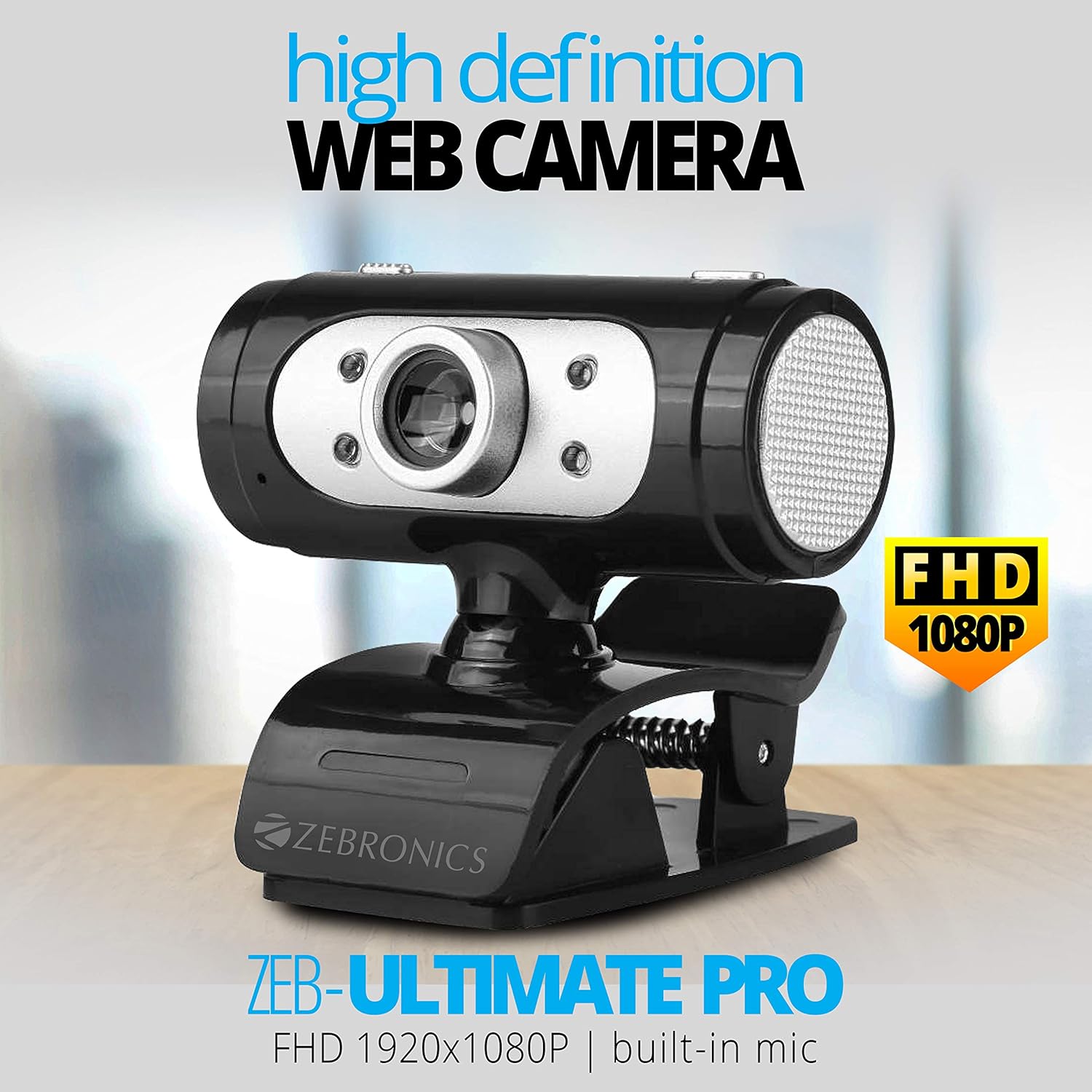
Image 1.1: The Zebronics Zeb-Ultimate Pro Full HD 1080p Webkamẹra, ifihanasing its design and FHD 1080P capability.
2. Package Awọn akoonu
Daju pe gbogbo awọn ohun ti a ṣe akojọ rẹ si isalẹ wa ninu package ọja rẹ:
- Zebronics Zeb-Ultimate Pro Webcam (1 Unit)
3. Ọja Ipariview
The Zebronics Zeb-Ultimate Pro is a Full HD webcam designed for clear video communication. It features a 5P quality lens, a built-in microphone, automatic white balance, night vision capabilities, and a manual switch for its integrated LED lighting.
Awọn ẹya pataki:
- Ipinnu HD 1080p ni kikun: Delivers video at 1920x1080 pixels at 30 frames per second.
- 5P Quality Lens: Ensures sharp and clear image capture.
- Gbohungbohun ti a ṣe sinu: Provides integrated audio for video calls.
- Iwontunwonsi Funfun Aladaaṣe: Automatically adjusts color balance for natural-looking video.
- Iran Alẹ: Ṣe ilọsiwaju hihan ni awọn ipo ina kekere.
- Manual LED Switch: Allows user control over the integrated LED light.
- Atokun USB: Simple plug-and-play connectivity.

Image 3.1: Diagram illustrating the 5P lens for Full HD videos and the built-in microphone for video calls.

Image 3.2: Visual representation of the USB interface for connectivity and the night vision feature for low-light performance.
4. Awọn ilana iṣeto
Follow these steps to set up your Zebronics Zeb-Ultimate Pro Webkamẹra:
- Unpack awọn Webkamẹra: Fara yọ awọn webKame.awo-ori lati apoti rẹ.
- Ipo awọn Webkamẹra: Gbe awọn webcam securely on top of your monitor, laptop screen, or a flat surface. The adjustable clip allows for stable placement.
- Sopọ si Kọmputa: Insert the USB connector of the webKamẹra sinu ibudo USB ti o wa lori kọnputa rẹ.
- Fifi sori ẹrọ Awakọ Aifọwọyi: Awọn webcam is designed for plug-and-play operation. Your operating system (Windows, macOS, iOS) should automatically detect and install the necessary drivers. Wait for a notification indicating that the device is ready for use.
- Jẹrisi fifi sori ẹrọ: Open a video conferencing application or your computer's camera application to confirm that the webKame.awo-ori jẹ idanimọ ati ifihan fidio.
5. Awọn ilana Iṣiṣẹ
Once set up, the Zeb-Ultimate Pro WebKame.awo-ori ti šetan fun lilo pẹlu orisirisi awọn ohun elo.
Lilo awọn Webkamẹra:
- Video Calls and Conferences: Launch your preferred video communication software (e.g., Zoom, Microsoft Teams, Google Meet). Select the "Zebronics Zeb-Ultimate Pro" as your video and audio input device in the application's settings.
- Online Classes: Awọn webcam is suitable for participating in or conducting online educational sessions.
- Gbigbasilẹ: Use your computer's native camera application or third-party software to record videos.

Àwòrán 5.1: Àwọn webcam positioned on a laptop, illustrating its use for webinars ati awọn apejọ.

Image 5.2: A child using a laptop with the webcam for online classes, demonstrating its application in education.
Adjusting Features:
- Idojukọ Afowoyi: Lẹ́ǹsì ti webcam can be rotated to adjust the focus for a sharper image. Turn the lens gently until the image appears clear.
- Imọlẹ LED: Use the manual switch located on the webcam to turn the integrated LED light on or off, especially useful in low-light environments.
6. Itọju
Itọju to dara ṣe idaniloju gigun ati iṣẹ ṣiṣe ti o dara julọ ti rẹ webKame.awo-ori.
- Fifọ lẹnsi naa: Gently wipe the lens with a soft, lint-free cloth. Avoid using harsh chemicals or abrasive materials that could scratch the lens.
- Ninu ara: Lo gbẹ tabi die-die damp asọ lati nu ode ti awọn webKame.awo-ori.
- Ibi ipamọ: Nigbati ko ba si ni lilo, tọju itaja naa webKame.awo-ori ni mimọ, aaye gbigbẹ kuro lati oorun taara ati awọn iwọn otutu to gaju.
- Itọju USB: Yẹra fún títẹ̀ tàbí yíyí okùn USB pọ̀ jù láti dènà ìbàjẹ́ inú.
7. Laasigbotitusita
Ti o ba pade awọn iṣoro rẹ webcam, tọka si awọn iṣoro ti o wọpọ ati awọn solusan:
| Isoro | Owun to le Fa | Ojutu |
|---|---|---|
| WebA ko rii kamẹra tabi ko ṣiṣẹ. | Loose USB connection, driver issue, or disabled camera. | Ensure the USB cable is securely connected. Try a different USB port. Restart your computer. Check privacy settings to ensure camera access is enabled for applications. |
| Aworan jẹ blurry tabi ko ni idojukọ. | Àtúnṣe ìfojúsùn tí kò tọ́. | Gently rotate the lens of the webcam until the image becomes clear. |
| Ko si ohun lati awọn webgbohungbohun kamẹra. | Microphone not selected or muted in software. | In your video conferencing application or system sound settings, ensure the Zebronics webcam's microphone is selected as the input device and is not muted. |
| Didara aworan ti ko dara ni ina kekere. | Ina ti ko to. | Mu ṣiṣẹ naa webcam's LED light using its manual switch. Ensure adequate ambient lighting in your environment. |
8. Awọn pato
Technical specifications for the Zebronics Zeb-Ultimate Pro Webkamẹra:
- Awoṣe: Zeb-Ultimate Pro
- Ipinnu fidio: 1920 x 1080 (HD ni kikun)
- Iwọn fireemu: 30 fps
- Sensọ aworan: CMOS
- Irú lẹnsi: 5P Quality Lens
- Ni wiwo: USB
- Gigun USB: 1.58 mita
- Awọn ẹya pataki: Built-in Microphone, Auto White Balance, Night Vision, Manual Switch for LED
- Awọn iwọn ọja: 7.2 x 7.2 x 6.4 cm
- Ìwọ̀n Nkan: 90 g
- Awọn ọna ṣiṣe ibaramu: Windows, iOS (and generally other USB-compatible systems)
9. Atilẹyin ọja ati Support
Fun alaye atilẹyin ọja ati atilẹyin imọ-ẹrọ, jọwọ tọka si Zebronics osise website or contact their customer service. Details regarding warranty periods and service centers are typically provided with your purchase documentation or on the manufacturer's webojula.
Olupese: 13,7, Smith Road, Royapettah CHENNAI-600002


