1. Ifihan
Welcome to the Surfans Kids Tablet T57 user manual. This guide provides detailed instructions on how to set up, operate, maintain, and troubleshoot your new 7-inch Android tablet. Designed specifically for children, this tablet features a durable kid-proof case, parental control functions, and pre-installed educational and entertainment applications.
2. Ohun ti o wa ninu Apoti
Jọwọ ṣayẹwo awọn akoonu inu package rẹ lati rii daju pe gbogbo awọn nkan wa:
- 1x Surfans Kids Tablet
- 1x Tablet Stand
- 1x okun USB
- 1x Kids Tablet User Manual (this document)
3. Ọja Ipariview ati Awọn ẹya ara ẹrọ
The Surfans Kids Tablet T57 is built with a robust design and features tailored for young users. Below is an overview of its components and key functionalities.
3.1 Tablet Components
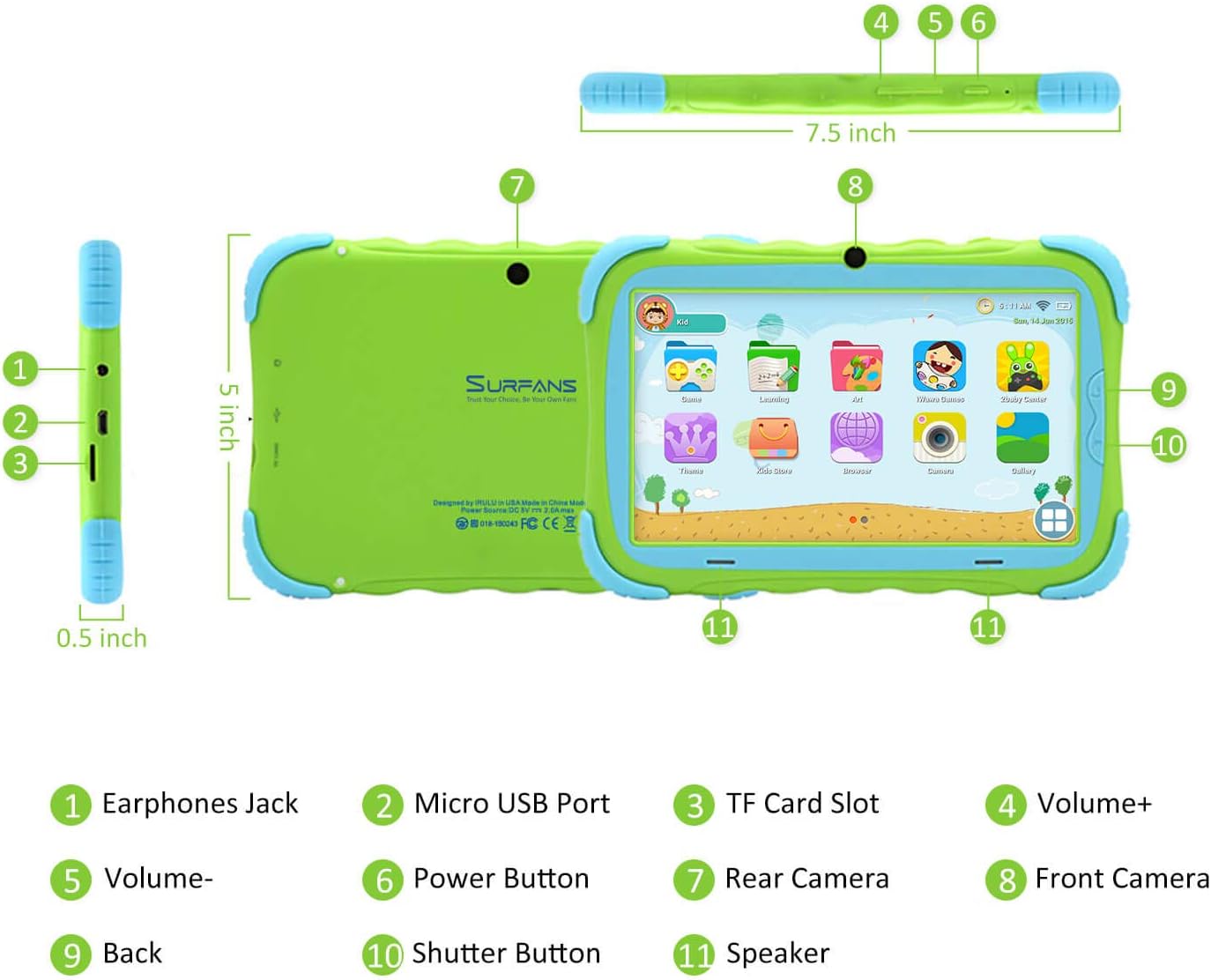
- Jack agbekọri: Fún sísopọ̀ àwọn agbekọri tàbí àwọn ẹ̀rọ ohùn láti òde.
- Ibudo USB Micro: Used for charging the tablet and connecting to a computer for data transfer.
- Iho Kaadi TF: For inserting a Micro SD card to expand storage capacity (up to 32GB).
- Iwọn didun +: Increases the tablet's audio volume.
- Iwọn didun-: Decreases the tablet's audio volume.
- Bọtini agbara: Press and hold to turn the tablet on/off or restart. Press briefly to turn the screen on/off.
- Kamẹra Tẹhin: The primary camera located on the back of the tablet.
- Kamẹra iwaju: The camera located on the front, typically used for video calls or selfies.
- Bọtini Pada: Navigates back to the previous screen or closes the current application.
- Bọtini Yiyọ: Used to capture photos or start/stop video recording in the camera application.
- Agbọrọsọ: Provides audio output from the tablet.
3.2 Key Awọn ẹya ara ẹrọ
- Kid-Proof Design: Comes with a durable, lightweight, and skin-friendly case designed to protect against drops and bumps.
- 7-inch IPS HD Eye Protection Display: Provides clear visuals while minimizing eye strain.
- Android 9.0 OS: Runs on the latest Google Android 9.0 Pie operating system for smooth performance.
- Oluṣe Quad-Core: Ensures responsive performance for apps, games, and videos.
- 1GB RAM & 16GB ROM: Sufficient memory for basic operations and storage, expandable up to 32GB via Micro SD card.
- Parental Control Mode: Allows parents to manage content, set time limits, and configure user settings for a safe digital environment.
- Pre-installed Kids Apps: Includes a variety of educational and entertaining apps, with access to the Google Play Store for more content.
- Wi-Fi Asopọmọra: Supports 802.11g for fast browsing, streaming, and video calls.
- Igbesi aye batiri gigun: 3000mAh Li-ion Battery provides 3-5 hours of working time, or up to 8 hours of mixed use on a single charge.


4. Eto Itọsọna
Follow these steps to set up your Surfans Kids Tablet for the first time.
4.1 Ni ibẹrẹ idiyele
Before first use, fully charge the tablet. Connect the included USB cable to the Micro USB Port (2) on the tablet and plug the other end into a compatible USB power adapter (not included) or a computer USB port. The charging indicator will show the charging status.
4.2 Agbara Tan / Pa
- Lati Fi agbara: Press and hold the Power Button (6) until the screen lights up.
- Lati Paarẹ: Press and hold the Power Button (6) until a power-off menu appears. Select "Power off" and confirm.
- Lati Tun bẹrẹ: Press and hold the Power Button (6) until the power-off menu appears. Select "Restart" and confirm.
- Titan/Pa iboju: Briefly press the Power Button (6) to turn the screen on or off without powering down the tablet.
4.3 Wi-Fi Asopọ
Láti wọ inú àkóónú orí ayélujára àti láti gba àwọn àpù ìgbàsílẹ̀, so tábìlì rẹ pọ̀ mọ́ nẹ́tíwọ́ọ̀kì Wi-Fi kan:
- Lati ile iboju, ra si isalẹ lati oke lati ṣii Awọn ọna Eto nronu.
- Tap and hold the Wi-Fi icon to go to Wi-Fi settings.
- Toggle Wi-Fi ON if it's off.
- Yan nẹtiwọki Wi-Fi ti o fẹ lati inu atokọ naa.
- Tẹ ọrọ igbaniwọle nẹtiwọki sii ti o ba ṣetan, lẹhinna tẹ "Sopọ".
4.4 Setting Up Parental Control
The Parental Control mode is a key feature for managing your child's tablet usage. This allows you to filter website content, set time limits, and control app access.

Specific steps for setting up parental controls will be available within the tablet's pre-installed Kids app or settings menu. Look for an icon or section labeled "Parental Control" or "Kids Mode" to configure user profiles, allowed applications, and usage schedules.
5. Ṣiṣẹ tabulẹti
This section covers basic operations and how to use the tablet's features.
5.1 Ipilẹ Lilọ kiri
- Touch and Tap: To open apps, select items, or type.
- Ra: To scroll through screens, menus, or web awọn oju-iwe.
- Fun pọ-si- Sun-un: Lati sun-un sinu tabi jade lori awọn aworan tabi web awọn oju-iwe.
- Iboju ile: Iboju akọkọ nibiti o ti le wọle si awọn ohun elo ati ẹrọ ailorukọ.
- Pẹpẹ Lilọ kiri: Located at the bottom of the screen, typically includes Back, Home, and Recent Apps buttons.
5.2 Using Kids Mode and Apps
The tablet comes with a dedicated Kids Mode interface, providing a safe and engaging environment for children. This mode typically features a simplified layout and access to pre-approved content.

- Accessing Kids Mode: Usually, there's a specific app icon or a setting to switch to Kids Mode.
- Awọn ohun elo ti a ti fi sii tẹlẹ: Explore the various educational games, books, music, and art learning applications.
- Google Play itaja: For additional apps, exit Kids Mode (if applicable) and access the Google Play Store. Ensure parental supervision for downloads.


5.3 Media Playback and Camera
- Videos and Music: Use pre-installed media players or download others from the Play Store to enjoy videos and music.
- Kamẹra: Open the Camera app to use the Front (8) or Rear (7) cameras. Tap the Shutter Button (10) to take photos or record videos.
5.4 Expandable Storage
To expand the tablet's storage, insert a Micro SD card (up to 32GB, not included) into the TF Card Slot (3). This allows for more space for photos, music, movies, and apps.
6. Itọju
Proper maintenance ensures the longevity and optimal performance of your tablet.
- Ninu: Use a soft, lint-free cloth to clean the screen and tablet body. Avoid abrasive cleaners or solvents.
- Itọju Batiri:
- Yago fun gbigba agbara si batiri ni kikun nigbagbogbo.
- Má ṣe fi tábìlì náà sí ibi tí ó gbóná gan-an.
- Lo okun USB ti a pese nikan fun gbigba agbara.
- Awọn imudojuiwọn sọfitiwia: Periodically check for system updates in the tablet's settings to ensure you have the latest features and security patches.
- Isakoso Ibi ipamọ: Nigbagbogbo ko wulo files ati yọ awọn ohun elo ti a ko lo kuro lati gba aaye ibi ipamọ laaye ati ṣetọju iṣẹ ṣiṣe.
7. Laasigbotitusita
If you encounter issues with your tablet, refer to the following common problems and solutions.
| Isoro | Owun to le Solusan |
|---|---|
| Tabulẹti ko ni tan-an. | Ensure the battery is charged. Connect the charger and wait a few minutes before attempting to power on again. If unresponsive, press and hold the Power Button for 10-15 seconds to force a restart. |
| Awọn oran asopọ Wi-Fi. | Ṣàyẹ̀wò bóyá Wi-Fi ti ṣiṣẹ́ nínú àwọn ètò. Tún raítà Wi-Fi rẹ bẹ̀rẹ̀. Gbàgbé nẹ́tíwọ́ọ̀kì náà kí o sì tún sopọ̀ mọ́ra. Rí i dájú pé o wà láàrín ibi tí àmì Wi-Fi náà ti lè dé. |
| Iṣẹ ṣiṣe ti o lọra tabi awọn ohun elo kọlu. | Pa awọn ohun elo ti ko lo. Ko awọn caches app kuro. Gba aaye ibi-itọju laaye nipasẹ piparẹ ti ko wulo files or uninstalling unused apps. Restart the tablet. |
| Iboju ko dahun. | Restart the tablet by holding the Power Button. Ensure the screen is clean and dry. |
| Cannot download apps from Google Play Store. | Check your Wi-Fi connection. Ensure sufficient storage space. Verify parental control settings are not blocking downloads. Clear cache and data for Google Play Store app. |
| Táblẹ́ẹ̀tì kò gba agbára. | Check the USB cable and charger for damage. Try a different USB port or power adapter. Ensure the Micro USB Port is clean and free of debris. |
If the problem persists after trying these solutions, please contact Surfans customer support for further assistance.
8. Awọn pato
Detailed technical specifications for the Surfans Kids Tablet T57:
| Ẹya ara ẹrọ | Ẹ̀kúnrẹ́rẹ́ |
|---|---|
| Orukọ awoṣe | T57 |
| Eto isesise | Android 9 Pie |
| Iwon iboju | 7 inches |
| Ipinnu iboju | HD IPS 1024x600 |
| isise | 1.5 GHz Quad-core Cortex-X7 (ARM) |
| Àgbo | 1GB |
| Ibi ipamọ inu (ROM) | 16GB |
| Expandable Ibi ipamọ | Ṣe atilẹyin kaadi Micro SD to 32GB |
| Alailowaya Iru | Wi-Fi 802.11g |
| Awọn kamẹra | Front Camera, Rear Camera (2 MP) |
| Batiri | 3000mAh Li-dẹlẹ Batiri |
| Apapọ batiri Life | 3-5 hours (working time), 8 hours (mixed use) |
| Awọn iwọn (LxWxH) | 7.5 x 5 x 0.5 inches |
| Iwọn Nkan | 1.22 iwon |
| Àwọ̀ | Alawọ ewe |
9. Atilẹyin ọja ati Support
For warranty information, technical support, or any inquiries regarding your Surfans Kids Tablet T57, please refer to the contact details provided on the product packaging or the official Surfans website. Surfans is committed to providing fast response and technical assistance for any issues encountered during use.


