1. Ifihan
This manual provides detailed instructions for the setup, operation, maintenance, and troubleshooting of your Sceptre Curved 27" FHD 1080p Gaming Monitor. Please read this manual thoroughly before using your monitor to ensure proper functionality and safety.

Image: Sceptre Curved 27" FHD 1080p Gaming Monitor in a typical desk setup.
2. Package Awọn akoonu
Verify that all items listed below are included in your package. If any items are missing or damaged, please contact Sceptre customer support.
- Sceptre Curved 27" FHD 1080p Gaming Monitor
- Iduro Atẹle (Ipilẹ ati Apa)
- Okun HDMI
- Power Supply and Adapter
- Philips Head screwdriver
- Screws and Hardware Kit
- Itọsọna olumulo
- Warranty Information and Customer Service Card

Aworan: Pariview of all items included in the Sceptre monitor package, including the monitor, stand components, cables, tools, and documentation.
3. Apejọ
Tẹle awọn igbesẹ wọnyi lati ṣajọ iduro atẹle naa:
- Attach the metal stand arm to the plastic base. Align the tabs and gently twist until secure.
- Use the provided Philips head screwdriver and the designated base screw to fasten the stand arm to the base.
- Ṣètò ìdúró tí a kó jọ pẹ̀lú àwọn ibi ìfìsí tí ó wà ní ẹ̀yìn àtẹ ìṣàfihàn náà.
- Insert the two remaining Philips head screws into the designated holes on the monitor's back and tighten them securely.
- Place the plastic cover over the screws on the stand arm.

Image: The Sceptre Curved 27" monitor with its dimensions labeled, showing the curved screen and the stand.
4. Awọn isopọ
The monitor features various ports for connectivity. Ensure proper connection for optimal performance.
- DC NINU: So ohun ti nmu badọgba agbara pọ nibi.
- Ohun Jade: So awọn agbohunsoke ita tabi awọn agbekọri.
- Audio Ni: Connect an audio source for the built-in speakers.
- VGA: Connect to a computer's VGA port. Supports up to 75Hz refresh rate.
- HDMI 1.4 (x2): Connect to devices with HDMI output. Supports up to 75Hz refresh rate.
- Titiipa Aabo Kensington: For securing the monitor.
Aworan: Alaye view of the monitor's rear panel, highlighting the DC IN, Audio In/Out, VGA, and two HDMI 1.4 ports.
5. Awọn ilana Iṣiṣẹ
The On-Screen Display (OSD) menu allows you to adjust various monitor settings. Use the buttons on the back of the monitor to navigate.
OSD Akojọ Lilọ kiri
- Ibẹrẹ kiakia: Adjust basic settings like preset modes, aspect ratio, source, volume, Blue Light Shift, and Adaptive Sync.
- Aworan: Fine-tune image settings including brightness, contrast, DCR, aspect ratio, and sharpness.
- Àwọ̀: Adjust color temperature, gamma, tint, saturation, and Blue Light Shift.
- Eto: Configure overdrive, Adaptive Sync, sleep mode, language, OSD position, timer, transparency, mute, and factory reset.
Video: A user demonstrates the Sceptre monitor's OSD menu, showing navigation through settings like volume and input source while displaying gameplay.
6. Ifihan Awọn ẹya ara ẹrọ
- 1500R Yii Ifihan: The 1500R curvature immerses you into the content, providing a comfortable viewiriri iriri.
- Oṣuwọn Isọdọtun 100Hz: Experience smoother visuals with a refresh rate of up to 100Hz, reducing screen tearing.
- 98% sRGB: Offers a wider color gamut for deeper and more accurate colors.
- Iyipada Imọlẹ Buluu: Reduces blue light emission to protect your eyes from fatigue and strain during extended use.
- Amuṣiṣẹpọ Amuṣiṣẹpọ: Ó ń mú kí ìwọ̀n ìtúnṣe àwòkọ́ṣe náà dọ́gba pẹ̀lú ìwọ̀n férémù káàdì àwòrán rẹ láti mú kí ìfọ́ àti ìfọ́jú kúrò.
- Àwọn Ìgbésẹ̀ Eré FPS-RTS: Pre-set display modes optimized for First Person Shooter (FPS) and Real-Time Strategy (RTS) games.
- Awọn Agbọrọsọ ti A ṣe sinu: Integrated speakers provide audio without needing external devices.

Image: Visual representation of the 1500R curvature, highlighting its immersive design.

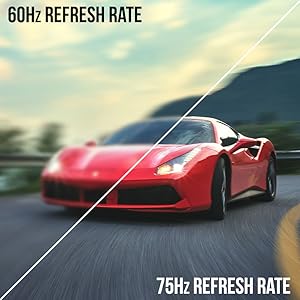
Image: A side-by-side comparison demonstrating the visual smoothness of 75Hz refresh rate versus 60Hz.

Image: A visual comparison highlighting the enhanced color accuracy of 98% sRGB compared to a conventional display.

Image: Split-screen view demonstrating the visual enhancements provided by FPS and RTS game modes.
7. Itọju
Lati rii daju igbesi aye gigun ati iṣẹ to dara julọ ti atẹle rẹ, tẹle awọn itọnisọna mimọ wọnyi:
- Yọọ okun agbara nigbagbogbo ṣaaju ṣiṣe mimọ.
- Lo asọ asọ, ti ko ni lint die-die dampened pẹlu omi tabi a ìwọnba, ti kii-abrasive regede.
- Avoid using alcohol, ammonia, or abrasive cleaners, as these can damage the screen surface.
- Gently wipe the screen and exterior surfaces. Do not spray cleaner directly onto the screen.
8. Laasigbotitusita
If you encounter any issues with your monitor, refer to the following common solutions:
- Ko si Agbara: Ensure the power cable is securely connected to both the monitor and a working power outlet. Check the power adapter and outlet.
- Ko si Aworan: Verify that the video cable (HDMI or VGA) is securely connected to both the monitor and your computer/device. Ensure the correct input source is selected in the OSD menu.
- Aworan ti o nmi/ti daru: Check the video cable for damage. Try a different cable or port. Ensure your graphics card drivers are up to date. Adjust refresh rate settings in your device's display settings.
- Ko si Ohun: Check the volume settings in the OSD menu and on your connected device. Ensure external speakers are properly connected if used.
- Awọn bọtini Ko Dahun: Perform a factory reset through the OSD menu if accessible.
For further assistance, please refer to the full user manual or contact Sceptre customer support.
9. Awọn pato
| Ẹya ara ẹrọ | Sipesifikesonu |
|---|---|
| Iwon iboju | 27 inches |
| Ipinnu | 1920 x 1080 (FHD 1080p) |
| Oṣuwọn sọtun | Up to 100Hz (75Hz via HDMI/VGA) |
| ìsépo | 1500R |
| Akoko Idahun | 3ms (GtG) |
| Panel Iru | VA |
| Imọlẹ | 280 nit |
| Awọ Gamut | 98% sRGB |
| Awọn igbewọle fidio | 2x HDMI 1.4, 1x VGA |
| Awọn ibudo ohun | Ohùn wọlé, Ohùn jáde |
| Awọn agbọrọsọ | Ti a ṣe sinu |
| Oke VESA | 100mm x 100mm |
| Awọn iwọn (LxWxH) | 15.09 x 19.97 x 7.02 inches |
| Iwọn | 5.5 iwon |
10. Ere Iriri
The Sceptre Curved 27" monitor is designed to enhance your gaming experience with its high refresh rate, low response time, and immersive curvature.
Video: An official Sceptre video showcasing various gaming monitors, including the Curved 27" model, highlighting their features and performance in gaming scenarios.
For optimal gaming performance, ensure your device's display settings match the monitor's capabilities (e.g., 1920x1080 resolution at 75Hz).
11. Atilẹyin ọja ati Support
Your Sceptre monitor comes with a 1-Odun Limited atilẹyin ọja. For detailed terms and conditions, please refer to the included warranty information card in your package.
For technical support, troubleshooting, or warranty claims, please contact Sceptre Customer Service. Contact information is provided on the customer service card included with your monitor.


