1. Ifihan
This manual provides detailed instructions for the KuWFi Type-C Audio Video Capture Card, Model HDMI26. This device is designed to capture single HDMI video signals, supporting resolutions up to 1080p at 60Hz. It is compatible with various operating systems and offers plug-and-play functionality for ease of use.

Figure 1: KuWFi Type-C Audio Video Capture Card (Model HDMI26)
2. Awọn ẹya ara ẹrọ
- High-Quality Capture: Captures single HDMI video signals with resolutions up to 1080p at 60Hz.
- Ibamu gbooro: Supports MJPEG and YUY2. Compatible with Windows 7, 8, 8.1, 10, Linux OS, and Mac OS operating systems.
- Atilẹyin ohun: Supports UAC&UVC protocol and 48 KHz PCM audio sampling rate. Automatically detects input audio format and converts to 48KHz PCM audio.
- Ijade Iru-C: Utilizes Type-C output with up to 300~350MB/s bandwidth.
- Pulọọgi ati Ṣiṣẹ: Meets UVC and UAC standards, requiring no driver installation or complex settings for most systems.
- Atunṣe Aifọwọyi: Automatically detects input video format and adjusts output resolution and frame rate.
- Idaduro HDMI: Features an HDMI loop-out port for zero-latency pass-through while recording.
- Awọn Ẹrọ Ọpọ: Up to two capture cards can be used on a single PC.
- Enhanced Picture Quality: Provides clearer picture quality with an RGB color range of 0~255.
- Famuwia Iṣagbega: Supports online firmware upgrades for improved compatibility.
3. Package Awọn akoonu
Daju pe gbogbo awọn nkan ti a ṣe akojọ rẹ si isalẹ wa ninu package rẹ:
- 1x KuWFi HDMI to Type-C Video Capture Dongle (Model HDMI26)
- 1x Okun Iru-C
- 1x Parameter Description (Document)
- 1x Operating Instruction (User Manual)
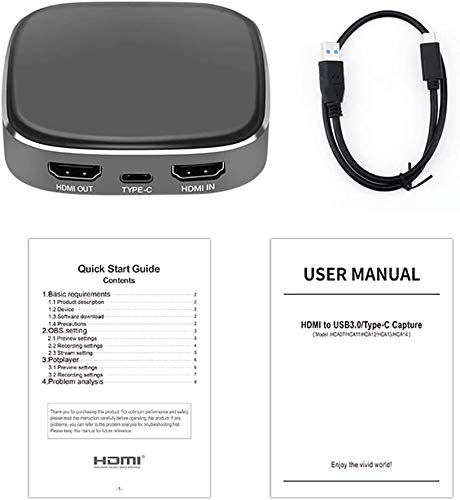
Figure 2: Included items: Capture card, Type-C cable, and documentation.
4. Awọn ilana iṣeto
Follow these steps to connect your KuWFi Type-C Audio Video Capture Card:
- So HDMI Input pọ: Connect an HDMI cable from your source device (e.g., game console, camera, set-top box) to the HDMI-IN ibudo lori kaadi gbigba.
- Connect HDMI Output (Optional): Ti o ba fẹ lati view the source content on a separate display without latency, connect another HDMI cable from the HDMI Jade port on the capture card to your TV, monitor, or projector.
- Sopọ si Kọmputa: Connect the provided Type-C cable from the ORISI-C port on the capture card to a USB 3.0 or Type-C port on your computer (PC or Mac).
- Agbara Tan: Ensure all devices are powered on. The capture card is typically powered via the Type-C connection.

Figure 3: Connection diagram for the capture card, illustrating HDMI input, HDMI output, and Type-C connections.
5. Awọn ilana Iṣiṣẹ
Once the capture card is connected, you can begin capturing or streaming using compatible software.
5.1. Software Setup (Example: OBS Studio)
For capturing and streaming, third-party software like OBS Studio, VLC, or PotPlayer is required. The following steps outline a general setup using OBS Studio:
- Fi software sori ẹrọ: Download and install your preferred capture software (e.g., OBS Studio) on your computer.
- Add Video Source: Open the software. In OBS Studio, navigate to the "Sources" box, click the "+" icon, and select "Video Capture Device".
- Yan Ẹrọ: In the properties window, select "USB Video" or a similar name for your capture card from the "Device" dropdown menu.
- Ṣe atunto Fidio: Adjust resolution, FPS, and other video settings as needed. Ensure the resolution matches or is compatible with your input source.
- Configure Audio: In the "Audio Mixer" section, ensure "USB Audio" or similar is selected and levels are adjusted. You may need to add an "Audio Input Capture" source and select "USB Audio" if not automatically detected.
- Bẹ̀rẹ̀ sí Gbígbàsílẹ̀/Ṣíṣànwọle: Once configured, you can start recording or streaming your content.
5.2. Driver Installation (Windows 7 Specific)
While the device is generally plug-and-play, some Windows 7 systems may require a specific driver installation. Refer to the included "Operating Instruction" manual or the manufacturer's website for driver download and installation procedures if necessary.
6. Awọn pato
| Ẹya ara ẹrọ | Ẹ̀kúnrẹ́rẹ́ |
|---|---|
| Awoṣe | HDMI 26 |
| Brand | KuWFi |
| Àtìlẹ́yìn Ìpinnu Ìtẹ̀síwájú HDMI | 4K/60, 1080P/60, 59.94, 50, 30, 29.97, 25, 24, 23.98, 1080i 50/60, 720P 50/60, 480P, 576P, 1280x1024, 1280x960, 1024x768, 800x600, 640x480 |
| HDMI Input kika | Compatible with HDMI1.4 standard, max bandwidth 225MHz 4K/30Hz, 12bit deep color |
| Type-C Output Bandwidth | Up to 300~350MB/s |
| Ṣaajuview Ipinnu | 1920x1080, 1680x1050, 1280x1024, 1280x960, 1400x900, 1440x900, 1360x768, 1366x768, 1024x768, 1280x720, 800x600, 720x576, 720x480, 640x480 |
| Iwọn fireemu | 25/29.97/30/50/59.94/60 fps |
| HDMI Loop-out Resolution Support | 4K/60, 4K/30, 1080P/60, 59.94, 50, 30, 29.97, 25, 24, 23.98, 1080i 50/60, 720P 50/60, 480P, 576P, 1280x1024, 1280x960, 1024x768, 800x600, 640x480 |
| Ni wiwo Hardware | USB 2.0 (backward compatible), USB 3.0 (Type-C) |
| Ipinnu Yaworan fidio | 1080p |
| Pataki Awọn ẹya ara ẹrọ | Ìwúwo Fúyẹ́, Agbégbé |
| Iwọn Nkan | 250 g |
| Awọn iwọn | 16.2 x 9.8 x 5.4 cm |
7. System Awọn ibeere
To ensure optimal performance, your computer system should meet or exceed the following specifications:
- Eto isesise: Windows 10 / Windows 8.1 / Windows 7 (SP1), Linux OS, Mac OS
- Desktop PC:
- Processor: Intel Core i5-4440 3.10 GHz or higher
- Graphics Card: NVIDIA GeForce GTX 660 or above
- Iwe ajako:
- Processor: Intel Core i7-4810MQ or higher
- Graphics Card: NVIDIA GeForce GTX 870M or above
- Ramu: 4 GB Ramu (8 GB niyanju)
8. Laasigbotitusita
If you encounter issues while using the capture card, consider the following:
- Recording Screen Blinking or Black: This issue often indicates a low computer configuration. Ensure your system meets the recommended specifications listed in Section 7.
- Awọn oran Asopọmọra:
- Avoid using USB hubs or USB extension cables, as they can interfere with data transfer and power delivery. Connect the Type-C cable directly to a native USB 3.0 or Type-C port on your computer.
- Ensure all HDMI cables are securely connected to both the source device, the capture card, and the display (if using loop-out).
- A ko ri ifihan agbara kankan:
- Verify that your source device is powered on and outputting an HDMI signal.
- Check the input resolution of your source device. While the capture card supports various resolutions, ensure it's within the compatible range.
- Gbiyanju okun HDMI ti o yatọ.
- Audio Ko Ṣiṣẹ:
- Ensure "USB Audio" is selected as the audio input device in your capture software.
- Check your computer's sound settings to ensure the capture card's audio input is enabled and not muted.
9. Awọn Akọsilẹ pataki
- For optimal performance, connect the capture card directly to a USB 3.0 or Type-C port on your computer. Avoid using USB hubs or extension cables.
- A computer with specifications below the recommended requirements may experience performance issues such as flickering or black screens during recording.
- Keep the device in a dry environment and avoid extreme temperatures.


