Ọrọ Iṣaaju
This instruction manual provides essential information for the safe and effective use of your DBPOWER 1080P Additional Camera Unit. This camera is designed to expand your existing DBPOWER baby monitor system, allowing you to monitor multiple rooms or angles with high-definition clarity. Please read this manual thoroughly before installation and operation, and retain it for future reference.
Alaye Aabo
Lati rii daju iṣẹ ailewu ati yago fun ibajẹ, jọwọ ṣe akiyesi awọn iṣọra ailewu atẹle:
- Keep the camera unit and its power adapter out of reach of children.
- Do not place the camera or power cord within 3 feet of the crib or playpen to avoid strangulation hazards.
- Use only the original power adapter provided with the unit.
- Do not expose the camera to water, moisture, or extreme temperatures.
- Yẹra fún gbígbé kámẹ́rà sí ibi tí oòrùn tààrà tàbí nítòsí àwọn orísun ooru.
- Do not attempt to open or repair the camera unit yourself. Refer all servicing to qualified personnel.
- Ensure proper ventilation around the camera unit.
- Ọja yii jẹ ipinnu fun lilo inu ile nikan.
Package Awọn akoonu
Jọwọ ṣayẹwo awọn akoonu package lati rii daju pe gbogbo awọn ohun kan wa:
- DBPOWER 1080P Additional Camera Unit (MCBM0002)
- Power Adapter for Camera Unit
- Afowoyi Olumulo (iwe-ipamọ yii)
Ọja Pariview
The DBPOWER 1080P Additional Camera Unit is a compact and versatile device designed to seamlessly integrate with your existing DBPOWER baby monitor system. It features a sleek, dome-shaped design with pan and tilt capabilities.

olusin 1: Iwaju view of the DBPOWER 1080P Additional Camera Unit, showing the lens and base.
Awọn eroja pataki pẹlu:
- Lẹnsi kamẹra: Ya fidio kikọ sii.
- Awọn LED infurarẹẹdi: Fun night iran iṣẹ.
- Gbohungbohun: Fun ibaraẹnisọrọ ohun afetigbọ ọna meji.
- Agbọrọsọ: Fun ibaraẹnisọrọ ohun afetigbọ ọna meji.
- Bọtini Bata: Used for pairing the camera with the monitor unit.
- Ibudo Agbara: Sopọ si ohun ti nmu badọgba agbara.
Ṣeto
Follow these steps to set up your additional camera unit and pair it with your existing DBPOWER monitor:
- Gbe Kamẹra naa si: Place the camera unit in a suitable location within the room you wish to monitor. Ensure it has a clear line of sight to the area of interest and is placed on a stable, flat surface or mounted securely. Keep it at least 3 feet away from the crib.
- So agbara: Connect the small end of the power adapter to the power port on the back of the camera unit. Plug the other end of the power adapter into a standard electrical outlet. The camera will power on automatically.
- Prepare Monitor for Pairing: Turn on your DBPOWER monitor unit. Navigate to the camera pairing menu. (Refer to your monitor's specific user manual for detailed instructions on accessing the pairing menu, as this may vary by monitor model).
- Bibẹrẹ Isopọpọ: While in the pairing menu on your monitor, press and hold the "Pair" button on the back or bottom of the additional camera unit for a few seconds until the monitor indicates successful pairing. The camera's LED indicator may flash during pairing and become solid once connected.
- Jẹrisi Asopọmọra: Once paired, the video feed from the new camera should appear on your monitor. You can connect up to four cameras to a single DBPOWER monitor system.

Figure 2: The camera unit positioned in a nursery, connected to power.

Figure 3: The DBPOWER system supports connecting up to four camera units for multi-room monitoring.
Awọn ilana Iṣiṣẹ
Once your additional camera is paired, you can utilize its features through your DBPOWER monitor unit.

Figure 4: The monitor unit provides intuitive controls for camera functions.
Pan & pulọọgi
Use the directional buttons on your monitor unit to remotely adjust the camera's viewing angle. This allows you to pan horizontally and tilt vertically to get a full view of the room without physically moving the camera.
Ọrọ Ọna Meji
Press and hold the "Talk" button on your monitor to speak through the camera's speaker. This feature allows you to soothe your baby or communicate with someone in the room where the camera is located.
One-Click Zoom
Utilize the zoom function on your monitor to get a closer look at your baby. This digital zoom allows you to magnify the image for more detail.
Alẹ Iranran
The camera is equipped with infrared LEDs that automatically activate in low-light conditions, providing a clear black-and-white video feed even in complete darkness. This ensures continuous monitoring day and night.
Multiple Cameras Auto Scan
If you have multiple cameras paired, your monitor can automatically cycle through the camera feeds, displaying each camera for a set duration before switching to the next. This feature ensures you can keep an eye on different areas without manual switching.
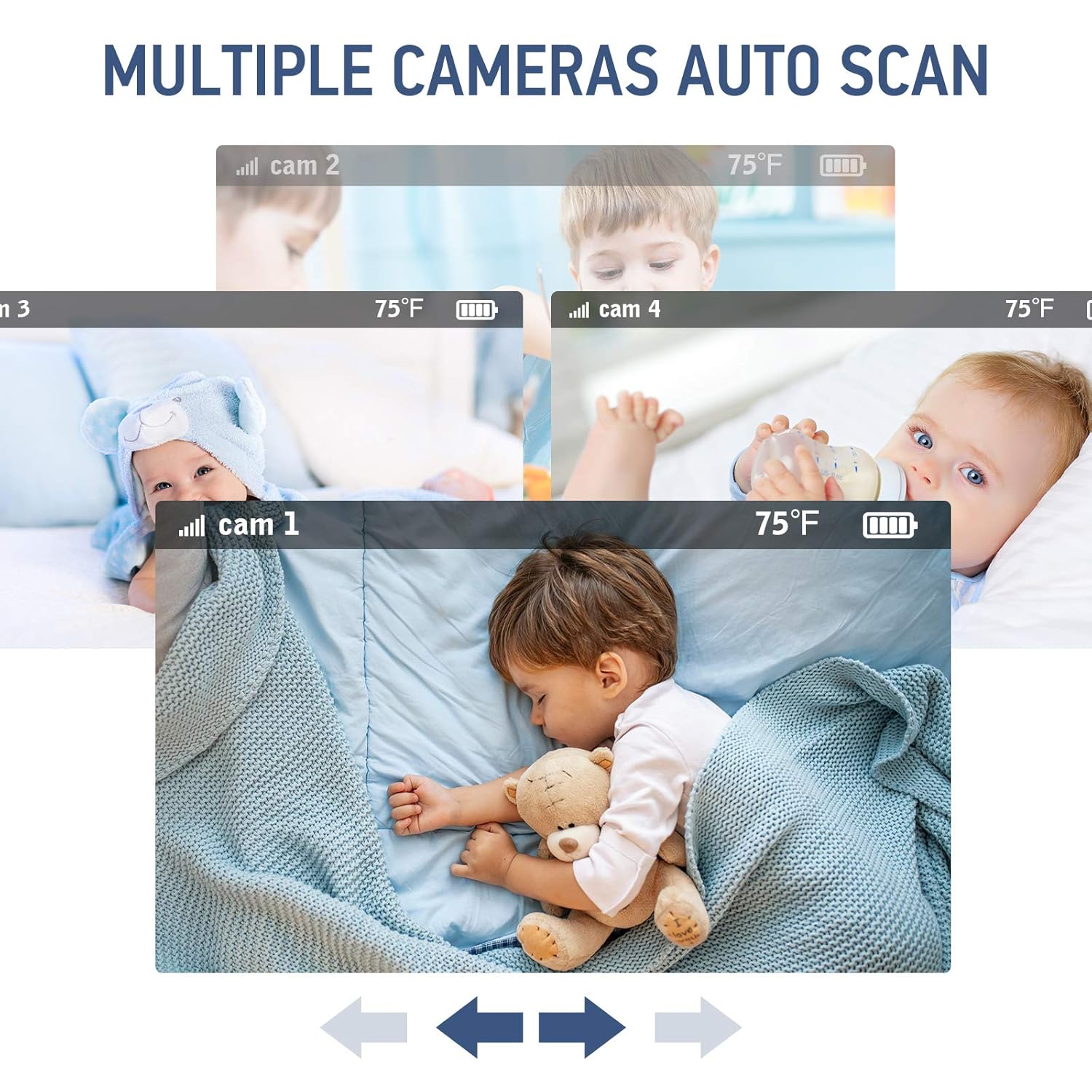
Figure 5: The auto-scan feature cycles through multiple camera views, displaying temperature for each.
Itoju
Proper maintenance ensures the longevity and optimal performance of your camera unit:
- Ninu: Use a soft, dry, lint-free cloth to clean the camera lens and body. Do not use abrasive cleaners, solvents, or aerosol sprays.
- Ibi ipamọ: If storing the camera for an extended period, disconnect it from power and store it in a cool, dry place away from direct sunlight.
- Yago fun Awọn Idilọwọ: Ensure no objects block the camera's ventilation holes or lens.
Laasigbotitusita
If you encounter issues with your camera unit, refer to the following table for common problems and solutions:
| Isoro | Owun to le Fa | Ojutu |
|---|---|---|
| No video/audio from camera | Camera not powered on; Camera not paired; Out of range. | Ensure camera is plugged in and powered. Re-pair the camera with the monitor. Move camera closer to the monitor. |
| Didara fidio ti ko dara | Low light conditions; Lens is dirty; Interference. | Night vision should activate automatically. Clean the camera lens. Reduce interference from other wireless devices. |
| Audio static or interference | Too far from monitor; Obstructions; Other electronic devices. | Move camera closer to the monitor. Remove obstructions. Move camera away from other electronics. |
| Camera not responding to Pan/Tilt | Camera is frozen; Connection issue. | Unplug and replug the camera to restart it. Ensure a stable connection to the monitor. |
Awọn pato
Technical specifications for the DBPOWER 1080P Additional Camera Unit:
| Ẹya ara ẹrọ | Ẹ̀kúnrẹ́rẹ́ |
|---|---|
| Nọmba awoṣe | MCBM0002 |
| Ipinnu Yaworan fidio | 1080p |
| Ipinnu fidio ti o munadoko | 1080 awọn piksẹli |
| Asopọmọra Technology | Ailokun |
| Ilana Asopọmọra | Wi-Fi |
| Pataki Ẹya | Night Vision, Two-Way Talk, Pan & Tilt, Zoom |
| Orisun agbara | Okun Itanna |
| Iṣagbesori Iru | Ceiling Mount (also suitable for tabletop) |
| Fọọmù ifosiwewe | Dome |
| Low Light Technology | Awọ Alẹ (Infurarẹẹdi) |
| Yara Iru | Osinmi |
| International Idaabobo Rating | IP54 |
| Iwọn Nkan | 1.04 iwon |
| Package Mefa | 5.67 x 4.8 x 4.41 inches |
Atilẹyin ọja ati Support
DBPOWER products are manufactured to the highest quality standards. For information regarding warranty coverage, technical support, or customer service, please refer to the warranty card included with your original monitor unit or visit the official DBPOWER website. Please have your model number (MCBM0002) ready when contacting support.
Fun alaye atilẹyin ti ode-ọjọ, jọwọ ṣabẹwo: www.dbpower.co


