1. Ifihan
Thank you for choosing the PXN Steering Wheel V3II. This racing wheel is designed to enhance your gaming experience across multiple platforms, offering realistic control and immersive feedback. Please read this manual carefully to ensure proper setup and optimal performance of your device.

Image 1.1: The PXN Steering Wheel V3II with its accompanying pedal unit.
2. Key Awọn ẹya ara ẹrọ
- Ibamu Olona Platform: Compatible with PC, PS3, PS4, Xbox One, Xbox Series X|S, and Switch, supporting Windows 7/8/10/11 operating systems.
- Immersive Racing Experience: Designed for various racing games including Dust Removal Series, GT Racing Series, Real Racing Series, World Rally Championship, F1, Unlimited Driving, and European Truck Simulation.
- PC Dual-Mode Drive: Supports X-input/D-input modes on PC. Default is X-input; long press "HOME" for 3 seconds to switch to D-input.
- 180° Steering Rotation: Provides a realistic steering angle for racing games.
- Linear Foot Pedals: Includes responsive linear pedals for precise acceleration and braking.
- Rubber Texture Coating Wheel: Enhances grip and comfort during extended gaming sessions.
- Sports Car-Style Paddles: Equipped with paddle shifters for manual gear changes.
- Apẹrẹ Ergonomic: Mimics the ergonomic design of real racing wheels for comfortable use.
- Awọn ọkọ ayọkẹlẹ gbigbọn Meji: Features real double vibration motors for enhanced tactile feedback.
- Iṣagbesori to ni aabo: Includes 7 powerful suction cups and a U-fixed bracket for stable attachment to most desktops.
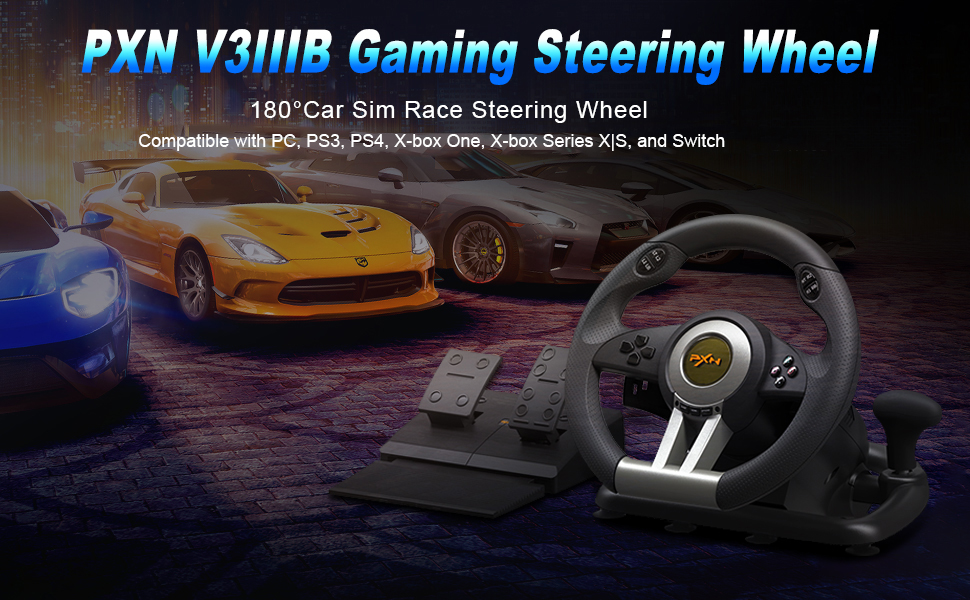
Image 2.1: The PXN V3IIIB Gaming Steering Wheel, highlighting its 180° rotation and compatibility for car simulation racing.
3. Ibamu
The PXN Steering Wheel V3II is designed for broad compatibility across various gaming platforms:
- PC: Windows 7, Windows 8, Windows 10, Windows 11 (supports X-input and D-input modes).
- Àwọn kọ́nsùlù: PlayStation 3 (PS3), PlayStation 4 (PS4), Xbox One, Xbox Series X|S, Nintendo Switch.

Image 3.1: Visual representation of the PXN Steering Wheel V3II's compatibility with multiple gaming platforms.
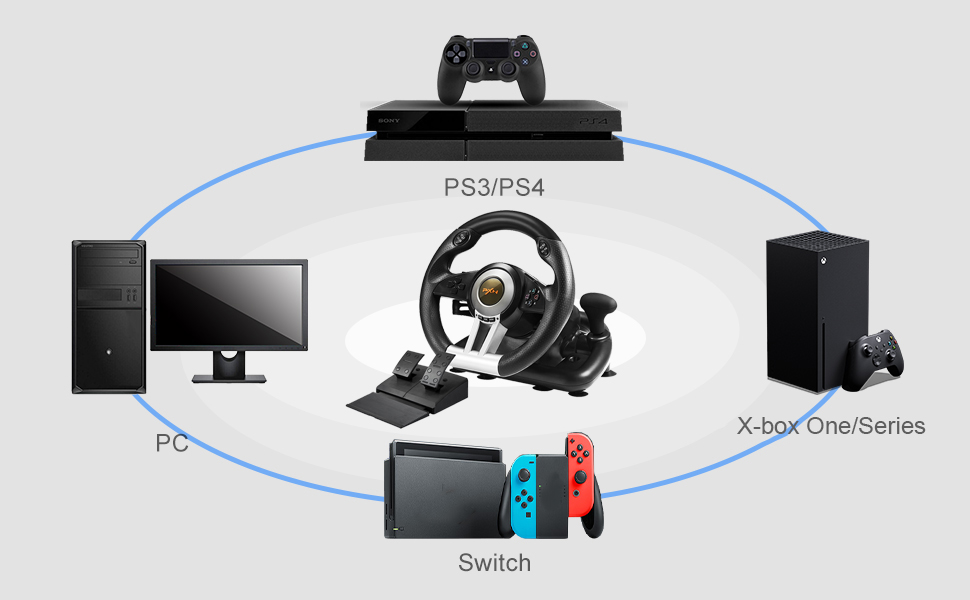
Image 3.2: A diagram illustrating the connectivity of the PXN Steering Wheel V3II to various gaming systems.
4. Awọn ilana iṣeto
Follow these steps to set up your PXN Steering Wheel V3II:
- Fifi sori ẹrọ kẹkẹ idari:
- Place the steering wheel on a flat, stable surface.
- Press down firmly on the steering wheel to engage the 7 powerful suction cups on its base, ensuring it is securely attached.
- Alternatively, use the U-fixed bracket to clamp the steering wheel to a desk or table edge for added stability.

Image 4.1: The underside of the steering wheel showing the suction cups and the U-fixed bracket for secure mounting.
- Nsopọ awọn Pedals:
- Connect the pedal unit cable to the "Connect Port for Pedals" on the underside of the steering wheel.
- Place the pedal unit on the floor in a comfortable position.
- Connecting to Console/PC:
- For PS4/Xbox One/Xbox Series X|S: Connect your original console controller to the "Guidance Port for Controller" on the steering wheel using a USB cable. Then, connect the steering wheel's main USB cable to your console.
- For PC: Connect the steering wheel's main USB cable directly to your PC. The wheel will default to X-input mode. To switch to D-input mode, long press the "HOME" button for 3 seconds.
- For Switch: Connect the steering wheel's main USB cable directly to your Nintendo Switch dock.

Image 4.2: Connection diagram for PlayStation 4 console.

Image 4.3: Connection diagram for Nintendo Switch console.

Image 4.4: Connection diagram for Xbox One console.
5. Awọn ilana Iṣiṣẹ
Familiarize yourself with the controls and functions of your PXN Steering Wheel V3II:

Aworan 5.1: alaye view of the PXN Steering Wheel V3II, highlighting its various buttons, paddles, and ports.
- Kẹkẹ irin-ajo: The wheel offers 180° rotation for precise steering control in racing games.
- Awọn bọtini: Features standard A, B, X, Y buttons, D-Pad, Home button, and function indicators, similar to a standard game controller.
- Awọn paadi: Use the left and right paddles for quick gear shifting, mimicking a sports car experience.
- Gear Stick: Provides an additional option for manual gear changes.
- Awọn atẹsẹ: The linear foot pedals provide responsive acceleration (right pedal) and braking (left pedal).
- Idahun gbigbọn: The dual vibration motors provide realistic feedback during gameplay, such as collisions or driving over rough terrain.

Image 5.2: Close-up of the dual paddles and gear lever for enhanced control.

Image 5.3: Illustration of the dual-motor vibration system providing smooth and quiet steering action.
Video 5.1: Official product video demonstrating the PXN V3IIO Xbox steering wheel with 180-degree rotation and various features in action.
6. Itọju
To ensure the longevity and optimal performance of your PXN Steering Wheel V3II, follow these simple maintenance guidelines:
- Ninu: Use a soft, dry cloth to wipe down the steering wheel and pedal unit. Avoid using harsh chemicals or abrasive cleaners, as these can damage the surface.
- Ibi ipamọ: When not in use, store the device in a cool, dry place away from direct sunlight and extreme temperatures. Disconnect all cables to prevent tangling and damage.
- Itọju USB: Avoid bending or twisting cables excessively. Ensure cables are not pinched or placed under heavy objects.
7. Laasigbotitusita
If you encounter any issues with your PXN Steering Wheel V3II, please refer to the following common solutions:
- Ẹrọ Ko Dahun:
- Ensure all cables are securely connected to the steering wheel, pedals, and console/PC.
- Verify that the console's original controller is correctly connected to the steering wheel's guidance port (for PS4/Xbox).
- Try connecting the steering wheel to a different USB port on your console or PC.
- Tun console rẹ tabi PC bẹrẹ.
- No Vibration Feedback:
- Ṣàyẹ̀wò àwọn ètò inú eré láti rí i dájú pé àbájáde ìgbóná náà ti ṣiṣẹ́.
- Ensure the game you are playing supports vibration features.
- Incorrect PC Mode (X-input/D-input):
- If on PC, long press the "HOME" button for 3 seconds to switch between X-input and D-input modes.
- Steering Wheel Not Stable:
- Ensure the suction cups are clean and the surface is smooth and dry before pressing down firmly.
- If using the U-fixed bracket, ensure it is tightened securely to the desk.
8. Awọn pato
| Ẹya ara ẹrọ | Ẹ̀kúnrẹ́rẹ́ |
|---|---|
| Nọmba awoṣe | V3III |
| Ọja Mefa | 10.62 x 10.23 x 9.05 inches |
| Iwọn Nkan | 7.13 iwon |
| Idari igun | 180° |
| Gbigbọn | Meji gbigbọn Motors |
| Pedals | Linear Foot Pedals |
| Ibamu | PC (Windows 7/8/10/11), PS3, PS4, Xbox One, Xbox Series X|S, Switch |
| Olupese | PXN |

Image 8.1: Detailed dimensions of the PXN Steering Wheel V3II, including the wheel, pedal unit, and U-fixed bracket.
9. Atilẹyin ọja & Atilẹyin
PXN is committed to providing high-quality products and excellent customer service:
- Iṣẹ onibara: The PXN team provides 24-hour customer service for any inquiries or assistance you may need.
- Ilana agbapada: Enjoy 30 days of worry-free refunds if you are not completely satisfied with your purchase.
- Exchange Service: A 365-day exchange service is available for product issues.
- Olubasọrọ: For support, please contact us via email.


