1. Ifihan
The Celly FLIP1 True Wireless Bluetooth Earbuds provide a wireless audio experience with Bluetooth 5.0 connectivity. Designed for portability and convenience, these earbuds feature a compact charging case with a lanyard and support both stereo and mono audio modes. They are suitable for various activities, including sports, and offer integrated controls for music and call management.
This manual provides instructions for setting up, operating, and maintaining your Celly FLIP1 earbuds.
2. Package Awọn akoonu
Jẹrisi pe gbogbo awọn ohun kan wa ninu package:
- Celly FLIP1 True Wireless Earbuds (Left and Right)
- Portable Charging Case with Lanyard
- MicroUSB Ngba agbara USB
- Afowoyi Olumulo (iwe-ipamọ yii)
3. Ọja Ipariview
The Celly FLIP1 earbuds and charging case are designed for ease of use and portability. The earbuds fit securely in the ear, and the charging case protects them while providing additional battery life.

Image 3.1: Celly FLIP1 earbuds removed from the open charging case. The earbuds are white with a small blue indicator light on one, and the charging case is white and silver with battery indicator icons.
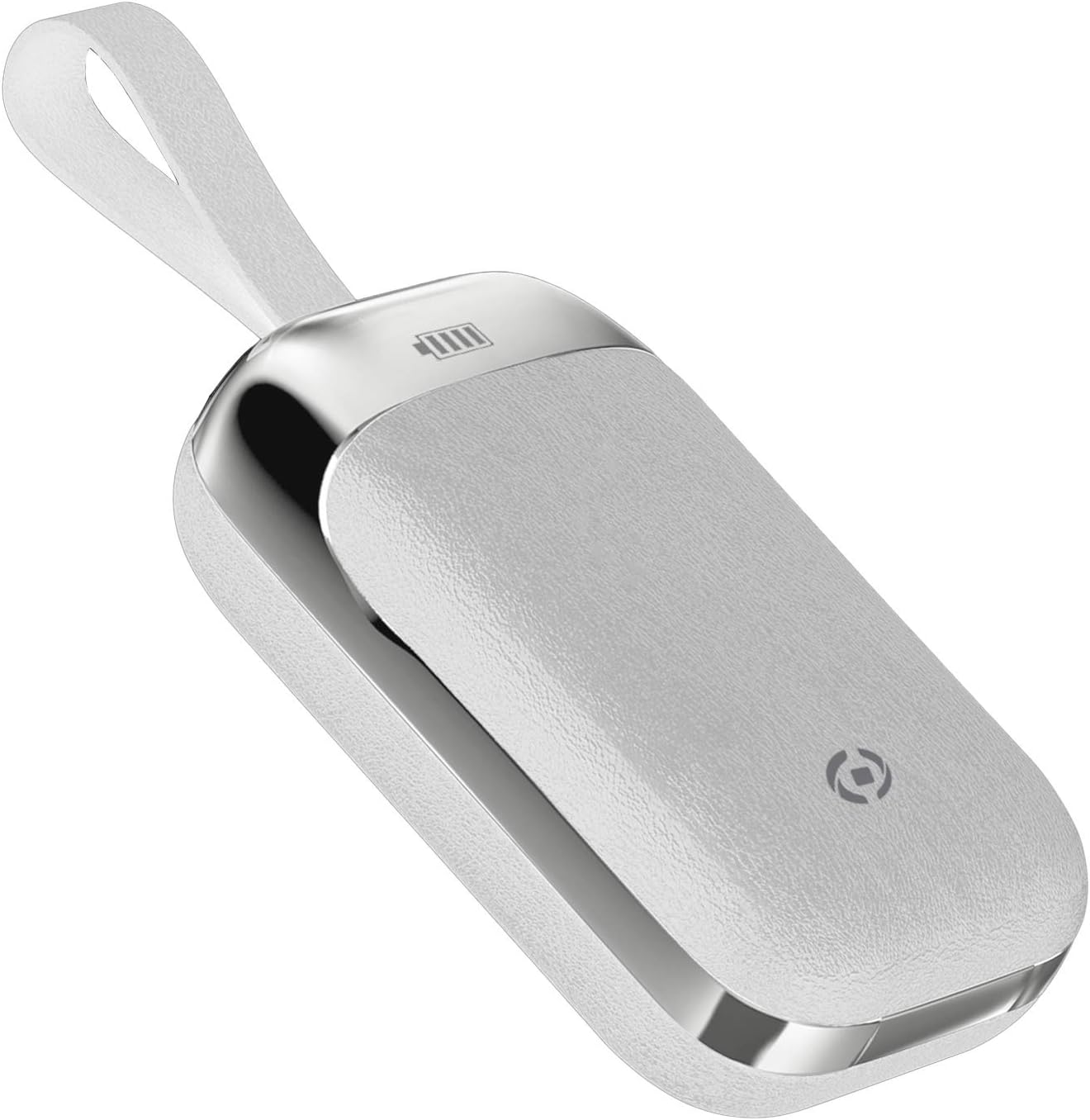
Image 3.2: The Celly FLIP1 charging case in a closed position, showing its compact design and integrated lanyard for easy carrying.

Aworan 3.3: exploded view illustrating the internal components of a Celly FLIP1 earbud, including the Bluetooth 5.0 chip, battery, and speaker driver.
4. Eto
4.1 Ngba agbara si Earbuds ati Ọran
Ṣaaju lilo akọkọ, gba agbara ni kikun awọn agbekọri ati apoti gbigba agbara.
- Gbe awọn agbekọri sinu apoti gbigba agbara. Rii daju pe wọn joko ni deede ni awọn iho wọn.
- Connect the MicroUSB charging cable to the charging port on the case and the other end to a USB power source (e.g., computer USB port, wall adapter).
- The indicator lights on the case and/or earbuds will show the charging status. Refer to the case for battery level indicators.
- A full charge typically takes approximately 1.5 hours. The charging case has a 400mAh capacity, and each earbud has a 50mAh battery.
Once fully charged, the earbuds provide approximately 4 hours of continuous music playback or talk time.
4.2 Sisopọ pọ pẹlu Ẹrọ Bluetooth kan
To connect your Celly FLIP1 earbuds to your smartphone or other Bluetooth-enabled device:
- Rii daju pe awọn agbekọri ti gba agbara.
- Open the charging case and remove both earbuds. They will automatically power on and enter pairing mode. You may hear an audio prompt indicating they are ready to pair.
- Lórí ẹ̀rọ rẹ, lọ sí àwọn ètò Bluetooth.
- Wa fun new devices. Select "Celly FLIP1" (or similar name) from the list of available devices.
- Once connected, you will hear a confirmation tone, and the earbuds' indicator lights may change.
- Ti sisopọ ba kuna, gbe awọn afikọti pada sinu ọran, tii, ki o tun awọn igbesẹ naa tun.
The earbuds have a wireless range of up to 10 meters (33 feet) from your connected device.
5. Awọn ilana Iṣiṣẹ
The Celly FLIP1 earbuds feature multifunction keys for controlling audio playback and calls.
5.1 Agbara Tan / Pa
- Agbara Tan: Remove earbuds from the charging case. They will power on automatically. Alternatively, press and hold the multifunction button on each earbud for a few seconds.
- Agbara Pa: Place earbuds back into the charging case. They will power off automatically. Alternatively, press and hold the multifunction button on each earbud for several seconds until the indicator light turns off.
5.2 Sisisẹsẹhin Orin
- Ṣiṣẹ/Daduro: Press the multifunction button once on either earbud.
- Orin t’okan: Double-press the multifunction button on the right earbud.
- Tẹlẹ Orin: Double-press the multifunction button on the left earbud.
- Iṣakoso iwọn didun: Volume is typically controlled via your connected device.
5.3 ipe Management
- Idahun/Ipe Ipari: Press the multifunction button once on either earbud.
- Kọ Ipe: Press and hold the multifunction button on either earbud for approximately 2 seconds.
- Oluranlọwọ ohun: Triple-press the multifunction button on either earbud to activate your device's voice assistant (e.g., Siri, Google Assistant).
5.4 Mono/Stereo Mode
The Celly FLIP1 earbuds support both stereo (using both earbuds) and mono (using a single earbud) modes. Each earbud has an integrated microphone.
- To use in mono mode, simply remove one earbud from the case and leave the other in the case. The single earbud will connect to your device.
- To switch back to stereo, remove the second earbud from the case. It will automatically connect to the first earbud and your device.

Image 5.1: A user wearing Celly FLIP1 earbuds while interacting with a smartphone, demonstrating typical use.
6. Itọju
Itọju to dara ṣe idaniloju igbesi aye gigun ati iṣẹ to dara julọ ti awọn afikọti rẹ.
- Ninu: Lo asọ ti o gbẹ, asọ ti ko ni lint lati nu afikọti ati apoti gbigba agbara. Maṣe lo awọn afọmọ abrasive, ọti-lile, tabi awọn nkan ti kemikali.
- Ibi ipamọ: When not in use, always store the earbuds in their charging case to protect them from dust, scratches, and damage.
- Yago fun Ọrinrin: Má ṣe fi àwọn ètí ìró tàbí àpótí ìgbóná sí omi, òjò, tàbí ọ̀rinrin tó pọ̀ jù.
- Iwọn otutu: Avoid storing or using the device in extreme temperatures (hot or cold).
7. Laasigbotitusita
If you encounter issues with your Celly FLIP1 earbuds, refer to the following common solutions:
| Isoro | Ojutu |
|---|---|
| Earbuds ko ṣiṣẹ lori. | Ensure earbuds are charged. Place them in the charging case and connect the case to a power source. |
| Earbuds ko so pọ pẹlu ẹrọ. | 1. Ensure Bluetooth is enabled on your device. 2. Place earbuds back in the case, close, then reopen and remove to re-enter pairing mode. 3. Forget/remove "Celly FLIP1" from your device's Bluetooth list and try pairing again. 4. Ensure earbuds are within 10 meters of your device. |
| Agbekọri agbekọri kan ṣoṣo ti n ṣiṣẹ. | 1. Ensure both earbuds are charged. 2. Place both earbuds back in the charging case, close the lid, wait a few seconds, then open and remove both simultaneously. 3. Re-pair the earbuds with your device. |
| Iwọn kekere tabi didara ohun ko dara. | 1. Adjust the volume on your connected device. 2. Ensure earbuds are clean and free of debris. 3. Check the fit of the earbuds in your ears. |
| Ngba agbara ko gba agbara. | 1. Ensure the MicroUSB cable is securely connected to both the case and the power source. 2. Try a different MicroUSB cable or power adapter. |
8. Awọn pato
| Ẹya ara ẹrọ | Ẹ̀kúnrẹ́rẹ́ |
|---|---|
| Orukọ awoṣe | FIPIP1 |
| Nọmba Awoṣe Nkan | FLIP1WH |
| Asopọmọra Technology | Ailokun (Bluetooth 5.0) |
| Alailowaya Ibiti | Titi de awọn mita 10 (33 ẹsẹ) |
| Agbara Batiri Earbud | 50 mAh (kọọkan) |
| Ngba agbara Batiri Case | 400 mAh |
| Akoko gbigba agbara | Approx. 1.5 hours (earbuds and case) |
| Music Playback / Talk Time | Isunmọ. wakati meji 4 |
| Ohun elo | Ṣiṣu |
| Àwọ̀ | Funfun |
| Iwọn Nkan | 50 g |
| Iwọn Ọja (Ọpọlọ) | 10 x 17 x 3.5 cm |
| Awọn irinše to wa | Charging box, Headphones, MicroUSB Cable |
9. Alaye Aabo
Jọwọ ka ki o si tẹle awọn itọsona aabo lati yago fun ibaje si ẹrọ rẹ tabi ipalara si ara rẹ:
- Ma ṣe tuka, tunṣe, tabi tun ọja naa pada.
- Jeki ẹrọ naa kuro ni awọn iwọn otutu to gaju, oorun taara, ati ina.
- Yago fun fifi ẹrọ naa han si omi tabi awọn olomi miiran.
- Do not use the device at high volume for extended periods to prevent hearing damage.
- Jeki kuro ni arọwọto awọn ọmọde ati awọn ohun ọsin.
- Sọ ọjà náà àti bátìrì rẹ̀ nù ní ìbámu pẹ̀lú òfin àdúgbò.
10. Atilẹyin ọja ati Support
Celly products are designed and manufactured to the highest quality standards. For information regarding warranty coverage, technical support, or service, please refer to the warranty card included with your purchase or visit the official Celly webojula.
Jọwọ ṣe idaduro ẹri rira rẹ fun eyikeyi awọn ibeere atilẹyin ọja.


