Ọja Pariview
The SteelSeries Aerox 3 Wireless mouse is engineered for speed and durability. Its ultra-lightweight 66g design is optimized for fast mouse swipes, while the TrueMove Air optical sensor ensures precise tracking. With Quantum 2.0 Dual Wireless technology, you get a stable and reliable connection for uninterrupted gameplay. The mouse also features a long-lasting 200-hour battery life with fast charging capabilities via USB-C, and an IP54-rated AquaBarrier for water and dust resistance.

olusin 1: Iwaju view of the SteelSeries Aerox 3 Wireless Gaming Mouse with RGB lighting.
Eto Itọsọna
Follow these steps to set up your SteelSeries Aerox 3 Wireless Gaming Mouse:
- Unboxing: Carefully remove the mouse and all accessories from the packaging. You should find the Aerox 3 Wireless Mouse, a USB-C to USB Type-A Super Mesh Data/Charging Cable, a USB-C Wireless Dongle, and an Extension Adapter.
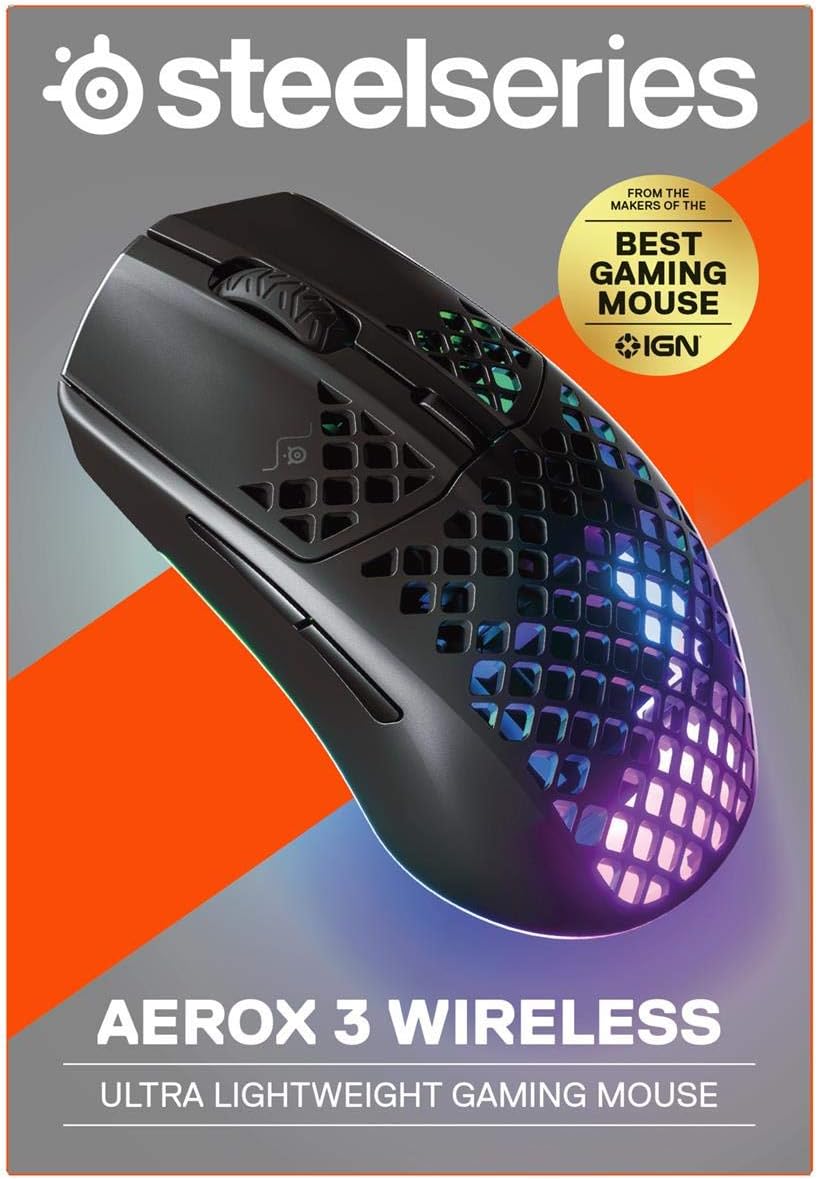
Figure 2: Packaging of the SteelSeries Aerox 3 Wireless Gaming Mouse.
- Gbigba agbara: Before first use, it is recommended to fully charge the mouse. Connect the USB-C end of the charging cable to the mouse and the USB-A end to a powered USB port on your computer or a USB wall adapter. The mouse supports fast charging.

olusin 3: Apa view showing the USB-C charging port.
- Connect Wireless Dongle: For optimal wireless performance, plug the USB-C Wireless Dongle directly into an available USB-C port on your PC. If a USB-C port is not available, use the Extension Adapter with the USB-C to USB Type-A cable to connect the dongle to a USB-A port.

olusin 4: Isalẹ view of the mouse showing the wireless dongle storage and power switch.
- Agbara Tan: Locate the power switch on the bottom of the mouse and slide it to the "2.4G" position for wireless mode or "Bluetooth" position for Bluetooth mode.
- Install SteelSeries Engine Software: For full customization of RGB lighting, button remapping, and CPI settings, download and install the SteelSeries Engine software from the official SteelSeries website. This software is compatible with Windows, macOS, and Linux.
Fidio 1: Ifihan fidio ọja osiseasing the features and design of the Aerox 3 Wireless Gaming Mouse.
Awọn ilana Iṣiṣẹ
Awọn ọna Asopọmọra:
- 2.4 GHz Wireless: For gaming-grade, low-latency performance, use the included USB-C Wireless Dongle. Ensure the switch on the bottom of the mouse is set to "2.4G".
- Bluetooth 5.0: For general use and multi-device connectivity, switch the mouse to "Bluetooth" mode. Pair it with your device through your operating system's Bluetooth settings.
Awọn iṣẹ ipilẹ:
- Osi/Ọtun Tẹ: Standard mouse buttons for primary and secondary actions.
- Yi lọ Kẹkẹ: A lo fun lilọ kiri nipasẹ awọn iwe aṣẹ ati web pages. It also functions as a clickable middle button.
- Bọtini DPI: Located behind the scroll wheel, this button cycles through pre-set CPI (Counts Per Inch) sensitivity levels. Customize these levels using the SteelSeries Engine software.
- Awọn bọtini ẹgbẹ: Two programmable buttons on the left side of the mouse, typically used for forward/back navigation or in-game actions.
Isakoso Batiri:
The Aerox 3 Wireless boasts up to 200 hours of battery life. The RGB lighting can indicate battery status. When the battery is low, the lighting may flash or change color. Connect the USB-C cable to charge. The mouse can be used while charging.
Itoju
Ninu:
The Aerox 3 Wireless features an AquaBarrier (IP54 rated) for water and dust resistance. To clean the mouse, gently wipe it with a soft, damp cloth. Avoid using harsh chemicals or abrasive materials. Ensure the USB-C port is dry before charging.
Awọn imudojuiwọn sọfitiwia:
Regularly check for updates to the SteelSeries Engine software. Updates often include performance improvements, bug fixes, and new features for your mouse.
Laasigbotitusita
| Isoro | Owun to le Fa | Ojutu |
|---|---|---|
| Mouse not responding/connecting. | Low battery, incorrect wireless mode, dongle not connected, interference. | Charge the mouse. Ensure the switch is in the correct mode (2.4G or Bluetooth). Re-insert the wireless dongle. Try a different USB port. Reduce interference from other wireless devices. |
| Inconsistent CPI/tracking. | Dirty sensor, software issue, surface not suitable. | Clean the optical sensor on the bottom of the mouse. Reinstall SteelSeries Engine software. Use a clean, uniform mouse pad. |
| Imọlẹ RGB ko ṣiṣẹ. | Software settings, low battery. | Check RGB settings in SteelSeries Engine. Ensure mouse is charged. |
| Asin ko gba agbara. | Faulty cable/port, mouse issue. | Try a different USB-C cable and/or USB port. Ensure the cable is fully inserted. |
For more detailed troubleshooting or advanced issues, please refer to the official SteelSeries support resources.
Awọn pato
| Ẹya ara ẹrọ | Ẹ̀kúnrẹ́rẹ́ |
|---|---|
| Brand | Irin Series |
| Nọmba awoṣe | 62604 |
| Asopọmọra Technology | Wireless (2.4 GHz, Bluetooth), USB-C (for charging/wired mode) |
| Sensọ | TrueMove Air Optical Sensọ |
| CPI (Counts Per Inch) | Up to 18,000 CPI |
| Iyara Ipasẹ | 400 IPS (Inches Per Second) |
| Isare | 40G |
| Idibo Oṣuwọn | 1000Hz / 1 ms |
| Iwọn | 66g (Ultra-lightweight) |
| Igbesi aye batiri | Titi di wakati 200 |
| Omi / eruku Resistance | AquaBarrier (IP54 Rated) |
| Awọn iwọn (LxWxH) | 4.75 x 2.64 x 1.5 inches |
| Ibamu System isẹ | Windows, MacOS, Lainos |
Atilẹyin ọja ati Support
Alaye Atilẹyin ọja:
SteelSeries products are covered by a limited warranty. For specific warranty terms and conditions, including duration and coverage details, please refer to the warranty card included with your product or visit the official SteelSeries support webojula.
Oluranlowo lati tun nkan se:
For technical assistance, software downloads (SteelSeries Engine), FAQs, and additional resources, please visit the official SteelSeries support page:
Visit the SteelSeries Store for Support
O tun le rii iwe afọwọkọ olumulo osise PDF Nibi.


