1. Ifihan
This manual provides essential instructions for the safe operation, setup, and maintenance of your Ruko F11GIM2 drone. Please read this manual thoroughly before operating the drone to ensure proper function and to prevent damage or injury. Keep this manual for future reference.
2. Awọn Itọsọna Aabo
Adherence to safety guidelines is crucial for drone operation. Failure to follow these instructions may result in damage to the drone, property, or personal injury.
- Ṣiṣayẹwo Ọkọ ofurufu-ṣaaju: Always inspect the drone and remote controller for any damage before each flight. Ensure batteries are fully charged.
- Ayika ofurufu: Operate the drone in open areas, away from people, animals, buildings, and power lines. Avoid flying in strong winds (above Level 6 wind resistance limits), rain, or fog.
- Ṣetọju Ìlà Ìríran Tí Ó Wà Nínú Ìwòran: Máa pa drone náà mọ́ láàárín ojú ìwòran rẹ nígbà tí o bá ń fò.
- Bọwọ fun Awọn ofin Agbegbe: Be aware of and comply with all local aviation laws and regulations, including no-fly zones and altitude restrictions. The F11GIM2 is FAA Remote ID compliant; ensure you understand and follow all FAA requirements for drone registration and operation.
- Aabo Batiri: Use only official Ruko chargers for optimal performance and battery life. Avoid third-party or high-voltage chargers (over 12V) to prevent damage and ensure safe charging.
- Awọn ilana pajawiri: Familiarize yourself with emergency landing procedures and the Auto-Return Home function.
3. Package Awọn akoonu
Verify that all items are present in your Ruko F11GIM2 package:
- Ọran gbigbe
- F11GIM2 Drone
- Latọna jijin Adarí
- Intelligent Batteries x2 (1 in the drone)
- Iru-C okun USB x2
- RC Cable x3
- Spare Parts (Blades and Joysticks)
- Ideri kamẹra
- Allen Wrench
- Itọsọna olumulo
- Dabaru x12

Image: All components included in the Ruko F11GIM2 drone package.
4. Ọja Ipariview
4.1 Àwọn Ẹ̀yà Drone

Image: The Ruko F11GIM2 drone with its arms unfolded.
The Ruko F11GIM2 drone features a foldable design for portability. Key components include:
- 4K Camera with 2-Axis Gimbal and EIS: Captures high-resolution photos and stable 4K/30fps video. The lens is 80° adjustable with 5x digital zoom.
- Àwọn Ẹ̀rọ Aláìfọ́: Provide strong power and Level 6 wind resistance for stable flight.
- Intelligent Batteries: Two batteries are included, each providing up to 32 minutes of flight time.
- Modulu GPS: Enables smart flight features like Auto-Return Home, Follow Me, Waypoint Flight, and Point of Interest.
- Remote ID Module: Built-in and FAA compliant. The serial number is located on a sticker on the bottom of the drone.
4.2 Alabojuto latọna jijin

Image: Ruko F11GIM2 remote controller with a smartphone connected.
The remote controller connects directly to your smartphone via a USB cable for stable video transmission up to 5KM (16404ft). It features dual joysticks for flight control and dedicated buttons for various functions.
5. Eto
5.1 gbigba agbara Batiri
Before first use, fully charge both intelligent batteries and the remote controller. Use the provided Type-C USB cables and a compatible 5V/3A charger (not included).

Image: Charging the drone batteries and remote controller.
Awọn imọran gbigba agbara: For optimal performance and battery life, use the official Ruko charger. Avoid third-party or high-voltage chargers (over 12V) to ensure safe and efficient charging.
5.2 Propeller fifi sori
Ensure propellers are securely attached to the correct motor arms. Refer to the markings on the propellers and motors for proper alignment. Use the provided Allen wrench and screws.
5.3 App Download ati Asopọ
Download the official Ruko flight application from your smartphone's app store. Connect your smartphone to the remote controller using one of the provided RC cables. This direct USB connection ensures stable video transmission without relying on Wi-Fi.

Image: Remote controller connected to a smartphone via USB cable.
6. Awọn ilana Iṣiṣẹ
6.1 Pre-Flight Akojọ ayẹwo
- Rí i dájú pé àwọn batiri drone àti àwọn batiri alágbèékánnà latọna jijin ti gba agbára ní kíkún.
- Ṣàyẹ̀wò àwọn propeller fún ìbàjẹ́ kí o sì rí i dájú pé wọ́n so mọ́ ara wọn dáadáa.
- Verify the camera cover is removed.
- Confirm GPS signal acquisition (indicated in the app and on the controller).
- Check for clear flight path and safe operating environment.
6.2 Ìgbésẹ̀ àti Ìbalẹ̀
Follow the in-app instructions for one-key takeoff and landing. Ensure the drone is on a flat, stable surface before initiating takeoff.
6.3 Ipilẹ ofurufu idari
Use the joysticks on the remote controller to control the drone's ascent/descent, forward/backward movement, left/right strafing, and rotation. Familiarize yourself with these controls in a safe, open environment.
6.4 Smart GPS Features
The F11GIM2 utilizes GPS for enhanced flight stability and intelligent features:
- Auto-Return Home (RTH): The drone will automatically return to its takeoff point if the battery is low, signal is lost, or the RTH button is pressed.

Image: GPS Auto Return feature in action.
- GPS Tẹ̀lé mi: The drone will follow the remote controller, capturing footage as you move.
- Ojuami ti o nifẹ si: The drone will circle a designated point, keeping it centered in the frame.

Image: Circle Fly feature.
- Ọkọ̀ òfurufú Waypoint: Plan a custom flight path by setting multiple waypoints in the app. The drone will follow this pre-programmed route.

Image: Waypoint Flight feature.
6.5 kamẹra isẹ
The integrated 4K camera with a 2-axis gimbal and Electronic Image Stabilization (EIS) captures clear photos and smooth videos. Control camera functions (photo/video, zoom, gimbal tilt) directly from the remote controller or the Ruko app.
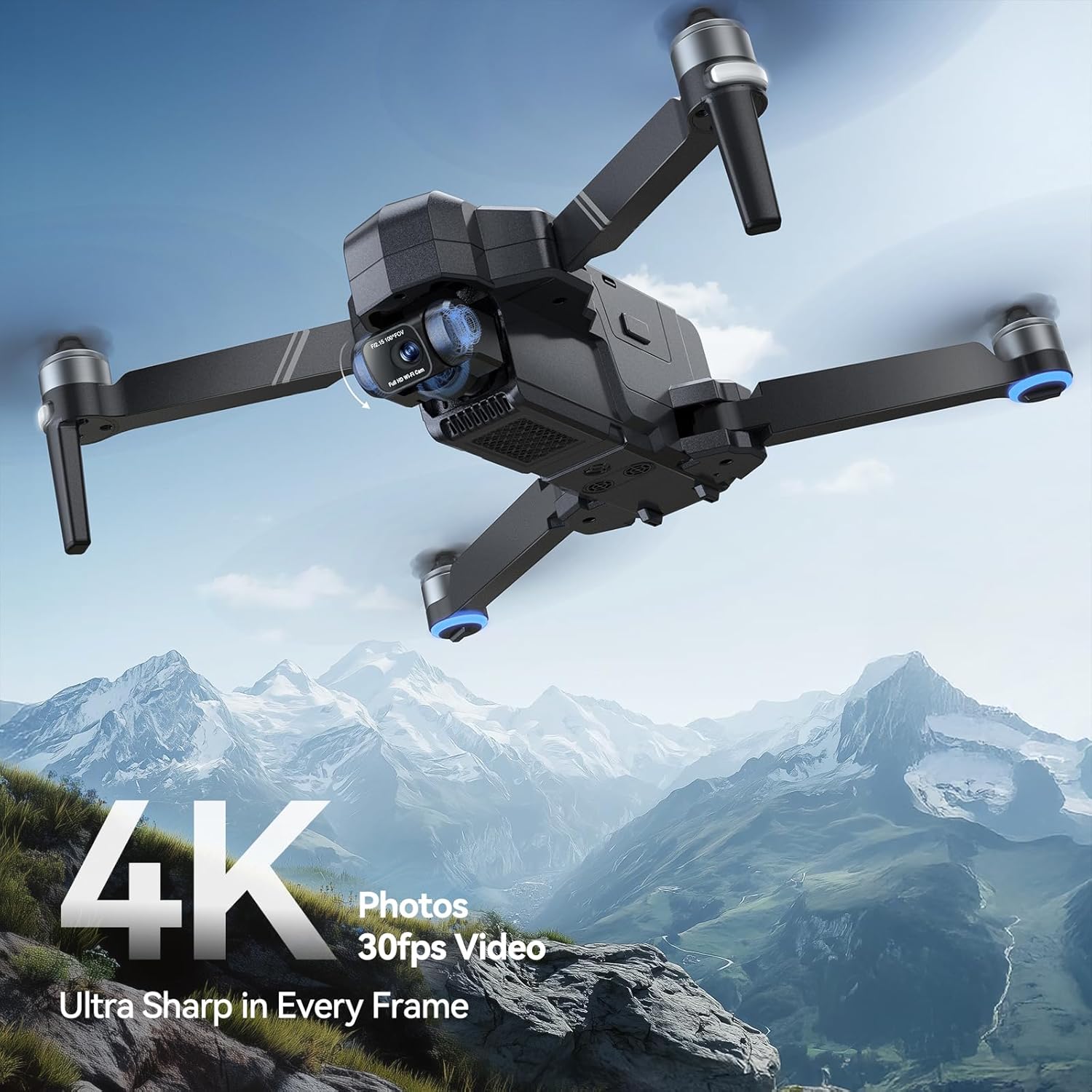
Image: 4K camera capabilities of the Ruko F11GIM2 drone.
7. Itọju
- Ayewo Propeller: Regularly check propellers for cracks, bends, or wear. Replace damaged propellers immediately using the spare parts provided.
- Ninu: Lo aṣọ rírọrùn tí ó gbẹ láti nu drone àti remote controller. Yẹra fún lílo omi tàbí àwọn ohun olómi.
- Ibi ipamọ: Store the drone and accessories in the provided carrying case in a cool, dry place, away from direct sunlight.
- Itọju Batiri: Do not overcharge or over-discharge batteries. If storing for extended periods, charge batteries to approximately 50-60%.
8. Laasigbotitusita
If you encounter issues with your Ruko F11GIM2 drone, refer to the following common solutions:
| Isoro | Owun to le Solusan |
|---|---|
| Drone ko ni agbara lori | Rí i dájú pé àwọn batiri ti gba agbára tán pátápátá àti pé wọ́n ti fi wọ́n sí i dáadáa. |
| No video feed on smartphone | Check USB cable connection between phone and remote. Ensure the Ruko app is open and updated. |
| Drone drifts nigba flight | Perform IMU calibration as per app instructions. Ensure GPS signal is strong. Avoid flying in strong winds. |
| Iṣakoso latọna jijin ko sopọ mọ | Ensure both drone and controller are powered on. Re-pair the controller with the drone as per manual. |
| Aworan ti ko dara / didara fidio | Clean camera lens. Ensure sufficient lighting. Check for propeller interference in the frame. |
For persistent issues, please contact Ruko Customer Support.
9. Awọn pato
| Ẹya ara ẹrọ | Ẹ̀kúnrẹ́rẹ́ |
|---|---|
| Brand | Ruko |
| Orukọ awoṣe | F11GIM2 |
| Ipinnu Yaworan fidio | 4K (3840 x 2160 awọn piksẹli) |
| Ipinnu Iduro ti o munadoko | 8.3 MP |
| Awọn ẹya kamẹra | 2-Axis Gimbal, EIS, 5x Digital Zoom, 80° Adjustable Lens |
| Akoko ofurufu | Up to 32 minutes per battery (64 minutes total with 2 batteries) |
| Ibiti o pọju | 16404 Feet (5 KM) |
| Afẹfẹ Resistance | Ipele 6 |
| Asopọmọra Technology | USB (for remote controller to phone) |
| Iṣakoso Iru | Remote Control, App-Controlled |
| Agbara Batiri | 3100 Milionuamp Awọn wakati (fun batiri kọọkan) |
| Iwọn Nkan | 585 Giramu (1.29 poun) |
| Ọja Mefa | 11.25"L x 10.5"W x 5.6"H |
| Ibamu FAA | Built-in Remote ID Module |
10. atilẹyin ọja Information
Ruko products are designed for reliability and performance. For specific warranty terms and conditions, please refer to the documentation included with your purchase or contact Ruko Customer Support directly. Warranty coverage typically addresses manufacturing defects and may vary based on region and purchase date.
11. Onibara Support
For any questions, technical assistance, or support needs, please contact Ruko Customer Support:

Image: Ruko Customer Support contact details.
- Foonu: + 1 (888) 892-0155
- Imeeli: service@rukotoy.com
- Awọn wakati iṣẹ:
Mon-Fri: 8 AM to 2 AM (next day) PST
Sat-Sun: 8 AM to 5 PM PST
You can also visit the official Ruko webojula fun afikun oro ati FAQs.


