Ọrọ Iṣaaju
This manual provides comprehensive instructions for the setup, operation, and maintenance of your Gen Game S6 Wireless Bluetooth Gamepad. This device is designed to enhance your gaming experience on compatible Android smartphones, tablets, PCs, and TV boxes.
Ọja Pariview
Package Awọn akoonu
- Gen Game S6 Wireless Bluetooth Gamepad
- Okun Ngba agbara USB
- Afowoyi Olumulo (iwe-ipamọ yii)
Idanimọ paati
Familiarize yourself with the various buttons and features of your gamepad:

Aworan: Iwaju view of the Gen Game S6 Wireless Bluetooth Gamepad, showing the D-pad, left and right analog joysticks, action buttons (A, B, X, Y), Start, Select, and Home buttons, and the 'GEN GAME' logo.
- Left Analog Joystick: Fun iṣakoso itọnisọna.
- Right Analog Joystick: For camera control or additional directional input.
- D-Pad: Digital directional pad for precise movements.
- Àwọn bọ́tìnì ìgbésẹ̀ (A, B, X, Y): Fun awọn iṣe inu ere.
- Àwọn bọ́tìnì èjìká (L1, R1): Àwọn bọ́tìnì tí a gbé sórí òkè.
- Àwọn bọ́tìnì ìfàgùn (L2, R2): Bottom-mounted buttons.
- Bọtini Ibẹrẹ: Typically for pausing or menu access.
- Bọtini Yan: Fun awọn iṣẹ oriṣiriṣi ninu ere.
- Bọtini ILE: To power on/off or return to the main menu.
- Dimu foonu: Integrated adjustable clip for mounting smartphones.
- Ibudo gbigba agbara: Fun sisopọ okun gbigba agbara USB.
- Awọn imọlẹ Atọka: To show connection status, charging status, or mode.
Ṣeto
1. Gbigba agbara Gamepad
- So opin kekere ti okun gbigba agbara USB pọ mọ ibudo gbigba agbara lori ere naa.
- Connect the larger end of the USB charging cable to a USB power source (e.g., computer, USB wall adapter).
- The indicator light will typically show red during charging and turn off or change color when fully charged.
- Gba o laaye lati gba agbara ni bii wakati meji si mẹta ṣaaju lilo akọkọ.
2. Sisopọ Bluetooth
The Gen Game S6 supports various pairing modes for different devices. Refer to your device's specific requirements for optimal connection.
- Agbara Tan: Tẹ mọlẹ ILE button for 3 seconds to power on the gamepad. The indicator lights will flash.
- Tẹ Ipo Sisopọ: Depending on your device, you may need to press a specific button combination while powering on (e.g., HOME + X fún Android, HOME + A for PC). Refer to the quick start guide included with your gamepad for specific mode instructions. The indicator lights will flash rapidly, indicating it's searching for a device.
- Mu Bluetooth ṣiṣẹ lori Ẹrọ Rẹ: On your Android smartphone, tablet, PC, or TV Box, go to the Bluetooth settings and ensure Bluetooth is enabled.
- Ṣayẹwo fun Awọn ẹrọ: Your device will scan for available Bluetooth devices. Look for "Gen Game S6" or a similar name in the list.
- Sopọ: Select the gamepad from the list to initiate pairing. Once successfully paired, the indicator light on the gamepad will typically become solid.
- Asopọmọra idanwo: Open a compatible game or a gamepad testing application to verify the connection and button functionality.
Awọn ilana Iṣiṣẹ
Isẹ ipilẹ
- Agbara Tan: Tẹ mọlẹ ILE bọtini fun 3 aaya.
- Agbara Pa: Tẹ mọlẹ ILE button for 5 seconds until the indicator lights turn off. The gamepad will also automatically power off after a period of inactivity to conserve battery.
- Atunsopo: Once paired, the gamepad should automatically reconnect to the last paired device when powered on and Bluetooth is active on the device. If not, manually select it from your device's Bluetooth settings.
Lilo foonu dimu
- Gently extend the integrated phone holder upwards.
- Carefully place your smartphone into the holder, ensuring it is securely gripped without obstructing any buttons or ports.
- Ṣatunṣe igun fun aipe viewń ṣe nígbà tí a bá ń ṣeré.
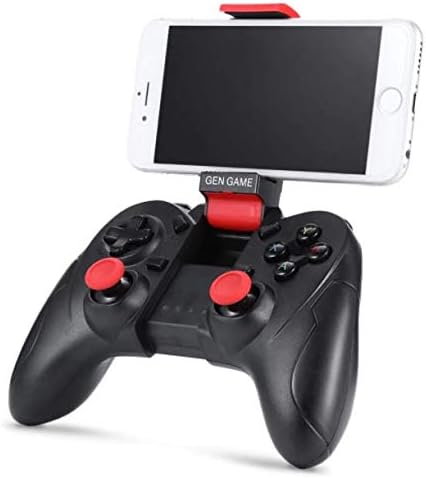
Image: The Gen Game S6 Gamepad with a smartphone securely mounted in the integrated holder, demonstrating its use for mobile gaming.
Itoju
- Ninu: Use a soft, dry cloth to wipe the surface of the gamepad. Avoid using harsh chemicals or abrasive materials.
- Ibi ipamọ: Tọju paadi ere naa ni itura, aye gbigbẹ kuro lati orun taara ati awọn iwọn otutu to gaju.
- Itọju Batiri: Láti mú kí batiri pẹ́ sí i, má ṣe jẹ́ kí eré náà máa tú jáde nígbà gbogbo. Gba agbára rẹ̀ déédéé, kódà bí kò bá tiẹ̀ wà fún ìgbà pípẹ́.
- Yago fun awọn isọ silẹ: Dáàbò bo gamepad kúrò lọ́wọ́ àwọn ìṣàn àti àwọn ìkọlù, èyí tí ó lè ba àwọn ẹ̀yà ara inú jẹ́.
Laasigbotitusita
| Isoro | Owun to le Fa | Ojutu |
|---|---|---|
| Gamepad does not power on. | Batiri kekere. | Charge the gamepad fully. |
| Ko le so pọ pẹlu ẹrọ. | Bluetooth not enabled on device; Gamepad not in pairing mode; Device out of range. | Ensure Bluetooth is on; Put gamepad in pairing mode (refer to Setup); Move gamepad closer to device (within 8 meters). |
| Gamepad máa ń gé asopọ̀ nígbàkúgbà. | Low battery; Interference; Device out of range. | Charge the gamepad; Avoid strong electromagnetic interference; Stay within Bluetooth range. |
| Buttons are unresponsive or incorrect. | Incorrect pairing mode; Game not compatible; Software glitch. | Ensure correct pairing mode for your device; Verify game compatibility; Restart gamepad and device. |
Awọn pato
- Awoṣe: S6
- Brand: Gen Game
- Asopọmọra: Bluetooth 3.0 Alailowaya
- Awọn ẹrọ ibaramu: Android Smartphones, Tablets, PCs, TV Boxes
- Ìwọ̀n Nkan: 240 g
- Awọn iwọn idii: 20 x 14.2 x 7.2 cm
- Àwọ̀: Dudu
Atilẹyin ọja ati Support
For warranty information or technical support, please refer to the documentation provided at the time of purchase or contact your retailer. Keep your proof of purchase for any warranty claims.


