1. Ifihan
This manual provides essential instructions for setting up, operating, and maintaining your ENHANCE Colmi V23 Smart Watch. Please read this manual thoroughly before using the device to ensure proper function and longevity.

Figure 1.1: ENHANCE Colmi V23 Smart Watch
2. Alaye Aabo
Disclaimer: This device is not a medical device and is not intended to replace a Sphygmomanometer (an instrument for measuring blood pressure). Individuals with hypertension or other medical conditions should consult their doctor before using this device for health monitoring purposes.
3. Ohun ti o wa ninu Apoti
- 1x ENHANCE Colmi V23 Smart Watch
- 1x Okun gbigba agbara
- 1x Itọsọna olumulo
4. Eto
4.1 Ngba agbara si Smart Watch
Before initial use, fully charge your smart watch. Connect the magnetic charging cable to the charging points on the back of the watch and plug the USB end into a power adapter (not included) or a computer's USB port. A full charge typically takes approximately 2 hours.

Àwòrán 4.1: Gbígba agbára sí aago ọlọ́gbọ́n
4.2 App fifi sori ati so pọ
- Gba awọn "Da Fit" application from your device's app store (compatible with iOS 9.0 and above, Android 4.0 and above). You can also scan the QR code provided in the included manual to download the app.
- Ṣí àpù Da Fit lórí fóònù alágbèéká rẹ.
- Follow the in-app instructions to add a new device. Select the V23 Smart Watch from the list of available devices to pair.
- Rii daju pe Bluetooth ti ṣiṣẹ lori foonu alagbeka rẹ lakoko ilana sisọpọ.
5. Ṣiṣẹ Smart Watch
5.1 Lilọ kiri Iboju Ifọwọkan
The ENHANCE Colmi V23 features a 1.3-inch HD color full touch screen for easy operation. Swipe left, right, up, or down to navigate through menus and functions. Tap to select options.

Figure 5.1: Touch Screen Interface Overview
5.2 Customizing Watch oju
Personalize your smart watch with over 100 watch faces available through the Da Fit application. You can also create custom watch faces using your own photos.
- Ṣí àpù Da Fit lórí fóònù alágbèéká rẹ.
- Navigate to "Add a Device" > "WATCH FACES".
- Select an existing watch face or choose "Edit" to customize with a picture.
- Select your desired picture, adjust its position, and save.
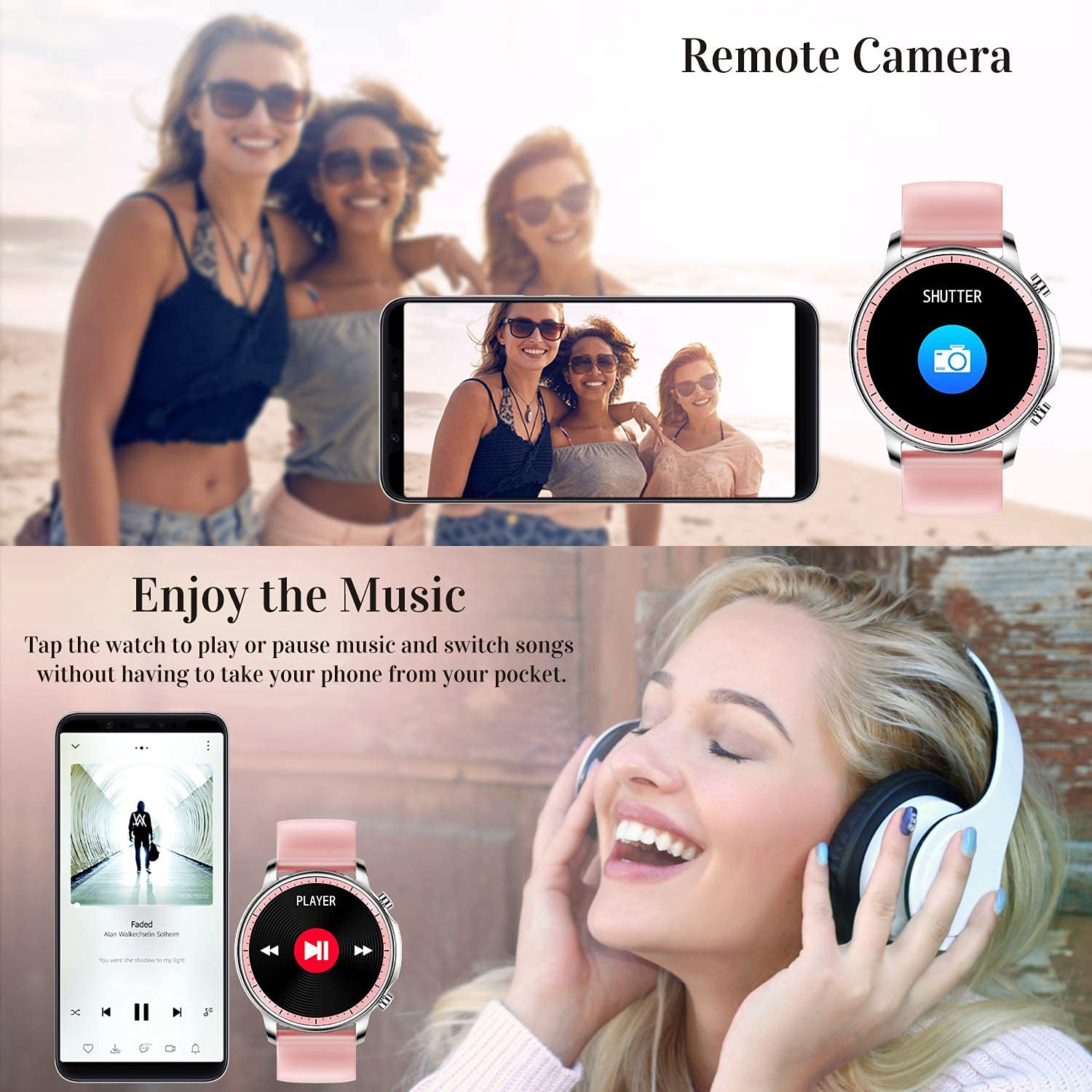
Figure 5.2: Customizing Watch Faces
5.3 iwifunni
Receive call, message, email, and app notifications directly on your smart watch. (Note: The watch cannot answer or make calls.)

Figure 5.3: Call and Message Reminders
5.4 Iṣakoso Orin
Control music playback on your smartphone directly from your watch. Tap to play/pause or switch songs without needing to access your phone.
5.5 Latọna jijin kamẹra
Use your smart watch as a remote shutter for your smartphone camera. This feature allows you to take photos from a distance.

Figure 5.4: Remote Camera and Music Control
6. Awọn ẹya ara ẹrọ
6.1 Abojuto Ilera
- Heart Rate (HR) Monitor: Máa ń ṣe àkíyèsí ìlù ọkàn rẹ nígbà gbogbo ní gbogbo ọjọ́.
- Abojuto Ìfúnpá Ẹ̀jẹ̀ (BP): Provides blood pressure readings. (Refer to safety disclaimer in Section 2).
- Atẹgun ẹjẹ (SpO2) Atẹle: Ṣe iwọn awọn ipele itẹlọrun atẹgun ẹjẹ.
- Olutọpa oorun: Records sleep information, including deep sleep, light sleep, and awake time, to help you understand your sleep patterns.
- Titele Ilera Obirin: Offers features for tracking female health cycles.

Figure 6.1: Heart Rate and Blood Pressure Monitoring

Figure 6.2: Smart Sleep Monitoring
6.2 Iṣẹ-ṣiṣe Àtòjọ
The smart watch offers 7 data record modes to track various sports activities:
- Nrin
- Nṣiṣẹ
- Gigun kẹkẹ
- Bọọlu inu agbọn
- Bọọlu afẹsẹgba
- Badminton
- Sisẹ
This feature helps you monitor your exercise data and gain insights into your fitness levels.

Figure 6.3: Smart Watch Functions Overview
6.3 Smart Reminders
- Olurannileti Iduroṣinṣin: Reminds you to move and stay active after periods of inactivity.
- Aago itaniji: Ṣeto awọn itaniji taara lori aago rẹ.
6.4 Miiran Awọn iṣẹ
- Aago iṣẹju-aaya
- Fun Game
7. Itọju
7.1 Omi Resistance
The ENHANCE Colmi V23 Smart Watch is IP68 waterproof, making it resistant to daily wet conditions such as hand washing or light rain. Avoid prolonged submersion in water, hot water, or steam, and do not operate buttons underwater.
7.2 Ninu
Mu aago naa nu ati okun nigbagbogbo pẹlu asọ ti o gbẹ. Ti o ba jẹ dandan, lo die-die damp asọ ati lẹhinna gbẹ daradara. Yago fun lilo awọn kẹmika lile tabi awọn ohun elo abrasive.
7.3 batiri Itọju
To prolong battery life, avoid fully discharging the battery frequently. Charge the watch when the battery level is low. Store the watch in a cool, dry place when not in use for extended periods.
8. Laasigbotitusita
- Wo ti ko tan: Rii daju pe aago naa ti gba agbara ni kikun. Sopọ mọ ṣaja fun o kere 30 iṣẹju.
- Aago naa ko so pọ mọ foonu: Make sure Bluetooth is enabled on your phone and the watch is within range. Restart both the watch and your phone, then try pairing again through the Da Fit app.
- Awọn alaye ilera ti ko pe: Ensure the watch is worn snugly on your wrist, not too tight or too loose. Clean the sensor on the back of the watch. Remember, this device is not a medical instrument.
- Awọn iwifunni ko han: Check notification settings in the Da Fit app and your phone's system settings to ensure permissions are granted for the app to display notifications.
9. Awọn pato
| Brand | Ilọsiwaju |
| Awoṣe | V23 Smart watch |
| Ọja Mefa | 1.03 x 2 x 4.15 cm |
| Iwọn Nkan | 42 g |
| Iwon iboju | 1.3 inches |
| Ipinnu | 240 x 230 |
| Ifihan Iru | LCD oni -nọmba |
| Agbara Batiri | 200 mAh (Litiumu polima) |
| Ọna gbigba agbara | Magnetic Wire Charging |
| Alailowaya Iru | Bluetooth |
| Awọn ẹrọ ibaramu | Mobile Phone (Android 4.0+ & iOS 9.0+) |
| Eto isesise | Android & iOS |
| Omi Resistance | IP68 |
| Ohun elo | Ṣiṣu |
10. Atilẹyin ọja ati Support
For warranty information and customer support, please refer to the documentation included with your product or contact ENHANCE customer service. The included user manual contains details regarding warranty terms and contact information.


