1. Ifihan
The BirdDog PF120 is a high-performance Full HD NDI box camera designed for professional video production environments. It features an Exmor R back-illuminated sensor, 20x optical zoom, and a full color matrix, all housed within a durable all-metal chassis. This manual provides essential information for the proper setup, operation, and maintenance of your PF120 camera.
2. Package Awọn akoonu
Please verify that all items listed below are included in your package. If any items are missing or damaged, contact your vendor immediately.
- BirdDog PF120 Full HD NDI 20x Box Camera
- Adapter Agbara (DC 12V)
- Lẹnsi fila
- Iwe (Itọsọna Ibẹrẹ Ibẹrẹ, Alaye Aabo)
3. Ọja Ipariview
The BirdDog PF120 is engineered for versatility and robust performance. Key features include:
- Full NDI support for seamless integration into IP workflows.
- 20x optical zoom for detailed close-ups.
- Exmor R back-illuminated sensor for superior low-light performance.
- Durable all-metal housing.
- Multiple connectivity options including HDMI, NDI/PoE, RS-232, and USB2.0.
3.1 Kamẹra Views and Components

Nọmba 3.1: Iwaju-ẹgbẹ view of the BirdDog PF120 camera, showcasing the lens and the BirdDog logo on the side panel.
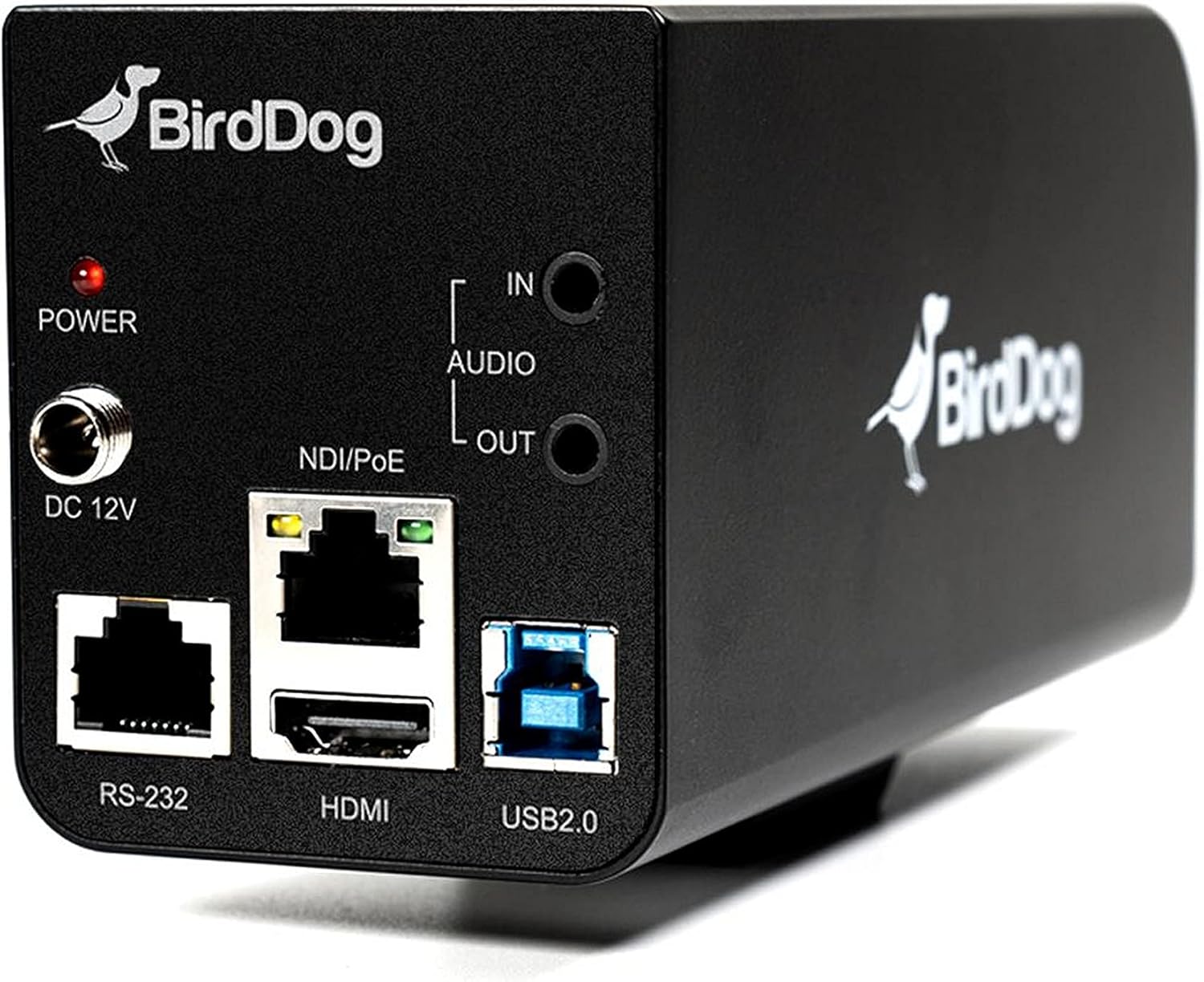
Nọmba 3.2: Rear panel of the BirdDog PF120, displaying the power input (DC 12V), audio input/output, NDI/PoE port, HDMI output, RS-232 port, and USB2.0 port.
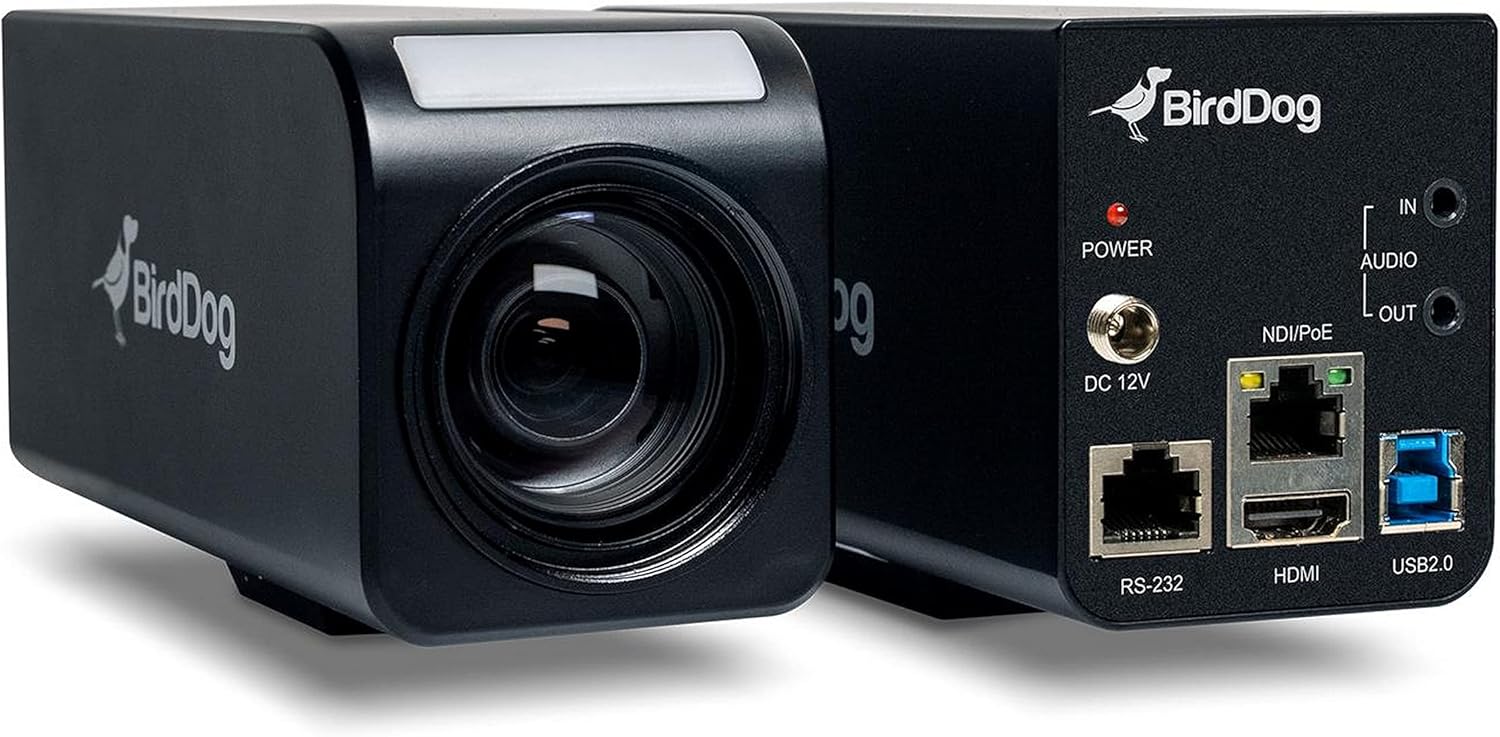
Nọmba 3.3: Ni idapo view of the BirdDog PF120, showing both the front lens assembly and the rear connectivity panel.

Nọmba 3.4: Oke view of the BirdDog PF120 camera, highlighting the sleek design and BirdDog branding.
4. Eto
4.1 Agbara Lori
- Connect the supplied DC 12V power adapter to the "DC 12V" port on the rear of the camera.
- Pulọọgi ohun ti nmu badọgba agbara sinu iṣan agbara ti o yẹ.
- Alternatively, if using a PoE-enabled network switch, connect an Ethernet cable to the "NDI/PoE" port. The camera will power on via Power over Ethernet.
4.2 Network Connection (NDI)
- Connect an Ethernet cable from the "NDI/PoE" port on the camera to your network switch or router.
- Ensure your network is configured to support NDI protocols.
- The camera will obtain an IP address automatically via DHCP. For static IP configuration, refer to the BirdDog Central application or web ni wiwo.
4.3 Video wu
- NDI Output: The primary video output is via NDI over the Ethernet connection.
- Ijade HDMI: Connect an HDMI cable from the "HDMI" port on the camera to a monitor or video switcher for direct video monitoring.
5. Ṣiṣẹ kamẹra
5.1 Iwọle si Web Ni wiwo
- Once connected to the network, use the BirdDog Central application or an IP scanner to discover the camera's IP address.
- Ṣii a web ẹrọ aṣawakiri ati tẹ adiresi IP kamẹra lati wọle si rẹ web ni wiwo.
- Lati awọn web interface, you can configure video settings, network parameters, and control camera functions.
5.2 Iṣakoso kamẹra
The PF120 can be controlled via:
- NDI Tools: Utilize NewTek NDI Tools (e.g., NDI Studio Monitor) for basic control.
- BirdDog Central / Cam Control: BirdDog's dedicated software provides comprehensive control over camera settings, including zoom, focus, iris, and color matrix.
- RS-232: Connect a compatible serial controller to the RS-232 port for hardware control.
- Isakoṣo latọna jijin: The camera supports remote control methods as specified in the product documentation.
5.3 Sun ati Idojukọ
The PF120 features a 20x optical zoom lens. Zoom and focus adjustments are typically made through the web interface or compatible control software.
6. Itọju
- Ninu: Use a soft, dry cloth to clean the camera body. For the lens, use a specialized lens cleaning solution and microfiber cloth. Avoid abrasive cleaners.
- Awọn imudojuiwọn famuwia: Periodically check the BirdDog website for firmware updates. Keeping the firmware updated ensures optimal performance and access to new features.
- Ibi ipamọ: Nigbati o ko ba wa ni lilo fun awọn akoko ti o gbooro sii, fi kamẹra pamọ si itura, ibi gbigbẹ, kuro lati orun taara ati awọn iwọn otutu to gaju.
7. Laasigbotitusita
7.1 Ko si Agbara
- Rí i dájú pé ohun tí a fi ń so agbára pọ̀ mọ́ kámẹ́rà àti ibi tí agbára ń gbé jáde.
- If using PoE, verify that the Ethernet cable is connected to a PoE-enabled port on your switch and that the switch is providing power.
7.2 No NDI Signal
- Ṣàyẹ̀wò ìsopọ̀ okùn àjọlò.
- Verify that the camera has obtained an IP address (check your router's DHCP client list or use BirdDog Central).
- Ensure your network firewall is not blocking NDI traffic.
- Confirm that NDI tools or software on your receiving device are correctly configured to discover NDI sources.
7.3 Aworan Didara oran
- Check lens for smudges or dust and clean if necessary.
- Adjust focus settings via the web interface or control software.
- Review exposure, white balance, and color matrix settings in the camera's web ni wiwo.
8. Awọn pato
| Ẹya ara ẹrọ | Ẹ̀kúnrẹ́rẹ́ |
|---|---|
| Nọmba awoṣe | BD-BDPF120 |
| Ipinnu Yaworan fidio | 1080p |
| Ipinnu fidio ti o munadoko | 720 awọn piksẹli |
| Sun-un Optical | 20x |
| Sun-un Iru | Digital Zoom, Optical Zoom |
| Asopọmọra Technology | Ti firanṣẹ |
| Ilana Asopọmọra | Wi-Fi (for control/management, NDI is primary video) |
| Ọna Iṣakoso | Remote, Iris, RS-232 |
| Orisun agbara | AC/DC, PoE |
| Wattage | 5 watt |
| Ohun elo | Irin |
| Awọn Iwọn Nkan (L x W x H) | 9.9 x 9 x 3.6 inches |
| Iwọn Nkan | 2.94 iwon |
| Iṣagbesori Iru | Wall Mount (as per spec, but typically box cameras are versatile) |
| International Idaabobo Rating | IP65 |
| Low Light Technology | Night Awọ |
9. Atilẹyin ọja ati Support
Fun alaye atilẹyin ọja ati atilẹyin imọ-ẹrọ, jọwọ tọka si BirdDog osise website or contact your authorized BirdDog reseller. Keep your proof of purchase for warranty claims.
BirdDog Official Webojula: www.bird-dog.tv


