Ọrọ Iṣaaju
Thank you for choosing the Baseus 2 in 1 Bluetooth 5.0 FM Transmitter Car Charger. This device combines a car charger with an FM transmitter, allowing you to stream audio wirelessly from your mobile device to your car's FM radio and charge your devices simultaneously. Please read this manual carefully before use to ensure proper operation and to maximize the product's lifespan.
Ọja Pariview

Image: The Baseus 2 in 1 Bluetooth 5.0 FM Transmitter Car Charger, showing its compact design with dual USB ports and a digital display.
The Baseus Car Wireless MP3 Charger (Model CCNLZ-C0G) features Bluetooth 5.0 for stable audio transmission, dual USB ports for quick charging, and an FM transmitter function. It is designed for ease of use with a single-key operation and includes an intelligent digital display for voltage monitoring.
Awọn ẹya pataki:
- Bluetooth 5.0 for stable and fast audio transmission.
- Dual USB ports for charging, supporting 18W Quick Charge 3.0, AFC, and FCP.
- FM frequency transmission for audio playback through car radio.
- Single-key operation for volume, track, frequency adjustment, and call management.
- Lossless audio decoding for high-quality sound.
- Intelligent digital display for real-time voltage monitoring.
- Music playback from a USB flash drive.
- Automatic reconnection and power-off memory playback.
Awọn ilana iṣeto
- Fi sii sinu Socket Ọkọ ayọkẹlẹ: Insert the Baseus FM Transmitter into your car's cigarette lighter socket. The device will power on automatically, and the digital display will show the current car battery voltage for a few seconds, then switch to the FM frequency.

Image: The Baseus device securely plugged into a car's 12V power outlet.
- Ṣeto Igbohunsafẹfẹ FM:
- Tune your car's FM radio to an empty frequency (one with no strong broadcast signal).
- On the Baseus device, press and hold the multi-function knob until the frequency display starts flashing.
- Rotate the knob left or right to adjust the FM frequency of the transmitter to match your car's radio frequency.
- Once matched, wait a few seconds for the display to stop flashing, or press the knob briefly to confirm.

Image: Close-up of the digital display on the Baseus device, showing the current FM frequency.
- Bata nipasẹ Bluetooth:
- Mu Bluetooth ṣiṣẹ lori ẹrọ alagbeka rẹ.
- Wa fun available Bluetooth devices and select "Baseus" (or similar name) from the list.
- Once paired, a voice prompt will confirm the connection.
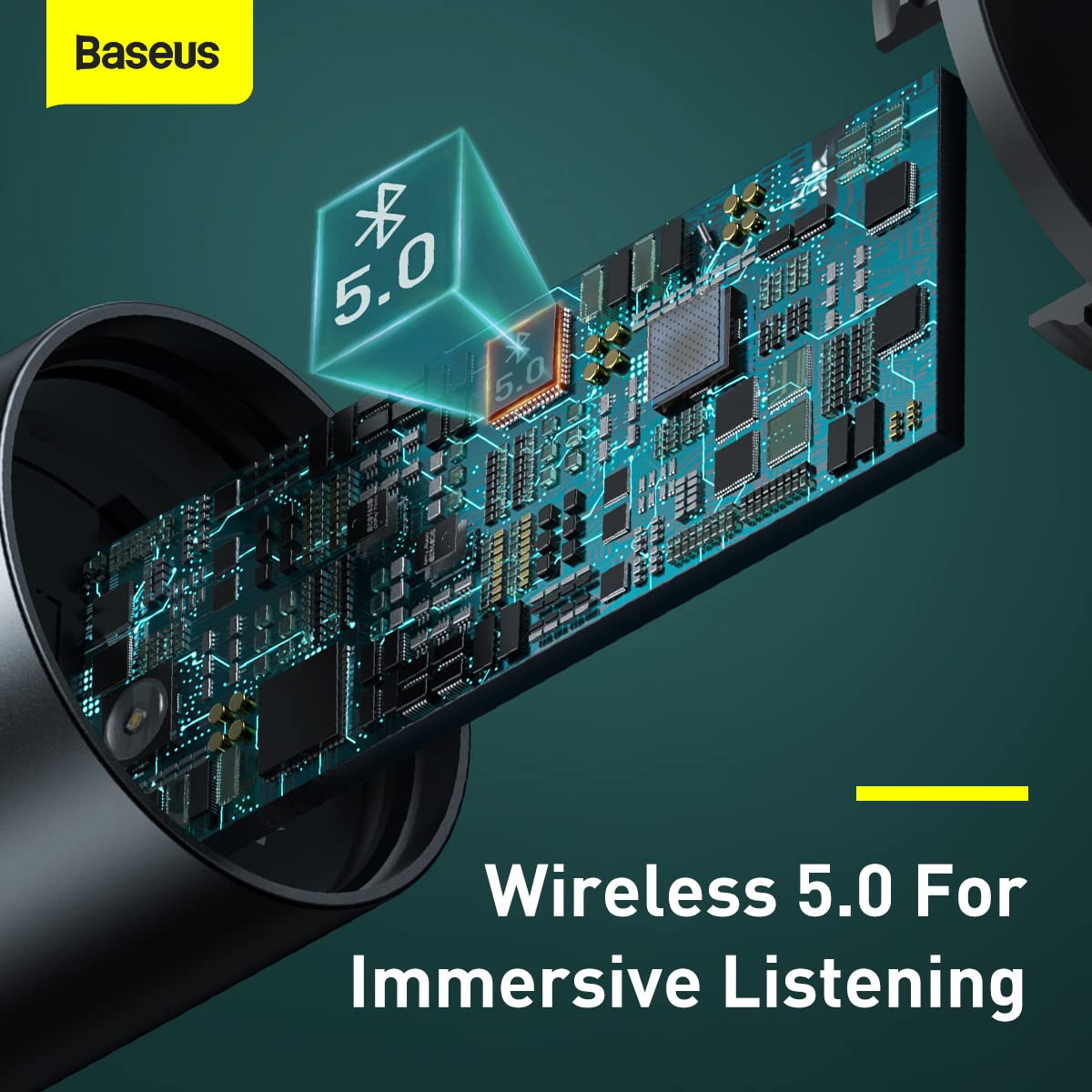
Aworan: inu view highlighting the Bluetooth 5.0 chip, representing the wireless connection capability.
Awọn ilana Iṣiṣẹ
Sisisẹsẹhin orin:
- Ohun afetigbọ Bluetooth: Once paired, play music on your mobile device. The audio will be transmitted to your car's FM radio.
- Sisisẹsẹhin Flash Drive USB: Insert a USB flash drive containing MP3/WAV/FLAC/APE/WMA audio files into the designated USB port (marked with a music note icon). The device will automatically detect and play music from the drive.

Image: A USB flash drive plugged into the Baseus device, illustrating its music playback capability.
Imudani Ipe:
- Idahun/Ipe Ipari: Briefly press the multi-function knob to answer an incoming call or end an ongoing call.
- Kọ Ipe: Press and hold the multi-function knob to reject an incoming call.
- Titun: Double-press the multi-function knob to redial the last number.
Awọn iṣakoso:
- Atunse iwọn didun: Rotate the multi-function knob left or right to adjust the volume.
- Tọpa Yipada: During music playback, briefly press the multi-function knob and then rotate it left (previous track) or right (next track).
- Atunse Igbohunsafẹfẹ: As described in the Setup section, press and hold the knob until the frequency flashes, then rotate to adjust.

Image: A finger interacting with the multi-function knob, demonstrating its single-key operation.
Awọn Ẹrọ gbigba agbara:
- Connect your device's charging cable to either of the two USB ports on the transmitter.
- The device supports 18W Quick Charge 3.0, AFC, and FCP for fast charging compatible devices.

Image: The Baseus device showing its two USB ports, ready for charging mobile devices.
Itoju
- Ninu: Lo asọ asọ ti o gbẹ lati nu ẹrọ naa. Maṣe lo awọn olutọpa olomi tabi awọn aerosols.
- Ibi ipamọ: Nigbati o ko ba wa ni lilo fun awọn akoko ti o gbooro sii, tọju ẹrọ naa ni itura, aye gbigbẹ kuro lati orun taara ati awọn iwọn otutu to gaju.
- Mimu: Yago fun sisọ ẹrọ naa silẹ tabi fifisilẹ si awọn ipa to lagbara.
- Agbara Pa: Always ensure the device is properly seated in the car socket to maintain a stable connection.
Laasigbotitusita
| Isoro | Owun to le Fa | Ojutu |
|---|---|---|
| No power/Device not turning on. | Loose connection in car socket; car socket not providing power. | Ensure the device is firmly inserted into the car's cigarette lighter socket. Check if the car's socket is functional (e.g., by testing with another device). |
| Poor FM signal/Static noise. | Ìdènà ìgbóhùnsáfẹ́fẹ́ FM; a kò ṣe àtúnṣe rédíò ọkọ̀ ayọ́kẹ́lẹ́ dáadáa. | Find a clearer, unused FM frequency on your car radio and match the transmitter's frequency to it. Avoid frequencies used by strong local radio stations. |
| Bluetooth ko sopọ. | Bluetooth not enabled on phone; device not in pairing mode; incorrect device selected. | Ensure Bluetooth is enabled on your phone. Restart both the phone and the FM transmitter. Forget the device in your phone's Bluetooth settings and re-pair. |
| Slow charging or no charging. | Cable issue; device not compatible with fast charging; multiple devices drawing too much power. | Try a different USB cable. Ensure your device supports the fast charging protocols (QC3.0, AFC, FCP). If charging multiple devices, total output may be limited. |
Awọn pato
| Ẹya ara ẹrọ | Ẹ̀kúnrẹ́rẹ́ |
|---|---|
| Brand | Baseus |
| Nọmba awoṣe | CCNLZ-C0G |
| Ọja Mefa | 8 x 6 x 1.5 cm |
| Iwọn Nkan | 100 g |
| Ni wiwo Hardware | Bluetooth 5, USB |
| Awọn ẹrọ ibaramu | MP3 Player, Smartphones, Tablets |
| Pataki Awọn ẹya ara ẹrọ | 18W quick charge, FM frequency transmission, Intelligent digital display, Support playback from flash disk |
| Ipo Ijade Ohun | FM transmission, A2DP |
| Wattage | 18 Wattis |
| Alailowaya Iru | Bluetooth |
| Lapapọ Awọn ibudo USB | 2 |
| Asopọmọra Iru | Bluetooth |
| Ibamu Media Iru | Bluetooth 5.0, FM, USB Flash Drive |
| Ohun elo | Irin |
Alaye atilẹyin ọja
This Baseus product comes with a 1-odun atilẹyin ọja from the date of purchase. The warranty covers manufacturing defects and malfunctions under normal use. It does not cover damage caused by misuse, accidents, unauthorized modifications, or normal wear and tear. Please retain your proof of purchase for warranty claims.
Onibara Support
For further assistance, technical support, or warranty claims, please contact Baseus customer service through their official website or the retailer where you purchased the product. Please have your model number (CCNLZ-C0G) and proof of purchase ready when contacting support.
You can find more information and support resources on the official Baseus webojula: www.baseus.com


