Ọrọ Iṣaaju
The Logitech POP Mouse is a compact, wireless mouse designed for enhanced productivity and personal expression. Featuring SilentTouch Technology for quiet clicks, a customizable top button for emojis or shortcuts, and a SmartWheel that shifts between precision and speed scrolling, it offers a versatile user experience. This mouse supports multi-device connectivity via Bluetooth, allowing seamless switching between up to three devices. It is built with durability in mind, offering up to 24 months of battery life and auto-sleep power-saving features.
Ohun ti o wa ninu Apoti
- Asin POP Logitech
- 1 x AA Batiri (ti a ti fi sii tẹlẹ)
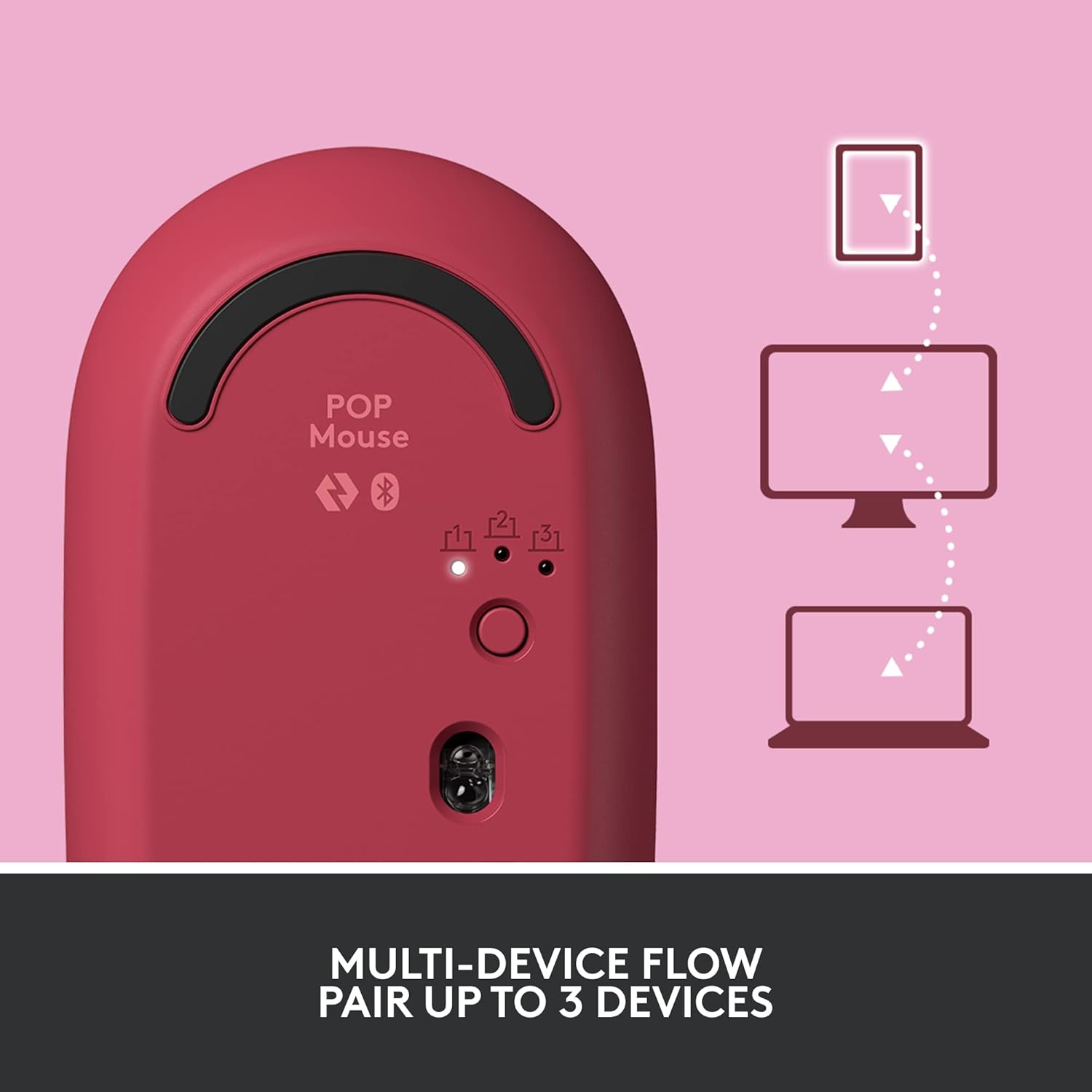
Image: The Logitech POP Mouse and an included AA battery, as typically found in the product packaging.
Ṣeto
1. Fifi sori batiri
- Wa yara batiri ni isalẹ ti Asin.
- Gently slide the top cover of the mouse backward to remove it.
- Fi batiri AA ti o wa ninu sii, ki o rii daju pe polarity ti o tọ (+/-).
- Replace the top cover by aligning it and sliding it forward until it clicks into place.
2. Agbara Lori
- Flip the mouse over. Locate the On/Off switch on the bottom of the mouse.
- Slide the switch to the 'On' position (usually indicated by green color).
3. Device Pairing (Bluetooth)
- On the bottom of the mouse, press and hold the Easy-Switch button (labeled with 1, 2, or 3) for 3 seconds until the LED light starts blinking rapidly. This indicates pairing mode.
- On your computer, tablet, or phone, open your Bluetooth settings.
- Select "Logitech POP Mouse" from the list of available devices.
- Tẹle eyikeyi awọn ilana loju iboju lati pari ilana sisopọ. Ina LED lori Asin yoo tan-pato fun iṣẹju-aaya 5 nigbati o ba sopọ.
4. Olona-Device Yipada
- The POP Mouse can be paired with up to three devices. To switch between paired devices, simply press the Easy-Switch button on the bottom of the mouse. The corresponding LED (1, 2, or 3) will light up to indicate the active device.
Image: The Logitech POP Mouse can seamlessly connect and switch between up to three different devices, such as a tablet, desktop computer, and laptop.
Ṣiṣẹ Asin
1. Awọn iṣẹ ipilẹ
- Tẹ osi: Aṣayan akọkọ ati ibaraenisepo.
- Tẹ-ọtun: Wọle si awọn akojọ aṣayan ọrọ-ọrọ.
- Yi lọ Kẹkẹ: Yi lọ ni inaro nipasẹ awọn iwe aṣẹ ati web awọn oju-iwe.
2. SmartWheel Technology
- The SmartWheel automatically shifts between high-precision scrolling for detailed work and super-fast scrolling for quickly navigating long documents or web awọn oju-iwe.

Image: The SmartWheel on the Logitech POP Mouse dynamically adjusts its scrolling mode for precision or speed.
3. SilentTouch Technology
- Enjoy a quiet working environment with SilentTouch Technology, which significantly reduces click noise without compromising tactile feedback.

Image: SilentTouch Technology ensures a quiet and comfortable user experience.
Isọdi
1. Customizable Top Button
- The top button, located below the scroll wheel, is customizable. By default, it opens an emoji menu for quick access to your favorite emojis.

Image: The customizable top button allows for quick access to an emoji menu on your screen.
2. Àwọn Àṣàyàn Ìlànà + Àpù
- Gba awọn Logi Aw + App (Windows and macOS only) to personalize your POP Mouse.
- You can reassign the top button to perform various shortcuts, such as Snip Screen, Mic Mute, Voice-to-Text, or any other function you desire.
- The app also allows you to adjust pointer speed, scroll speed, and enable Flow for cross-computer control.
Itoju
- Ninu: Lo asọ, damp cloth to clean the exterior of the mouse. Avoid harsh chemicals or abrasive materials.
- Rirọpo Batiri: Replace the AA battery when the low battery indicator light appears.
- Ibi ipamọ: When not in use for extended periods, turn off the mouse using the On/Off switch to conserve battery life.
Laasigbotitusita
- Asin ko sopọ: Ensure the mouse is powered on and within range of your device. Check your device's Bluetooth settings to confirm it's enabled and the mouse is paired. Try re-pairing the mouse.
- Ìṣípòpadà tàbí ìṣípò tí kò tọ́: Replace the battery if it's low. Ensure there are no obstructions between the mouse and your device. Avoid using the mouse on highly reflective or uneven surfaces.
- Custom button not working: Verify that the Logi Options+ App is installed and running on your computer. Check the button assignments within the app.
Awọn pato
| Brand | Logitech |
| Nọmba awoṣe | 910-006545 |
| Asopọmọra Technology | Bluetooth 5.1 |
| Alailowaya Ibiti | 32.81 ẹsẹ (10 m) |
| Ọna ẹrọ | Àtòjọ Ojú-ìwòye ... Logitech High Precision |
| Nọmba ti Awọn bọtini | 4 (Left/Right click, Scroll wheel click, Top button) |
| Aṣa Bọtini | Yes (Top button, via Logi Options+ App) |
| Batiri Iru | 1 x AA batiri |
| Igbesi aye batiri | Titi di oṣu 24 (le yatọ da lori lilo) |
| Ibamu System isẹ | Windows 10 tàbí lẹ́yìn náà, macOS 10.15 tàbí lẹ́yìn náà, iPadOS, Chrome OS, Android |
| Iwọn Nkan | 2.89 iwon |
| Awọn iwọn Ọja (LxWxH) | 4.3 x 2.6 x 1.7 inches |
| Ohun elo | Plastic parts include certified post-consumer recycled plastic (Heartbreaker Rose: 29%) |
Atilẹyin ọja ati Support
Fun alaye atilẹyin ọja ati atilẹyin imọ-ẹrọ, jọwọ ṣabẹwo si atilẹyin Logitech osise website or refer to the warranty card included with your product. You can find detailed FAQs, troubleshooting guides, and contact options for customer service.
- Atilẹyin Ayelujara: Ṣabẹwo support.logi.com
- Iforukọsilẹ Ọja: Forukọsilẹ ọja rẹ lati gba awọn imudojuiwọn ati atilẹyin.