Ọrọ Iṣaaju
The Acer Predator GM7000 M.2 NVMe SSD is a high-performance internal solid-state drive designed for demanding applications such as gaming, content creation, and intensive data processing. Utilizing the PCIe Gen4 standard, it offers exceptional speed, efficient heat management, and robust data integrity features. This manual provides essential information for the setup, operation, maintenance, and troubleshooting of your GM7000 SSD.
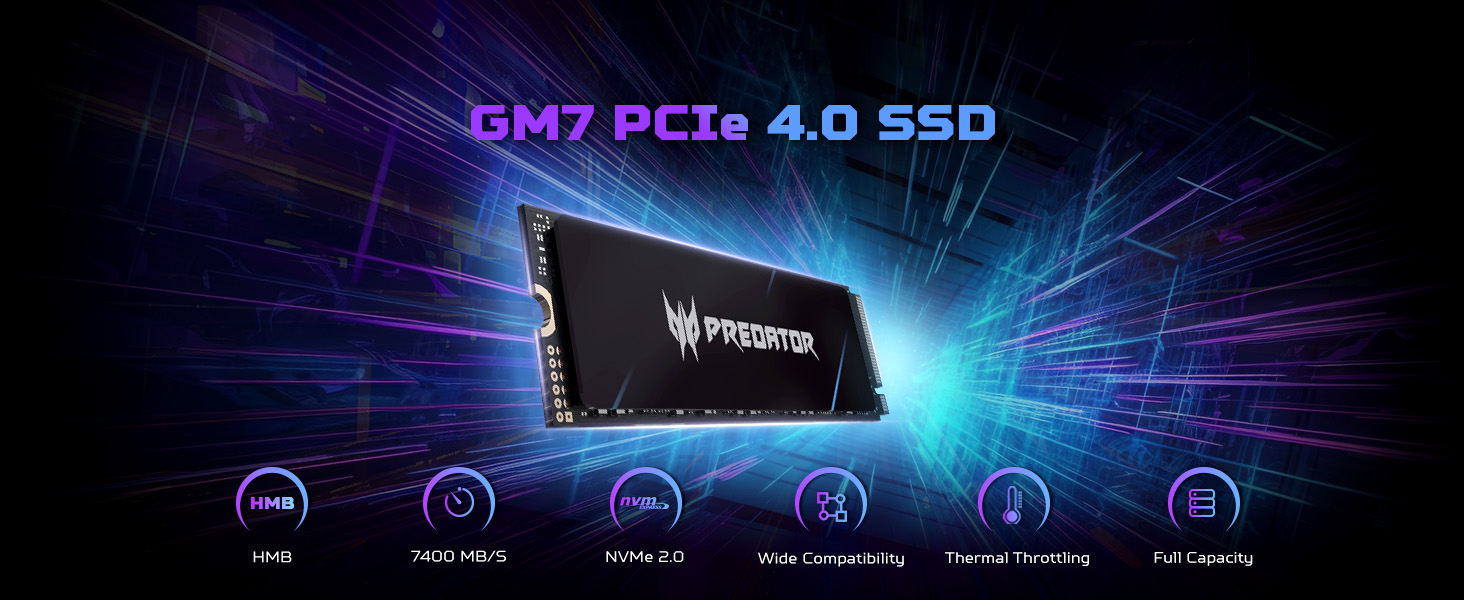
Image: The Predator GM7000 SSD showcasing its impressive sequential read speeds up to 7400 MB/s and write speeds up to 6700 MB/s, ideal for high-performance computing.
Eto ati fifi sori
The Predator GM7000 SSD is designed for easy installation in compatible devices. Ensure your system supports M.2 2280 form factor NVMe PCIe Gen4 SSDs. For PS5 compatibility, ensure your console's firmware is up to date.
General Installation Steps (PC/Laptop)
- Igbaradi: Power off your computer and disconnect all cables. Open the computer case or laptop bottom cover.
- Wa M.2 Iho: Identify an available M.2 slot on your motherboard. It typically has a small screw or clip at the end.
- Fi SSD sii: Gently insert the GM7000 SSD into the M.2 slot at a 30-degree angle. The gold contacts should align with the slot.
- SSD ti o ni aabo: Push the SSD down until it is parallel with the motherboard. Secure it with the provided screw or clip.
- Optional Thermal Pad: If your system or the SSD package includes a graphene foam pad, remove its protective film and apply it to the SSD for enhanced heat dissipation.
- Ọran pipade: Reassemble your computer or laptop.
- Bibẹrẹ: Power on your computer. The SSD may need to be initialized and formatted through your operating system's Disk Management utility before use.
PS5 Installation Notes
The Predator GM7000 is compatible with PlayStation 5 consoles. Follow Sony's official PS5 M.2 SSD installation guide for detailed steps. Ensure the SSD is fully seated and secured. After installation, the PS5 will prompt you to format the drive.
Video: A step-by-step guide from BIWIN Tech on installing the Predator GM7000 Gen4 M.2 SSD into a laptop, demonstrating the physical insertion and securing of the drive.
Fidio: Unboxing ati fifi sori ẹrọ loriview of the Acer Predator GM7000 4TB M.2 SSD by BIWIN Tech, showing the product packaging and the installation process.
Isẹ
Once installed and formatted, the Predator GM7000 SSD operates as a high-speed storage device. Its PCIe Gen4 interface ensures rapid data transfer, significantly reducing load times for applications and games.
Biwin oye Software
For enhanced management and optimization, utilize the Biwin Intelligence software. This multifunctional tool provides features such as performance testing, data migration, and drive cloning, ensuring a convenient and secure storage experience. It helps monitor drive health and optimize performance.
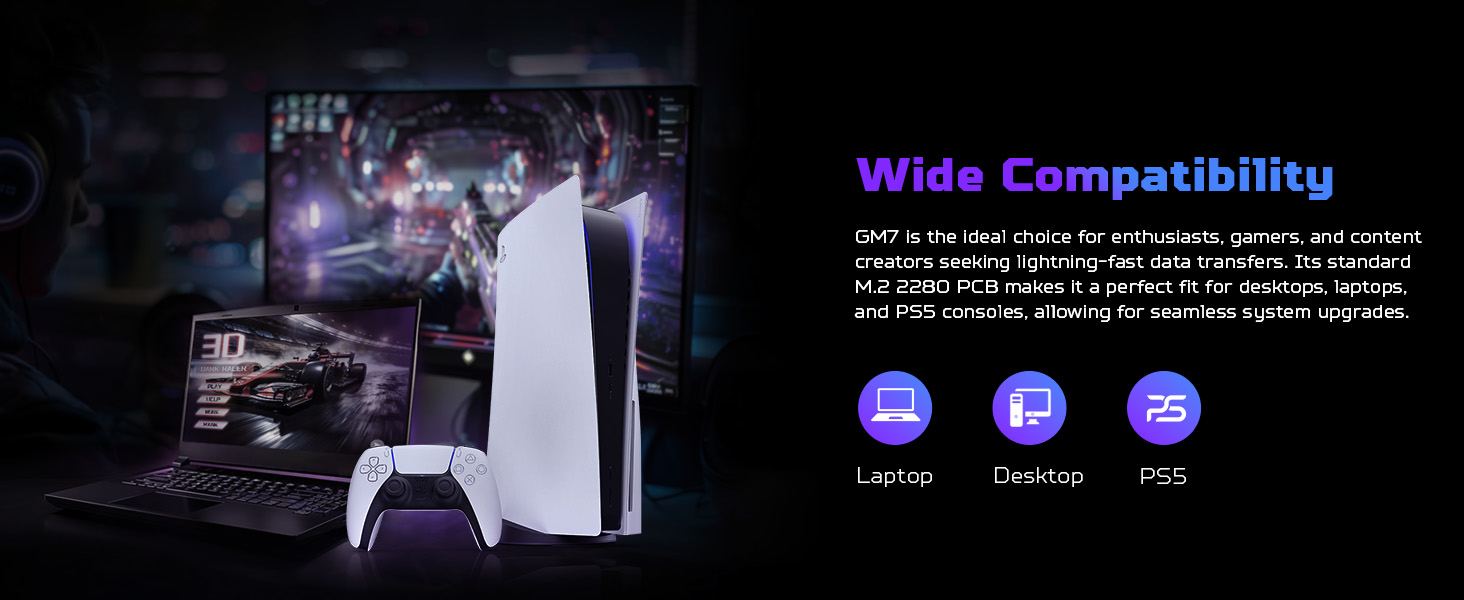
Image: The Biwin Intelligence software interface, illustrating its capabilities for drive health monitoring, performance testing, and data management.
Itoju
Proper maintenance ensures the longevity and optimal performance of your Predator GM7000 SSD.
Ooru Ifakalẹ
The GM7000 features a customized heat spreader and an optional graphene foam pad to manage operating temperatures. Ensure adequate airflow within your system to prevent overheating, especially during prolonged heavy use. High temperatures can degrade performance and shorten the lifespan of the SSD.
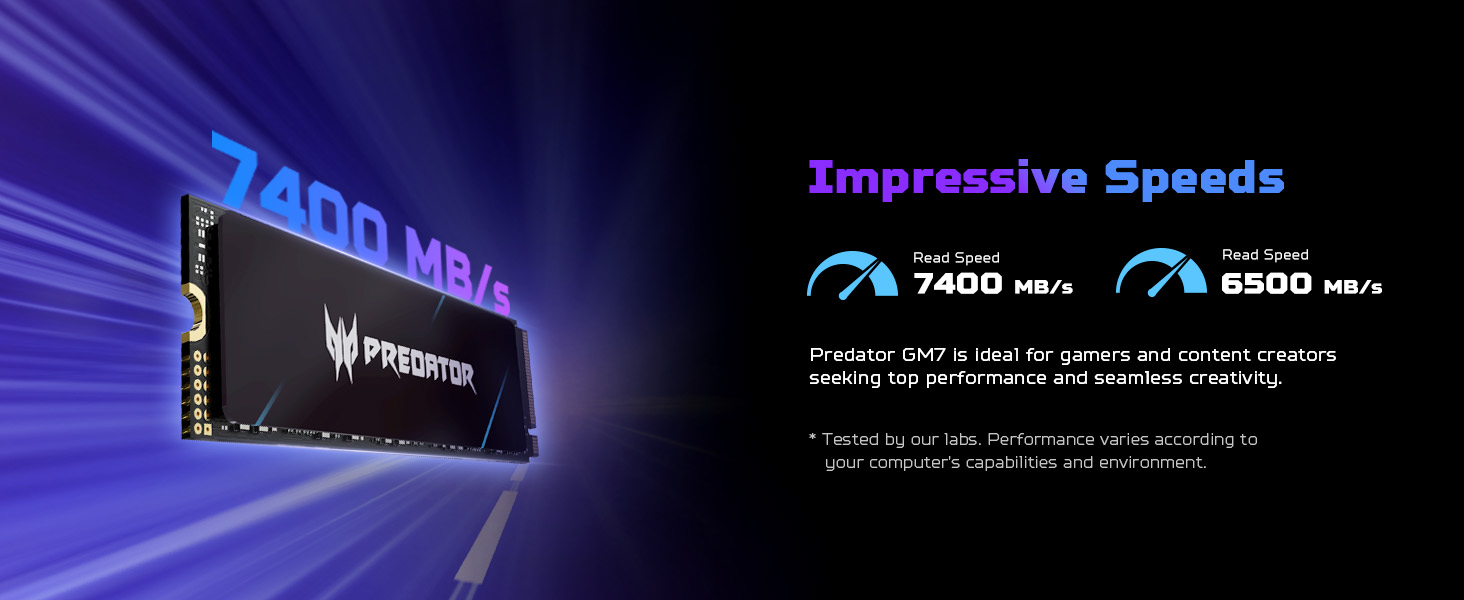
Image: A visual representation of the graphene heat dissipation technology integrated into the Predator GM7000 SSD, showing how it reduces operating temperatures.
Lilo Agbara
An integrated Power Management Unit (PMU) in the SSD's controller optimizes energy efficiency. This reduces power consumption, contributing to a cooler system and extended component lifespan. No specific user action is required for this feature, but ensuring your system's power settings are optimized can further enhance overall efficiency.
Awọn irinṣẹ Software
Regularly use the Biwin Intelligence software for:
- Awọn Idanwo Iṣe: Monitor read/write speeds to ensure optimal performance.
- Awọn imudojuiwọn famuwia: Keep your SSD's firmware up-to-date for stability and performance improvements.
- Data Migration/Cloning: Facilitate easy transfer of data or cloning of your existing drive.
Laasigbotitusita
If you encounter issues with your Predator GM7000 SSD, consider the following:
- A ko rii SSD:
- Rii daju pe SSD ti joko ni deede ni Iho M.2.
- Verify that your motherboard's BIOS/UEFI settings recognize the M.2 slot and NVMe drives.
- Check for any necessary driver updates for your motherboard's chipset.
- Awọn ọran Iṣe:
- Confirm your system is running on a PCIe Gen4 slot for maximum speeds.
- Monitor SSD temperature using Biwin Intelligence or other tools; excessive heat can throttle performance.
- Ensure your operating system is optimized for SSDs (e.g., TRIM enabled).
- Ìbàjẹ́/Pípàdánù Dátà:
- Ṣe afẹyinti data pataki nigbagbogbo.
- Use the data integrity features of Biwin Intelligence to check for errors.
- PS5 Specific Issues:
- Ensure the PS5 firmware is updated to the latest version.
- Re-format the M.2 SSD through the PS5 settings if issues persist.
Awọn pato
| Ẹya ara ẹrọ | Ẹ̀kúnrẹ́rẹ́ |
|---|---|
| Brand | Acer |
| jara | GM7000 |
| Nọmba awoṣe | BL.9BWWR.106 |
| Digital Ibi Agbara | 2 TB |
| Lile Disk Interface | Ipinle ri to |
| Asopọmọra Technology | PCIe Gen4x4 NVMe 1.4 |
| Fọọmù ifosiwewe | M.2 2280 |
| Maximum Sequential Read Speed | 7400 MB/s |
| Maximum Sequential Write Speed | 6700 MB/s |
| NAND Iru | 3D NAND TLC |
| DRAM kaṣe | To wa |
| Awọn ẹrọ ibaramu | Desktop, PC, Computer, Laptop, PlayStation 5 |
| Awọn iwọn Nkan (LxWxH) | 1.24 x 0.04 x 0.34 inches |
| Iwọn Nkan | 0.317 iwon |
| Olupese | Biwin |
| Ohun ti o wa ninu Apoti | Instruction Manual, Single Screw |
Atilẹyin ọja
The Predator GM7000 SSD comes with a 5-odun lopin atilẹyin ọja, covering up to 1300 TBW (Terabytes Written). This warranty ensures peace of mind regarding the product's reliability and endurance under intensive use. For detailed terms and conditions, please refer to the official warranty documentation provided with your product or visit the Acer support webojula.
Atilẹyin
For further assistance, technical support, or to download the Biwin Intelligence software, please visit the official Predator Storage website. The Biwin Intelligence software offers tools for performance testing, data migration, drive cloning, and firmware updates.
Biwin Intelligence Software Download Link: https://www.predatorstorage.com/biwin-intelligence/
For general inquiries or additional support, please contact Acer customer service.


