1. Ifihan
Thank you for choosing the Living Needs Wireless HD Video Doorbell. This manual provides detailed instructions for the installation, operation, and maintenance of your new video doorbell. Please read this manual thoroughly before use to ensure proper functionality and safety.
2. Ọja Ipariview
2.1 Package Awọn akoonu
Ni igbagbogbo package naa pẹlu:
- Living Needs Wireless HD Video Doorbell
- Indoor Chime (if included in specific package)
- Iṣagbesori akọmọ ati skru
- USB Charging Cable (for battery charging)
- Itọsọna olumulo
2.2 Key Awọn ẹya ara ẹrọ
- HD Video Resolution (720p)
- Wireless Wi-Fi Connectivity
- Motion Detection with Push Notifications
- Ibaraẹnisọrọ Audio-Ona Meji
- Night Vision Agbara
- Batiri Agbara (ṣe gbigba agbara)
- Free Cloud Service
- Compatible with Android & iOS App
- Supports SD Card for local storage
- Odi Mount fifi sori
2.3 Ọja irinše
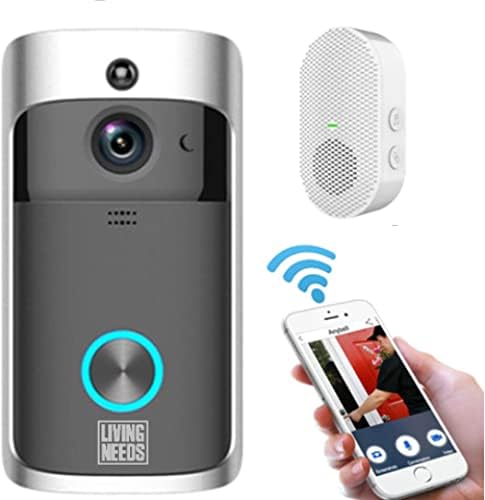
Aworan 2.3.1: The Living Needs Wireless HD Video Doorbell unit, an accompanying wireless chime, and a smartphone displaying the doorbell's live view and control options. This image illustrates the complete system setup.

Aworan 2.3.2: A close-up of the doorbell unit and a smartphone screen showing a live feed from the doorbell camera. The text overlay indicates the ability to monitor your home at all times.

Aworan 2.3.3: This image highlights the doorbell's features like Wi-Fi, HD, app control, sensor, live viewing, SD card support, 166-degree angle, 2-way audio, standby, and night vision. It also shows three blue batteries and a crucial instruction: "Remove green stickers from batteries" before use.
3. Eto ati fifi sori
3.1 Ngba agbara si awọn batiri
- Open the battery compartment of the doorbell unit.
- Insert the provided rechargeable batteries. Ensure to remove any protective stickers (e.g., green stickers) from the battery terminals before insertion.
- Connect the doorbell to a power source using the USB charging cable. A full charge is recommended before initial use.
- The doorbell can also be charged via a transformer for wired power connection.
3.2 App fifi sori ati ẹrọ so pọ
- Download the official Living Needs app from the App Store (iOS) or Google Play Store (Android).
- Forukọsilẹ fun iroyin titun tabi wọle ti o ba ti ni ọkan tẹlẹ.
- Follow the in-app instructions to add your new video doorbell. This typically involves scanning a QR code on the device or manually entering its ID.
- Ensure your smartphone is connected to a 2.4GHz Wi-Fi network during the pairing process.
- Pair the indoor chime with the doorbell according to its specific instructions (usually a button press sequence).
3.3 Fífi agogo ilẹ̀kùn sí i

Aworan 3.3.1: An illustration showing the video doorbell mounted next to a front door on a house, with Wi-Fi signals indicating connectivity. This image emphasizes the doorbell's function in monitoring visitors and providing security.
- Choose a suitable location next to your front door, ensuring a clear view and good Wi-Fi signal strength.
- Lo àkọlé ìfìkọ́lé tí a pèsè gẹ́gẹ́ bí àwòṣe láti fi àmì sí àwọn ihò tí a fi ń gbẹ́ nǹkan lórí ògiri.
- Drill the holes and insert wall anchors if necessary.
- Secure the mounting bracket to the wall with the screws.
- Attach the doorbell unit to the mounting bracket, ensuring it clicks securely into place.
4. Awọn ilana Iṣiṣẹ
4.1 Live View ati Meji-Ona Audio
- Open the Living Needs app on your smartphone or tablet.
- Select your doorbell from the device list to access the live video feed.
- To speak with a visitor, tap the microphone icon in the app. To hear them, ensure the speaker icon is enabled.
4.2 Wiwa išipopada ati Awọn iwifunni
- The doorbell is equipped with a motion sensor. When motion is detected, you will receive a push notification on your paired device.
- Adjust motion detection sensitivity and zones within the app settings to minimize false alerts.
- Recorded motion events are stored in the cloud or on the SD card (if installed).
4.3 Night Vision
- The doorbell automatically switches to night vision mode in low-light conditions, providing clear black-and-white video.
- Infrared LEDs enable visibility up to a certain distance in the dark.
4.4 Multiple User Access
- You can share access to your doorbell's live feed and features with family members or trusted individuals through the app.
- Refer to the app's sharing settings for detailed instructions.

Aworan 4.4.1: This image demonstrates the global usability of the Living Needs video doorbell, showing individuals monitoring their front door via smartphone while on vacation, at work, on a business trip, or in a restaurant. It highlights the remote access feature and push notifications.
5. Itọju
- Ninu: Fi ọwọ́ rọra nu lẹnsi kamẹra ati agogo ilẹkun pẹlu asọ rirọ, damp asọ. Yago fun abrasive ose.
- Igbesi aye batiri: Monitor battery levels via the app. Recharge the batteries when prompted to ensure continuous operation.
- Awọn imudojuiwọn famuwia: Ṣe àyẹ̀wò àpù náà déédéé fún àwọn àtúnṣe firmware tó wà láti rí i dájú pé iṣẹ́ àti ààbò tó dára jùlọ wà.
- Asopọ Wi-Fi: Ensure a stable Wi-Fi connection for uninterrupted service.
6. Laasigbotitusita
6.1 Wọpọ Oran ati Solusan
- Agogo ilẹkun ko sopọ mọ Wi-Fi:
- Rii daju pe nẹtiwọki Wi-Fi rẹ jẹ 2.4GHz.
- Ṣayẹwo agbara ifihan Wi-Fi ni ipo aago ilẹkun.
- Tun olulana rẹ ati agogo ilẹkun rẹ bẹrẹ.
- Re-attempt the pairing process in the app.
- Ko si awọn iwifunni titari:
- Ṣe àyẹ̀wò àwọn ètò ìfitónilétí app lórí fóònù alágbèéká rẹ.
- Check motion detection settings in the doorbell app.
- Ensure the doorbell has a stable internet connection.
- Didara fidio ti ko dara:
- Nu lẹnsi kamẹra nu.
- Ensure adequate Wi-Fi signal strength.
- Check app settings for video quality options.
- Igbesi aye batiri kukuru:
- Dín ìfàmọ́ra ìwádìí ìṣísẹ̀ tàbí ìgbà tí àwọn ìgbóhùnsáfẹ́fẹ́ bá ń gbà kù.
- Rii daju pe aago ilẹkun ti gba agbara ni kikun.
- Consider a wired power connection if frequent recharging is inconvenient.
- Chime not ringing:
- Ensure the chime is powered on and within range of the doorbell.
- Re-pair the chime with the doorbell.
7. Awọn pato
| Ẹya ara ẹrọ | Ẹ̀kúnrẹ́rẹ́ |
|---|---|
| Brand | Awọn Aini Igbesi aye |
| Awoṣe | B09FR19KTY |
| Asopọmọra Technology | Wireless (Wi-Fi), Wired (for power) |
| Imọ-ẹrọ Ibaraẹnisọrọ Alailowaya | Wi-Fi |
| Orisun agbara | Battery Powered (rechargeable), Transformer compatible |
| Awọn batiri To wa | Bẹẹni |
| Ipinnu Gbigbasilẹ fidio | 720p |
| Pataki Awọn ẹya ara ẹrọ | Motion Sensor, Night Vision (Infrared) |
| Awọn ẹrọ ibaramu | Smartphone, Tablet (Android & iOS) |
| Iṣagbesori Iru | Ògiri Ògiri |
| Ohun elo | Ṣiṣu |
| Àwọ̀ | Grẹy |
| Niyanju Lilo | Motion Detection, Home Security |
8. Atilẹyin ọja ati Support
For warranty information and technical support, please refer to the documentation included with your product or visit the official Living Needs website. If you encounter any issues not covered in this manual, please contact Living Needs customer service for assistance.
Ilana Pada: The product typically comes with a 31-day return/replacement policy. Please check your purchase details for specific terms.


