1. Ọja Ipariview
The Anderic OEM NSRCFNA21 Smart Remote is an original equipment manufacturer (OEM) replacement remote control specifically designed for various Insignia TV models. This remote provides seamless functionality and user-friendly operation, ensuring reliable control over your television.
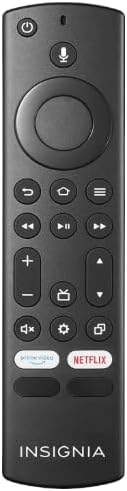
Aworan 1.1: The Anderic OEM NSRCFNA21 Smart Remote. This image displays the front view of the black remote control, featuring various buttons for power, voice control, navigation, volume, channel, and dedicated streaming service buttons.
Awọn ẹya pataki pẹlu:
- Original Quality: An authentic OEM product, ensuring performance and reliability comparable to the remote originally supplied with your TV.
- Apẹrẹ Ọrẹ olumulo: Intuitive buttons and controls for easy navigation, volume adjustment, channel changes, and access to various TV functions.
- Iṣe Gbẹkẹle: Provides a stable and responsive connection for accurate command execution.
2. Awọn ilana iṣeto ati isopọmọ
To ensure proper functionality, the remote control must be paired with your Insignia TV. Follow these steps carefully:
- Tun TV: Unplug your Insignia TV from its power source. Wait for approximately 30 seconds.
- Agbara Lori TV: Plug the TV back into the power source and turn it on. Allow the TV to fully boot up.
- Bibẹrẹ Isopọpọ: Once the TV has completely booted up and is displaying content, press and hold the Ile button on the Anderic NSRCFNA21 remote control for up to 30 seconds.
- Remote Update (if prompted): Your TV may display a message indicating that the remote needs an update. If prompted, allow the TV to proceed with the update. This process may take 1 to 3 minutes to complete.
- Ìmúdájú: After the update (if any) and pairing process, test the remote's functions (e.g., volume, channel, navigation) to confirm successful pairing.
If the remote does not pair after following these steps, repeat the process or refer to the troubleshooting section.
3. Ṣiṣẹ Iṣakoso Latọna jijin
The Anderic NSRCFNA21 remote control features an intuitive layout for easy operation of your Insignia TV. Below are the general functions of the primary buttons:
- Bọtini agbara: Tan TV si tan tabi paa.
- Bọtini Iṣakoso ohun: Activates voice commands for searching content or controlling the TV.
- Navigation Pad (Directional Buttons and Select): Ti a lo lati lọ nipasẹ awọn akojọ aṣayan ati yan awọn ohun kan.
- Bọtini Ile: Returns to the TV's main home screen.
- Bọtini Pada: Pada si iboju iṣaaju tabi akojọ aṣayan.
- Menu/Options Button: Accesses additional menu options or settings.
- Iwọn didun Soke/Isalẹ: Ó ń ṣe àtúnṣe ohùn tẹlifíṣọ̀n náà.
- Ikanni Soke/Isalẹ: Ayipada TV awọn ikanni.
- Bọtini Mute: Ó pa ohùn tẹlifíṣọ̀n náà rẹ́ tàbí ó yọ ohùn kúrò.
- Bọtini Eto: Ṣii akojọ awọn eto TV.
- Bọtini titẹ sii/Orisun: Changes the TV's input source (e.g., HDMI 1, HDMI 2).
- Dedicated Streaming Service Buttons: Provides quick access to popular streaming applications (e.g., Amazon Prime Video, Netflix).
4. Ibamu
The Anderic OEM NSRCFNA21 Smart Remote is compatible with the following Insignia TV models:
- NS24DF310NA21
- NS39DF310NA21
- NS50DF710NA21
- NS55DF710NA21
This remote also replaces the following models:
- NSRCFNA19 Rev B Fire
- NSRCFNA19revB
- NSRCFNA21 Fire
- NSRCFNA21 Rev E
- NSRCFNA21-Rev-E
Ensure your TV model is listed above for optimal performance.
5. Itọju
Proper maintenance can extend the life and functionality of your remote control.
- Rirọpo Batiri: The remote requires two AAA batteries. Replace batteries when the remote's responsiveness decreases or it stops functioning. Ensure correct polarity when inserting new batteries.
- Ninu: Use a soft, dry cloth to clean the remote's surface. Avoid using liquid cleaners or abrasive materials, as these can damage the remote.
- Ibi ipamọ: Tọju isakoṣo latọna jijin ni aaye gbigbẹ, kuro lati awọn iwọn otutu to gaju ati oorun taara.
6. Laasigbotitusita
If you encounter issues with your Anderic NSRCFNA21 Smart Remote, try the following troubleshooting steps:
- Latọna jijin Ko Dahun:
- Check the batteries. Replace them with fresh AAA batteries, ensuring correct polarity.
- Rii daju pe ko si awọn idena laarin isakoṣo latọna jijin ati sensọ TV.
- Tun-gbiyanju ilana sisopọ bi a ti ṣalaye ni Abala 2.
- Iṣe-iṣẹ Laarin:
- Eyi le fihan agbara batiri kekere. Rọpo awọn batiri.
- Rí i dájú pé o wà láàárín ìwọ̀n tó gbéṣẹ́ tí sensọ TV náà lè lò.
- Pairing Fails:
- Confirm your TV model is listed in the compatibility section (Section 4).
- Ensure the TV is fully booted up before attempting to hold the Home button.
- Try unplugging the TV for a longer period (e.g., 1-2 minutes) before plugging it back in and re-attempting pairing.
If problems persist after attempting these steps, contact customer support for further assistance.
7. Awọn pato
| Brand | Anderiki |
| Nọmba awoṣe | NSRCFNA21 Rev B |
| Awọn ẹrọ ibaramu | Insignia Televisions |
| Orisun agbara | Awọn batiri AAA 2 (ti a beere) |
| Iwọn Nkan | 1.76 iwon |
| Package Mefa | 6.3 x 2.95 x 0.67 inches |
| Àwọ̀ | Dudu |
| Olupese | Dan's Electronics àti bẹ́ẹ̀ bẹ́ẹ̀ lọ, Inc. |
8. Atilẹyin ọja ati Support
For warranty information or technical support, please contact the manufacturer, Anderic (Dan's Electronics Etc., Inc.). Refer to the product packaging or the official Anderic webaaye fun awọn alaye olubasọrọ kan pato ati awọn ofin atilẹyin ọja.
O le ṣàbẹwò awọn Ile itaja Anderic lori Amazon fun alaye siwaju sii.


