1. Ifihan
This manual provides instructions for the installation, operation, and maintenance of your KuWFi 8-Port Gigabit PoE Ethernet Switch. This device is designed to provide power and data connectivity for various network devices, such as IP cameras and wireless access points, through a single Ethernet cable.
Awọn ẹya pataki:
- 8 x 10/100/1000 Mbps Power over Ethernet (PoE) ports.
- 2 x 10/100/1000 Mbps SFP (Small Form-Factor Pluggable) uplink ports.
- 48V PoE output, compliant with IEEE 802.3af standard.
- Automatic detection of PoE requirements, speed, duplex, and cable type (Auto Uplink).
- Irin tó le pẹ́ títí casing for enhanced reliability.
- Plug and Play functionality for easy setup.
2. Package Awọn akoonu
Jọwọ rii daju pe gbogbo awọn ohun kan wa ninu apo rẹ:
- KuWFi 8-Port Gigabit PoE Ethernet Switch
- Laini agbara
- Afowoyi Olumulo (iwe-ipamọ yii)
3. Ọja Ipariview
The KuWFi Gigabit PoE Ethernet Switch features 8 PoE-enabled RJ45 ports and 2 Gigabit SFP uplink ports. It is designed for expanding network connectivity and powering compatible devices.

olusin 3.1: Iwaju view of the KuWFi 8-Port Gigabit PoE Ethernet Switch, highlighting the 8 PoE RJ45 ports and 2 Uplink SFP ports.

Figure 3.2: Port configuration diagram showing 8 Gigabit PoE ports and 2 Gigabit SFP ports.
Awọn itọkasi LED:
- LED agbara: Tọkasi ipo agbara ti yipada.
- PoE Port LEDs (1-8): Indicate data activity and PoE status for each respective port.
- Uplink Port LEDs (9-10): Indicate data activity for the SFP uplink ports.
VLAN Switch:
The switch includes a physical VLAN (Virtual Local Area Network) switch. When enabled, this feature isolates the PoE ports from each other, enhancing security and preventing broadcast storms. The uplink ports remain connected to all PoE ports. When disabled, all ports operate as a standard switch.

Figure 3.3: Front panel detail showing the VLAN On/Off switch.
4. Eto ati fifi sori
Follow these steps to set up your KuWFi PoE Ethernet Switch:
- Ibi: Place the switch on a stable, flat surface or mount it in a suitable location. Ensure adequate ventilation around the device.
- Asopọ agbara: Connect the provided power line to the power input port on the switch and then to a standard electrical outlet. The Power LED should illuminate.
- Isopọmọ Uplink: Connect your router, NVR, or main network device to one of the 2 Gigabit SFP uplink ports using an appropriate SFP module and fiber cable, or an RJ45 Ethernet cable if using a compatible SFP-to-RJ45 module.
- Asopọmọra ẹrọ PoE: Connect your PoE-compatible devices (e.g., IP cameras, wireless access points) to the 8 PoE RJ45 ports using standard Cat-5 or Cat-6 Ethernet cables. The switch will automatically detect and provide power to these devices.
- VLAN Configuration (Optional): If network segmentation is desired, set the VLAN switch to the 'ON' position. This will isolate the PoE ports from each other while maintaining connectivity to the uplink ports.

Olusin 4.1: Example connection diagram for the KuWFi switch.

Figure 4.2: The switch expanding network ports for various devices.
5. Ṣiṣẹ Yipada
Once connected, the KuWFi PoE Ethernet Switch operates automatically. It is a plug-and-play device that requires no complex configuration for basic network extension and PoE functionality.
Iṣẹ ṣiṣe PoE:
The switch automatically detects and supplies power to IEEE 802.3af compliant devices connected to its PoE ports. If a non-PoE device is connected, only data transmission will occur, without power being supplied, protecting your equipment.
Iyara Gigabit:
All ports support Gigabit Ethernet (10/100/1000 Mbps) for high-speed data transfer, ensuring efficient performance for connected devices.
Awọn oju iṣẹlẹ elo:

Figure 5.1: The switch is suitable for home, gaming, and business environments.
6. Itọju
To ensure optimal performance and longevity of your KuWFi PoE Ethernet Switch, follow these maintenance guidelines:
- Ninu: Máa fọ ìta switch náà déédéé pẹ̀lú aṣọ gbígbẹ tí ó rọ̀. Má ṣe lo ohun èlò ìfọmọ́ omi tàbí aerosol.
- Afẹfẹ: Rí i dájú pé àwọn ihò afẹ́fẹ́ kò dí. Afẹ́fẹ́ tó yẹ kò jẹ́ kí ó gbóná jù.
- Ayika: Operate the switch within its specified temperature and humidity ranges. Avoid exposure to direct sunlight, excessive heat, or moisture.
- Iṣakoso USB: Keep network cables organized and free from kinks or excessive bending to prevent signal degradation.
7. Laasigbotitusita
If you encounter issues with your KuWFi PoE Ethernet Switch, refer to the following common troubleshooting steps:
- Ko si Agbara:
- Check if the power cable is securely connected to both the switch and the power outlet.
- Daju pe iṣan agbara jẹ iṣẹ-ṣiṣe.
- Ensure the Power LED on the switch is illuminated.
- Ko si Isopọ Nẹtiwọọki:
- Ensure Ethernet cables are securely connected to both the switch and the connected devices.
- Check the Link/Act LEDs on the switch ports for activity. If no LED is lit, try a different cable or port.
- Verify that the connected devices (router, NVR, IP camera) are powered on and functioning correctly.
- Ẹrọ PoE Ko Ṣiṣẹ Lori:
- Confirm that the connected device is PoE-compatible (IEEE 802.3af standard).
- Try connecting the device to a different PoE port on the switch.
- Ensure the total power consumption of all connected PoE devices does not exceed the switch's power budget.
- Iyara Nẹtiwọọki o lọra:
- Verify that all connected devices and cables support Gigabit Ethernet (1000 Mbps).
- Check for network congestion or issues with the uplink connection.
8. Awọn pato
| Ẹya ara ẹrọ | Ẹ̀kúnrẹ́rẹ́ |
|---|---|
| Nọmba awoṣe | KF-08G20GB-US |
| Awọn ibudo | 8 x 10/100/1000 Mbps PoE RJ45 Ports, 2 x 10/100/1000 Mbps SFP Uplink Ports |
| Poe Standard | IEEE 802.3af |
| PoE o wu Voltage | 48 Volts |
| Data Gbigbe Oṣuwọn | 1 Gigabits fun keji |
| Ohun elo ọran | Irin |
| Awọn iwọn (L x W x H) | 10.47 x 6.57 x 2.28 inches (Awọn iwọn idii) |
| Iwọn Nkan | 2.18 iwon |
| Olupese | KuWFi |
| Awọn ẹrọ ibaramu | IP Cameras, Wireless Access Points, IP Phones, etc. |
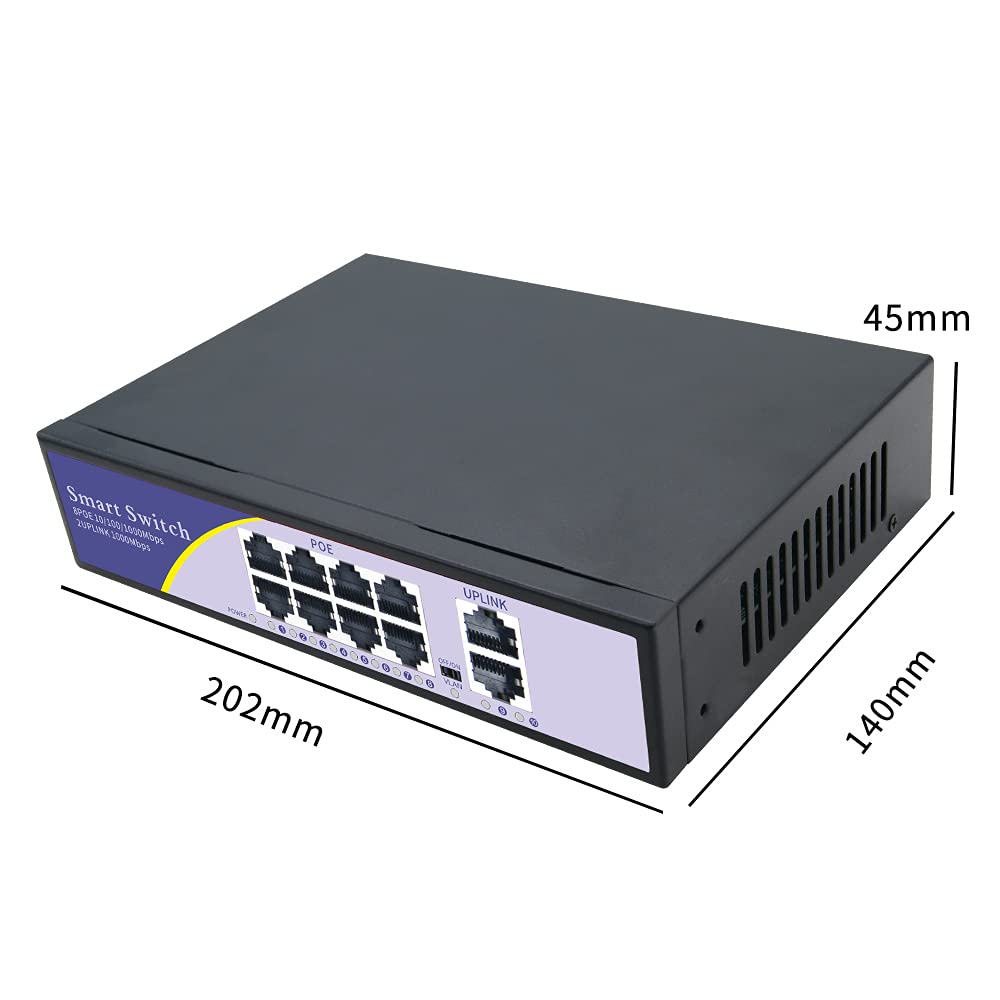
Figure 8.1: Physical dimensions of the switch.
9. Atilẹyin ọja ati Support
Atilẹyin ọja:
Your KuWFi 8-Port Gigabit PoE Ethernet Switch is covered by a 12-osu atilẹyin ọja from the date of purchase. This warranty covers product quality issues and ensures a prompt technical solution or device replacement if necessary.
Atilẹyin Onibara:
For any questions, technical assistance, or warranty claims, please contact our dedicated support team:
Imeeli: support@kuwfi.com
Our team is committed to providing timely and effective support.


