Ọrọ Iṣaaju
The Logitech Signature M650 L is a wireless computer mouse designed for enhanced comfort and productivity, particularly suited for users with larger hands. It features an adaptive SmartWheel for precise and fast scrolling, customizable side buttons, and SilentTouch technology for quiet clicks. This manual provides detailed instructions for setting up, operating, maintaining, and troubleshooting your M650 L mouse.
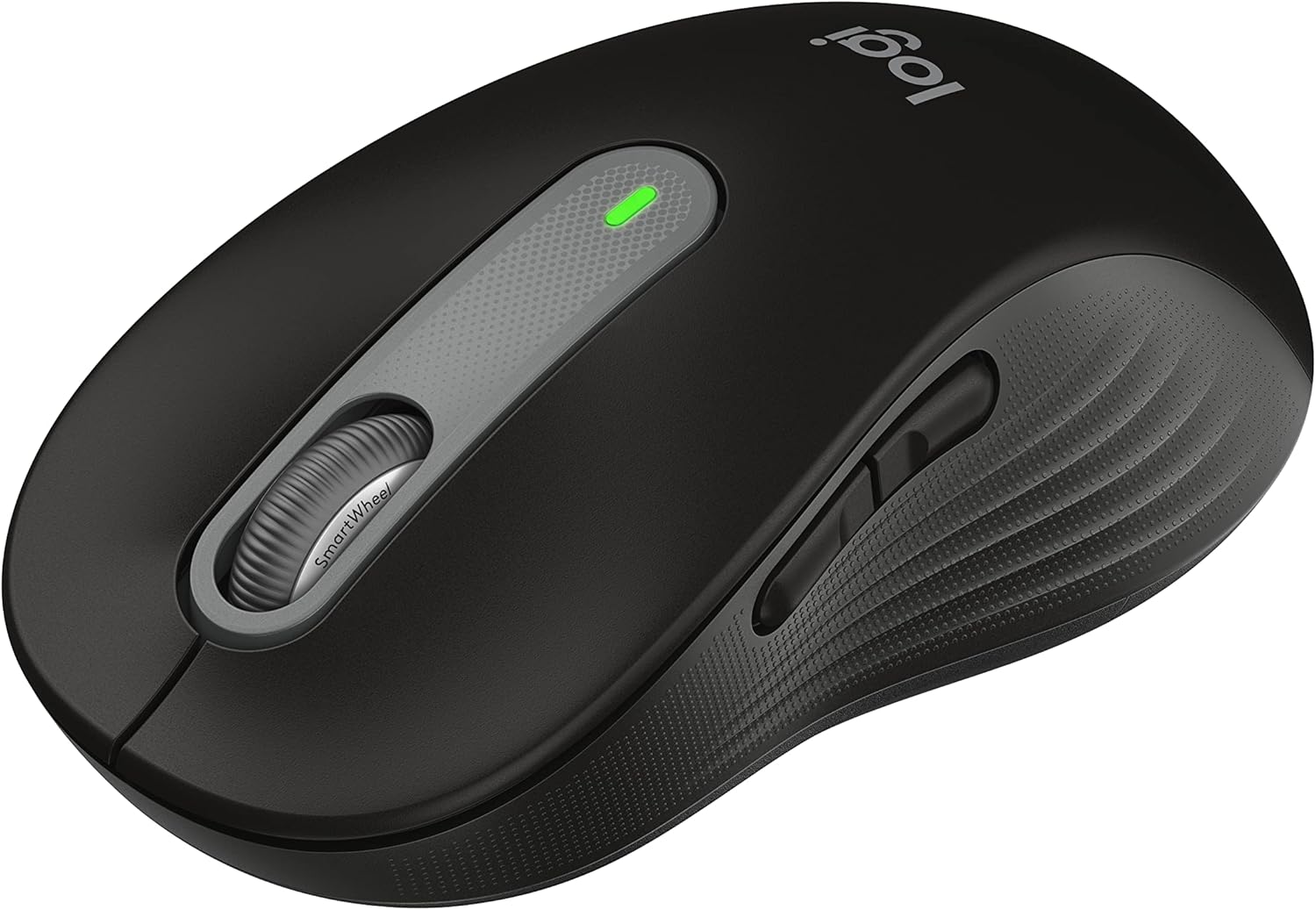
Figure 1: Logitech Signature M650 L Wireless Mouse
Ṣeto
1. Fifi sori batiri
The Signature M650 L mouse operates on a single AA battery, providing up to 24 months of battery life. The battery compartment is located on the underside of the mouse.
- Fi pẹ̀lẹ́pẹ̀lẹ́ ṣí ideri ibi ìpamọ́ batiri tí ó wà ní ìsàlẹ̀ àwo náà.
- Fi batiri AA kan sii, ni idaniloju polarity ti o pe (+/-).
- Pa ideri iyẹwu batiri titi ti o fi tẹ ni aabo sinu aaye.
2. Nsopọ rẹ Asin
The M650 L offers two connectivity options: Bluetooth Low Energy or the Logi Bolt USB receiver.

Figure 2: Connectivity Options (Bluetooth and Logi Bolt USB Receiver)
Aṣayan A: Logi Bolt USB olugba
- Locate the Logi Bolt USB receiver inside the battery compartment of your mouse.
- Yọ olugba naa kuro ki o si so o pọ mọ ibudo USB ti o wa lori kọmputa rẹ.
- Tan asin naa nipa lilo agbara yipada ni isalẹ. Asin naa yẹ ki o sopọ mọ laifọwọyi.
Aṣayan B: Agbara Kekere Bluetooth
- Tan-an Asin nipa lilo agbara yipada ni isalẹ.
- Press and hold the connection button on the bottom of the mouse until the LED light starts blinking rapidly. This indicates pairing mode.
- Lori kọmputa rẹ, ṣii awọn eto Bluetooth:
- Windows: Go to Settings > Devices > Bluetooth & other devices > Add Bluetooth or other device.
- MacOS: Lọ sí Àwọn Àyànfẹ́ Ẹ̀rọ > Bluetooth.
- Chrome OS/Linux: Access Bluetooth settings through your system tray or settings menu.
- Select "Signature M650 L" from the list of available devices to complete the pairing process.
Ṣiṣẹ rẹ Asin
SmartWheel Yi lọ
The Signature M650 L features an adaptive SmartWheel that provides two modes of scrolling:
- Ipese Laini-Laini: For detailed navigation in documents and spreadsheets.
- Ọfẹ Ọfẹ Super-Fast: Fun ni kiakia yi lọ nipasẹ gun web pages or documents. The wheel automatically switches to this mode with a flick of your finger.

Figure 3: SmartWheel for Precision and Speed Scrolling
Awọn bọtini ẹgbẹ asefara
The two side buttons on the M650 L mouse can be customized to perform your favorite shortcuts, such as back/forward navigation, copy/paste, or other functions. Customization is done through the Logitech Options+ software.

Figure 4: Customizing Buttons with Logitech Options+ Software
Silent Clicks (SilentTouch Technology)
The M650 L incorporates Logitech's SilentTouch technology, which reduces click noise by 90% compared to traditional mice. This feature allows for a quieter working environment, minimizing distractions for you and those around you.

Figure 5: Silent Clicks for a Quieter Workspace
Itunu ati Ergonomics
The mouse is designed with a comfortable shape, a soft thumb area, and rubber side grips to ensure a secure and pleasant feel during long hours of use. The M650 L is specifically sized for larger hands, providing optimal ergonomic support.

Figure 6: Comfort Shape and Rubber Side Grips

Figure 7: M650 and M650 L Size Comparison
Ibamu
The Logitech Signature M650 L mouse is compatible with a wide range of operating systems, ensuring versatile use across different devices.
- PC (Windows 10, 11 or later)
- Mac (macOS 10.15 or later)
- Lainos
- Chromebook

Figure 8: Windows 11 Compatibility
Itoju
Batiri Rirọpo
When the mouse's performance degrades or the indicator light signals low battery, it's time to replace the AA battery. Follow the battery installation steps outlined in the Setup section.
Ninu
Lati ṣetọju iṣẹ ṣiṣe to dara julọ ati mimọ, nu asin rẹ nigbagbogbo:
- Lo asọ asọ, ti ko ni lint die-die dampened pẹlu omi tabi itanna-ailewu ninu ojutu.
- Wipe the surface of the mouse, paying attention to the scroll wheel and side grips.
- Avoid using harsh chemicals or abrasive materials that could damage the mouse's finish.
Laasigbotitusita
Awọn ọrọ Asopọmọra
- Asin ko dahun: Ensure the mouse is powered on and the battery is not depleted. Replace the battery if necessary.
- Asopọ Bluetooth ko duro: Move the mouse closer to your computer. Ensure no other devices are causing interference. Try re-pairing the mouse with your computer.
- Logi Bolt receiver not detected: Try plugging the receiver into a different USB port. Ensure the receiver is fully inserted.
- Switching between connections: If you switch between Bluetooth and the Logi Bolt receiver, you may need to re-pair or re-establish the connection each time.
Awọn ọran iṣẹ ṣiṣe
- Gbigbe kọsọ alaiṣe: Clean the optical sensor on the bottom of the mouse. Ensure you are using the mouse on a suitable surface (non-reflective, non-glass).
- Scroll wheel not working correctly: Ensure the scroll wheel is free of debris. If using Logitech Options+ software, check scroll settings.
- Awọn bọtini ko dahun: Check if the buttons are physically obstructed. If using Logitech Options+ software, ensure button assignments are correct.
Awọn pato
| Ẹya ara ẹrọ | Ẹ̀kúnrẹ́rẹ́ |
|---|---|
| Awoṣe | Ibuwọlu M650 L |
| Nọmba awoṣe | 910-006265 |
| Asopọmọra | Bluetooth Low Energy, Logi Bolt USB olugba |
| Ọna ẹrọ | Opitika |
| Batiri Iru | 1 x AA Batiri |
| Igbesi aye batiri | Titi di oṣu 24 (le yatọ da lori lilo) |
| Pataki Awọn ẹya ara ẹrọ | SmartWheel, SilentTouch Technology, Customizable Side Buttons |
| Awọn iwọn (LxWxH) | 4.65 x 2.58 x 0.1 inches (11.8 x 6.55 x 0.25 cm) |
| Iwọn | 3.92 iwon (111 giramu) |
| Awọn iru ẹrọ ibaramu | PC, Linux, Mac (Windows 10/11+, macOS 10.15+, Chrome OS) |
Support & Afikun Resources
Fun iranlọwọ siwaju sii tabi iwe alaye, jọwọ wo awọn orisun wọnyi:
- Iwe afọwọkọ olumulo osise (PDF): Ṣe igbasilẹ Afowoyi olumulo
- Awọn ilana fun Lilo (IFU) (PDF): Ṣe igbasilẹ IFU
- Logitech Atilẹyin Webojula: Visit the official Logitech support page for FAQs, drivers, and software downloads.
- Logitech Options+ Software: Download the software to customize your mouse buttons and settings.


