Ọja Pariview
The RAINPOINT WiFi 2-Outlet Smart Automatic Irrigation Controller is designed to provide intelligent and efficient watering for your garden, greenhouse, or lawn. This device connects to your 2.4GHz WiFi network, allowing you to program and manage your watering schedules from anywhere using the RainPoint app. It features two independent outlets, offering flexible control over different irrigation zones.

Image: The RAINPOINT WiFi 2-Outlet Smart Automatic Irrigation Controller, its accompanying WiFi hub, and a smartphone displaying the intuitive RainPoint app interface. This setup allows for remote control and monitoring of your garden's watering system.
Key Awọn ẹya ara ẹrọ
- Easy-to-Use App Control: Connect the 2-zone WiFi irrigation computer to your 2.4GHz WiFi and program your watering schedule anytime, anywhere with the RainPoint app. The intuitive app interface makes programming simple and straightforward. (Only compatible with 2.4GHz WiFi).
- Timed Automatic Watering: Features two watering modes: Irrigation Mode and Spray Mode. For each mode, you can individually set the start time, duration (1 minute to 11 hours and 59 minutes), and watering frequency (Monday to Sunday).
- Flexible Manual Watering: Manual watering time can be set from 1 to 59 minutes for each zone. You can activate manual watering for the left, right, or both zones via the app or the button on the timer, allowing you to water when and where you want without interrupting the programmed schedule.
- Ibamu Iṣakoso ohun: Works with voice assistants like Alexa and Google Assistant for convenient hands-free operation.
- Adaṣiṣẹ ti oye: Create multi-custom plans based on various conditions such as time, weather, temperature, or soil moisture (with optional soil sensor).
- Abojuto gidi-akoko: Monitor water flow and humidity in real-time, providing accurate data for efficient watering.
- Iṣẹ́ Ìdádúró Òjò: Save water by delaying watering for 24, 48, or 72 hours based on weather conditions.
Eto Itọsọna
1. Unboxing ati Ayẹwo paati
Fi ìṣọ́ra yọ gbogbo àwọn èròjà kúrò nínú àpótí náà. Rí i dájú pé o ní àwọn wọ̀nyí:
- RAINPOINT WiFi 2-Outlet Smart Automatic Irrigation Controller
- WiFi Hub (Smart Plug)
- Afowoyi Olumulo (iwe-ipamọ yii)
- Required batteries (4 x AAA, not included)
2. Fifi sori batiri
Locate the battery compartment on the irrigation controller. Insert 4 AAA batteries, ensuring correct polarity. Close the battery compartment securely.
3. App Download ati fifi sori
Download the "RainPoint" app from your smartphone's app store (available on Apple App Store and Google Play Store). Create an account or log in if you already have one.

Image: A smartphone screen showing the RainPoint app download page, with icons for the Apple App Store and Google Play, indicating where users can download the application.
4. WiFi Hub Setup
Plug the WiFi Hub into a power outlet within range of your home's 2.4GHz WiFi network. Open the RainPoint app and follow the on-screen instructions to add the WiFi Hub to your account. Ensure your smartphone is connected to the 2.4GHz WiFi network during this process.
5. Sisopọ Adarí
Once the WiFi Hub is successfully connected, use the RainPoint app to add the irrigation controller. The app will guide you through the pairing process, which typically involves pressing a button on the controller to enter pairing mode. Ensure the controller is within range of the WiFi Hub.

Image: A visual representation of the quick connection process between the WiFi hub, the irrigation timer, and the smartphone app, highlighting the seamless integration for smart garden management.
6. Fifi sori ti ara
Attach the irrigation controller to your outdoor faucet. Ensure a secure and watertight connection. Connect your garden hoses to the two outlets (L and R) on the bottom of the controller.

Image: The RAINPOINT irrigation controller is shown installed on an outdoor faucet, with hoses connected to its two outlets. A smartphone displays the app, illustrating remote control capabilities for garden watering.
Awọn ilana Iṣiṣẹ
1. Setting Up Automatic Watering Schedules
Open the RainPoint app and navigate to the specific irrigation controller. You can set up multiple watering plans (e.g., Plan A, Plan B, Plan C) with different start times, durations, and frequencies for each of the two zones.
- Select the desired zone (Zone 1 or Zone 2).
- Yan laarin Ipo irigeson (for general watering) or Ipo sokiri (for misting/spraying).
- Ṣeto awọn Akoko Ibẹrẹ for watering.
- Setumo awọn Iye akoko (from 1 minute to 11 hours and 59 minutes).
- Yan awọn Igbohunsafẹfẹ by choosing specific days of the week (Monday to Sunday).
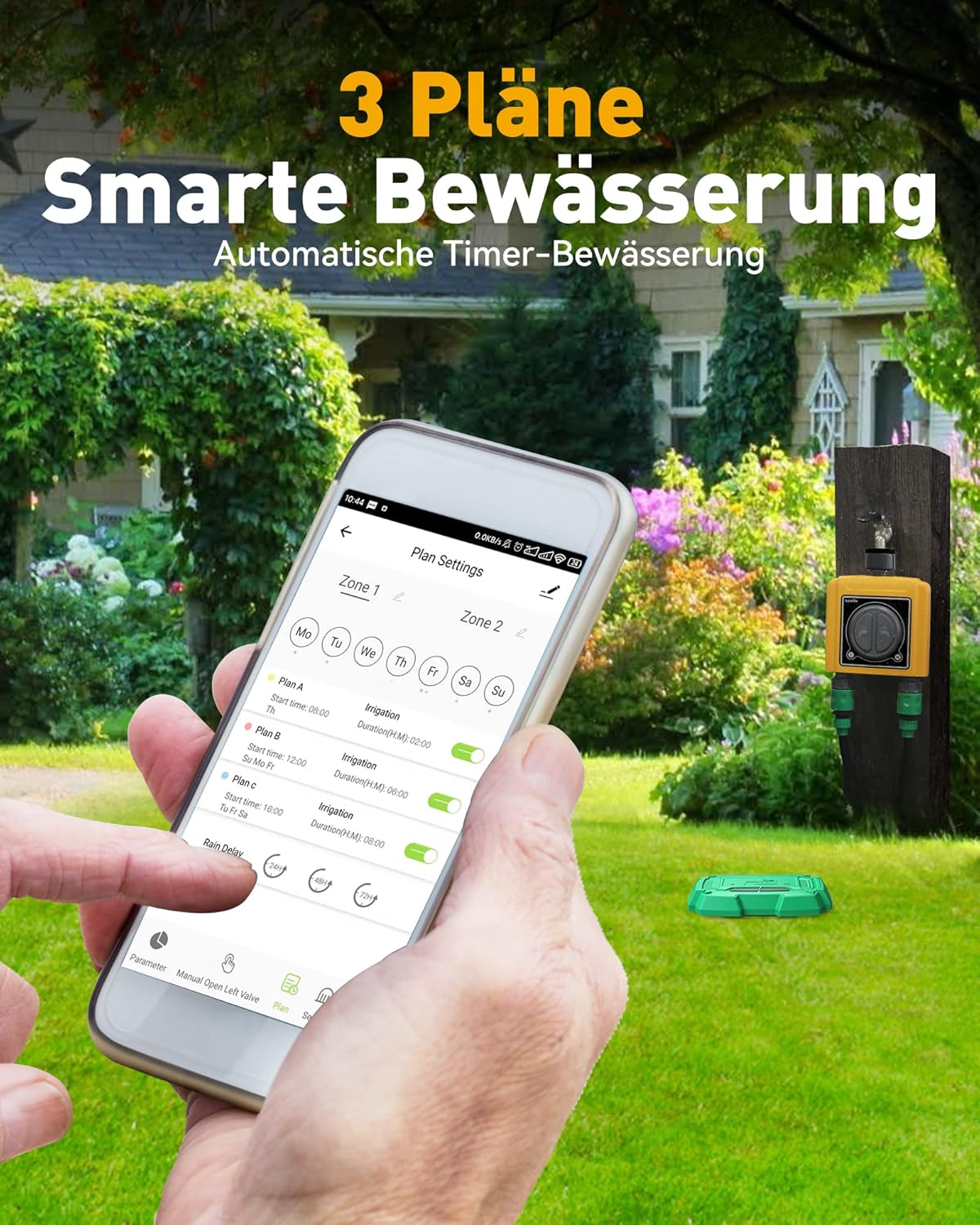
Image: A smartphone screen showing the "Plan Settings" interface within the RainPoint app, illustrating how users can configure multiple smart watering schedules for different zones and days of the week.

Image: The RAINPOINT controller is shown with two distinct watering modes: Zone 1 for general irrigation (sprinkler) and Zone 2 for misting (fine spray), demonstrating its versatility for different plant needs.
2. Afowoyi agbe
You can initiate manual watering at any time without affecting your programmed schedules.
- Nipasẹ App: In the RainPoint app, select the manual watering option for Zone 1, Zone 2, or both. Set the desired duration (1-59 minutes) and start watering.
- Via Device Button: Press the corresponding button on the controller (L for left outlet, R for right outlet) to manually open or close the valve.
3. Iṣakoso ohun
Integrate your RAINPOINT controller with Amazon Alexa or Google Assistant for voice commands.
- Enable the RainPoint skill/action in your Alexa or Google Home app.
- Iwari awọn ẹrọ.
- Use commands such as: "Alexa, turn on the timer 1" or "Hey Google, open Zone 1."

Image: A man relaxing in his living room, using an Amazon Echo device to control the irrigation system via Alexa voice commands, demonstrating the convenience of smart home integration.
4. Intelligent Automation and Rain Delay
The app allows for advanced automation based on various conditions and offers a rain delay feature to conserve water.
- Awọn iwoye Smart: Create custom automation rules based on weather changes (e.g., if temperature is above X, start watering), time schedules, or even soil moisture levels (requires optional soil sensor).
- Idaduro Ojo: If rain is expected or has occurred, you can activate the rain delay function for 24, 48, or 72 hours to prevent overwatering and save water.

Image: A smartphone screen displaying the "Create Smart" interface in the RainPoint app, showing options to set conditions for intelligent automation, such as time, weather, temperature, and soil moisture.

Image: A visual representation of the rain delay feature, showing options to pause watering for 24, 48, or 72 hours, which helps save water by preventing irrigation during or after rainfall.
Itoju
- Rirọpo Batiri: Replace AAA batteries when the low battery indicator appears in the app or on the device.
- Ninu: Periodically clean the exterior of the controller with a damp asọ. Maṣe lo awọn afọmọ abrasive.
- Igba otutu: Before the first frost, disconnect the controller from the faucet and store it indoors in a dry, protected area to prevent damage from freezing temperatures.
- Ayewo edidi: Regularly check the rubber seals and gaskets for wear and tear. Replace if necessary to ensure a watertight connection.
Laasigbotitusita
- Controller not connecting to WiFi Hub:
- Ensure the WiFi Hub is plugged in and powered on.
- Verify your home WiFi is 2.4GHz. The device does not support 5GHz networks.
- Check the distance between the controller and the WiFi Hub. Move them closer if necessary.
- Reset both the controller and the WiFi Hub and attempt pairing again.
- Ensure your smartphone is connected to the 2.4GHz WiFi network during setup.
- Ko si ṣiṣan omi:
- Ṣayẹwo boya faucet ti ṣii ni kikun.
- Ensure batteries in the controller are not depleted.
- Verify that a watering schedule is active or initiate manual watering via the app or device button.
- Check for any blockages in the hoses or the controller's outlets.
- Omi jijo:
- Ensure all connections (faucet to controller, hoses to controller) are tight and secure.
- Check the rubber washers and seals for proper seating and damage. Replace if worn.
- Inaccurate water flow data:
- Ensure the water flow sensor is clean and free of debris.
- Verify the controller is installed correctly and water is flowing consistently.
Awọn pato
| Iwa | Iye |
|---|---|
| Brand | OPO OJI |
| Awoṣe | B09MRN3P3H |
| Àwọ̀ | Wlan 2 Ausgänge (WiFi 2 Outlets) |
| Ọja Mefa | 15 x 12 x 5.2 cm |
| Iwọn Nkan | 920 g |
| Ohun elo | Ṣiṣu |
| Nọmba ti Eto | 2 (Outlets) |
| Asopọmọra | 2.4GHz WiFi |
Atilẹyin ọja ati Support
RAINPOINT offers a 5-odun atilẹyin ọja on this product, ensuring long-term reliability and customer satisfaction. For any technical assistance, troubleshooting, or warranty claims, please contact RAINPOINT customer support. Their support team is known for providing excellent and responsive service.
For the most up-to-date contact information, please refer to the RainPoint official website or the contact details provided within the RainPoint app.


