1. Ifihan
The Intel Core i5-12400 is a 12th Generation desktop processor designed for performance and efficiency. It features 6 cores and 12 threads, with a base clock speed of 2.5 GHz and a maximum turbo frequency of 4.40 GHz. This processor is optimized for a range of applications, including gaming and productivity tasks, offering a balanced blend of power and thermal efficiency.
Osise loriview of 12th Gen Intel Core desktop processors, highlighting key features and capabilities.
2. Key Awọn ẹya ara ẹrọ
- Intel Core i5 2.50 GHz Processor: Features hyper-threading architecture for high performance in demanding applications.
- Socket LGA-1700: Designed for installation on compatible motherboards.
- 18 MB L3 Cache: Provides fast data access for smooth and responsive performance.
- Integrated Intel UHD Graphics 730: Offers improved graphics and visual quality, supporting up to 4 monitors without a dedicated graphics card.
- PCIe 5.0 & 4.0 Support: Enables compatibility with the latest high-speed components.
- DDR5 and DDR4 Support: Offers flexibility for memory configurations.
- Intel Laminar RM1 Cooler Included: Provides out-of-the-box cooling solution.
- Compatible with Intel 600 Series Chipset: Ensures broad motherboard compatibility.
- 65W Processor Base Power: Delivers efficient performance within a reasonable power envelope.
3. Eto ati fifi sori
Proper installation is crucial for the functionality and longevity of your Intel Core i5-12400 processor. Always handle the processor by its edges to avoid touching the contacts or the integrated heat spreader (IHS).
3.1. Atokọ fifi sori ẹrọ tẹlẹ
- Compatible Motherboard: Ensure your motherboard has an LGA1700 socket and is based on an Intel 600 Series Chipset.
- Compatible RAM: Verify your memory modules are either DDR4 or DDR5 and compatible with your motherboard.
- Ojutu Itutu: The Intel Laminar RM1 cooler is included. If using an aftermarket cooler, ensure it is LGA1700 compatible.
- Awọn iṣọra Anti-Static: Use an anti-static wrist strap or frequently touch a grounded metal object to discharge static electricity.
3.2. Processor Installation Steps
- Unbox the Processor: Carefully remove the processor and the Intel Laminar RM1 cooler from their packaging.
- Ṣii Socket CPU: Locate the LGA1700 socket on your motherboard. Gently push down on the small lever next to the socket and pull it to the side to open the retention frame.
- Ṣètò ero isise naa: Observe the small golden triangle or notch on one corner of the processor and align it with the corresponding mark on the CPU socket. Ensure the processor is oriented correctly.
- Place the Processor: Carefully lower the processor straight down into the socket. Do not force it. It should sit flush without resistance.
- Close the Socket: Lower the retention frame over the processor and push the lever back into its original position until it clicks, securing the processor.
- Fi ẹrọ kuru sii: If using the Intel Laminar RM1 cooler, it comes with pre-applied thermal paste. Align the four push-pins with the holes around the CPU socket and press them down firmly until they click. Connect the cooler's fan cable to the CPU_FAN header on the motherboard.
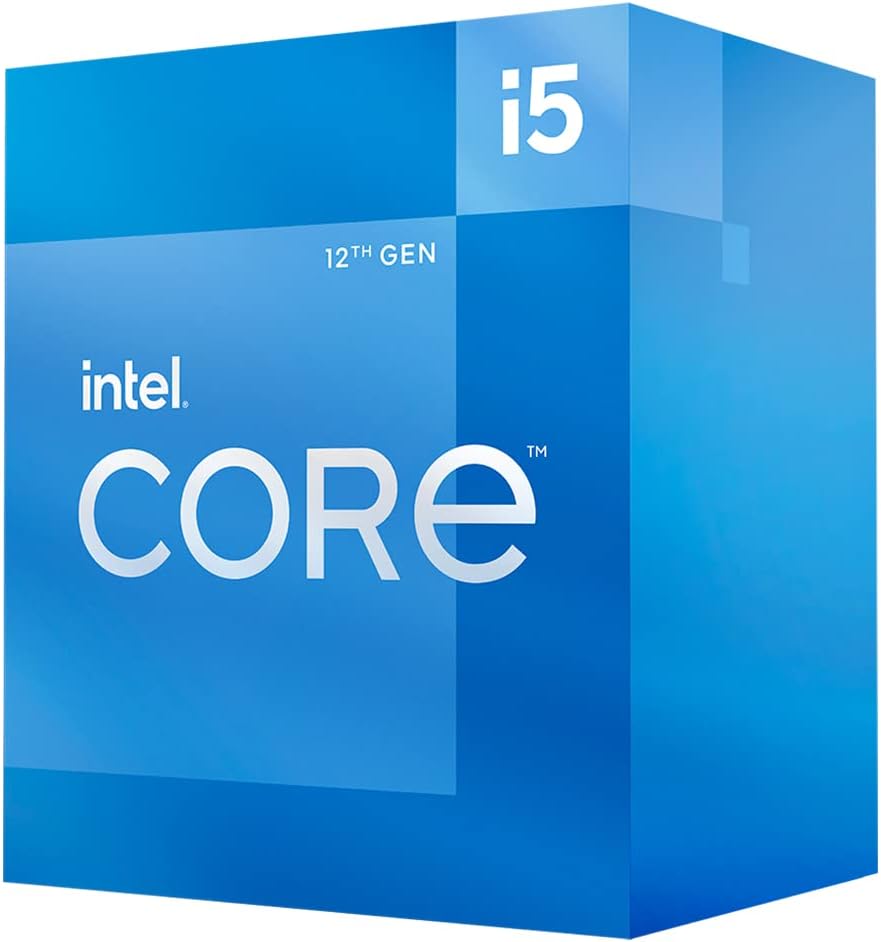
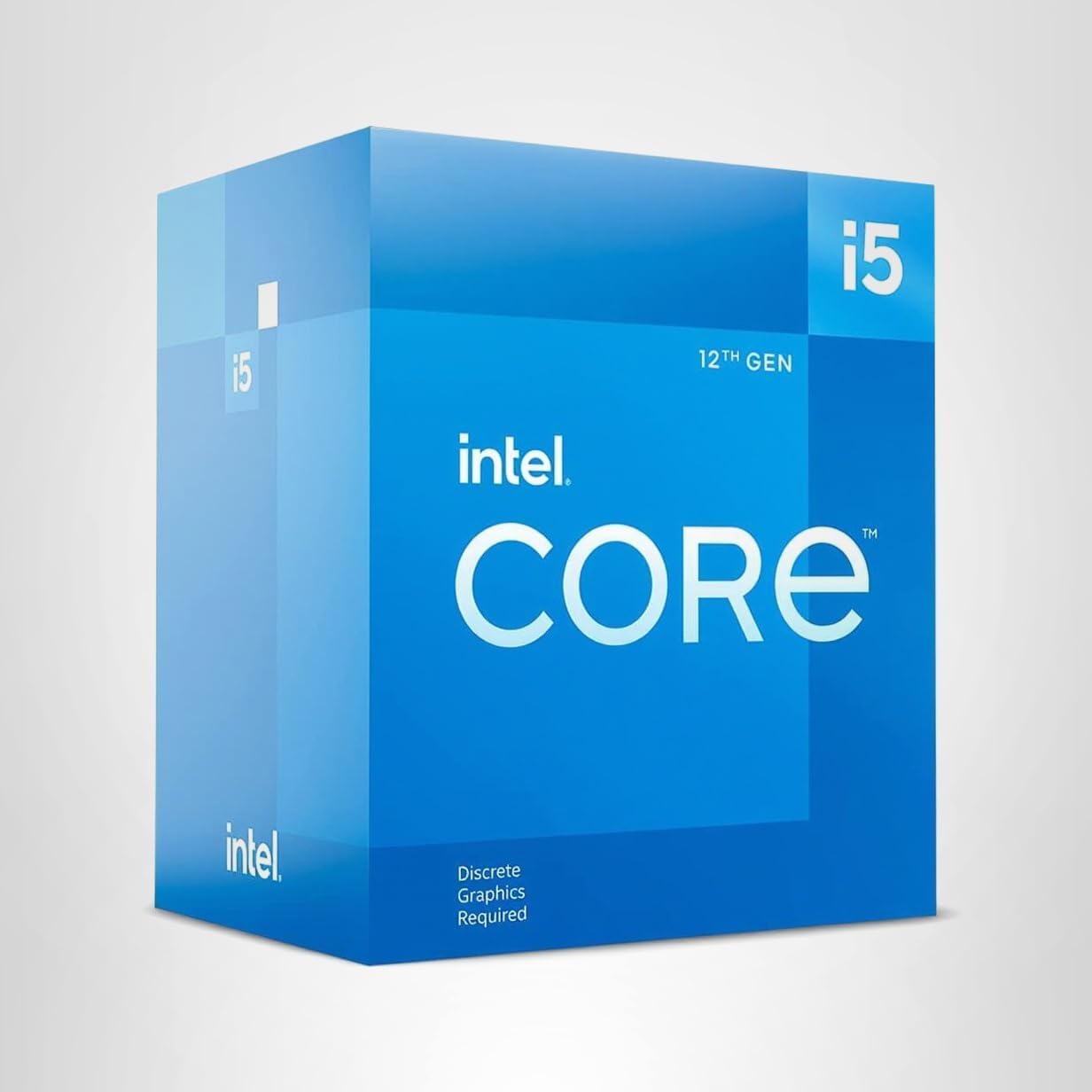
The retail packaging for the Intel Core i5-12400 processor.

The Intel Core i5-12400 processor, showing the integrated heat spreader (IHS).

The underside of the Intel Core i5-12400 processor, displaying the contact pads.
The Intel Core i5-12400 processor correctly seated within the LGA1700 motherboard socket.

The Intel Laminar RM1 stock cooler, included with the processor, featuring a fan and heatsink.
A detailed guide on how to unbox and install the Intel Core i5-12400 processor.
4. Ṣiṣẹ ẹrọ isise
Once installed, the Intel Core i5-12400 processor will automatically configure itself for optimal operation within your system's capabilities. It dynamically adjusts its clock speed based on workload, utilizing Intel Turbo Boost Technology to reach up to 4.40 GHz when needed.
4.1. Integrated Graphics
The processor includes integrated Intel UHD Graphics 730. This allows for display output without a dedicated graphics card, supporting up to four monitors. If you have a dedicated graphics card, ensure your display cables are connected to the dedicated card's ports for optimal gaming and graphics performance.
4.2. Iranti ati Ibi ipamọ
The i5-12400 supports both DDR4 and DDR5 memory, as well as PCIe 5.0 and 4.0 for high-speed SSDs and graphics cards. Ensure your motherboard and other components are compatible with these standards to fully leverage the processor's capabilities.
5. Itọju
To ensure the longevity and consistent performance of your Intel Core i5-12400 processor, periodic maintenance is recommended.
5.1. itutu System
- Yiyọ eruku kuro: Regularly clean dust from the CPU cooler's heatsink fins and fan blades. Dust accumulation can impede airflow and lead to higher temperatures.
- Lẹẹ igbona: The thermal paste applied between the CPU and cooler is crucial for heat transfer. If you remove the cooler, you will need to clean off the old thermal paste and apply new thermal paste before reinstallation.
- Ṣíṣàn afẹ́fẹ́: Ensure your computer case has adequate airflow with properly configured intake and exhaust fans to dissipate heat effectively from the system.
6. Laasigbotitusita
If you encounter issues with your system after installing the Intel Core i5-12400, consider the following troubleshooting steps:
6.1. Ko si Abajade Ifihan
- Ṣayẹwo Awọn isopọ: Ensure your monitor cable is securely connected to the correct display output port (either motherboard for integrated graphics or dedicated GPU).
- Ijókòó CPU: Re-check that the CPU is correctly seated in its socket and the retention lever is fully closed.
- Ramu: Verify that RAM modules are correctly installed in their slots. Try reseating them or testing with one module at a time.
6.2. Àwọn Ìṣòro Gbóná Jùlọ
- Fifi sori ẹrọ tutu: Confirm the CPU cooler is properly mounted and making good contact with the CPU's IHS.
- Lẹẹ igbona: Ensure thermal paste was applied correctly and evenly.
- Isẹ Fan: Check that the CPU fan is spinning and connected to the CPU_FAN header.
6.3. System aisedeede tabi ipadanu
- BIOS/UEFI Update: Ensure your motherboard's BIOS/UEFI firmware is updated to support 12th Generation Intel processors.
- Ibi ti ina elekitiriki ti nwa: Verify your power supply unit (PSU) meets the system's power requirements.
- Awọn awakọ: Install the latest chipset and graphics drivers from Intel or your motherboard manufacturer.
7. Awọn pato
| Ẹya ara ẹrọ | Sipesifikesonu |
|---|---|
| Isise Mimọ Igbohunsafẹfẹ | 2.5 GHz |
| Max Turbo Igbohunsafẹfẹ | 4.40 GHz |
| Lapapọ ohun kohun | 6 |
| Lapapọ Awọn ila | 12 |
| Kaṣe | 18 MB Intel Smart Cache |
| isise Graphics | Awọn aworan Intel UHD 730 |
| Àwòrán Ìgbohùngbà Oníyípadà Púpọ̀ jùlọ | 1.45 GHz |
| Max # of Displays Supported | 4 |
| Max Memory Size (dependent on memory type) | 128 GB |
| Awọn Ẹrọ iranti | Up to DDR5 4800 MT/s, Up to DDR4 3200 MT/s |
| Max # of PCI Express Lanes | 20 |
| PCI Express Àtúnyẹwò | 5.0 ati 4.0 |
| TDP (Processor Base Power) | 65 W |
| Max Turbo Power | 117 W |
| Socket Supported | FCLGA1700 |
| Ọja Mefa | 5 x 5 x 0.1 inches |
| Iwọn Nkan | 10.6 iwon |
8. Atilẹyin ọja ati Support
For detailed warranty information, technical support, and additional resources, please visit the official Intel website. Keep your proof of purchase, such as your receipt or invoice, as it may be required for warranty claims.
You can find further assistance and contact information on the Intel Support Page.


