1. Ifihan
This manual provides comprehensive instructions for the KROM K-WHEEL PRO professional racing wheel. It is designed to enhance your driving simulation experience across multiple platforms. Please read this manual thoroughly before use to ensure proper setup, operation, and maintenance.
The KROM K-WHEEL PRO features 3 adjustable sensitivity levels, integrated paddle shifters, and a gear lever for precise control. A responsive pedal set is included for a complete simulation experience. It is compatible with PC, PS3, PS4, Xbox One, and Nintendo Switch. The ergonomic design and stable base ensure comfort and performance during extended use.
2. Package Awọn akoonu
Verify that all items listed below are present in your package. If any components are missing or damaged, please contact customer support.
- KROM K-WHEEL PRO Racing Wheel
- Pedal Set (Accelerator, Brake, Clutch)
- Jia Shifter
- Okun Asopọ USB
- Afowoyi Olumulo (iwe-ipamọ yii)

Image 1: KROM K-WHEEL PRO complete set, including the racing wheel, pedal set, and gear shifter.
3. Awọn ilana iṣeto
3.1 Attaching the Racing Wheel
- Place the racing wheel on a stable, flat surface such as a desk or racing cockpit.
- Secure the wheel using the integrated suction cups on the base. Press down firmly to ensure a strong grip.
- Alternatively, use the included clamp system (if applicable, not explicitly mentioned but common for racing wheels) to attach the wheel to a desk edge.

Aworan 2: Iwaju view of the KROM K-WHEEL PRO Racing Wheel, showing the main controls and ergonomic design.
3.2 Connecting the Pedal Set
- Place the pedal set on the floor in front of your seating position.
- Connect the pedal set cable to the designated port on the back of the racing wheel. Ensure the connection is secure.
- The pedal set features a textured base for improved grip on various floor surfaces.
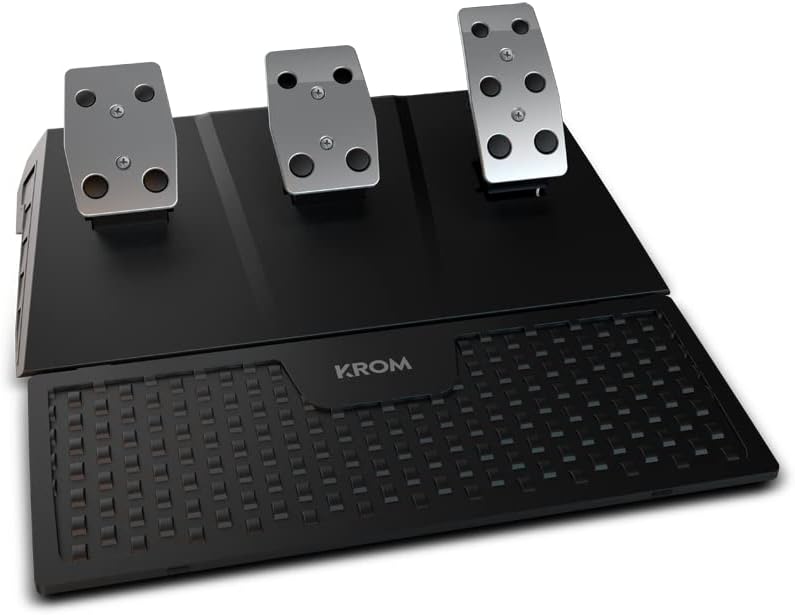
Image 3: The KROM K-WHEEL PRO pedal set, featuring accelerator, brake, and clutch pedals with a textured footrest.
3.3 Connecting the Gear Shifter
- Attach the gear shifter to your preferred side of the racing wheel setup, typically using a clamp or suction cups.
- Connect the gear shifter cable to the designated port on the racing wheel.
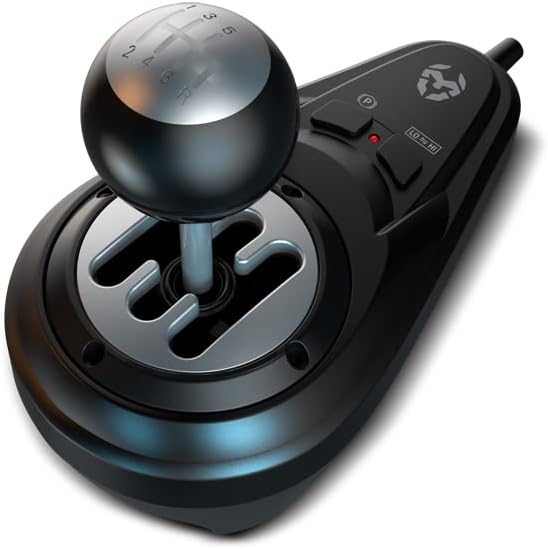
Image 4: The KROM K-WHEEL PRO gear shifter, showing the H-pattern shift gate and ergonomic knob.
3.4 Connecting to Your System (PC/Console)
- Ensure your PC or console is powered off.
- Connect the main USB cable from the racing wheel to an available USB port on your PC, PS3, PS4, Xbox One, or Nintendo Switch.
- Power on your system. The device should be automatically recognized.
- For PC, driver installation may be required. Refer to the KROM webojula fun awọn titun awakọ.

Image 5: A complete KROM K-WHEEL PRO setup on a desk, demonstrating the racing wheel, gear shifter, and pedal placement in a gaming environment.
4. Awọn ilana Iṣiṣẹ
4.1 Aṣayan ipo
The K-WHEEL PRO supports multiple platforms. Ensure the correct mode is selected for your system. Refer to the device's indicator lights or the KROM website for specific mode switching instructions.
4.2 Atunse ifamọ
The racing wheel offers 3 adjustable sensitivity levels. This allows you to fine-tune the steering response to match your driving style and game requirements.
- Ifamọ Kekere: Provides a less responsive steering, ideal for precise maneuvers or specific vehicle types.
- Ifamọ Alabọde: A balanced setting suitable for most racing games and driving styles.
- Ifamọ giga: Offers a highly responsive steering, beneficial for quick reactions in fast-paced racing.
To adjust sensitivity, press the designated sensitivity button on the wheel (refer to the button layout diagram in the quick start guide or KROM website). The indicator lights will show the current sensitivity level.
4.3 Button Mapping and Programming
The K-WHEEL PRO features programmable buttons, allowing for customization of controls.
- Refer to your game's control settings to map the wheel's buttons, pedals, and shifter functions.
- For advanced programming, consult the KROM website for any available software or detailed instructions.
4.4 Force Feedback and Vibration
The racing wheel includes a dual vibration motor for realistic force feedback, simulating road conditions, collisions, and other in-game effects. Ensure force feedback is enabled in your game settings for the full immersive experience.
5. Itọju
5.1 Ninu
- Disconnect the racing wheel from all power sources before cleaning.
- Use a soft, dry cloth to wipe down the surfaces of the wheel, pedals, and shifter.
- Fun idoti alagidi, die-die damp asọ pẹlu ìwọnba ọṣẹ le ṣee lo, atẹle nipa a gbẹ asọ.
- Avoid using abrasive cleaners, solvents, or harsh chemicals, as these can damage the product's finish.
5.2 Ibi ipamọ
- Store the KROM K-WHEEL PRO in a cool, dry place away from direct sunlight and extreme temperatures.
- Tí o bá ń tọ́jú rẹ̀ fún ìgbà pípẹ́, ronú nípa fífi í sínú àpò ìpamọ́ rẹ̀ láti dáàbò bò ó kúrò lọ́wọ́ eruku àti ìbàjẹ́ ara.
6. Laasigbotitusita
| Isoro | Owun to le Fa | Ojutu |
|---|---|---|
| Wheel not recognized by PC/Console |
|
|
| No force feedback/vibration |
|
|
| Pedals or shifter not responding |
|
|
7. Awọn pato
| Ẹya ara ẹrọ | Ẹ̀kúnrẹ́rẹ́ |
|---|---|
| Orukọ awoṣe | K-Wheel Pro |
| Nọmba awoṣe | NXKROMKWHLPRO |
| Ibamu | PC, PS3, PS4, Xbox One, Nintendo Switch |
| Asopọmọra | USB |
| Idari igun | 900° / 270° (Adjustable) |
| Awọn ipele ifamọ | 3 (Atunṣe) |
| Fi ipa mu esi | Dual Vibration Motor |
| Efatelese Ṣeto | Accelerator, Brake, Clutch |
| Jia Shifter | H-pattern, Sequential Paddle Shifters |
| Awọn iwọn (L x W x H) | 35 x 33 x 33 cm (approximate for wheel unit) |
| Iwọn | 4200 Grams (approximate total) |
| Pataki Awọn ẹya ara ẹrọ | Programmable buttons, Anti-slip grip, Suction cup base for stability |
8. Atilẹyin ọja ati Support
For warranty information, technical support, or to download the latest drivers and software, please visit the official KROM webojula. Jeki ẹri rira rẹ fun awọn iṣeduro atilẹyin ọja.
KROM Official Webojula: www.kromgaming.com
For further assistance, contact KROM customer service.


