1. Ifihan
This manual provides instructions for the installation, operation, and maintenance of your abode Color Bulb Smart LED Lights. Please read this manual thoroughly before use to ensure proper functionality and safety. The abode Color Bulb offers customizable color, brightness, and temperature settings, along with smart home integration capabilities.

Image 1.1: The abode Color Bulb Smart LED Lights (2-pack) and packaging.
2. Alaye Aabo
- Rí i dájú pé agbára náà ti pa kí o tó fi bulbu náà sí i tàbí kí o yọ ọ́ kúrò.
- Do not use with standard dimmers; control brightness via the abode app or compatible smart home platforms.
- Dara fun lilo inu ile nikan.
- Operates on AC 110V-120V~60 Hz. Verify your electrical supply matches these requirements.
- Avoid exposing the bulb to water or excessive moisture.
- Maṣe ṣajọpọ boolubu naa.
3. Package Awọn akoonu
Your abode Color Bulb package should contain the following items:
- 2 x abode Color Bulb Smart LED Lights (A19/E26)
- 1 x Itọsọna Ibẹrẹ Kiakia (ti o ba wa pẹlu rẹ lọtọ)
4. Eto
4.1 Fifi sori ti ara
- Agbara Pa: Ensure the power switch to the light fixture is in the OFF position before installation.
- So sinu: Carefully screw the abode Color Bulb into any standard A19/E26 bulb socket. Do not overtighten.
- Agbara Tan: Turn the power switch to the ON position. The bulb should light up.
4.2 App Oṣo ati Wi-Fi Asopọ
To unlock the full features of your abode Color Bulb, you need to connect it to your Wi-Fi network using the abode mobile app.
- Ṣe igbasilẹ Ohun elo: Download the free abode mobile app from the App Store (iOS) or Google Play Store (Android).
- Se akanti fun ra re: Open the abode app and create a new account or log in to your existing account.
- Fi ẹrọ kun: Follow the in-app instructions to add a new device. Select 'Color Bulb' from the list of available devices.
- Sopọ si Wi-Fi: The app will guide you through connecting the bulb to your 2.4GHz Wi-Fi network. Ensure your phone is connected to the same 2.4GHz network during setup.
- Name Bulb: Assign a name to your bulb (e.g., "Living Room Lamp") for easy identification and voice control.

Image 4.1: The abode mobile app interface for controlling the Color Bulb.
5. Awọn ilana Iṣiṣẹ
5.1 Color and Brightness Control
The abode Color Bulb offers 16 million colors and a full spectrum of warm to cool whites (1,800K to 6,500K). You can adjust these settings via the abode app:
- Aṣayan awọ: Use the color wheel in the app to choose any desired color.
- Àtúnṣe Ìmọ́lẹ̀ Funfun: Adjust the color temperature slider to select between warm white (e.g., for relaxation) and cool white (e.g., for focus).
- Imọlẹ: Use the brightness slider to dim or brighten the light output.

Aworan 5.1: Example of setting a custom color scene in a room.

Image 5.2: Adjusting white light controls for different moods or activities.
5.2 Timers and Schedules
Automate your lighting by setting timers and schedules within the abode app:
- Ṣeto Awọn Aago: Schedule lights to turn on or off at specific times.
- Ṣẹda Awọn iṣeto: Set recurring schedules for daily or weekly routines, such as waking up gently with increasing light or winding down at night.
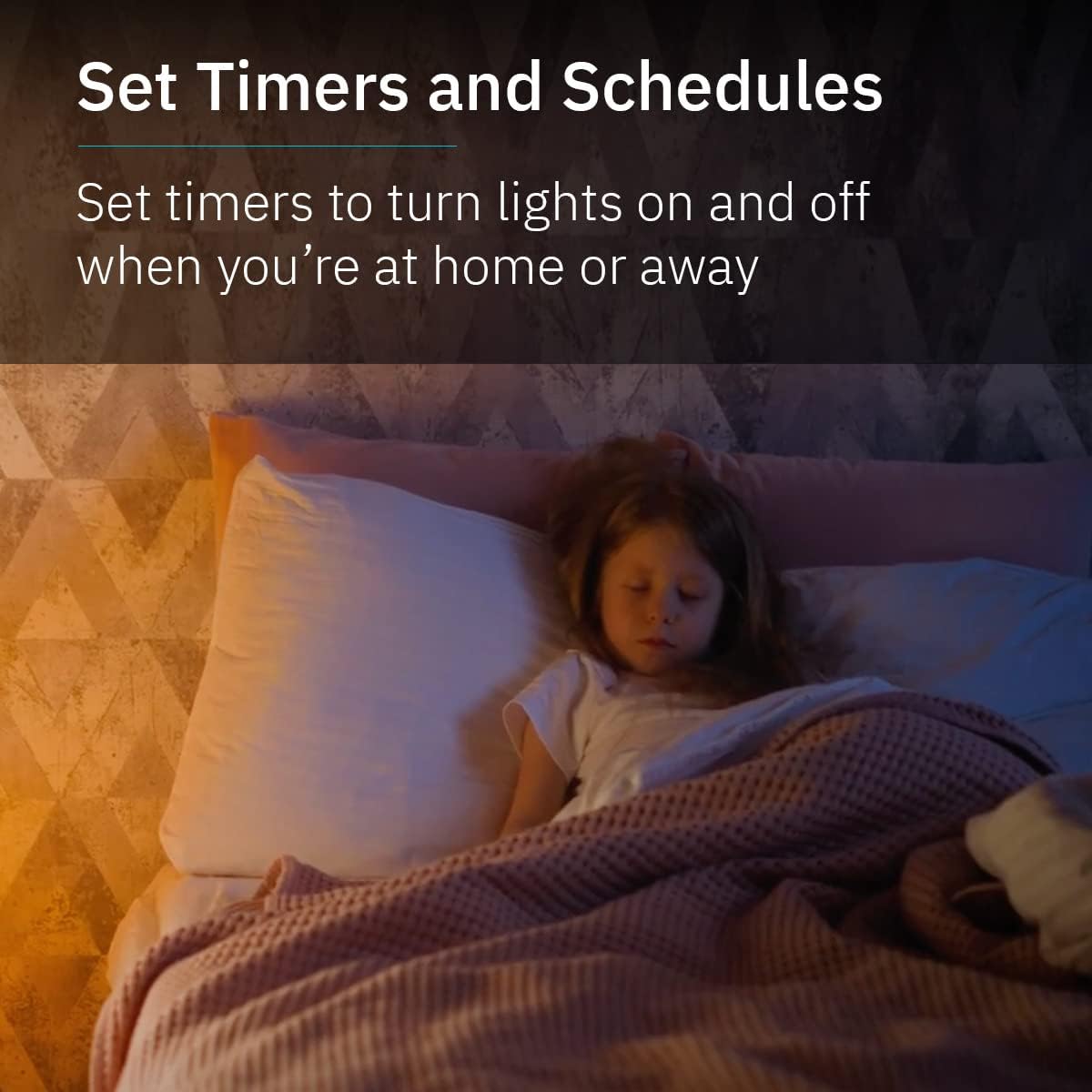
Image 5.3: Using timers and schedules for automated lighting routines.
5.3 Smart Home Integration
The abode Color Bulb is compatible with popular smart home ecosystems for voice control and advanced automation:
- Oluranlọwọ Google: Link your abode account to Google Assistant to control your lights with voice commands (e.g., "Hey Google, turn on the living room light").
- Amazon Alexa: Link your abode account to Amazon Alexa to control your lights with voice commands (e.g., "Alexa, set the kitchen light to blue").

Image 5.4: Smart home compatibility with Google Assistant and Alexa.
5.4 Group Controls and Automations
Enhance your smart lighting experience by grouping bulbs and creating custom automations:
- Iṣakoso Ẹgbẹ: Group multiple abode Color Bulbs together in the app to control them simultaneously (e.g., turn all living room lights on/off, change color).
- Awọn adaṣe: Integrate your Color Bulbs with other abode security products or smart devices to create custom routines (e.g., lights turn on when a motion sensor is triggered).
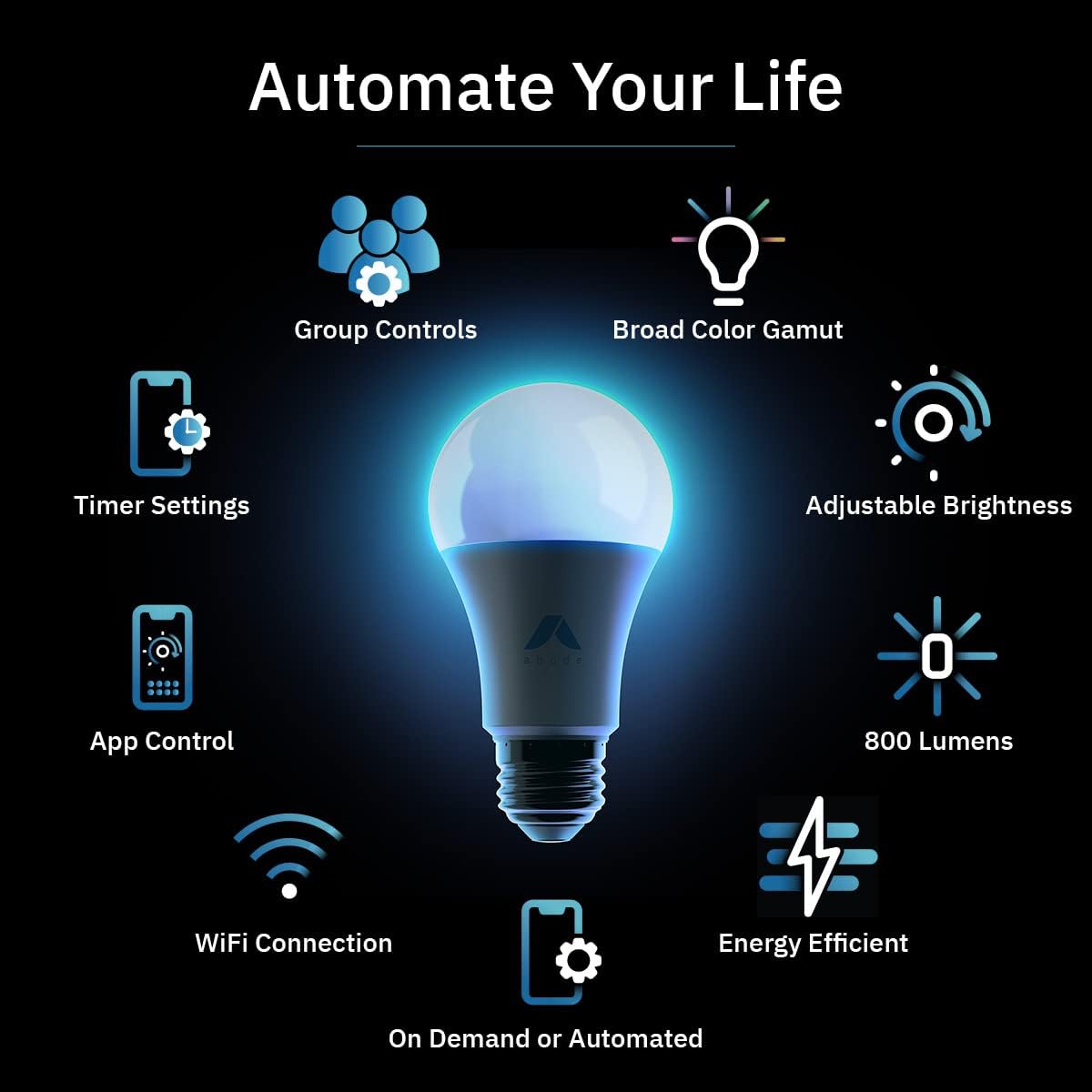
Aworan 5.5: Pariview of abode Color Bulb features, including automation capabilities.
6. Itọju
The abode Color Bulb requires minimal maintenance. Follow these guidelines:
- Ninu: Ensure the bulb is off and cool before cleaning. Wipe with a soft, dry cloth. Do not use liquid cleaners or abrasive materials.
- Rọpo: The bulb has an average life of 22.8 years based on typical usage. Replace the bulb if it ceases to function correctly.
7. Laasigbotitusita
If you encounter issues with your abode Color Bulb, refer to the following table for common problems and solutions:
| Isoro | Owun to le Fa | Ojutu |
|---|---|---|
| Boolubu ko ni tan imọlẹ. | No power; loose connection; bulb malfunction. | Check power switch. Ensure bulb is screwed in tightly. Test bulb in another working socket. |
| Ko le sopọ si Wi-Fi. | Incorrect Wi-Fi password; 5GHz network; weak signal. | Verify Wi-Fi password. Ensure you are connecting to a 2.4GHz network. Move bulb closer to router. Reset bulb (turn off/on 3 times). |
| App Iṣakoso jẹ dásí. | No internet connection; app glitch; bulb offline. | Check your phone's internet connection. Restart the abode app. Verify bulb is powered on and connected to Wi-Fi. |
| Iṣakoso ohun ko ṣiṣẹ. | Incorrect device name; smart assistant not linked. | Ensure the bulb name is recognized by your smart assistant. Verify abode account is linked correctly in Alexa/Google Home app. |
If the problem persists after trying these solutions, please contact abode customer support.
8. Awọn pato
| Ẹya ara ẹrọ | Sipesifikesonu |
|---|---|
| Brand | ibugbe |
| Awoṣe | Boolubu awọ |
| Imọlẹ Iru | LED |
| Boolubu Apẹrẹ Iwon | A19 |
| Bulb Base | E26 |
| Wattage | 9 Wattis (60 Wattis Ohu deede) |
| Imọlẹ | 800 Lumens |
| Iwọn otutu awọ | 1,800K to 6,500K (Warm White to Cool White) |
| Awọn aṣayan Awọ | Awọn awọ Milionu 16 |
| Atọka Rendering Awọ (CRI) | 90+ |
| Voltage | 110V-120V AC, 60 Hz |
| Asopọmọra | 2.4GHz Wi-Fi |
| Ọna Iṣakoso | App, Voice (Google Assistant, Alexa) |
| inu ile / ita gbangba Lilo | Ninu ile |
| Apapọ Life | ọdun meji 22.8 |
| UPC | 850025571203 |
9. Atilẹyin ọja ati Support
abode products are designed for reliability and performance. For specific warranty details, please refer to the warranty information provided with your purchase or visit the official abode website. If you require technical assistance or have questions not covered in this manual, please contact abode customer support through their official channels.


