1. Ifihan
This manual provides essential information for setting up, operating, and maintaining your Acer Nitro ED270 X0 27-inch Full HD Curved Gaming Monitor. Please read these instructions carefully before using the product to ensure optimal performance and safety.
olusin 1.1: Iwaju view of the Acer Nitro ED270 X0 Curved Gaming Monitor.
2. Package Awọn akoonu
Verify that all items listed below are included in your package. If any items are missing or damaged, please contact your retailer or Acer customer support.
- Acer Nitro ED270 X0 Monitor
- Iduro Iduro (Ipilẹ ati Ọrun)
- Okun agbara
- Okun HDMI
- Afowoyi Olumulo (iwe-ipamọ yii)
3. Apejọ
Follow these steps to assemble the monitor stand and prepare your monitor for use.
- So Ipilẹ Iduro: Carefully place the monitor face down on a soft, clean surface to prevent scratches. Align the stand neck with the mounting slot on the back of the monitor and secure it.
- Attach the Stand Neck: Connect the stand base to the stand neck. Ensure it clicks into place or is secured with the provided screw.
- Ipo Atẹle naa: Fi ọwọ́ rọra gbé àtẹ̀gùn tí a kó jọ sókè kí o sì gbé e sí orí ilẹ̀ tí ó dúró ṣinṣin, tí ó tẹ́jú.

olusin 3.1: Apa view of the monitor, illustrating the stand attachment.

olusin 3.2: Top view of the monitor, showing its curved design.
4. Awọn isopọ
So atẹle naa pọ si kọnputa rẹ tabi awọn ẹrọ miiran nipa lilo awọn kebulu ti o yẹ.
- Asopọ agbara: So okun agbara pọ si titẹ agbara atẹle ati lẹhinna si iṣan agbara kan.
- Asopọ fidio: Use the provided HDMI cable or a DisplayPort cable to connect your computer's video output to one of the monitor's input ports. The monitor features 2 HDMI 2.0 ports and 1 DisplayPort 1.4.

olusin 4.1: Ẹyìn view of the monitor, highlighting the HDMI and DisplayPort connections.
5. Eto ibẹrẹ ati Atunse agbara
After connecting all cables, follow these steps to power on and perform initial setup.
- Agbara Tan: Press the power button, usually located on the bottom right side of the monitor, to turn it on.
- Aṣayan Orisun Iṣawọle: The monitor should automatically detect the active input source. If not, use the OSD menu buttons to manually select the correct input (HDMI 1, HDMI 2, or DisplayPort).
6. Ṣiṣẹ Atẹle
6.1 Ifihan Oju-iboju (OSD) Lilọ kiri Akojọ aṣyn
The monitor's settings can be adjusted using the buttons located on the bottom side of the monitor. These buttons allow you to navigate through the OSD menu to customize various display parameters.
6.2 Ifihan Eto
Ṣàtúnṣe àwọn pàrámítà ojú fún ìpele tó dára jùlọ viewiriri iriri.
- Imọlẹ & Iyatọ: Modify these settings to suit your environment and preference.
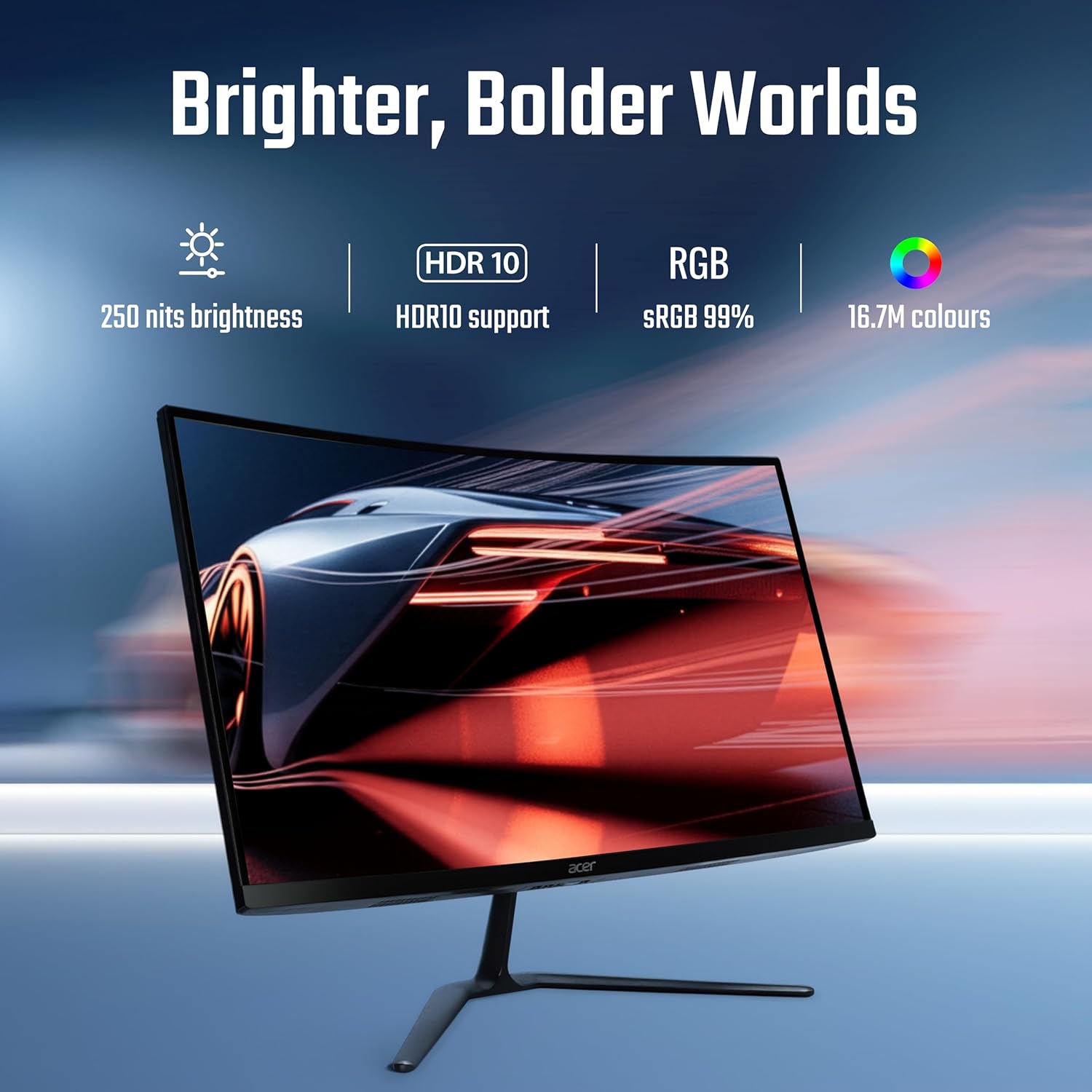
- Eto awọ: Adjust color temperature, gamma, and other color-related options. The monitor supports HDR10 and offers sRGB 99% color accuracy with 16.7 million colors.

Figure 6.1: Visual representation of the monitor's display capabilities, including brightness and color support.
6.3 Performance Settings
Optimize your monitor for gaming and fast-paced content.
- Oṣuwọn isọdọtun: The monitor supports up to a 200 Hz refresh rate for smooth motion. Ensure your graphics card settings are configured to utilize this rate.
- Àkókò Ìdáhùn (VRB): The 1 ms Visual Response Boost (VRB) technology reduces motion blur. This can be enabled or adjusted via the OSD.
- AMD FreeSync Ere: This technology synchronizes the monitor's refresh rate with your GPU's frame rate, eliminating screen tearing and stuttering. Enable FreeSync Premium in both the monitor's OSD and your graphics card control panel.

Figure 6.2: Demonstration of motion clarity with 1ms VRB and AMD FreeSync Premium technology.
6.4 Ergonomics and Eye Comfort
Adjust the monitor for comfortable viewing and reduce eye strain.
- Atunṣe tẹlọrun: The monitor stand allows for tilt adjustment from -5° to 20° to find your preferred viewigun igun.
- Acer VisionCare: Features like Flicker-less, BlueLightShield, and ComfyView are integrated to reduce eye fatigue during extended use. These settings can be managed through the OSD.

Figure 6.3: Monitor setup designed for extended use, emphasizing eye comfort technologies.
7. Itọju
Ìtọ́jú tó tọ́ ń jẹ́ kí àwòjìji àti iṣẹ́ rẹ̀ pẹ́ títí.
- Ninu iboju: Lo asọ rirọ, ti ko ni lint ni sere dampfi omi tàbí ẹ̀rọ ìfọmọ́ ojú ìbojú ṣe é. Má ṣe fọ́n omi síta tààrà sí ojú ìbojú náà.
- Ninu ile Casing: Pa atẹle naa nu casing pẹlu asọ ti o gbẹ. Yago fun lilo abrasive ose tabi epo.
- Afẹfẹ: Rii daju pe awọn ṣiṣi atẹgun ti atẹle naa ko ni idinamọ lati ṣe idiwọ igbona.
8. Laasigbotitusita
Tí o bá ní ìṣòro pẹ̀lú àtẹ̀gùn rẹ, wo àwọn ìṣòro àti ìdáhùn tó wọ́pọ̀ wọ̀nyí.
| Isoro | Owun to le Solusan |
|---|---|
| Ko si aworan loju iboju |
|
| Aworan jẹ blur tabi daru |
|
| Iboju iboju |
|
If the problem persists, please contact Acer customer support.
9. Awọn pato
Key technical specifications for the Acer Nitro ED270 X0 monitor.
| Ẹya ara ẹrọ | Sipesifikesonu |
|---|---|
| Nọmba awoṣe | UM.HE0SI.001 |
| Iwon iboju | 27 inches |
| Panel Iru | VA Curved (1500R) |
| Ipinnu | 1920 x 1080 (HD ni kikun) |
| Oṣuwọn sọtun | Titi di 200 Hz |
| Akoko Idahun | 1 ms (VRB) |
| Imọlẹ | 250 nit |
| Awọ Gamut | sRGB 99% |
| Atilẹyin awọ | 16.7 Milionu |
| HDR atilẹyin | HDR10 |
| Viewigun igun | 178° (H/V) |
| Awọn igbewọle fidio | 2 x HDMI 2.0, 1 x DisplayPort 1.4 |
| Ergonomics | Tilt (-5° to 20°) |
| Awọn iwọn (LxWxH) | 19.9 x 61.1 x 45.6 cm |
| Iwọn Nkan | 3.9 kg |
| Awọn irinše to wa | Monitor, Stand, Power cord, Manual, HDMI Cable |
10. atilẹyin ọja Information
Acer products are manufactured to high-quality standards and are covered by a limited warranty. Please refer to the warranty card included in your package or visit the official Acer webAaye fun awọn ofin atilẹyin ọja alaye ni pato si agbegbe rẹ. Tọju iwe-ẹri rira rẹ bi ẹri rira fun awọn iṣeduro atilẹyin ọja.
11. Onibara Support
For service-related queries, technical assistance, or further information, please contact Acer customer support using the details below:
- Nọmba Ọfẹ: 1800-11-4100
- Foonu: 6366800400
- Imeeli: acersupport@in.startek.com
- Atilẹyin Ayelujara: https://acer1.in/swdlo
- Live agent support available from Monday to Saturday, 9 AM to 6 PM (Public Holidays excluded).

Figure 11.1: Acer Customer Support contact details.


