1. Ifihan
O ṣeun fun riraasing the ZEBRONICS Zeb-PIXAPLAY 11 Portable LED Projector. This manual provides essential information for setting up, operating, and maintaining your projector. Please read it thoroughly before use to ensure proper functionality and to maximize your viewiriri iriri.
The Zeb-PIXAPLAY 11 is designed for home entertainment, offering FHD 1080p support, multiple connectivity options, and a compact design for portability. Enjoy movies, TV shows, and gaming on a large screen up to 381cm (150 inches).
2. Alaye Aabo
- Ma wo taara sinu pirojekito lẹnsi nigbati awọn lamp wa lori.
- Rii daju pe fentilesonu to dara ni ayika pirojekito lati ṣe idiwọ igbona.
- Use only the provided power adapter or a compatible 5V DC, 3A USB power source.
- Jeki pirojekito kuro lati omi, ọrinrin, ati awọn iwọn otutu to gaju.
- Maṣe gbiyanju lati ṣajọpọ tabi tun ẹrọ pirojekito naa funrararẹ. Kan si oṣiṣẹ iṣẹ ti o peye.
- Mọ lẹnsi ati awọn atẹgun nigbagbogbo lati ṣetọju iṣẹ ṣiṣe to dara julọ.
3. Package Awọn akoonu
Daju pe gbogbo awọn nkan ti a ṣe akojọ rẹ si isalẹ wa ninu package rẹ:
- Projector (1 unit)
- Remote control (1 unit)
- Adapter agbara (ẹyọkan 1)
- AV Cable (1 unit)
- Okùn HDMI (ẹyọ kan)
- Itọsọna olumulo

Nọmba 3.1: Projector and Included Accessories
This image displays the ZEBRONICS Zeb-PIXAPLAY 11 projector along with its complete set of accessories: a remote control, a power adapter, an AV cable, an HDMI cable, and a QR code for the user manual. These items are typically found in the product packaging.
4. Ọja Ipariview
Familiarize yourself with the projector's components and controls.

Nọmba 4.1: Iwaju ati Top View of the Projector with Remote
This image shows the ZEBRONICS Zeb-PIXAPLAY 11 portable LED projector from a front and slightly top-down angle, with its accompanying remote control placed beside it. The projector features a two-tone design, with the lens visible at the front.
4.1 Top Panel idari

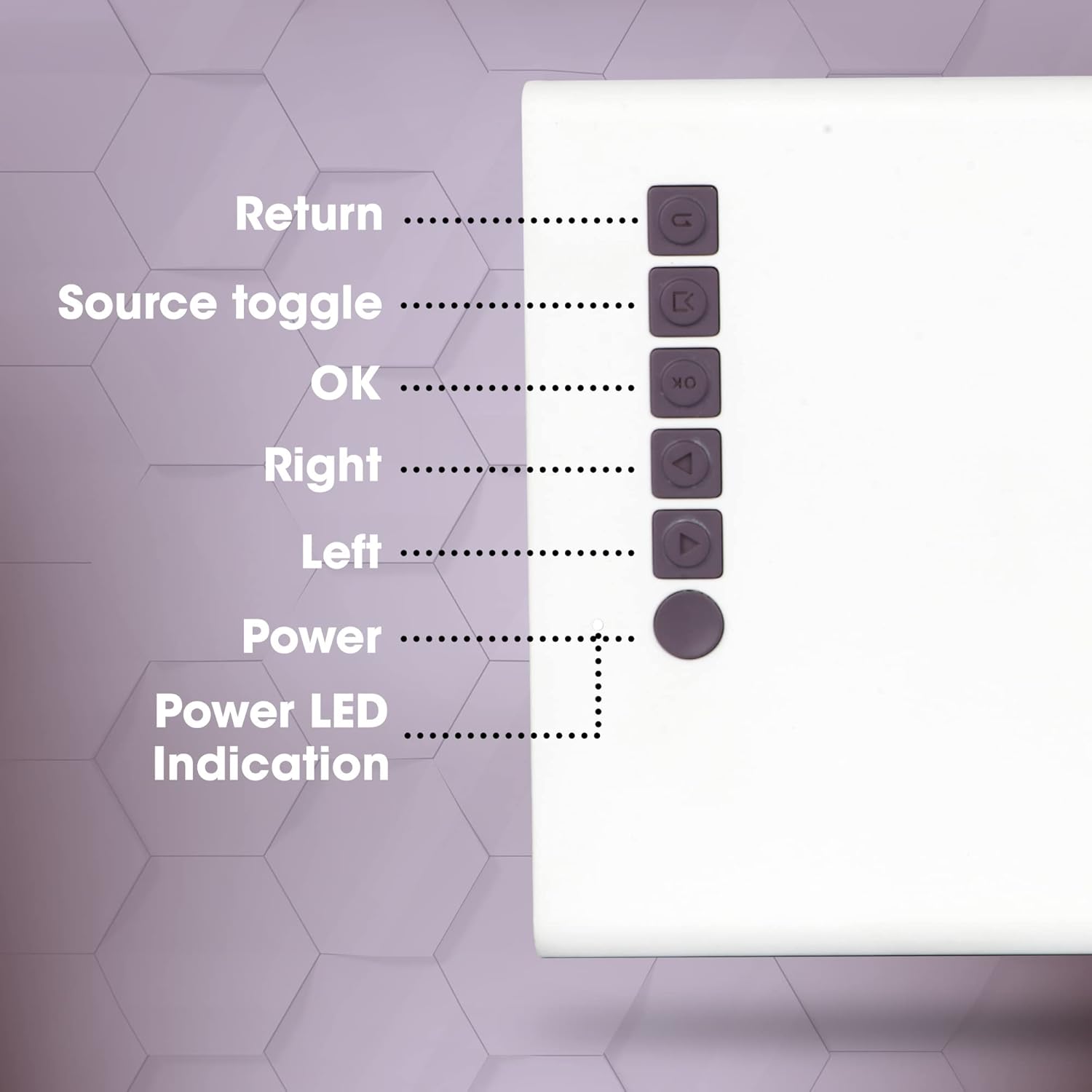
Nọmba 4.2: Awọn Isakoso Igbimọ Top
This close-up image highlights the control buttons located on the top panel of the ZEBRONICS Zeb-PIXAPLAY 11 projector. The buttons are labeled for their functions: Return, Source toggle, OK, Right, Left, Power, and Power LED Indication.
- Pada: Yi lọ pada ninu awọn akojọ aṣayan.
- Source toggle: Switches between input sources (HDMI, USB, mSD, AV).
- O DARA: Jẹrisi awọn aṣayan.
- Ọtun/Osi: Navigates menu options.
- Agbara: Yi pirojekito tan/pa.
- Itọkasi LED agbara: Ṣe afihan ipo agbara.
4.2 Rear and Side Ports
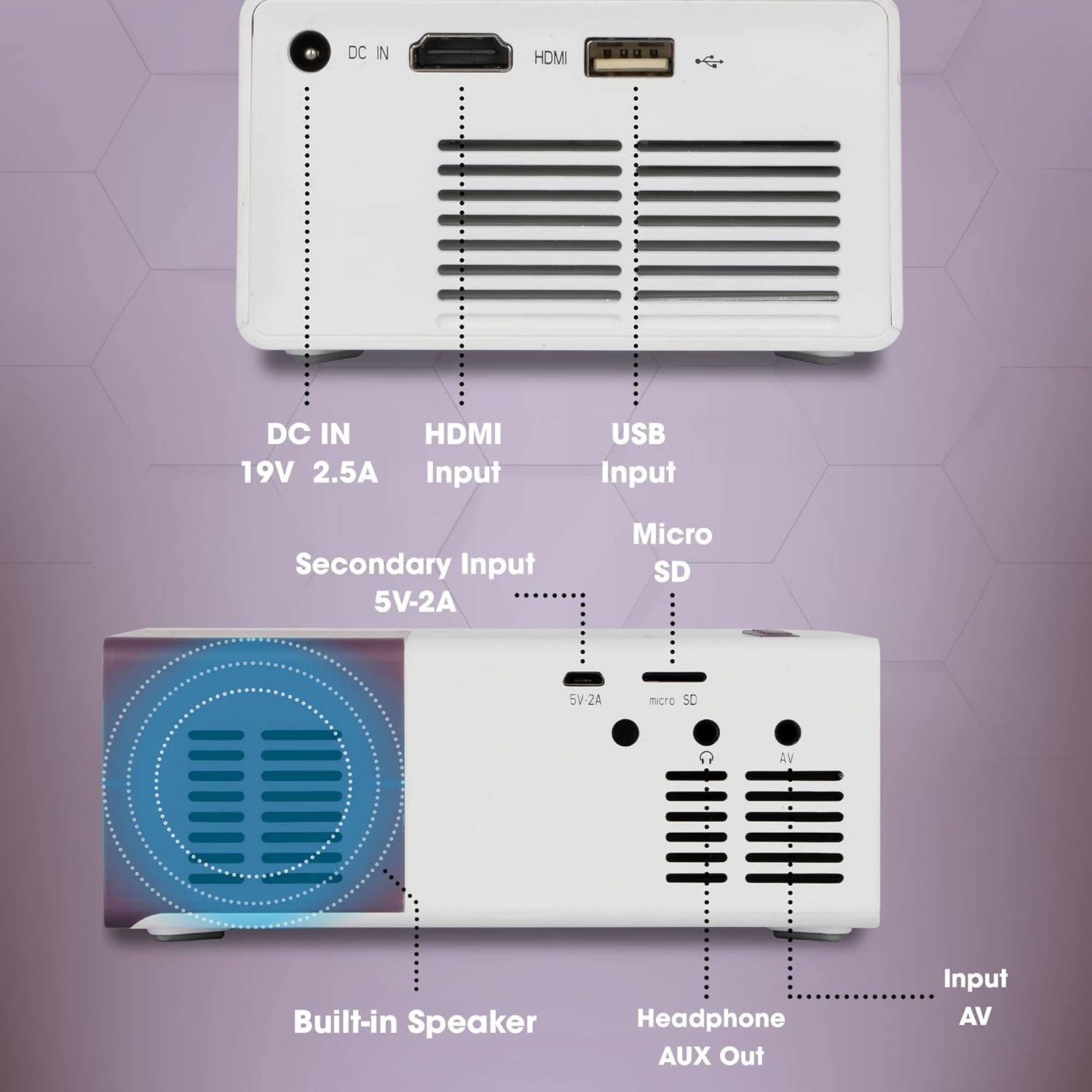
Nọmba 4.3: Rear and Side Connectivity Ports
Aworan yii pese alaye kan view of the connectivity ports located on the rear and side of the ZEBRONICS Zeb-PIXAPLAY 11 projector. Labels indicate the functions of each port: DC IN (19V 2.5A), HDMI Input, USB Input, Micro SD slot, Secondary Input (5V-2A), Built-in Speaker, Headphone AUX Out, and Input AV.
- DC IN (19V 2.5A): Ifiwọle agbara akọkọ.
- Secondary Input (5V-2A): Alternative power input via USB (e.g., power bank).
- Input HDMI: Connects to devices like laptops, gaming consoles, TV boxes.
- Input USB: Connects to USB flash drives for media playback.
- Micro SD: Slot for Micro SD cards for media playback.
- Input AV: Connects to devices using the included AV cable.
- Headphone AUX Out: Ó sopọ̀ mọ́ àwọn agbọ́hùnsọ tàbí agbekọ́rí ìta.
- Agbọrọsọ ti a ṣe sinu: Iṣagbejade ohun afetigbọ.
5. Eto
5.1 Asopọ agbara
- So adapter agbara ti a pese pọ mọ DC IN (19V 2.5A) port on the projector and then to a power outlet.
- Alternatively, for portable use, connect a 5V DC, 3A USB power source (e.g., a power bank) to the Secondary Input (5V-2A) ibudo.
Nọmba 5.1: Dual Power Input Capability
This image illustrates the ZEBRONICS Zeb-PIXAPLAY 11 projector's compatibility with both a standard adapter and a 5V power bank, highlighting its portability for outdoor use. Children are shown enjoying a movie projected onto a screen in a garden setting.
5.2 Placement and Screen Size
- Gbe awọn pirojekito lori kan idurosinsin, alapin dada.
- Position the projector at an appropriate distance from the projection surface (wall or screen) to achieve the desired screen size. The projector supports a maximum screen size of 381cm (150 inches).
- Ensure the projection path is clear of obstructions.

Nọmba 5.2: Large Screen Projection and Picture Clarity
This image demonstrates the ZEBRONICS Zeb-PIXAPLAY 11 projector's capability to project a large screen size of up to 381cm (150 inches) with FHD 1080p support, emphasizing the stunning picture clarity it delivers.
5.3 Atunṣe idojukọ
Locate the focus ring near the projector lens. Rotate it until the projected image appears sharp and clear on the screen.
6. Awọn ilana Iṣiṣẹ
6.1 Titan / Pa a
- Tẹ awọn Agbara button on the projector or the remote control to turn the unit on. The Power LED will illuminate.
- Tẹ awọn Agbara bọtini lẹẹkansi lati pa awọn kuro.
6.2 Yiyan Orisun Input
After powering on, use the Source toggle button on the projector or the remote control to cycle through available input sources: HDMI, USB, mSD, and AV.
6.3 Awọn ẹrọ Nsopọ
- HDMI: Connect an HDMI cable from your laptop, gaming console, or TV box to the projector's HDMI input port. Select HDMI as the input source.
- USB: Insert a USB flash drive into the USB input port. Select USB as the input source and navigate through your media files using the remote or top panel controls.
- Micro SD: Insert a Micro SD card into the Micro SD slot. Select mSD as the input source and browse your media.
- TI: Use the included AV cable to connect older devices (e.g., DVD players) to the AV input port. Select AV as the input source.
6.4 Audio wu
- The projector has a built-in speaker for audio playback.
- For enhanced audio, connect external speakers or headphones to the Headphone AUX Out ibudo lilo a 3.5mm iwe USB.
6.5 Awọn ọna kika Media atilẹyin
The projector supports various video file formats including 3GP, AVI, DIVX, H264, MOV, MP4, MPEG1, MPEG2, MKV, and VOB.
7. Itọju
- Fifọ lẹnsi: Gently wipe the projector lens with a soft, lint-free cloth. Avoid using abrasive cleaners.
- Ìfọ́fẹ́fẹ́fẹ́fẹ́: Periodically clean the ventilation openings to ensure proper airflow and prevent dust buildup. Use a soft brush or compressed air.
- Ibi ipamọ: Nigbati o ko ba wa ni lilo, tọju ẹrọ pirojekito ni itura, aye gbigbẹ, kuro lati orun taara ati awọn iwọn otutu to gaju.
- Lamp Igbesi aye: LED lamp ni ifoju igbesi aye ti awọn wakati 30,000.

Nọmba 7.1: Projector Brightness and Lamp Igba aye
This image visually represents the ZEBRONICS Zeb-PIXAPLAY 11 projector's key specifications: 1500 lumens of brightness and a long-lasting LED lamp with a lifespan of 30,000 hours.
8. Laasigbotitusita
Ti o ba pade awọn ọran pẹlu pirojekito rẹ, tọka si awọn iṣoro ti o wọpọ ati awọn ojutu wọnyi:
| Isoro | Owun to le Fa | Ojutu |
|---|---|---|
| Ko si agbara | Okun agbara ko sopọ; Agbara iṣan ti ko tọ | Rí i dájú pé ohun tí a fi ń so agbára pọ̀ ní ààbò; gbìyànjú ọ̀nà ìjáde agbára mìíràn. |
| Ko si aworan | Incorrect input source; Cable not connected; Device not outputting signal | Select correct input source; Check cable connections; Ensure source device is on and configured to output. |
| Aworan blurry | A kò ṣe àtúnṣe àfojúsùn; Ẹ̀rọ ìfihàn náà sún mọ́/jìnnà jù | Adjust the focus ring; Reposition the projector for optimal distance. |
| Ko si ohun | Volume too low; External speakers not connected; Source device audio issue | Increase projector volume; Connect external speakers via AUX out; Check audio settings on source device. |
9. Awọn pato
| Ẹya ara ẹrọ | Sipesifikesonu |
|---|---|
| Brand | SEBRRONNÌSÌ |
| Nọmba awoṣe | GC-RB-2725 |
| Ipinnu Ifihan | 1280 x 720 (Native HD), 1080p FHD Support |
| Imọlẹ | 1500 Lumens |
| Lamp Igba aye | 30,000 Hours (LED) |
| Iwọn iboju ti o pọju | 381 cm (150 inches) |
| Asopọmọra Technology | HDMI, USB, Micro SD, AV In, AUX Out |
| Agbọrọsọ Iru | Ti a ṣe sinu |
| Agbara Input | DC 19V 2.5A (Primary), 5V 3A USB (Secondary) |
| Iwọn Nkan | 1.85 iwon |
| Ọja Mefa | 5.79 x 4.02 x 0.98 inches |
10. Atilẹyin ọja ati Support
This product is covered by a manufacturer's warranty. Please refer to the warranty card included in your package for specific terms and conditions. For technical support, service, or further inquiries, please visit the official ZEBRONICS webojula tabi kan si wọn onibara iṣẹ.
You can also access the digital user manual and support resources by scanning the QR code provided in the package or by visiting: https://l.ead.me/zebpp11


