Ọrọ Iṣaaju
This manual provides detailed instructions for the setup, operation, and maintenance of your UrbanX KBM030 Rechargeable Bluetooth Keyboard and Mouse Combo. Please read this manual thoroughly before use to ensure optimal performance and longevity of your device.
Package Awọn akoonu
- UrbanX KB030 Bluetooth Keyboard
- UrbanX M030 Bluetooth Mouse
- Okun Ngba agbara USB
- Itọsọna Kaabo (Itọsọna yii)
Ọja Pariview
The UrbanX KBM030 combo includes a full-size Bluetooth keyboard and an ergonomic Bluetooth mouse, designed for broad compatibility and comfortable use across various operating systems.

Image: The UrbanX KBM030 Bluetooth Keyboard and Mouse Combo. This image displays both the full-size keyboard and the ergonomic mouse, showcasing wọn aso, dudu design.
Keyboard Awọn ẹya ara ẹrọ
- Ìfilélẹ Ìtóbi Ni kikun: Provides a complete set of keys for efficient typing.
- Kekere-Profile Awọn bọtini: Designed for quiet and comfortable typing.
- System-Specific Function Keys: Optimized for Windows, Android, and Mac OS.
- Batiri gbigba agbara: Built-in Li-polymer battery for extended use.

Image: The UrbanX keyboard positioned in front of a tablet displaying a flowchart. This illustrates the keyboard's use with mobile devices for productivity.

Image: Keyboard showing compatibility with iOS, Android, and Windows operating systems. This image highlights the keyboard's versatility across different platforms.

Image: Close-up of a keyboard key demonstrating the X-structure mechanism. This illustrates the design for comfortable and consistent keystrokes.

Image: The keyboard with dimensions indicating its light, slim, and portable design. Measurements are shown as 24.7cm / 9.72in length, 15cm / 6in width, and 0.5cm / 0.2in thickness.
Asin Awọn ẹya ara ẹrọ
- Apẹrẹ Ergonomic: Reduces stress during prolonged use.
- DPI ti o le ṣatunṣe: Three sensitivity levels (800, 1200, 1600 DPI) for precise control.
- Batiri gbigba agbara: Built-in Li-polymer battery, charged via Micro USB.

Image: Diagram illustrating the mouse's 3-grade DPI switch (800, 1200, 1600 DPI). This shows how users can easily adjust mouse sensitivity.
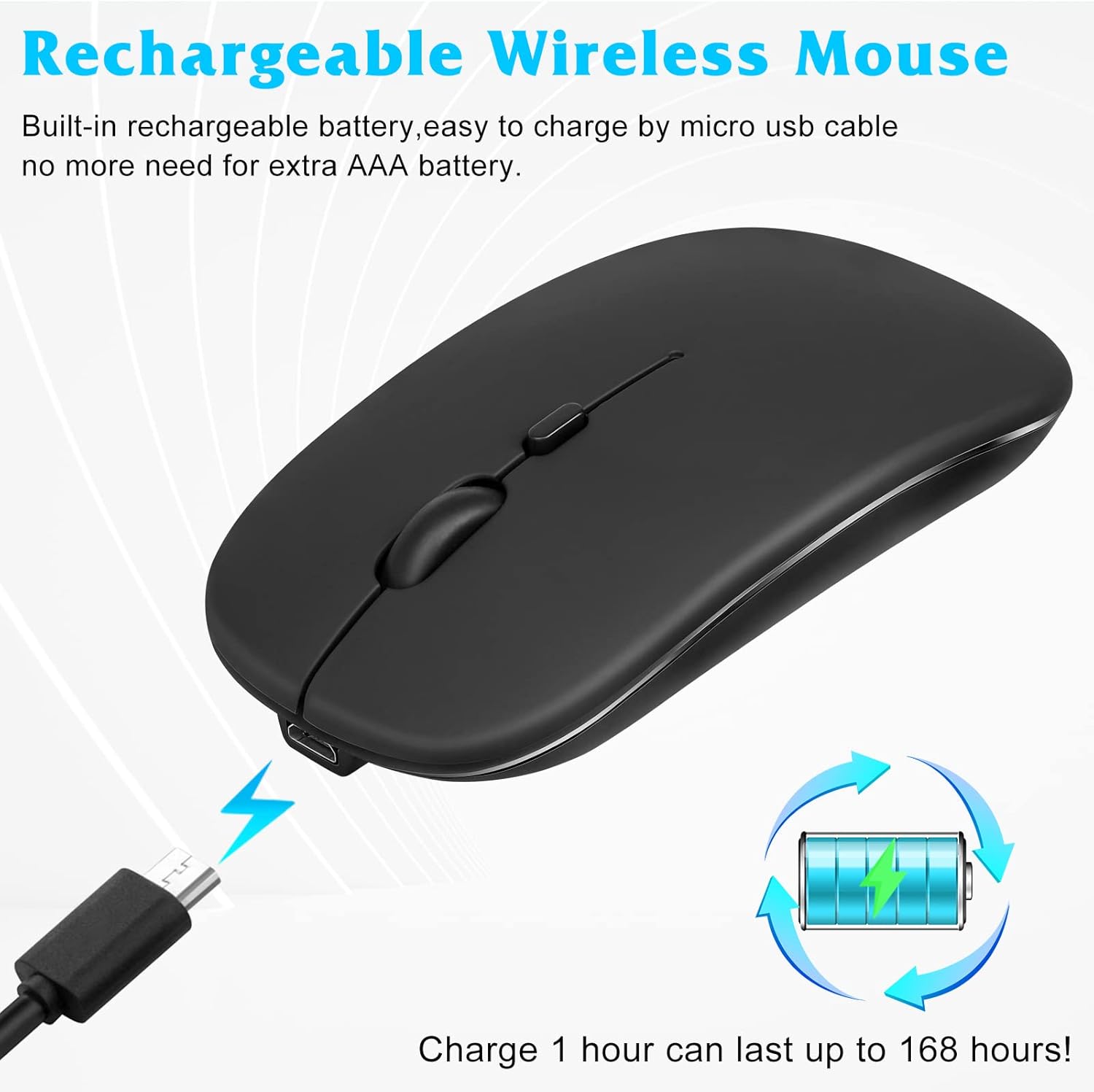
Image: The mouse connected to a USB charging cable, with an icon indicating its rechargeable battery. This highlights the convenience of not needing disposable AAA batteries.
Eto Itọsọna
1. Ngba agbara si awọn ẹrọ
Before initial use, fully charge both the keyboard and the mouse. Use the provided USB charging cable to connect the devices to a USB power source (e.g., computer USB port, USB wall adapter).
- The keyboard's "Charge" indicator light will illuminate during charging and turn off when fully charged.
- The mouse's indicator light will show charging status.
2. Bluetooth Pairing - Keyboard
- Turn on the keyboard by sliding the "OFF/ON" switch to "ON". The "Power" indicator light will briefly illuminate.
- Press the "Connect" button on the keyboard. The "BT" (Bluetooth) indicator light will start blinking, indicating it's in pairing mode.
- Lórí ẹ̀rọ rẹ (kọmputa, tábìlì, fóònù alágbèéká), lọ sí àwọn ètò Bluetooth.
- Mu Bluetooth ṣiṣẹ ki o wa awọn ẹrọ to wa.
- Select "Bluetooth Keyboard" or a similar name from the list of found devices.
- Follow any on-screen prompts to complete the pairing process. You may be asked to enter a code displayed on your screen using the keyboard and press Enter.
- Once paired, the "BT" indicator light will stop blinking.
3. Bluetooth Pairing - Mouse
- Turn on the mouse by sliding the power switch on its underside to "ON".
- Press and hold the Bluetooth pairing button (usually located on the underside or top near the scroll wheel) for a few seconds until the indicator light starts blinking.
- Lori ẹrọ rẹ, lọ si awọn eto Bluetooth.
- Mu Bluetooth ṣiṣẹ ki o wa awọn ẹrọ to wa.
- Select "Bluetooth Mouse" or a similar name from the list.
- Once paired, the indicator light will stop blinking.
4. System Compatibility and Special Notes
The keyboard and mouse are compatible with Windows, Android, and Mac OS. For optimal functionality, ensure your device's operating system is up to date.

Image: Instructions for connecting the mouse to an iPad or iPhone. It shows the steps to enable Bluetooth and AssistiveTouch in iOS settings. Ensure your iOS is 13 or above for mouse support.
- For iOS Devices (iPad/iPhone): Ensure your iOS version is 13.0 or above for full mouse functionality. You may need to enable "AssistiveTouch" in Accessibility settings for the mouse to work correctly.
- Awọn bọtini iṣẹ: The keyboard features system-specific function keys. Use the Fn key in combination with other keys to switch between operating system modes (e.g., Fn + Q for Android, Fn + W for Windows, Fn + E for iOS).
Awọn ilana Iṣiṣẹ
Lilo Keyboard
- Titẹ: Awọn kekere-profile awọn bọtini pese itunu ati iriri titẹ idakẹjẹ.
- Awọn bọtini iṣẹ: Access common functions like volume control, media playback, and copy/paste using the dedicated function keys. These keys are often activated by pressing the Fn bọtini ni akoko kanna pẹlu bọtini iṣẹ ti o fẹ (F1-F12).
- OS Mode Switching: To optimize function keys for your operating system, press Fn + Q fún Android, Fn + W fun Windows, tabi Fn + E fun iOS.
Asin Lilo
- Clicking and Scrolling: Standard left/right click and scroll wheel functionality.
- Atunse DPI: Press the DPI button (usually located near the scroll wheel) to cycle through the three sensitivity levels: 800, 1200, and 1600 DPI. Adjust to your preference for cursor speed and precision.
Isakoso agbara
- Ipo oorun aladaaṣe: Both the keyboard and mouse will enter sleep mode after a period of inactivity to conserve battery. Press any key on the keyboard or move/click the mouse to wake them up.
- Agbara Pa: For extended periods of non-use, slide the "OFF/ON" switch on both devices to "OFF" to completely power them down and save battery.
Itoju
- Ninu: Lo aṣọ rirọ, gbẹ, tí kò ní àwọ̀ láti nu ojú àwọn ohun èlò ìkọ̀wé àti àlùkù. Fún ìdọ̀tí líle, fi díẹ̀ sí i.ampen awọn asọ pẹlu omi tabi kan ìwọnba ninu ojutu. Yago fun ọrinrin pupọ.
- Itọju Batiri: To prolong battery life, avoid fully discharging the devices frequently. Recharge them when the low battery indicator appears. Do not expose batteries to extreme temperatures.
- Ibi ipamọ: When not in use for a long time, store the devices in a cool, dry place. Ensure they are powered off to prevent battery drain.
- Yago fun Olomi: Keep the keyboard and mouse away from liquids to prevent damage to internal components.
Laasigbotitusita
Device Not Connecting/Pairing
- Ṣe idaniloju agbara: Check if both the keyboard and mouse are turned on and have sufficient battery charge.
- Tún-wọlé Ipò Ìsopọ̀pọ̀: For the keyboard, press the "Connect" button. For the mouse, press and hold its pairing button.
- Bluetooth ẹrọ: Ensure Bluetooth is enabled on your host device (computer, tablet, phone) and it's discoverable.
- Gbagbe Ẹrọ: If previously paired, try "forgetting" or "removing" the device from your host device's Bluetooth list and then attempt to pair again.
- Ijinna: Ensure the devices are within the operating range (up to 33 feet or 10 meters).
- Ìjánu: Lọ kuro ni awọn ẹrọ alailowaya miiran ti o le fa kikọlu.
Keyboard Typing Incorrectly or Not Responding
- Ipele Batiri: Saji awọn keyboard.
- OS Mode: Rí i dájú pé a yan ipò ètò ìṣiṣẹ́ tó tọ́ (Fn + Q/W/E).
- Tun-meji: Try unpairing and re-pairing the keyboard.
Mouse Cursor Jumpy or Not Moving
- Ipele Batiri: Saji awọn Asin.
- Ilẹ: Lo awọn Asin lori mimọ kan, ti kii ṣe afihan.
- Eto DPI: Adjust the DPI setting to see if it improves responsiveness.
- Tun-meji: Gbìyànjú láti yọ àwọn eku náà kúrò kí o sì tún so wọ́n pọ̀.
- iOS AssistiveTouch: For iOS devices, ensure AssistiveTouch is enabled in Accessibility settings.
Igbesi aye batiri kukuru
- Akoko gbigba agbara: Rii daju pe awọn ẹrọ ti gba agbara ni kikun.
- Lilo: Battery life varies with usage intensity.
- Agbara Pa: Remember to turn off devices when not in use for extended periods.
Awọn pato
| Brand | UrbanX |
| Nọmba awoṣe | KBM030 |
| Asopọmọra Technology | Bluetooth |
| Awọn ẹrọ ibaramu | LG K92 5G, Laptop, Mobile Phone, Smartphone, Tablet (Windows, Android, Mac OS) |
| Apejuwe Keyboard | Ergonomic, Full-Size, Low-Profile Awọn bọtini |
| Asin DPI Awọn ipele | 800, 1200, 1600 DPI |
| Batiri Iru | Rechargeable Lithium Ion (2 included) |
| Keyboard Batiri Life | Títí di oṣù 6 (gẹ́gẹ́ bí a ṣe lo wákàtí 2/ọjọ́) |
| Mouse batiri Life | Títí di oṣù 4 (gẹ́gẹ́ bí a ṣe lo wákàtí 2/ọjọ́) |
| Ijinna iṣẹ | Titi de 33 ẹsẹ (10 mita) |
| Awọn iwọn Ọja (Lapapọ) | 15.16 x 5.47 x 1.3 inches |
| Ìwọ̀n Nkan (Ìwòpọ) | 10 iwon |
| Olupese | Urban Extreme LLC |
Atilẹyin ọja ati Support
Your UrbanX KBM030 Rechargeable Bluetooth Keyboard and Mouse Combo comes with a 90-day warranty. For any questions, technical support, or warranty claims, please contact UrbanX customer service.
Refer to the contact information provided in your purchase documentation or visit the official UrbanX webojula fun support.

