1. Ifihan
O ṣeun fun riraasing the NYXI Wireless Controller. This controller is designed to enhance your gaming experience on Nintendo Switch, Switch Lite, and Switch OLED consoles. It features advanced functionalities such as customizable LED lighting, programmable back buttons, adjustable vibration, a 6-axis gyro sensor, and a TURBO function.
Please read this manual carefully before use to ensure proper operation and to fully utilize all features of your new controller.

Aworan 1.1: Iwaju view of the NYXI Wireless Controller, showcasing its ergonomic design and illuminated joysticks.
2. Package Awọn akoonu
Jẹrisi pe gbogbo awọn ohun kan wa ninu package:
- NYXI Wireless Controller x 1
- Okun gbigba agbara Iru-C x 1
- Ilana itọnisọna x 1

Image 2.1: The NYXI Wireless Controller and its retail packaging.
3. Awọn ẹya Ọja
- Awọn imọlẹ LED ti o ni awọ: Features 9 LED colors (Red, Orange, Green, Cyan, Blue, Purple, Pink, Rainbow) and 3 lighting modes to customize your gaming atmosphere.
- Àwọn bọ́tìnì ẹ̀yìn tí a lè ṣe àtúnṣe: Equipped with 4 programmable back buttons (M1, M2, M3, M4) that can be assigned to various functions, simplifying complex in-game actions.
- Adjustable Vibration & 6-Axis Gyro: Offers 4 levels of vibration intensity for immersive feedback and a 6-axis gyro sensor for precise motion control.
- Iṣẹ TURBO: Includes a TURBO button for continuous firing, with 3 adjustable speed settings (5, 12, or 20 shots per second), reducing hand fatigue during prolonged gameplay.
- Igbesi aye batiri gigun: Built-in 600mAh battery provides approximately 10 hours of gameplay on a 2-hour charge. Supports both wireless and wired connections.
- Iṣẹ́ jíjí: Pressing the Home button can wake up the Nintendo Switch console from sleep mode.
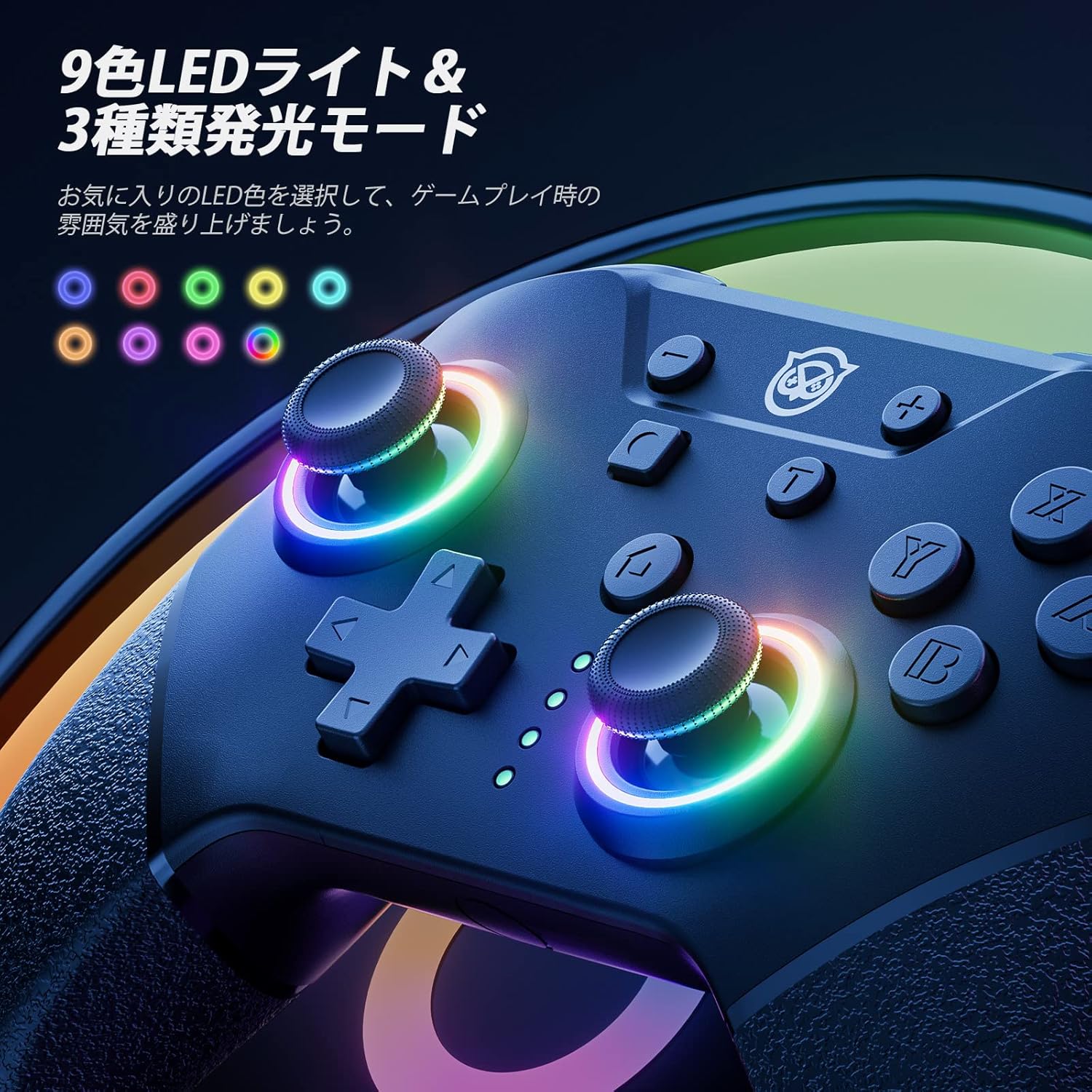
Image 3.1: The controller's joysticks displaying various LED colors and lighting effects.

Image 3.2: The rear of the controller, showing the strategically placed and customizable M1, M2, M3, and M4 buttons.
4. Eto ati Asopọ
4.1 Wireless Pairing with Nintendo Switch
- Lori console Nintendo Switch rẹ, lọ si Akojọ Ile.
- Yan "Awọn oludari" > "Yi Igbamu/Aṣẹ pada".
- Press and hold the Sync button on the back of the NYXI controller for 3-5 seconds until the LED indicators start flashing rapidly.
- Once the controller is successfully paired, the player LED(s) on the controller will light up solid.
4.2 Asopọ Onirin
To use the controller in wired mode, connect the Type-C charging cable from the controller to a USB port on the Nintendo Switch dock. Ensure that "Pro Controller Wired Communication" is enabled in the Switch System Settings.
4.3 Jiji Ohun elo naa
When the Switch console is in sleep mode, you can press the Home button on the NYXI controller to wake it up, provided the controller is already paired wirelessly.
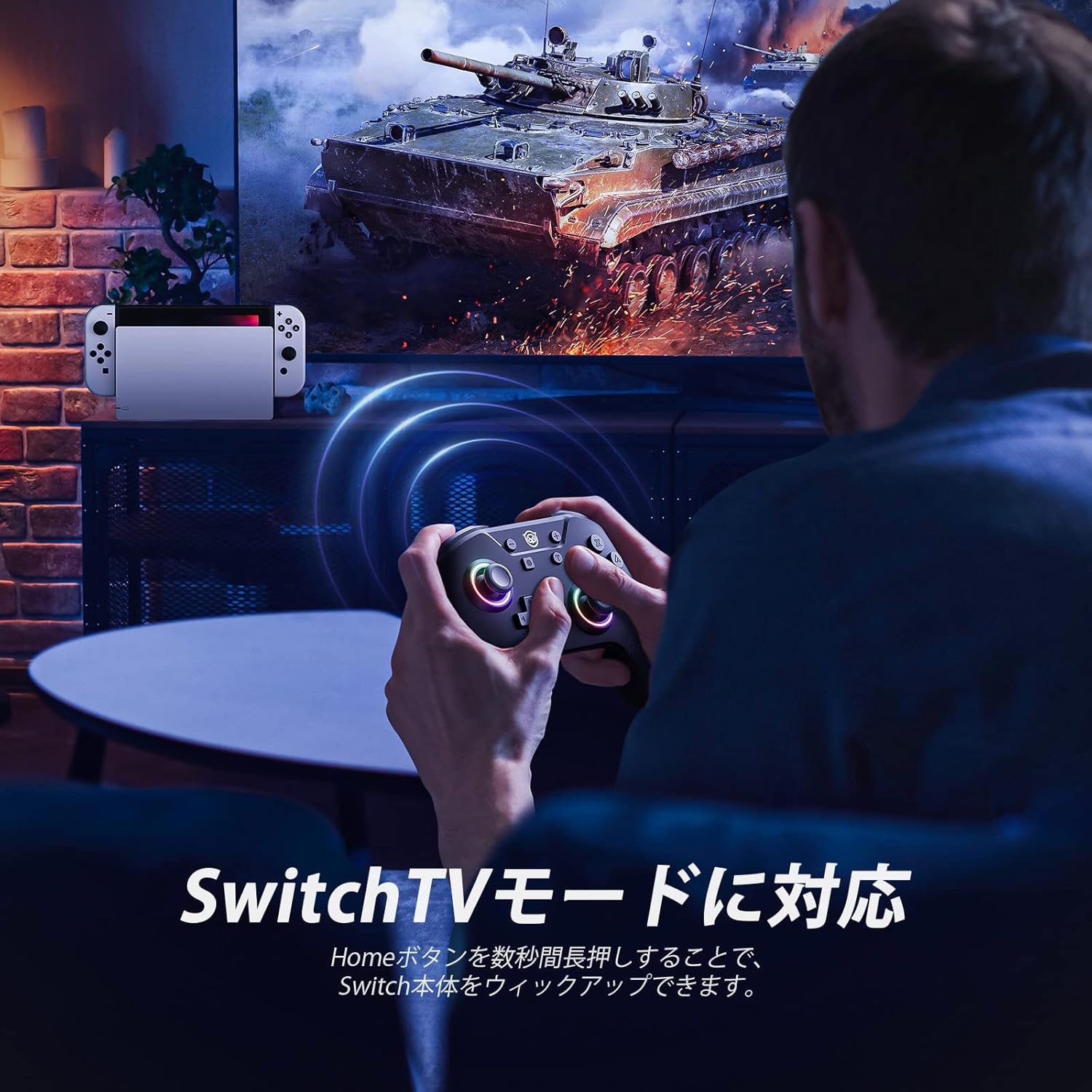
Image 4.1: The controller in use with a Nintendo Switch console connected to a television.
5. Awọn ilana Iṣiṣẹ
5.1 LED Light igbe
The controller features 9 LED colors and 3 lighting modes. Use the dedicated LED button (often located near the Home button) to cycle through colors and modes. The available modes typically include:
- Standard Mode (solid color)
- Breathing Mode (fading in and out)
- Rainbow Mode (cycling through colors)
5.2 Customizing Back Buttons (M1-M4)
The 4 back buttons (M1, M2, M3, M4) can be programmed to replicate other button inputs or sequences. Refer to the detailed instructions in the included manual for specific programming steps. This feature allows for single button assignments or macro sequences.
5.3 Atunse gbigbọn
The controller offers 4 levels of vibration intensity: 0% (off), 30%, 70%, and 100%. To adjust, press and hold the Vibration button (or a designated combination, refer to the manual) and use the D-pad or joystick to select your preferred intensity.
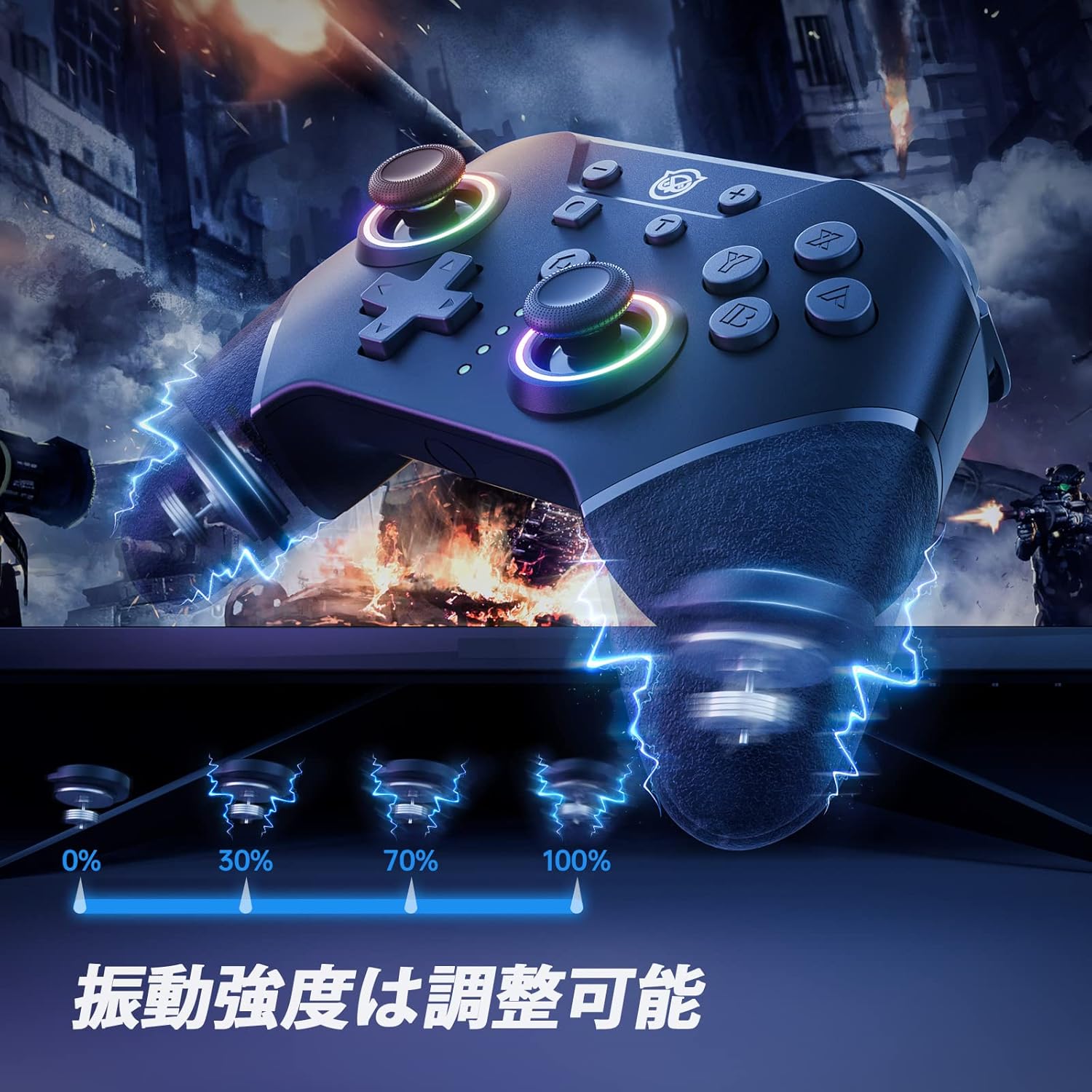
Image 5.1: Visual representation of the four adjustable vibration intensity levels.
5.4 TURBO Išė
The TURBO function allows for rapid, continuous input of a selected button. It has 3 adjustable speeds: 5, 12, and 20 shots per second.
- Láti mu TURBO ṣiṣẹ́: Press and hold the TURBO button, then press the button you wish to set for continuous fire (e.g., A, B, X, Y, L, R, ZL, ZR).
- Lati ṣatunṣe iyara TURBO: While holding the TURBO button, move the Right Analog Stick Up or Down to cycle through the 3 speed settings.
- Láti pa TURBO: Repeat the activation step (hold TURBO, then press the assigned button) or hold the TURBO button for 5 seconds.

Image 5.2: The controller illustrating the TURBO function and its three speed levels.
5.5 Gbigba agbara Adarí
Connect the provided Type-C charging cable to the controller's charging port and the other end to a USB power source (e.g., Switch dock, USB wall adapter, computer USB port). The LED indicators will show charging status and turn off when fully charged. A full charge takes approximately 2 hours and provides about 10 hours of gameplay.
6. KeyLinker App Customization
The NYXI controller supports customization via the dedicated "KeyLinker" mobile application. This app allows for advanced configuration of various controller settings, including:
- Button remapping
- Adjusting joystick dead zones
- Fine-tuning vibration intensity
- Configuring TURBO function settings
- Programming back buttons (M1-M4)
- Advanced LED light adjustments (e.g., RGB values)
Download the "KeyLinker" app from your mobile device's app store and follow the in-app instructions to connect and customize your controller.
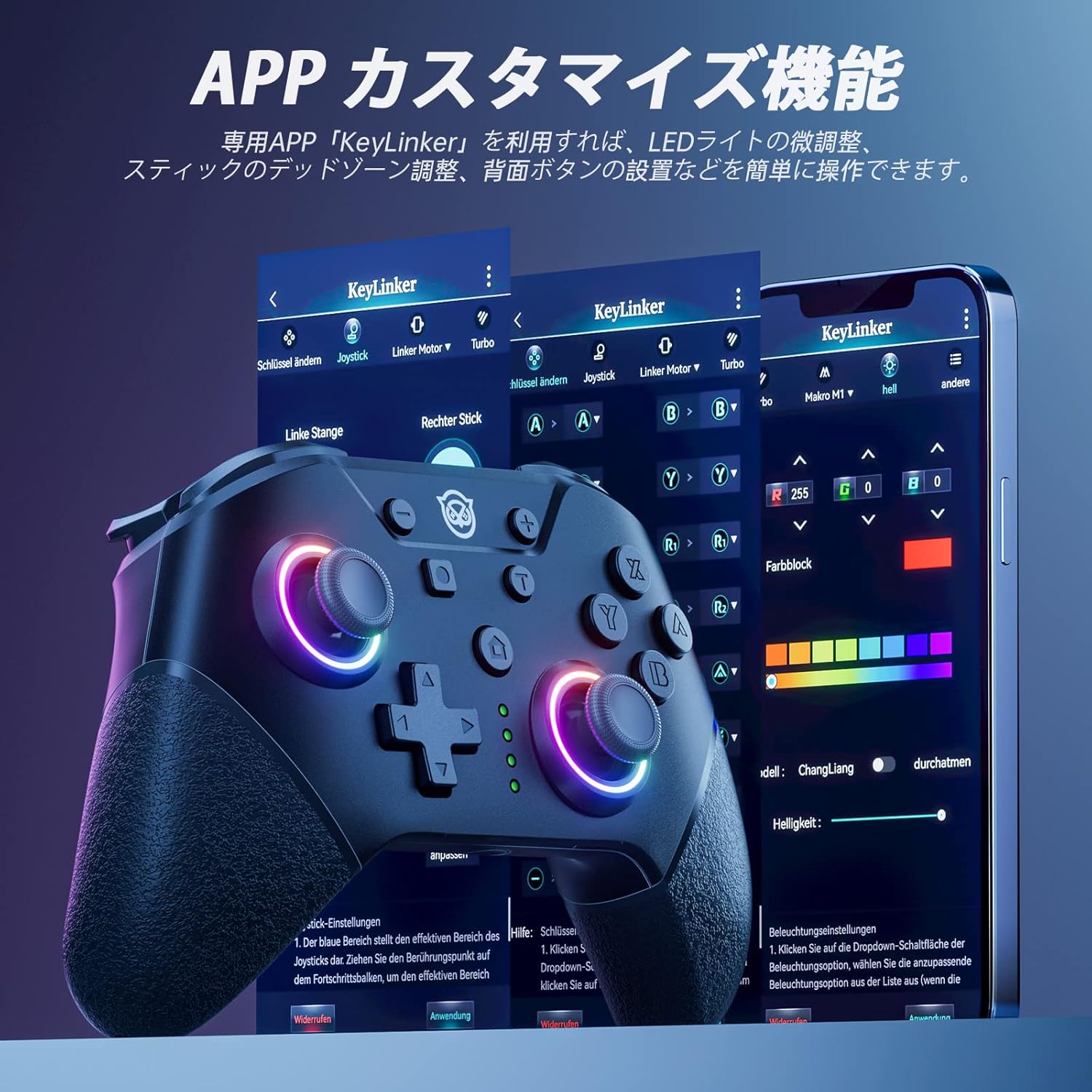
Image 6.1: The KeyLinker mobile application interface, showing various customization options for the controller.
7. Itọju
- Jẹ́ kí olùdarí náà gbẹ kí ó sì jìnnà sí àwọn igbóná tó le koko.
- Fi aṣọ rírọrùn tó gbẹ nu ohun èlò ìdarí náà. Má ṣe lo àwọn kẹ́míkà líle tàbí àwọn ohun èlò tó ń pa ara.
- Yẹra fún fífi olùdarí náà sílẹ̀ tàbí kí o fi sí àwọn ìkọlù líle.
- Tọ́jú olùdarí náà sí ibi ààbò nígbà tí o kò bá lò ó láti dènà ìbàjẹ́.
8. Laasigbotitusita
8.1 Adarí Ko Nsopọ / so pọ
- Rii daju pe oludari ti gba agbara.
- Verify that the Switch console is updated to the latest system version.
- Gbìyànjú láti tún so olùdarí pọ̀ nípa títẹ̀lé àwọn ìgbésẹ̀ ní Apá 4.1.
- If multiple controllers are paired, try disconnecting others or resetting the Switch's Bluetooth connections.
- Ensure the controller is within range of the Switch console.
8.2 Joystick Drift or Unresponsive Buttons
- Calibrate the joysticks and buttons through the Nintendo Switch System Settings: HOME Menu > System Settings > Controllers and Sensors > Calibrate Control Sticks / Calibrate Buttons.
- Clean around the joysticks and buttons to remove any dust or debris.
- If using the KeyLinker App, check for any dead zone settings that might be causing issues.
- Consider resetting the controller to factory settings (refer to the full manual for specific button combinations).
8.3 Settings Reset After Power Off
Some settings, particularly macros or LED configurations, might reset if the controller is completely powered off or if the KeyLinker app connection is unstable. Ensure settings are saved correctly within the app and that the controller maintains a charge.
9. Awọn pato
| Ẹya ara ẹrọ | Ẹ̀kúnrẹ́rẹ́ |
|---|---|
| Brand | NYXI |
| Nọmba awoṣe | SP5248LED-BK |
| Ibamu | Nintendo Yipada, Yipada Lite, Yipada OLED |
| Asopọmọra | Wireless (Bluetooth), Wired (USB Type-C) |
| Agbara Batiri | 600mAh |
| Akoko gbigba agbara | Isunmọ. wakati meji 2 |
| Akoko Iṣiṣẹ | Isunmọ. wakati meji 10 |
| Gbigbọn | 4-ipele adijositabulu |
| Sensọ išipopada | 6-axis Gyro Sensor |
| Awọn imọlẹ LED | 9 colors, 3 modes |
| Awọn bọtini eto | 4 back buttons (M1-M4) |
| Iṣẹ TURBO | 3 adijositabulu awọn iyara |
| Awọn iwọn | 15.7 x 13.6 x 7.3 cm |
| Iwọn | 228 g |
10. Atilẹyin ọja ati Support
Ọja yi wa pẹlu kan 1-odun atilẹyin ọja from the date of purchase. In the unlikely event of a product defect, please contact the seller directly for assistance. We offer new product exchanges for defective units.
For further support or inquiries, please refer to the contact information provided with your purchase or visit the official NYXI webojula.


