Ọrọ Iṣaaju
This manual provides detailed instructions for the setup, operation, maintenance, and features of your SteelSeries Apex 9 Mini keyboard. Please read this guide thoroughly to ensure optimal performance and longevity of your device.
Ohun ti o wa ninu Apoti
- SteelSeries Apex 9 Mini Keyboard
- Okun USB
- Keycap Puller
Ṣeto
- So Keyboard pọ: Plug the provided USB cable into the USB-C port on the keyboard and the other end into an available USB-A port on your computer.
- Fifi sori Awakọ: Your operating system (Windows 10 or later, macOS) should automatically detect and install the necessary drivers. For advanced customization, download and install the SteelSeries GG software from the official SteelSeries webojula.
- Ṣatunṣe igun Keyboard: The keyboard features adjustable feet on the underside. Flip out the feet to achieve your preferred typing angle.
Fun iṣẹ ṣiṣe to dara julọ, rii daju pe eto iṣẹ rẹ wa ni imudojuiwọn.
Key Awọn ẹya ara ẹrọ
OptiPoint Optical Switches
The Apex 9 Mini utilizes custom OptiPoint optical switches, designed for rapid actuation and durability. These switches actuate 33% faster than leading optical keyboards, offering a lightning-fast 0.2ms response time with zero debounce.

Aworan: Alaye view of the custom OptiPoint optical switch mechanism.
2-Point Actuation
Customize your keystroke sensitivity with 2-point actuation. You can adjust the registration depth between a fast 1mm for gaming and a more deliberate 1.5mm for typing, adapting to various tasks and preferences.
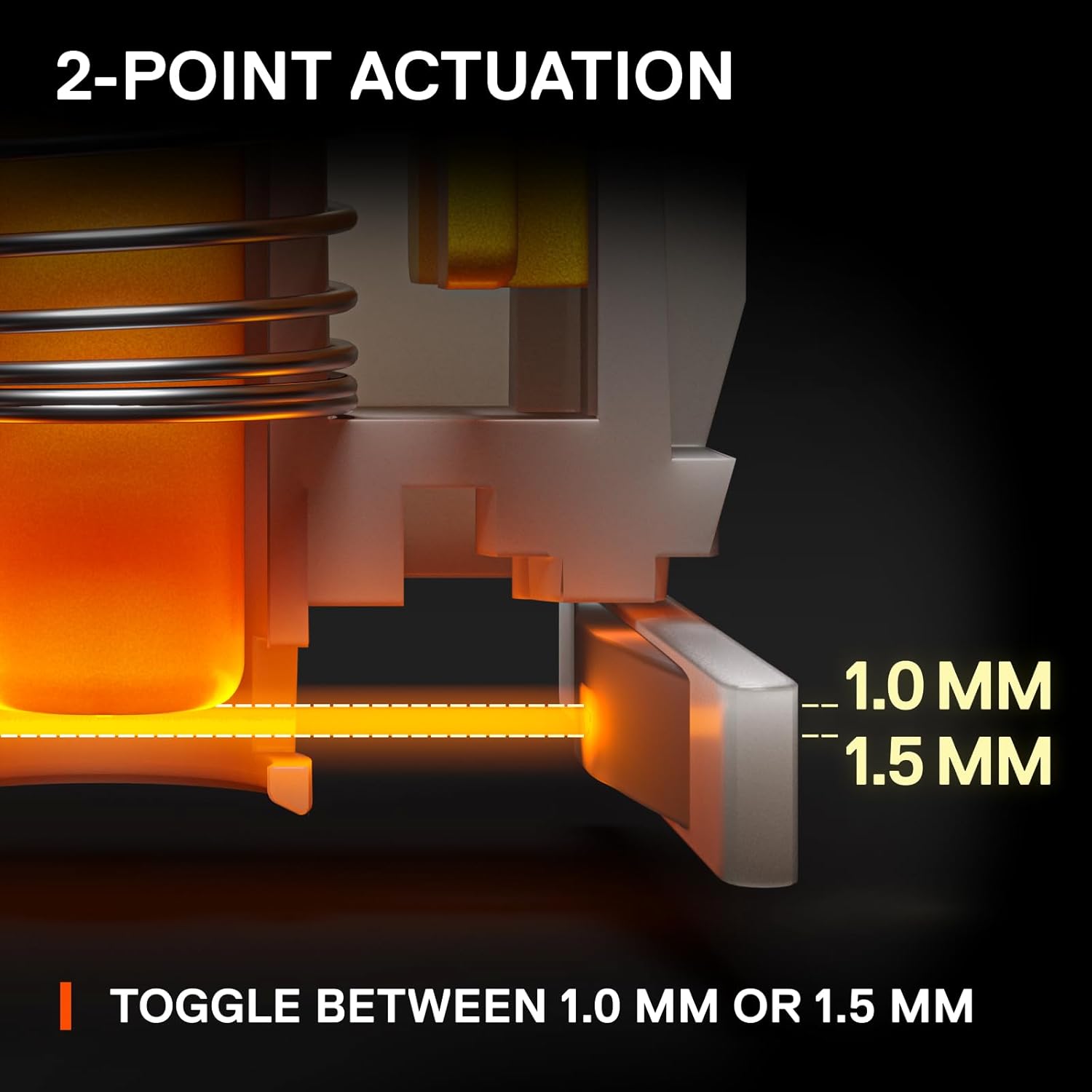
Image: Visual representation of adjustable 1.0mm and 1.5mm actuation points.
Swappable Switches
The OptiPoint switches are swappable, allowing for customization, upgrades, and easy repairs. You can replace switches with your preferred type of OptiPoint switch.

Image: Keyboard with keycaps removed, highlighting the swappable optical switches.
Iwapọ 60% Fọọmù ifosiwewe
The streamlined 60% compact design saves desk space, providing more room for mouse movement. Despite its size, it retains full-size keyboard capabilities through side-printed functions on keycaps.

Image: Comparison showing the compact 60% form factor saving desk space.
Durable PBT Keycaps
The keyboard features long-lasting and fade-proof double shot PBT keycaps. These provide a high-quality texture for enhanced keystroke feel and improved typing accuracy.

Aworan: Alaye view of a double shot PBT keycap construction.
Awọn ilana Iṣiṣẹ
Actuation Point Adjustment
The actuation point of the OptiPoint switches can be adjusted via the SteelSeries GG software. This allows you to fine-tune the sensitivity of each key to your preference, switching between 1mm for quick responses and 1.5mm for more deliberate presses.
RGB Customization
The keyboard features per-key RGB illumination. Customize lighting effects, colors, and patterns using the SteelSeries GG software. You can choose from various presets, create custom animations, or set static colors to match your setup.
Media Controls and Function Keys
Due to the 60% form factor, many functions are accessed via secondary key presses. Refer to the side-printed legends on the keycaps for these functions. The SteelSeries GG software allows for remapping and creating custom macros for enhanced control.
Itoju
Ninu Keyboard
- Ge asopọ keyboard kuro lati kọnputa rẹ ṣaaju ṣiṣe mimọ.
- Lo asọ rirọ, ti ko ni lint ni sere dampfi omi tàbí omi ìwẹ̀nùmọ́ díẹ̀ pa á láti nu àwọn ìbòrí àti férémù náà.
- For deeper cleaning, use compressed air to remove dust and debris from between the keycaps.
Keycap and Switch Removal
The included keycap puller can be found in a hidden compartment on the underside of the keyboard. Use it to carefully remove keycaps for cleaning or to access the swappable switches. When removing switches, use a switch puller (not included unless specified) to gently dislodge them.
Video: A closer look at the SteelSeries Apex 9 Mini, demonstrating its features and components.
Laasigbotitusita
- Keyboard Ko Dahun: Rí i dájú pé okùn USB náà so mọ́ keyboard àti kọ̀mpútà náà dáadáa. Gbìyànjú ibudo USB mìíràn tàbí kí o tún bẹ̀rẹ̀ kọ̀mpútà rẹ.
- Awọn oran Imọlẹ: Check the SteelSeries GG software for lighting settings. Ensure no conflicting profiles are active. Update the keyboard firmware if available.
- Key Actuation Problems: Verify actuation point settings in the SteelSeries GG software. If a specific switch is faulty, it can be replaced due to the hot-swappable design.
- Sọfitiwia Ko Ṣiṣawari Keyboard: Reinstall the SteelSeries GG software. Ensure your operating system is fully updated.
For further assistance, visit the official SteelSeries support webojula.
Awọn pato
| Ẹya ara ẹrọ | Ẹ̀kúnrẹ́rẹ́ |
|---|---|
| Brand | Irin Series |
| Nọmba awoṣe | 64837 |
| Ibamu System isẹ | Windows 10, PC |
| Iwọn Nkan | 1.9 iwon |
| Ọja Mefa | 4.02 x 11.53 x 1.58 inches |
| Àwọ̀ | RGB |
| Orisun agbara | Okun Itanna |
| Asopọmọra Technology | Ti firanṣẹ |
| Apejuwe Keyboard | Ere |
| Niyanju Lilo | Ere |
| Pataki Ẹya | Ere |
| Keyboard Backlighting | RGB |
| Ara | Esports Mini |
Atilẹyin ọja ati Support
For warranty information and detailed support resources, please visit the official SteelSeries webojula. Jeki ẹri rira rẹ fun eyikeyi awọn ibeere atilẹyin ọja.
Online resources often include FAQs, driver downloads, and community forums for additional assistance.


