1. Ifihan
The FANTECH ARIA XD7 is a high-performance wireless gaming mouse designed for competitive gaming. It features a lightweight, ambidextrous egg shape, a precise Pixart 3395 gaming sensor, durable HUANO switches, and versatile 3-mode connectivity (wired, 2.4GHz wireless, Bluetooth). This manual provides essential information for setting up, operating, maintaining, and troubleshooting your ARIA XD7 mouse.


2. Ohun ti o wa ninu Apoti
Upon unboxing your FANTECH ARIA XD7, please verify that all the following components are included:
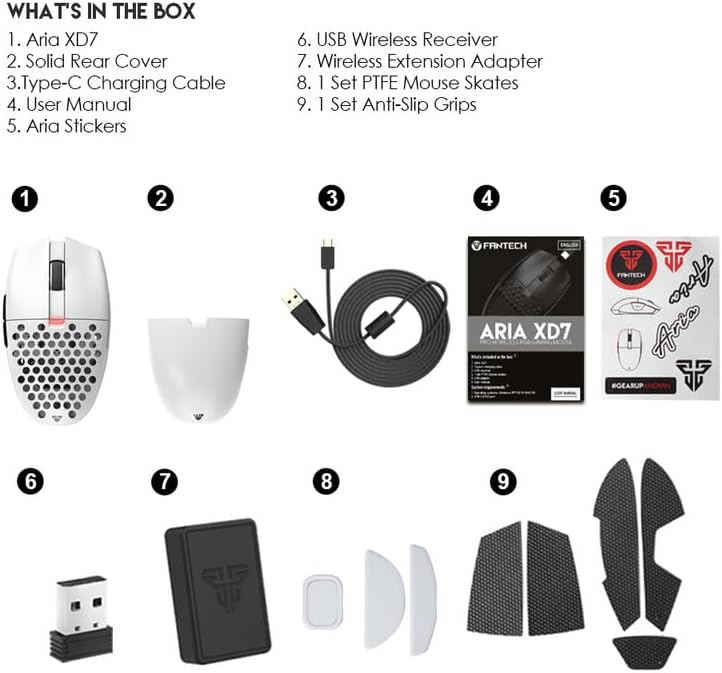
- Aria XD7 Wireless Gaming Mouse
- Solid Rear Cover (interchangeable)
- Iru-C Ngba agbara USB
- Afowoyi Olumulo (iwe-ipamọ yii)
- Awọn ohun ilẹmọ Aria
- USB Alailowaya olugba
- Alailowaya Itẹsiwaju Adapter
- 1 Ṣeto PTFE Asin Skates
- 1 Ṣeto Awọn mimu Anti-Slip
3. Eto
3.1 Gbigba agbara si Asin
Before first use, it is recommended to fully charge the mouse. Connect the provided Type-C charging cable to the mouse and a USB power source. The mouse features up to 40 hours of battery life and takes approximately 2 hours for a full charge.
3.2 Nsopọ Asin
The FANTECH ARIA XD7 supports three connectivity modes:
- Ipo Firanṣẹ: Connect the mouse directly to your computer using the provided Type-C charging cable. The mouse will function immediately and charge simultaneously.
- Ipo Alailowaya 2.4GHz: Insert the USB Wireless Receiver into an available USB port on your computer. The mouse should automatically connect. For optimal signal, use the Wireless Extension Adapter to position the receiver closer to the mouse.
- Ipo Bluetooth 5.0: Ensure your device has Bluetooth enabled. On the mouse, long-press the connectivity mode button (usually located on the underside) to enter pairing mode. Select "FANTECH ARIA XD7" from your device's Bluetooth settings to connect.

4. Awọn ilana Iṣiṣẹ
4.1 Ipilẹ Awọn iṣẹ
- Osi/Ọtun Tẹ: Standard mouse buttons for primary interactions. The ARIA XD7 uses high-end switches for crisp clicks.
- Yi lọ Kẹkẹ: Used for vertical scrolling. The TTC Gold scroll wheel encoder provides precise, tactile steps.
- Awọn bọtini ẹgbẹ: A maa n lo o fun lilọ kiri siwaju/sẹhin ninu web browsers or customizable in software.

4.2 DPI Atunṣe
The ARIA XD7 features on-the-fly DPI switching, allowing you to adjust sensitivity from 800 to 26000 DPI. The DPI adjustment button is located on the underside of the mouse to prevent accidental changes during intense gameplay.
4.3 Recommended Grip Styles
The ambidextrous egg shape of the ARIA XD7 is designed to accommodate various grip styles, particularly Claw and Fingertip grips. The mouse's dimensions are optimized for comfortable use across different hand sizes.

5. Isọdi ati Software
To unlock the full potential of your FANTECH ARIA XD7, download the official FANTECH software from the manufacturer's website. The software allows for extensive personalization, including:
- Adjusting DPI settings and creating custom profiles.
- Programming buttons for macros and specific functions.
- Setting the adjustable polling rate up to 1000Hz.
- Fine-tuning Lift-Off Distance (LOD) for precision on various surfaces.

6. Itọju
To ensure the longevity and optimal performance of your ARIA XD7 mouse, follow these simple maintenance guidelines:
- Ninu: Lo asọ ti o rọ, ti o gbẹ lati nu dada asin naa. Fun idoti alagidi, die-die dampen awọn asọ pẹlu omi tabi kan ìwọnba ninu ojutu. Yẹra fun awọn kẹmika lile.
- Sensọ: Keep the optical sensor on the underside clean and free of dust or debris. Use a cotton swab if necessary.
- Ibi ipamọ: Nigbati o ko ba wa ni lilo fun awọn akoko ti o gbooro sii, tọju asin naa sinu mimọ, agbegbe gbigbẹ kuro ni iwọn otutu to gaju.
7. Laasigbotitusita
If you encounter any issues with your FANTECH ARIA XD7 mouse, please refer to the official Troubleshooting Guide for detailed solutions. A PDF version is available for download: FANTECH ARIA XD7 Troubleshooting Guide (PDF).
Common issues and tips:
- Awọn oran Asopọmọra: Ensure the USB receiver is properly inserted or Bluetooth is correctly paired. Try a different USB port.
- Igbesi aye batiri: If battery life seems shorter than expected, ensure the mouse is fully charged. Avoid leaving the mouse connected to a charger unnecessarily after it's full.
- Scroll Wheel Malfunction: Check for any physical obstructions. If issues persist, refer to the troubleshooting guide.
- Software/Driver Problems: Ensure you have the latest software and firmware installed from the official FANTECH website. Some issues, like double-clicking, may be resolved by updating firmware or adjusting debounce time in the software.
- Unresponsive Mouse: Try restarting your computer, reconnecting the mouse, or switching between wired and wireless modes.
8. Imọ ni pato
| Ẹya ara ẹrọ | Sipesifikesonu |
|---|---|
| Ọja Mefa | 4.49 x 2.56 x 1.54 inches |
| Iwọn Nkan | 2.08 iwon |
| Nọmba Awoṣe Nkan | XD7 |
| Awọn batiri | Batiri litiumu polima 1 nilo (pẹlu) |
| Ọjọ Akọkọ Wa | Oṣu Keje 23, Ọdun 2022 |
| Olupese | FANTECH |
| Brand | FANTECH |
| Àwọ̀ | XD7-White |
| Asopọmọra Technology | Bluetooth, 2.4GHz Wireless, Wired (USB-C) |
| Pataki Awọn ẹya ara ẹrọ | Ergonomic Design, Lightweight, Programmable Buttons, Rechargeable, Wireless |
| Imọ-ẹrọ Iwari išipopada | Optical (Pixart 3395 Gaming Sensor) |
| Iwọn DPI | 800-26000 DPI (On-the-Fly Adjustable) |
| Isare | Up to 50G ACC |
| IPS | Ọdun 650 IPS |
| Clicks Lifetime | Huano TBSPD 80 Million Times |
| Agbara Batiri | 300mAh |
| Igbesi aye batiri | Titi di awọn wakati 40 |
| Akoko gbigba agbara | O fẹrẹ to awọn wakati 2 |
| Okun Gigun | 1.8m Type-C Paracord |
| Iwọn | 59gr ±1gr |
9. Atilẹyin ọja ati Support
FANTECH products are manufactured to high-quality standards. For warranty information and support, please refer to the warranty card included with your product or visit the official FANTECH website. If you require technical assistance or have questions not covered in this manual, please contact FANTECH customer support through their official channels.


