1. Ifihan
This manual provides instructions for the installation, operation, and maintenance of the Tongou Smart WiFi DIN Rail Switch (Model: With Power Monitoring 16A). This device allows you to convert conventional small appliances into smart, remotely controllable objects via the Tuya or Smart Life application, and offers comprehensive energy consumption monitoring.
2. Alaye Aabo
IKILO: Electrical installation should only be performed by a qualified electrician. Ensure power is disconnected before installation to prevent electric shock.
- Iwọn iṣẹtage: AC 90-240V, 50/60Hz. Ensure your electrical system matches these specifications.
- The device is designed for 1-way circuits and a maximum current rating of 16 Amps. Maṣe kọja idiyele yii.
- This switch is not a circuit breaker. It does not provide short-circuit or overload protection. Install it after a differential switch for proper protection.
- The product is made from flame-retardant PA66 material with good conductivity copper contacts (Silver Relay Contacts) for enhanced safety and high-temperature resistance.
- International Protection Rating: IP20. This device is not waterproof and should not be exposed to moisture.
3. Ọja Ipariview
The Tongou Smart WiFi DIN Rail Switch is a compact device designed for integration into your electrical panel. It enables smart control and energy monitoring for connected appliances.
olusin 3.1: Iwaju view of the Tongou Smart WiFi DIN Rail Switch.
Awọn ẹya pataki:
- Isakoṣo latọna jijin: Control appliances via the Tuya or Smart Life app from anywhere.
- Abojuto Agbara: Real-time display and historical recording of current, voltage, power, and total energy consumption.
- Iṣakoso ohun: Ni ibamu pẹlu Amazon Alexa ati Oluranlọwọ Google fun iṣẹ ti ko ni ọwọ.
- Multiple Timer Modes: Includes timer, countdown, cycle timing, and astronomical timing functions.
- Fifi sori Rọrun: Designed for quick wiring and DIN rail mounting.
4. Awọn pato
| Paramita | Iye |
|---|---|
| Nọmba awoṣe | With Power Monitoring 16A |
| Awọn ọna Voltage | AC 90-240V, 50/60Hz |
| Ti isiyi Rating | 16 Amps |
| Wattage | 3840 Wattis (O pọju) |
| Ipo Isẹ | TAN, PAA |
| Ilana Asopọmọra | Wi-Fi (2.4 GHz) |
| Ọna Iṣakoso | App (Tuya/Smart Life), Voice (Alexa/Google Assistant) |
| Awọn iwọn (L x W x H) | 9 x 2 x 8 cm |
| Iwọn Nkan | 110 g |
| Ebute Iru | Dabaru |
| Circuit Iru | 1-ọna |
| International Idaabobo Rating | IP20 |
| Oke otutu Rating | Awọn iwọn Celsius 80 |
| Ohun elo olubasọrọ | Silver Relay Contacts |
| Àwọ̀ | Grẹy |
5. Eto
5.1. fifi sori
The Tongou Smart WiFi Switch is designed for DIN rail mounting. Follow these steps for safe installation:
- Ge Agbara: Before starting any electrical work, ensure the main power supply to the circuit is turned off at the circuit breaker. Verify with a voltage idanwo.
- Gbe Iyipada naa: Clip the smart switch onto a standard DIN rail within your electrical panel.
- Asopọmọra: Connect the live (L) and neutral (N) wires to the designated terminals on the switch. The switch is a 1P (single pole) device, meaning it switches only the phase (live) wire. It requires a permanent neutral connection. This device should be installed after a differential switch for proper protection against short circuits, overloads, and leakage. Use a screwdriver to easily tighten and loosen the screw terminals.
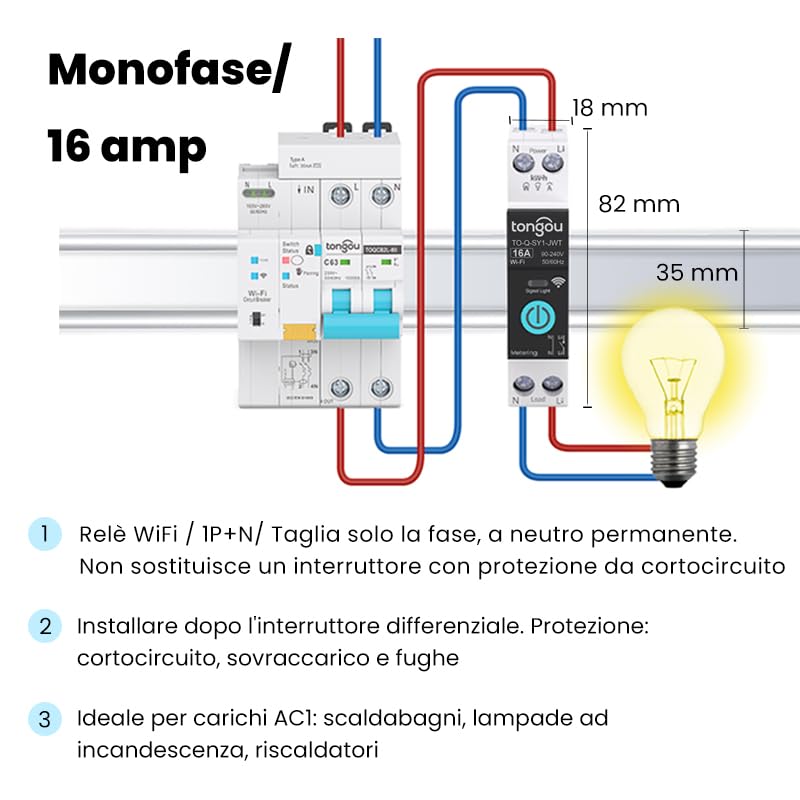
Figure 5.1: Wiring diagram for the Tongou Smart WiFi DIN Rail Switch. Connect the phase (L) and neutral (N) wires as indicated. This switch is for single-phase systems and handles up to 16 Amps. It should be installed after a differential switch for safety.
Akiyesi: This switch is ideal for AC loads such as water heaters, incandescent lamps, and heaters.
5.2. App Sisopọ
To control the switch remotely, you need to pair it with the Tuya Smart or Smart Life app.
- Ṣe igbasilẹ ohun elo naa: Ṣe ìgbàsókè àpù "Smart Life" tàbí "Tuya Smart" láti inú App Store (iOS) tàbí Google Play Store (Android).
- Forukọsilẹ/Wọle: Ṣii app naa ki o forukọsilẹ fun akọọlẹ tuntun tabi wọle ti o ba ti ni ọkan tẹlẹ.
- Fi ẹrọ kun: Ensure your smartphone is connected to a 2.4 GHz Wi-Fi network. Power on the smart switch. The Wi-Fi indicator on the switch should be blinking rapidly (refer to the switch's LED indicator guide for pairing mode). In the app, tap "+" or "Add Device" and select the appropriate device type (e.g., "Switch (Wi-Fi)").
- Confirm Pairing Mode: Rí i dájú pé ìmọ́lẹ̀ àmì náà ń tàn kánkán nínú àpù náà.
- Tẹ awọn alaye Wi-Fi sii: Tẹ ọrọ igbaniwọle nẹtiwọọki Wi-Fi 2.4 GHz rẹ sii.
- Sopọ: The app will begin connecting to the device. Once connected, you can rename the switch and assign it to a room.
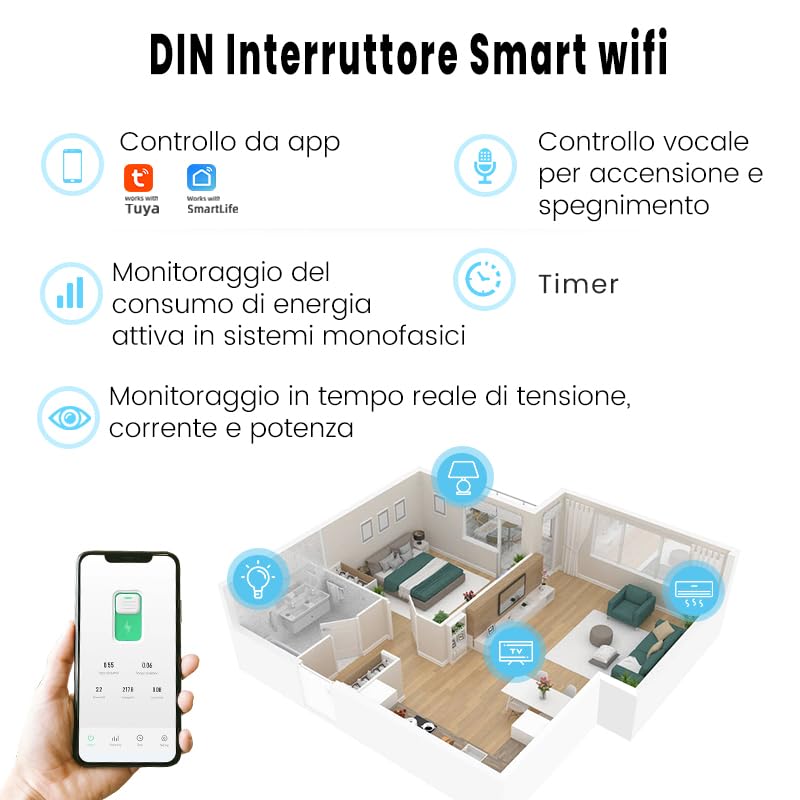
Olusin 5.2: Pariview of the smart switch features, including control via Tuya/Smart Life app, voice control, energy monitoring, and timer functions.
6. Awọn ilana Iṣiṣẹ
6.1. Iṣakoso Afowoyi
The switch features a physical button on its front panel. Press this button once to manually turn the connected appliance ON or OFF.
6.2. App Iṣakoso
After successful pairing, open the Tuya Smart or Smart Life app. Select your switch from the device list. You can then:
- Toggle the switch ON/OFF remotely.
- Access energy consumption data.
- Set up schedules and timers.
- Configure automation rules.
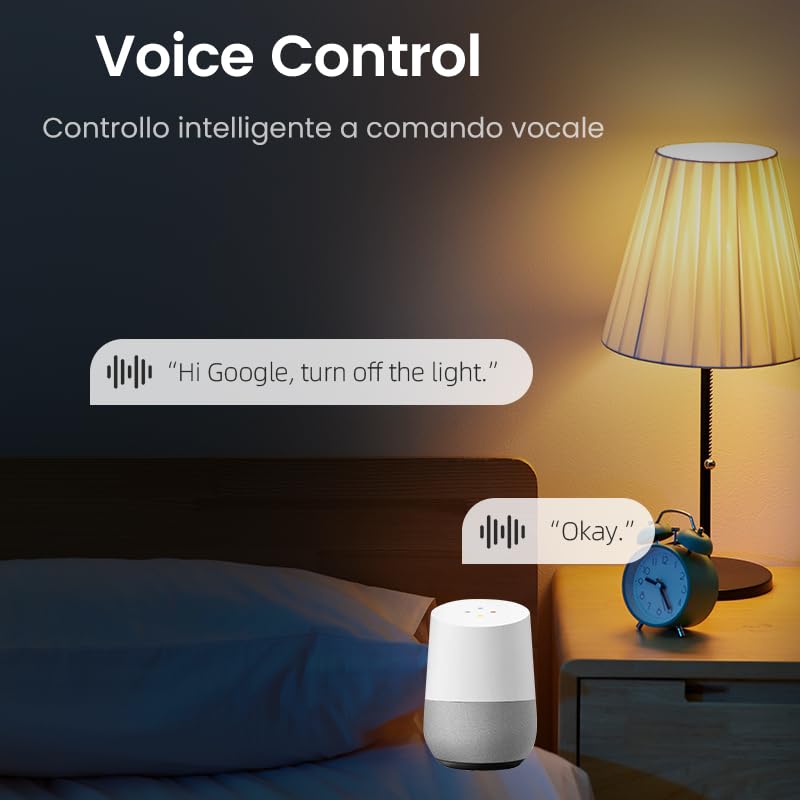
6.3. Iṣakoso ohun
The switch is compatible with Amazon Alexa and Google Assistant. To enable voice control:
- Link your Tuya Smart or Smart Life account to your Amazon Alexa or Google Home app.
- Discover devices in your voice assistant app.
- Use voice commands such as: "Alexa, turn on [Device Name]" or "Hey Google, turn off [Device Name]".

Olusin 6.1: Example of using voice commands with a smart assistant to control the switch.
6.4. Awọn iṣẹ Aago
The app provides various timer modes to automate your appliances:
- Schedule Timer: Set specific ON/OFF times for different days of the week.
- Aago kika: Set a duration after which the switch will turn ON or OFF.
- Àkókò Ìyípo: Configure repetitive ON/OFF cycles.
- Àkókò Ìràwọ̀: Automate based on sunrise and sunset times in your location.
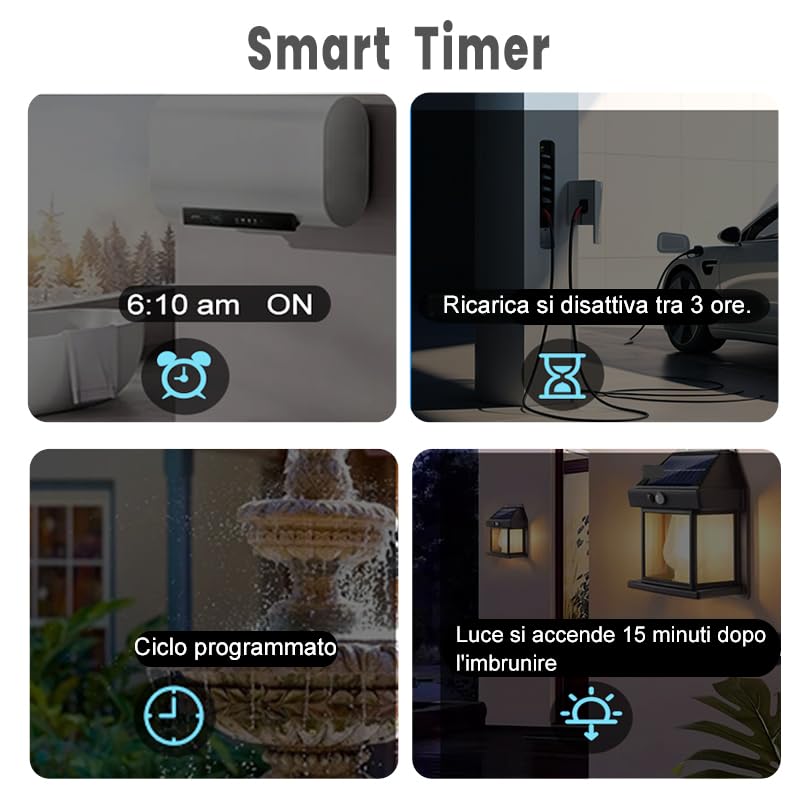
Figure 6.2: Visual representation of various smart timer functions available in the app.
6.5. Agbara Abojuto
The switch provides real-time and historical energy consumption data. Access this feature within the app to:
- View agbara fifuye akoko gidi, voltage, ati agbara.
- Review historical power consumption records by hour, day, month, and year.
- Analyze energy usage patterns to optimize consumption.
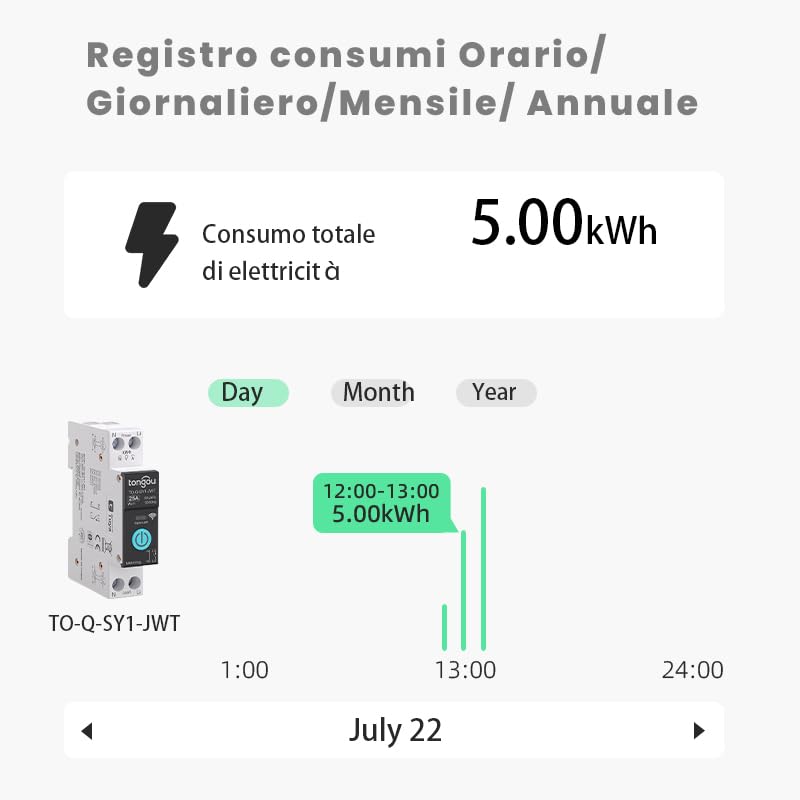
Olusin 6.3: Example of the energy consumption log interface, displaying total electricity consumption over various time periods.
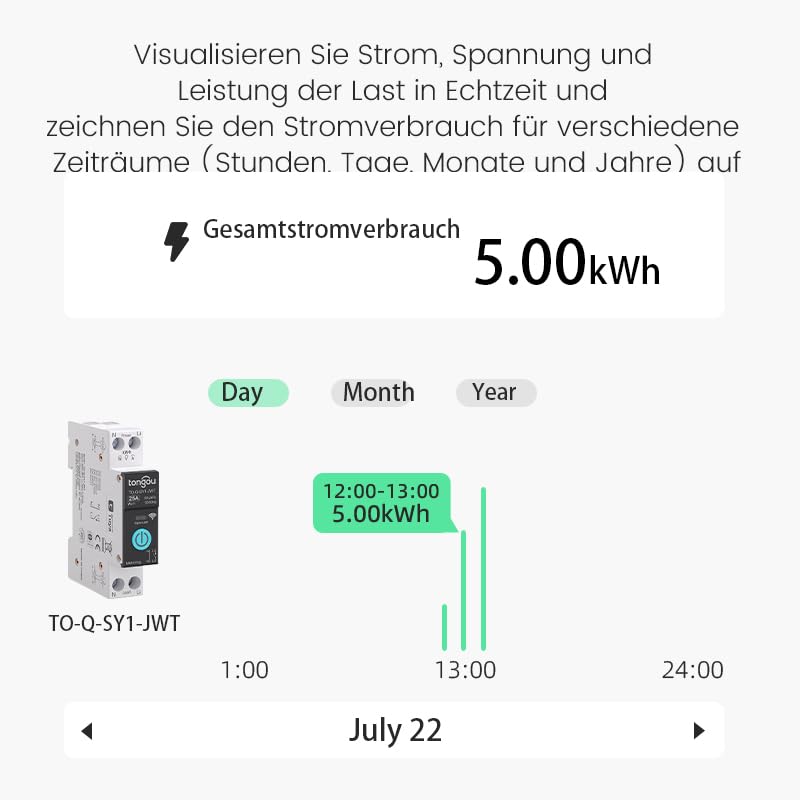
Figure 6.4: Real-time visualization of current, voltage, and power load, with historical consumption records.
7. Itọju
The Tongou Smart WiFi Switch requires minimal maintenance. Follow these guidelines:
- Ninu: Ensure the device is powered off before cleaning. Use a dry, soft cloth to wipe the exterior. Do not use liquid cleaners or solvents.
- Awọn imudojuiwọn famuwia: Periodically check the Tuya Smart or Smart Life app for available firmware updates for your device. Updates can improve performance and add new features.
- Awọn ipo Ayika: Operate the device within its specified temperature range (up to 80°C) and avoid humid environments.
8. Laasigbotitusita
| Isoro | Owun to le Fa | Ojutu |
|---|---|---|
| Ẹrọ ko sopọ si Wi-Fi. | Incorrect Wi-Fi password, 5GHz Wi-Fi network, device too far from router, Wi-Fi signal interference. |
|
| App Iṣakoso jẹ dásí. | No internet connection on phone or switch, app glitch. |
|
| Iṣakoso ohun ko ṣiṣẹ. | Account not linked, device not discovered, incorrect commands. |
|
| Energy monitoring data is inaccurate or missing. | Improper wiring, device malfunction. |
|
9. Atilẹyin ọja ati Support
For warranty information, please refer to the documentation provided with your purchase or contact your retailer. For technical support or further assistance, please contact HIVAGI INTERNATIONAL, the importer and packer of this product.
- Olukowọle/Apoti: Àgbáyé HIVAGI
- Webojula: www.hivagi.in
- Itọju Onibara: +91 90232 97428


