1. Ọja Ipariview
The UNV NVR302-16E2 is a high-performance Network Video Recorder (NVR) designed for advanced surveillance systems. It supports 4K resolution recording and playback, offering robust video management capabilities for up to 32 channels. This NVR is compatible with various camera protocols, including ONVIF, and features Ultra H.265 compression for efficient storage.
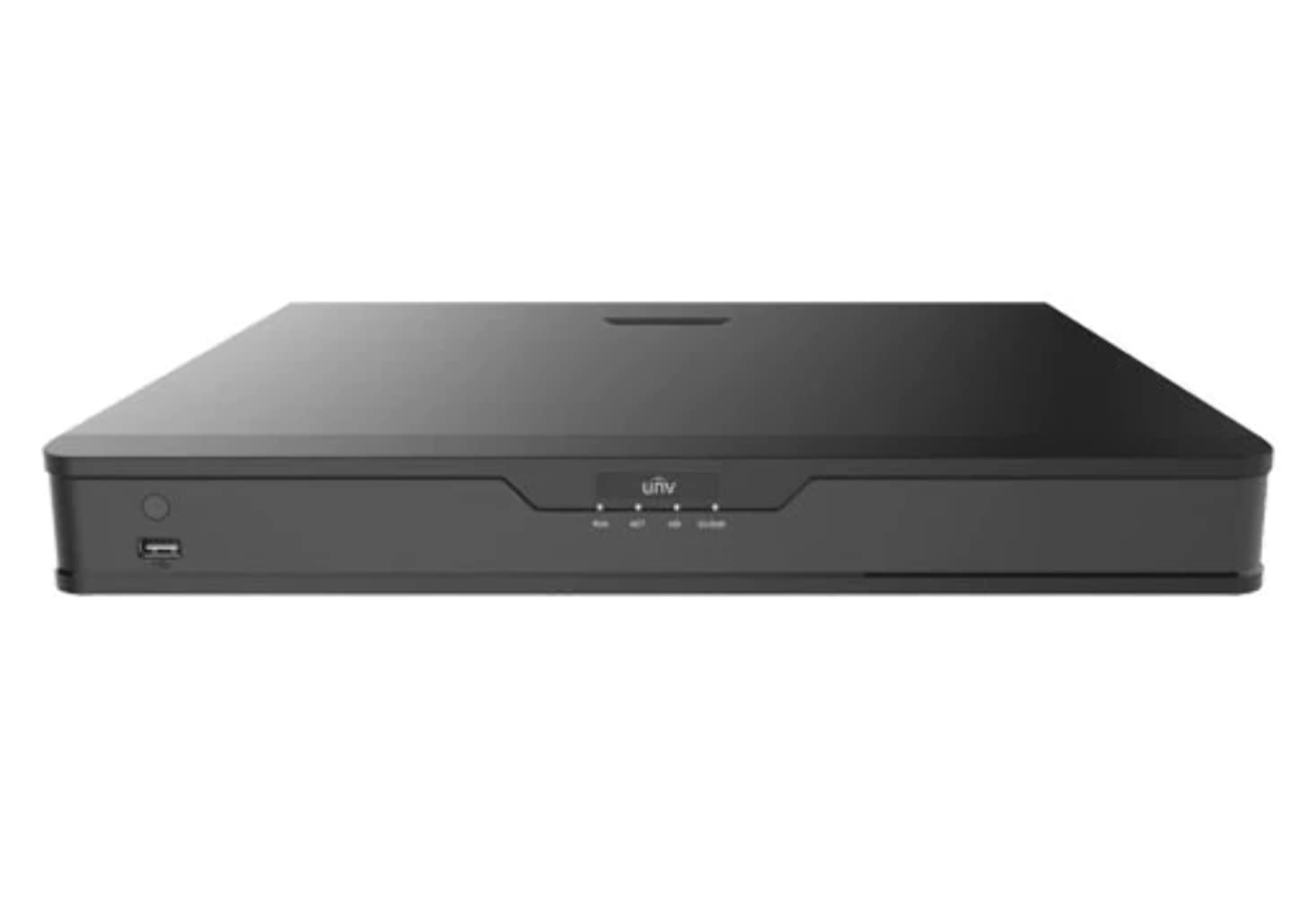
olusin 1: Iwaju view of the UNV NVR302-16E2 4K NVR. The front panel includes a power button, a USB port, and indicator lights for power, HDD activity, network status, and alarm.
2. Key Awọn ẹya ara ẹrọ
- Supports Ultra H.265/H.265/H.264 video formats for efficient compression.
- 8/16-channel input with Plug & Play functionality via independent PoE network interfaces.
- Compatibility with mainstream cameras supporting ONVIF conformance (Profile S, Profile G, Profile T) and RTSP protocols.
- Equipped with 1-channel HDMI and 1-channel VGA outputs, with HDMI supporting up to 4K (3840x2160) resolution.
- Independent HDMI and VGA outputs for flexible display options.
- Supports recording resolutions up to 12 Megapixels.
- Accommodates 2 SATA HDDs, with support for up to 10TB per HDD.
- Features various fisheye dewarping modes for live view and playback, accessible via both web interface and GUI.
- Incorporates ANR (Automatic Network Replenishment) technology to enhance storage reliability during network disconnections.
- Supports cloud upgrade for convenient firmware updates.
3. Package Awọn akoonu
Please check the package contents upon unboxing. If any items are missing or damaged, contact your vendor immediately.
- UNV NVR302-16E2 NVR Unit
- Adapter agbara
- Asin USB
- SATA Data Cables (for HDD installation)
- HDD iṣagbesori skru
- Quick Bẹrẹ Itọsọna
4. Eto
4.1 Fifi sori ti ara
- Fifi sori HDD:
Unscrew and remove the NVR cover. Securely mount the SATA hard disk drives (HDDs) into the designated bays using the provided screws. Connect the SATA data and power cables from the NVR motherboard to the HDDs. Replace the NVR cover and secure it with screws.
- Asopọmọra Ifihan:
Connect a monitor to the NVR's HDMI or VGA output port using a compatible cable.
- So Asin:
So asin USB pọ mọ ọkan ninu awọn ibudo USB ti NVR.
- So Nẹtiwọọki pọ:
Connect an Ethernet cable from the NVR's LAN port to your network router or switch.
- Sopọ Awọn kamẹra:
For PoE cameras, connect them directly to the NVR's independent PoE ports. For non-PoE cameras, ensure they are connected to the same network as the NVR and powered separately.
- So agbara:
So ohun ti nmu badọgba agbara pọ si titẹ agbara NVR ati lẹhinna pulọọgi sinu iṣan agbara kan. NVR yoo ṣiṣẹ laifọwọyi.
4.2 Iṣeto ni ibẹrẹ
Upon the first boot, the NVR will guide you through an initial setup wizard. Follow the on-screen prompts to configure essential settings.
- Ṣeto Ọrọigbaniwọle Alakoso: Create a strong password for the 'admin' user. This is crucial for security.
- Eto nẹtiwọki: Configure the NVR's IP address (DHCP or Static IP). Ensure it is on the same network as your cameras for proper communication.
- Ọjọ ati Aago: Ṣeto ọjọ ti o pe, aago, ati agbegbe aago.
- Ibẹrẹ HDD: The NVR will prompt you to initialize (format) the newly installed HDDs. This step is necessary before recording can begin.
- Wa kamẹra ati Fikun-un: The NVR will automatically search for connected cameras. Select and add the cameras you wish to manage.
5. Ṣiṣẹ NVR
5.1 Live View
Lẹhin iṣeto, NVR yoo ṣafihan ifiwe view àwọn kámẹ́rà tí a so pọ̀. O le yípadà láàrín kámẹ́rà kan ṣoṣo view, àkójọpọ̀ kámẹ́rà púpọ̀ view, and customize the display layout.
- Aṣayan ikanni: Click on a channel window to select it.
- Iṣakoso PTZ: If using PTZ cameras, use the on-screen controls or joystick (if connected) to pan, tilt, and zoom.
- Sisisẹsẹhin lẹsẹkẹsẹ: Right-click on a channel and select "Instant Playback" to view to šẹšẹ gbigbasilẹ.
5.2 Gbigbasilẹ Management
The NVR supports various recording modes.
- Gbigbasilẹ Eto: Configure recording schedules based on time, day, and event (e.g., motion detection).
- Gbigba Iwari išipopada: Ṣeto awọn agbegbe wiwa išipopada ati ifamọ fun kamẹra kọọkan lati fa gbigbasilẹ nikan nigbati a ba rii gbigbe.
- Gbigbasilẹ pẹlu ọwọ: Start or stop recording manually from the live view ni wiwo.
5.3 Sisisẹsẹhin
Wiwọle gba silẹ footage for review.
- Navigate to the "Playback" menu.
- Select the camera(s) and date/time range for playback.
- Lo aago akoko lati lilö kiri nipasẹ awọn igbasilẹ.
- Options include fast forward, rewind, pause, and frame-by-frame playback.
5.4 Afẹyinti
Export recorded video clips to an external USB drive.
- Insert a USB flash drive into the NVR's USB port.
- Go to the "Backup" menu.
- Select the camera, time range, and desired video format for export.
- Start the backup process.
5.5 Latọna wiwọle
Wọle si NVR rẹ lati ọna jijin nipasẹ web ẹ̀rọ lilọ kiri ayelujara tabi ohun elo alagbeka.
- Web Aṣàwákiri: Enter the NVR's IP address into a web aṣàwákiri lórí kọ̀ǹpútà tí a so mọ́ nẹ́tíwọ́ọ̀kì kan náà. Wọlé pẹ̀lú àwọn ìwé ẹ̀rí rẹ.
- Ohun elo Alagbeka: Download the official Uniview mobile application (e.g., EZView). Register an account, add your NVR by scanning the QR code or entering its serial number, and view live feeds or playback remotely.
6. Itọju
6.1 famuwia imudojuiwọn
Regularly check for and install firmware updates to ensure optimal performance, security, and access to new features. Updates can typically be performed via the NVR's web interface or local GUI, often with cloud upgrade support.
6.2 HDD Management
Monitor the health and status of your hard drives. The NVR provides tools to check HDD status, format drives, and configure overwrite settings when storage is full.
6.3 System Wọle
Review system logs for any errors, warnings, or important events. This can assist in troubleshooting and system monitoring.
7. Laasigbotitusita
| Isoro | Owun to le Fa | Ojutu |
|---|---|---|
| Ko si abajade fidio lori atẹle. | Loose cable connection; incorrect display resolution; NVR not powered on. | Check HDMI/VGA cable connections. Ensure NVR is powered. Try a different monitor or cable. Adjust NVR output resolution if possible. |
| Cameras not displaying. | Network issue; incorrect camera IP; camera not powered; camera not added to NVR. | Verify network connectivity. Ensure cameras are powered. Check camera IP addresses and add them to the NVR if not already done. |
| Ko le wọle si NVR latọna jijin. | Network configuration issue (port forwarding, DDNS); NVR offline; incorrect credentials. | Verify NVR's network settings. Ensure necessary ports are forwarded on your router. Check internet connection. Confirm login credentials. |
| Ko si gbigbasilẹ. | HDD not initialized or full; recording schedule not set; camera not recording. | Initialize the HDD. Check recording schedules and ensure they are active. Verify camera status and ensure it's configured to record. |
8. Awọn pato
| Ẹya ara ẹrọ | Ẹ̀kúnrẹ́rẹ́ |
|---|---|
| Nọmba awoṣe | NVR302-16E2 |
| Awọn ọna kika fidio ni atilẹyin | Ultra H.265 / H.265 / H.264 |
| Iwọle ikanni | 8/16-channel (with independent PoE interfaces) |
| HDMI Ijade | 1-channel, up to 4K (3840x2160) resolution |
| Ifihan VGA | 1-ikanni |
| Ipinnu Gbigbasilẹ to pọju | Titi di awọn megapixels 12 |
| Àtìlẹ́yìn HDD | 2 SATA HDDs, up to 10TB each (20TB total) |
| Asopọmọra Technology | HDMI, VGA, Ethernet, USB |
| Awọn ẹrọ ibaramu | IP Cameras (ONVIF Profile S, G, T; RTSP) |
| Ọja Mefa | 18 x 14 x 4 inches (45.72 x 35.56 x 10.16 cm) |
| Iwọn Nkan | 3.97 poun (1.8 kg) |
| Olupese | Uniview |
9. Atilẹyin ọja ati Support
Uniview products typically come with a limited manufacturer's warranty. For specific warranty terms and conditions, please refer to the warranty card included with your product or visit the official Uniview webojula.
For technical support, troubleshooting assistance, or service inquiries, please contact Uniview customer support through their official channels. You can usually find contact information, FAQs, and support resources on the Uniview webAaye (www.uniview.com).
Awọn iwe aṣẹ ti o jọmọ - NVR302-16E2
 |
Troubleshoot Uniview NVR Two-Way Audio Issues | Uniview Atilẹyin Comprehensive guide to troubleshoot and resolve two-way audio problems on Uniview NVRs and cameras. Includes steps for web interface, mobile app, and NVR GUI. |
 |
Uniview Network Video Recorder Quick Guide Itọsọna kiakia fun Uniview Network Video Recorders (NVRs), covering device indicators, interface ports, disk installation for various HDD configurations (1, 2, 4, 8, 9, 16-bay), startup and shutdown procedures, local operations like adding IP devices and playback, UNV-Link mobile app usage, web login, and essential safety warnings, disclaimers, and regulatory compliance information. |
 |
Bii o ṣe le Yi Uniview Awọn Eto Aago NVR Itọsọna igbese-nipasẹ-igbesẹ lori bi o ṣe le ṣatunṣe akoko ati awọn eto ọjọ fun Uniview Awọn Agbohunsile Fidio Nẹtiwọọki (NVRs) ni lilo awọn ọna oriṣiriṣi pẹlu web ni wiwo, wiwọle atẹle taara, sọfitiwia EZTools, ati awọn ohun elo alagbeka bii EZView ati UNV-Link. |
 |
Uniview XVR301-G3 Series Digital Video Recorder: NDAA Compliant Datasheet Comprehensive datasheet for the Uniview XVR301-G3 Series Digital Video Recorder, including models XVR301-04G3, XVR301-08G3, and XVR301-16G3. Details features, specifications, connectivity, and compliance. |
 |
Uniview 2021 Product Guide: Network Cameras, NVRs, VMS & Security Solutions Discover the comprehensive Uniview 2021 Product Guide, detailing a wide array of professional video surveillance solutions. This guide covers Network Cameras, NVRs, VMS, Professional Storage, Display & Control systems, and Accessories, featuring advanced technologies like LightHunter and PixelSense. Find detailed specifications and model information for Easy, Prime, and Pro series products, suitable for various applications from residential security to large-scale enterprise deployments. |
 |
NVR-B3601.33.45.221212 Release Notes - Zhejiang Uniview Awọn imọ-ẹrọ Official release notes for Zhejiang Uniview Technologies' NVR-B3601.33.45.221212 Network Video Recorder software, detailing version information, new features, changes, and upgrade procedures. |