1. Ọja Ipariview
The XYAB Ultimate NGC Joystick Controller is designed to provide a responsive and comfortable gaming experience for Nintendo GameCube and Nintendo Wii consoles. This controller features a classic layout with sensitive optical joystick sensors and a durable 5-foot cable.
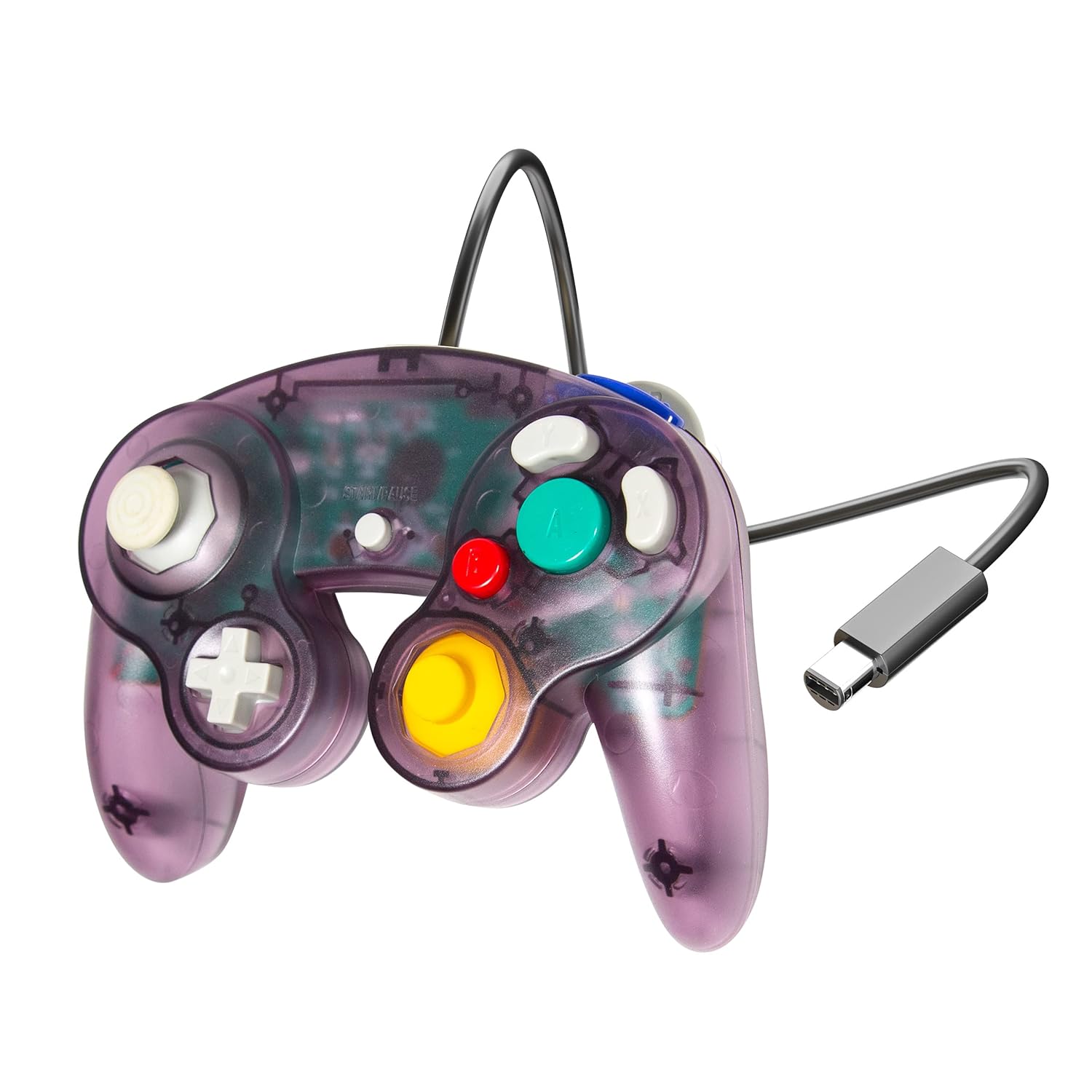
Image 1.1: XYAB Ultimate NGC Joystick Controller (Atomic Purple)
This image displays the XYAB Ultimate NGC Joystick Controller in its Atomic Purple translucent casing, showcasing the main control stick, C-stick, D-pad, and action buttons (A, B, X, Y, Z, L, R, Start/Pause). The controller's wired connection with a standard GameCube connector is visible.
Awọn ẹya pataki:
- Responsive Controls: Equipped with sensitive optical joystick sensors for precise input.
- Ibamu gbooro: Compatible with Nintendo GameCube and Nintendo Wii consoles.
- USB ti o gbooro sii: Features a 5-foot cable for flexible gaming setups.
- Apẹrẹ Alailẹgbẹ: Ergonomic design for comfortable use during extended play sessions.
2. Awọn ilana iṣeto
Follow these steps to connect your XYAB Ultimate NGC Joystick Controller to your console.
Connecting to Nintendo GameCube:
- Locate an available controller port on the front of your Nintendo GameCube console.
- Align the GameCube connector of the XYAB controller with the port.
- Gently push the connector into the port until it clicks securely into place.
- Power on your GameCube console. The controller is now ready for use.
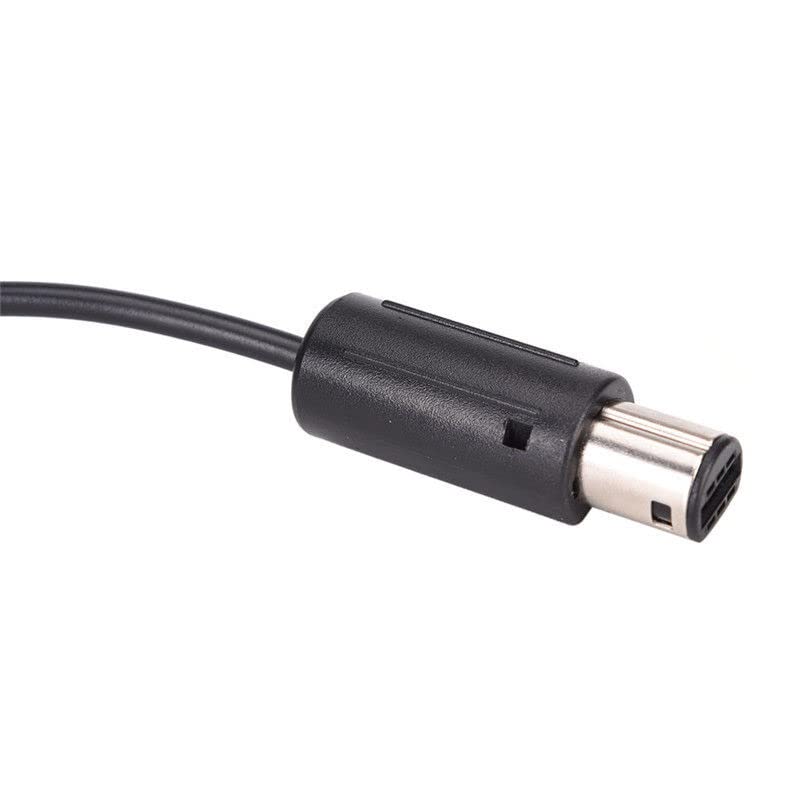
Image 2.1: GameCube Controller Connector
This image shows a close-up of the standard GameCube controller connector, which plugs directly into the console's controller port.
Connecting to Nintendo Wii:
- Open the GameCube controller port cover located on the top side of your Nintendo Wii console (when oriented horizontally).
- Locate an available controller port.
- Align the GameCube connector of the XYAB controller with the port.
- Gently push the connector into the port until it clicks securely into place.
- Power on your Wii console. The controller is now ready for use with compatible GameCube titles or Virtual Console games that support GameCube controllers.
Using with Nintendo Wii U or Nintendo Switch:
To use this controller with a Nintendo Wii U or Nintendo Switch console, a separate GameCube Controller adapter (sold separately) is required. Refer to the adapter's instruction manual for specific setup procedures.
3. Awọn ilana Iṣiṣẹ
The XYAB Ultimate NGC Joystick Controller features the standard button layout of a Nintendo GameCube controller.
Ilana Alakoso:
- Control Stick (Left Analog Stick): Used for primary movement and navigation.
- C-Stick (Right Analog Stick): Often used for camera control or specific in-game actions.
- D-Pad (Pad ìtọ́sọ́nà): Used for menu navigation or specific directional inputs.
- A Button (Large Green): Primary action button, typically for confirmation or main attacks.
- B Button (Small Red): Secondary action button, often for canceling or secondary attacks.
- X Button (Gray): Auxiliary action button.
- Y Button (Gray): Auxiliary action button.
- Z Button (Purple, Top Right Shoulder): Often used for specific in-game functions.
- L Button (Left Shoulder): Analog trigger, often used for shielding or aiming.
- R Button (Right Shoulder): Analog trigger, often used for shielding or aiming.
- Start/Pause Button (Center): Used to pause games or access in-game menus.
Refer to your game's specific instruction manual for detailed button assignments and controls.
4. Itọju ati Itọju
Proper care will extend the life of your controller.
Ninu:
- Disconnect the controller from the console before cleaning.
- Lo aṣọ rirọ ati gbigbẹ lati nu oju ẹrọ iṣakoso naa.
- Fun idoti agidi, fẹẹrẹ dampen awọn asọ pẹlu omi. Yẹra fun lilo awọn kẹmika lile tabi awọn afọmọ abrasive.
- Do not allow liquids to enter the controller's internal components.
Ibi ipamọ:
- Tọju olutọju naa ni itura, aye gbigbẹ kuro lati orun taara ati awọn iwọn otutu to gaju.
- Yẹra fún dídì okùn náà mọ́ ara rẹ̀ dáadáa jù láti dènà kí okùn náà má baà ba.
- Keep the controller away from dust and debris when not in use.
5. Laasigbotitusita
If you encounter issues with your controller, try the following solutions.
Alakoso Ko Dahun:
- Ensure the controller cable is securely plugged into the console's GameCube controller port.
- Try plugging the controller into a different GameCube controller port on the console.
- Restart your console and try again.
- Test the controller with a different game to rule out game-specific issues.
Buttons or Joysticks Not Working Correctly:
- Check for any visible obstructions or debris around the buttons or joysticks.
- Ensure the controller is clean (refer to the Maintenance section).
- If a joystick is exhibiting drift or incorrect input, it may indicate wear. Consider recalibrating if your console or game offers such an option, or contact support if the issue persists.
Awọn oran ibamu:
- Confirm that the game you are playing supports GameCube controllers. Not all Wii games support GameCube controllers.
- For Wii U or Switch, ensure you are using a compatible GameCube Controller adapter and that it is correctly installed and configured.
6. Awọn pato
| Ẹya ara ẹrọ | Ẹ̀kúnrẹ́rẹ́ |
|---|---|
| Awoṣe | Ultimate NGC Joystick Controller |
| Brand | XYAB |
| Ibamu | Nintendo GameCube, Nintendo Wii (GameCube compatible titles) |
| Asopọmọra | Wired (GameCube connector) |
| USB Ipari | ẹsẹ 5 (isunmọ awọn mita 1.5) |
| Ọja Mefa | 7.5 x 2.5 x 8 inches (19.05 x 6.35 x 20.32 cm) |
| Iwọn Nkan | 8.5 iwon (240.97 giramu) |
| Àwọ̀ | Atomic Purple |
7. Atilẹyin ọja ati Support
Alaye Atilẹyin ọja:
This product is covered by a limited warranty against manufacturing defects. Please retain your proof of purchase for warranty claims. Specific warranty terms and duration may vary by region and retailer. For detailed warranty information, please refer to the documentation provided at the time of purchase or contact customer support.
Atilẹyin Onibara:
If you have any questions, require technical assistance, or need to report an issue with your XYAB Ultimate NGC Joystick Controller, please contact our customer support team. Contact information can typically be found on the product packaging or the official XYAB webojula.


